
Spreadsheet work is hard on a keyboard. Hours of number-pad entry, formula typing, keyboard-shortcut chords, and — in 2026 — natural-language Copilot prompts mean the wrong keyboard turns the workday into a wrist-and-finger grind. The ten picks below cover the trade-offs that matter for Excel users specifically: full-size layout, key feel, ergonomics, and programmability.
Some links on this page are affiliate links. As an Amazon Associate / affiliate, excel.tv earns from qualifying purchases.
What we look for. Full-size or 96-key layout with a dedicated number pad (non-negotiable for data entry), key feel that holds up through a full workday, and either programmable keys or comfortable shortcut chords. Backlighting, wireless, and ergonomic split are nice-to-haves that distinguish the top picks.
New for 2026. Copilot prompts mean more natural-language typing alongside number entry. A keyboard that’s great for numbers but bad for prose typing now penalises you twice. Picks have been re-evaluated against that mixed workload.
At a Glance
| # | Keyboard | Best for | Type | Rating |
|---|---|---|---|---|
| 1 | Logitech MX Keys Combo Gen 2 | All-day productivity with multi-device pairing | Low-profile scissor | 4.2 |
| 2 | EPOMAKER Dareu A98 Pro | Mechanical feel with customisation | Hot-swap mechanical | 4.2 |
| 3 | ProtoArc XK01 Tri-Fold | Mobile Excel work on the road | Foldable scissor | 4.2 |
| 4 | VARMILO CMYK Three-Mode | Premium typing experience | Mechanical | 4.5 |
| 5 | NuPhy Air96 V2 | Slim mechanical with hot-swap | Low-profile mechanical | 4.1 |
| 6 | Logitech MK850 Combo | Wireless combo for multi-device users | Membrane | 4.0 |
| 7 | Microsoft Sculpt Ergonomic | Split-design ergonomics | Ergonomic membrane | 3.8 |
| 8 | Kensington Pro Fit Ergonomic | Wrist support and value | Ergonomic membrane | 3.8 |
| 9 | KLIM Chroma Wireless RGB | Budget RGB pick | Membrane | 3.5 |
| 10 | ProtoArc KM100-A for Mac | Mac users wanting a backlit combo | Scissor | 3.7 |
The Keyboards
Logitech MX Keys Combo for Business — Gen 2
Best for: All-day productivity with multi-device pairing

The default professional pick. Low-profile scissor keys with just enough travel, adaptive backlighting that kicks in when your hands approach, and the ability to switch between three paired devices on the fly — useful when you flip between a work laptop and a personal machine without re-pairing.
Pros:
- Multi-device pairing across three machines, switch with a single key
- Adaptive backlighting that doesn’t waste battery
- Full-size layout including dedicated number pad
Cons:
- No wrist rest in the box
- Limited macro customisation compared to a programmable mechanical
Rating: 4.2/5
EPOMAKER Dareu A98 Pro
Best for: Mechanical feel with customisation
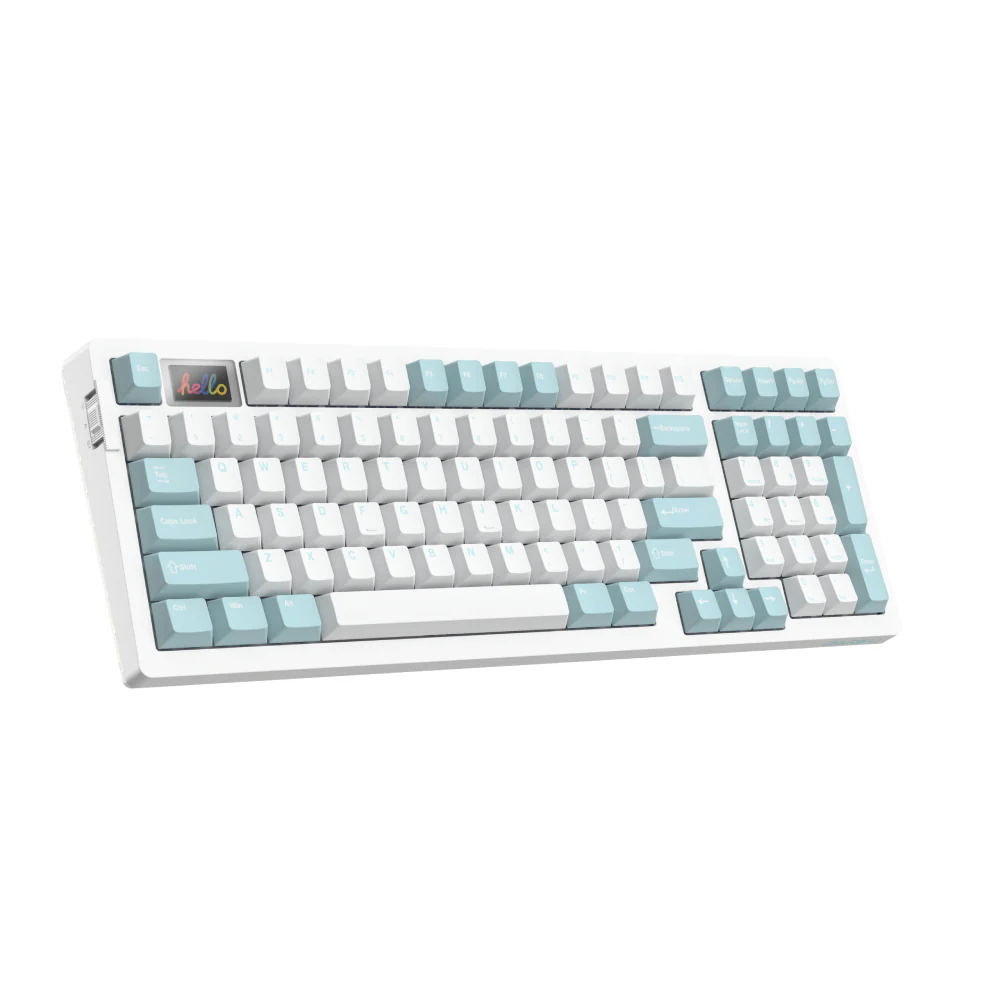
A 96-key compact mechanical with hot-swappable switches, a tiny TFT display, and tri-mode connectivity. The compactness fits a busy desk, the hot-swap means you can change switch feel without buying a new keyboard, and the build holds up to heavy daily typing.
Pros:
- Hot-swappable switches let you change feel without replacing the board
- Customisable RGB lighting and small TFT display
- Tri-mode connectivity (USB, 2.4 GHz, Bluetooth)
Cons:
- No wrist rest included
- No dedicated macro keys — programmable via software, not hardware
Rating: 4.2/5
ProtoArc XK01 Tri-Fold Bluetooth Keyboard
Best for: Mobile Excel work on the road
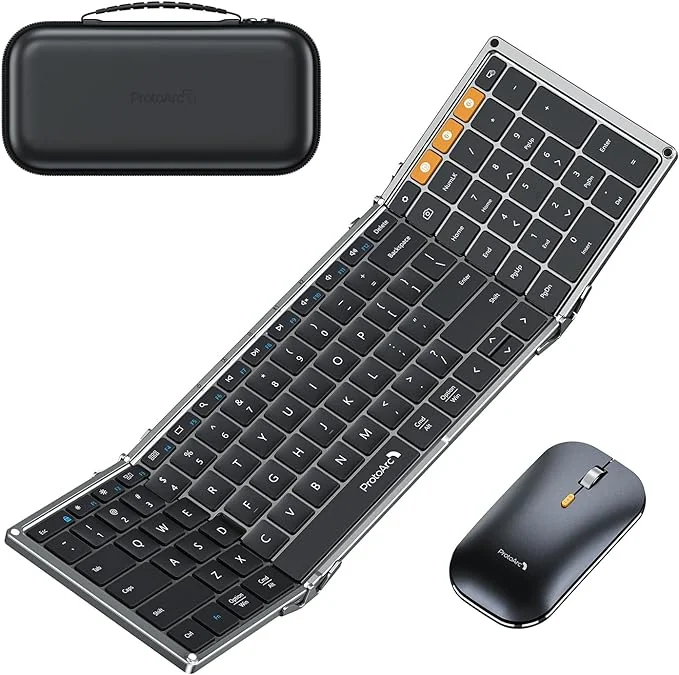
A folding scissor keyboard that disappears into a bag when closed and unfolds to a full-size layout with a real number pad. The only travel keyboard on the list that doesn’t force you to give up data entry.
Pros:
- Folds small enough to live in a laptop bag
- Full-size layout with a numeric keypad once unfolded
- Scissor keys travel cleanly for hotel-desk typing
Cons:
- No backlighting
- Limited programmability — strictly a typing keyboard
Rating: 4.2/5
Varmilo CMYK Three-Mode Mechanical Keyboard
Best for: Premium typing experience
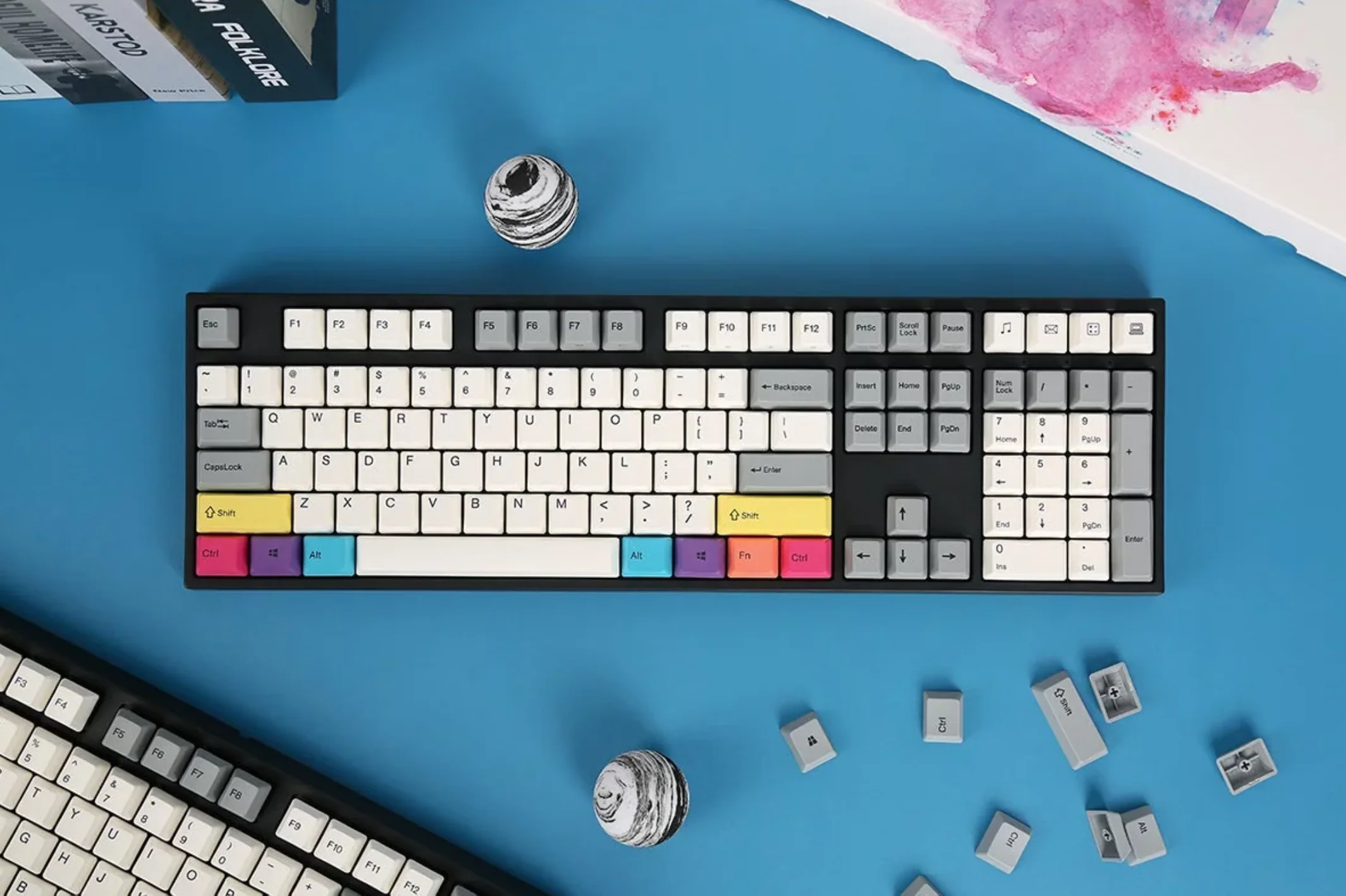
The enthusiast pick on this list. Dye-sublimated PBT keycaps don’t shine or fade, the 108-key layout includes a real number pad, and the build quality survives years of heavy use. If you type for a living and want one keyboard you’ll still love in five years, this is it.
Pros:
- Dye-sub PBT keycaps — won’t fade or develop shine
- Multiple switch options at purchase to match feel preference
- Tri-mode connectivity with seamless device switching
Cons:
- No dedicated macro keys
- No RGB lighting (white backlight only on some variants)
Rating: 4.5/5
NuPhy Air96 V2
Best for: Slim mechanical with hot-swap
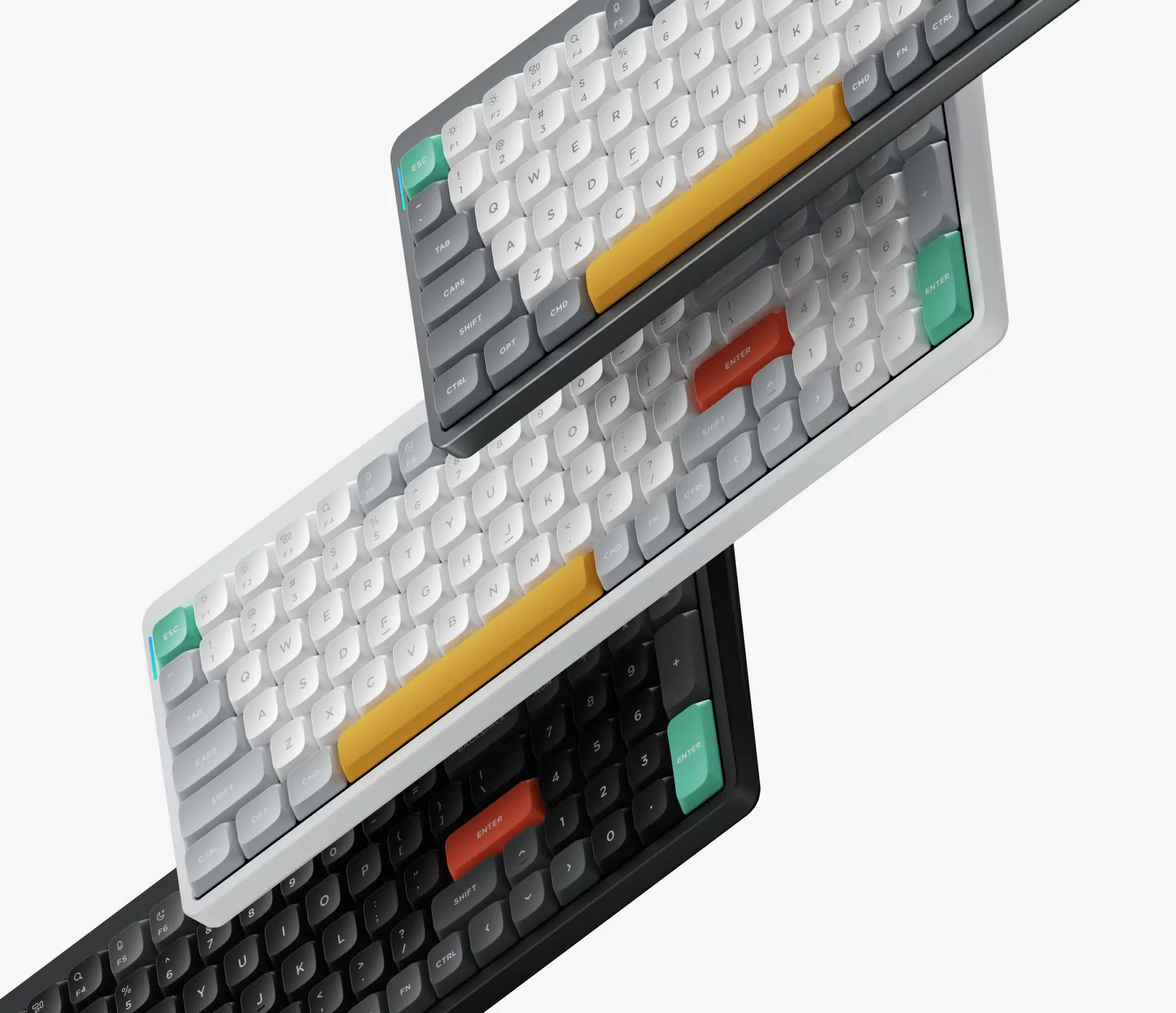
A low-profile mechanical that splits the difference between the MX Keys and a full mechanical. Hot-swappable switches let you tune the feel, the slim chassis travels well, and tri-mode connectivity covers any setup.
Pros:
- Slim mechanical feel — lower travel than most mechanicals
- Hot-swappable switches for tuning the typing feel
- Tri-mode connectivity (USB, 2.4 GHz, Bluetooth)
Cons:
- Wrist rest sold separately
- Limited dedicated macro keys
Rating: 4.1/5
Logitech MK850 Performance Wireless Combo
Best for: Wireless combo for multi-device users
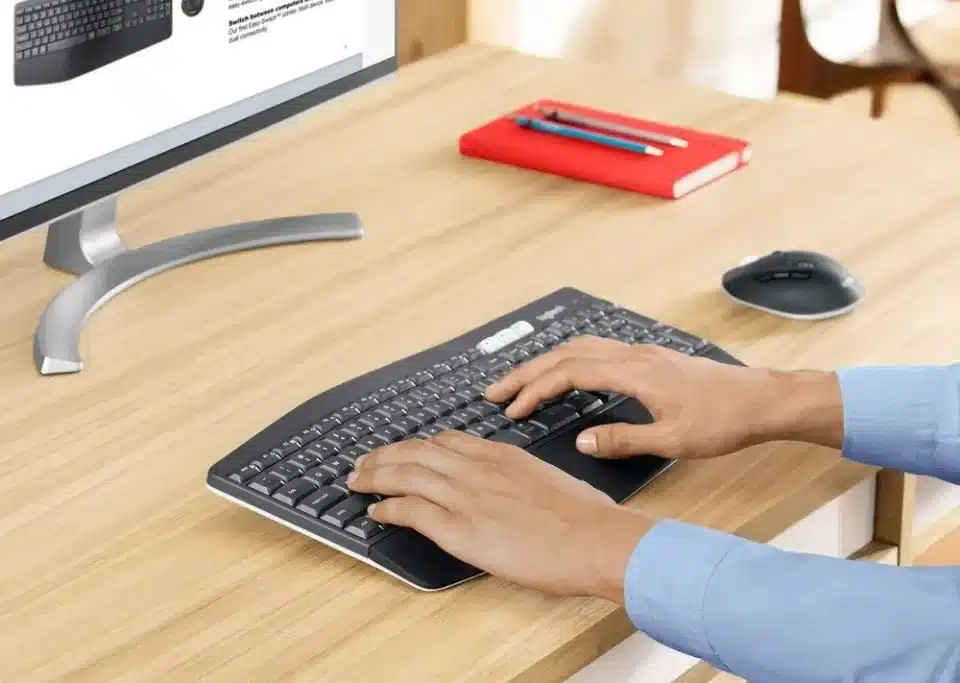
Keyboard and mouse together, comfortable for long sessions, with Logitech’s three-device switching. A budget-friendlier alternative to the MX Keys Combo for anyone who wants the multi-device convenience without the premium price.
Pros:
- Bundled mouse with matching connectivity
- Comfortable curved layout for long sessions
- Switches between three paired devices with one key
Cons:
- Membrane keys feel mushier than the MX Keys’ scissor switches
- No backlighting
Rating: 4.0/5
Microsoft Sculpt Ergonomic Keyboard
Best for: Split-design ergonomics
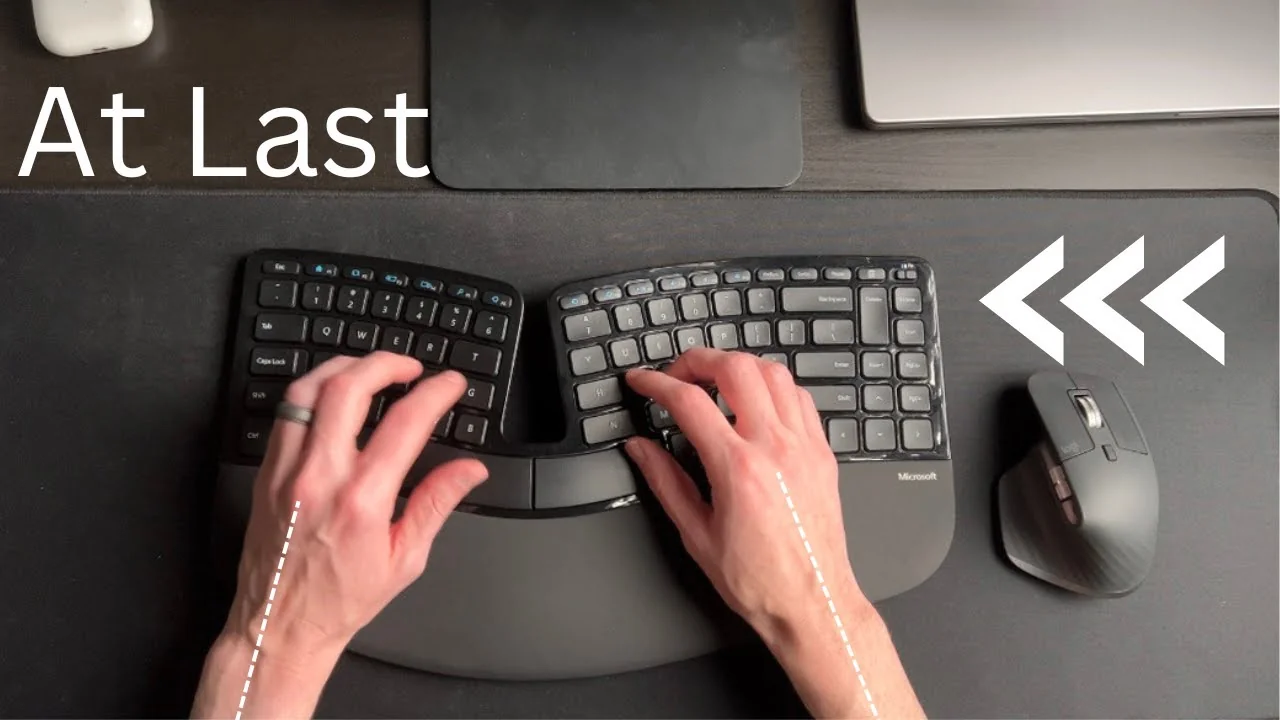
The classic ergonomic pick. Curved, split layout with a cushioned palm rest and a detached number pad you can place wherever your right hand actually lives. Hard to recommend anything else if RSI is your main concern.
Pros:
- Split, curved layout dramatically reduces wrist strain
- Detached number pad — place it wherever you want
- Cushioned wrist support included
Cons:
- Learning curve for the split layout — count on a week of frustration
- No backlighting, dated 2.4 GHz dongle connectivity
Rating: 3.8/5
Kensington Pro Fit Ergonomic Wireless Keyboard and Mouse
Best for: Wrist support and value
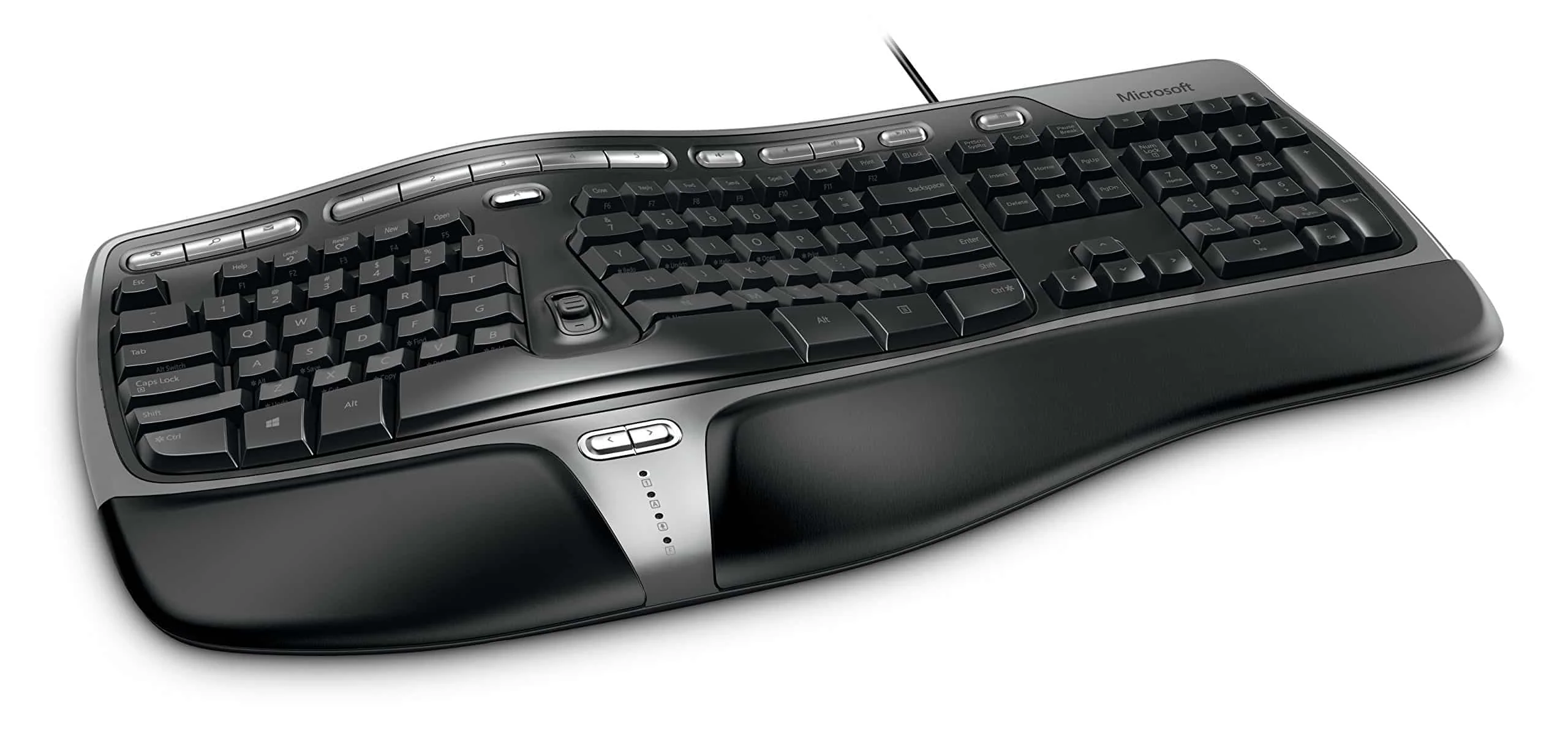
A budget ergonomic combo with integrated wrist rest and a comfortable curved layout. Doesn’t go as deep into the split-key design as the Sculpt, which makes the transition easier if you’re coming from a standard keyboard.
Pros:
- Integrated wrist rest in a single chassis
- Reduces strain noticeably during long sessions
- Bundled mouse keeps the desk consistent
Cons:
- Bulky footprint takes up significant desk space
- Older connectivity — no Bluetooth, USB dongle only
Rating: 3.8/5
KLIM Chroma Wireless Gaming Keyboard RGB
Best for: Budget RGB pick
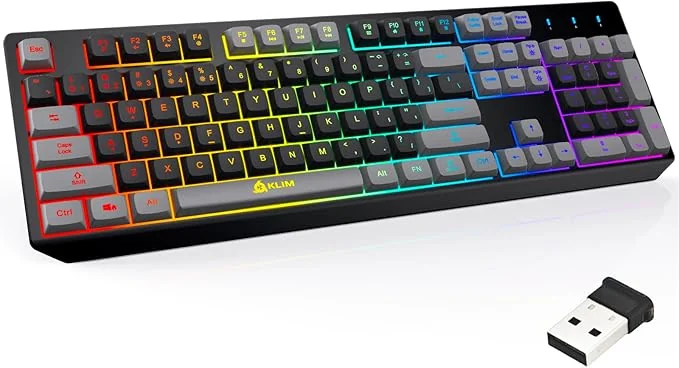
A budget wireless keyboard with full RGB and a rechargeable battery. Membrane keys feel less premium than the picks above, but it works fine for casual Excel use and looks the part for a creator or streamer’s desk.
Pros:
- Rechargeable battery — no AAs to replace
- Water-resistant design forgives spills
- Cheapest pick on the list with full RGB
Cons:
- Non-mechanical keys feel cheaper than the price suggests
- Limited macro customisation
Rating: 3.5/5
ProtoArc KM100-A Backlit Bluetooth Keyboard and Mouse Combo for Mac
Best for: Mac users wanting a backlit combo
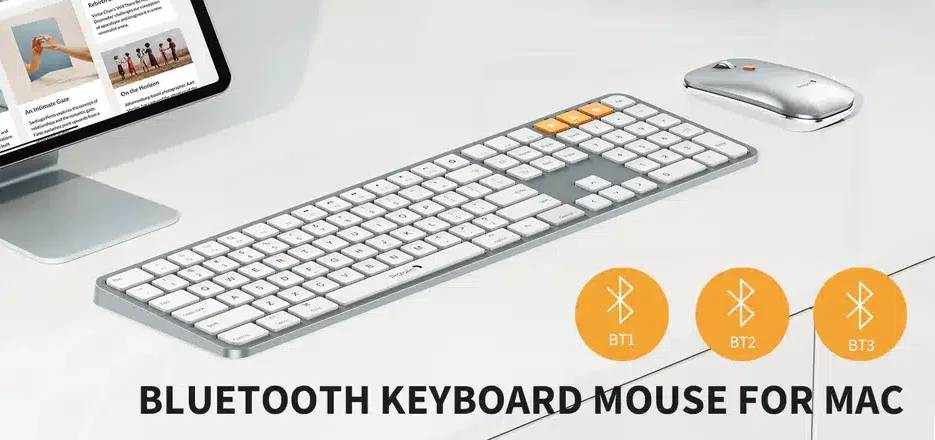
A keyboard-and-mouse combo with Mac-specific layout and backlit keys. The Mac version of Excel has different shortcut conventions than the Windows version, and a Mac-labelled keyboard removes the friction of mental key-mapping.
Pros:
- Backlit keys, useful for late-night work
- Multi-device Bluetooth connectivity
- Mac-specific key labels, no mental remapping
Cons:
- Non-mechanical keys feel softer than the price suggests
- Limited programmable keys
Rating: 3.7/5
How to Choose for Excel Specifically
Number pad is non-negotiable. Excel data entry without a real number pad doubles your input time. Any compact (“65%”) keyboard without a number pad is the wrong tool for spreadsheet work, no matter how good it feels otherwise.
Mechanical vs membrane. Mechanical keyboards last longer, type cleaner, and are easier on the fingers during long sessions — but they’re louder. If you share an open-plan office, scissor-switch keyboards (MX Keys, ProtoArc) give you most of the precision without the click.
Ergonomics over aesthetics. Most Excel users will spend years at their desk. The Sculpt and Kensington picks above will outlast any RGB gaming board on your career arc — wrist health compounds.
Multi-device matters more than ever. Mixed-machine workflows (work laptop, personal laptop, iPad with Excel for iPad) make multi-device pairing a daily convenience, not a feature you forget you have. The MX Keys and MK850 are the strongest options on that dimension.
Frequently Asked Questions
What’s the best keyboard for financial modeling specifically?
A full-size layout with a real number pad (mandatory) plus programmable macro keys for repeated formula patterns. The MX Keys Combo and the Varmilo CMYK both qualify; mechanical types like the Varmilo are easier on the fingers during 8-hour modeling sessions.
Are mechanical keyboards too loud for an office?
Linear and silent-tactile switches are quiet enough for most offices. Loud “clicky” blue switches are not — avoid those if you sit near colleagues. Hot-swap keyboards (Dareu A98, NuPhy Air96) let you change switches later without buying a new board.
Does keyboard size really change Excel productivity?
Yes — compact 65% and 75% keyboards (no number pad) measurably slow down data entry. For Excel specifically, anything below a 96% layout (which keeps the number pad but removes the function-key gap) is a step backward.
Are Logitech MX Keys worth the premium?
For someone who lives in Excel and switches between machines daily, yes. The keyboard itself is comparable to mid-tier alternatives; the multi-device pairing and Logitech Flow ecosystem are what justifies the price.
What about ergonomic keyboards — are they worth the learning curve?
If you already have wrist pain, yes — count on a week of slower typing while you adapt, then permanent improvement after that. If you don’t, a standard keyboard with a separate wrist rest gets you most of the benefit at lower friction.
Mac vs Windows keyboards for Excel?
The Mac version of Excel uses different keyboard shortcut conventions (⌘ instead of Ctrl, different F-key behaviour). A Mac-labelled keyboard removes the mental friction; a Windows-labelled keyboard works fine but requires constant key-mapping in your head.
Bonus: Three Add-Ons Worth the Desk Space
After picking the right keyboard, three small additions disproportionately improve a daily Excel workflow.
Excel shortcuts mouse pad. A large mouse pad with the top 50 Excel shortcuts printed in the corner. Once you’ve stopped reaching for the menu, this is the cheapest way to keep learning new shortcuts in your peripheral vision. On Amazon.
Adjustable laptop stand. Raises a laptop screen to monitor height so your neck stops paying for your spreadsheet hours. LVNTA on Amazon.
Multi-port docking station. One cable to the laptop, all peripherals connected once. The 13-in-1 PowerBear is the most port-dense option in this price range. PowerBear on Amazon.

Comments (14)
Historical comments preserved from the WordPress archive. Commenting is no longer active.
Hey Jordan,
This is very cool! I’m a big fan of Logitech keyboards and looking forward to trying this one out. As an avid Excel user and keyboard shortcut enthusiast, the first thing I see is the lack of a menu key.
I really like Logitech’s K270 keyboard because it has a Menu key for Windows. It looks like Craft has a Fn (function) key instead of a Menu key.
Here is an article I have on the Menu key for Excel. It has a lot of uses for opening the context (right-click) menus. The shortcut I use it for the most is Menu+V to paste values. I’m not sure if/how the Crown would help with the Menu key shortcuts.
Would it ever make sense to have the Crown on the right side, so you could still perform keyboard shortcuts with the left hand?
I’d also prefer to have a dedicated set of media buttons like the K270. The multi-function Fn buttons are more for laptops that have limited real estate.
I feel like a bit of keyboard snob just typing this out… 🙂 I also have an article on the best keyboards for Excel that lists some of the features I look for in an Excel keyboard.
https://www.excelcampus.com/keyboard-shortcuts/best-keyboards-for-excel-keyboard-shortcuts/
With all that said, I’m still looking forward to trying out the Craft. Thanks for sharing! 🙂
I was looking at your pic of the keyboard again and noticed that the Menu key might be in the top right corner above the * key on the numeric keypad. That’s an interesting placement. I can’t really give an opinion until I try it, but nice that it’s at least on the keyboard.
Nice kb to fall in love with. I ‘ll definetly but ons of itgets 12 on the fly programmable keus independant from pc software.
What was the mouse you liked using it with?
Macro buttons would be good. My preference is for quiet keys, others might prefer mechanical keys. Long battery life is important on wireless keyboard, preferable with a standard battery size like AA and preferably be able to recharge it with a common cable like micro USB. Low latency would be good, and definitely needs to avoid any quirks that make it inconvenient to use multi-key shortcuts. Preferably light with non-core components detachable for traveling, while being completely rigid in use and having great grip on the desk. I prefer modest styling.
It will be interesting to see how Logitech implements Excel features into the Crown. I use the dedicated functions keys and the menu key a lot. According to Logitech and Amazon, the Craft keyboard will be bundled with an MX Anywhere 2S mouse which has flow control. The new 2S mouse is available now at Logitech, Amazon, and various retail outlets. Only by using the Craft and 2S mouse will we know if it benefits us in our daily work.
I’m a big fan of programmable keys – Excel is already kind enough to give us the ability to add shortcuts to our VBA projects, but imagine if your keyboard actually had a handful of added keys to allow you to quickly open certain menus or apply a given formula.
The one feature that I LOVE in my current keyboard is that it has a memory to keep up with my keystrokes. I often find that I type too quickly for basic keyboards, and sometimes letters get skipped in my final output. This is one feature that I think any solid office keyboard should have for power users. Hopefully that feature is part of the Craft, even though it was not mentioned in the article.
Not sure what I’d like as I’m just taking the Excel University course to become certified. I’m old school Excel & self-taught so although I have used some features being presented, I have not been using them to their full potential. Super excited to be learning all these methods & keyboard shortcuts & super, super excited to possibly transition to using this keyboard all as part of one learning process! Anything that you can automate would be great because as Jeff says, it’s all about human efficiency and letting Excel do the work!
Best keyboard I found for Excel is a mechanical keyboard.
Since I do most of my work without looking at the keyboard whenever possible, anything that can combine/eliminate keystrokes when entering a formula or accessing functionality is a plus. This article, with the screen recording, has really piqued my interest.
It would be awesome if the crown could become a mini mouse and could scoll left or right by just turning the nob or tap in the middle and scroll up or down.
As a person who lives in Excel the feature I’d most like to see available with a single touch is related to formulas. After tapping the wheel a menu would pop up with easy access to the non-numeric parts of a formula. For example it would show = ( ) / > < and perhaps a couple of others. That functionality would make my life a lot easier and writing long formulas less prone to errors.
Looks good
My Logitech MK550 wireless keyboard and mouse is a pleasure to use, so I can imagine this would be even more so.
But they left the = key out of the far right number pad…hitting function and the ‘enter’ key is clunky and slow.