
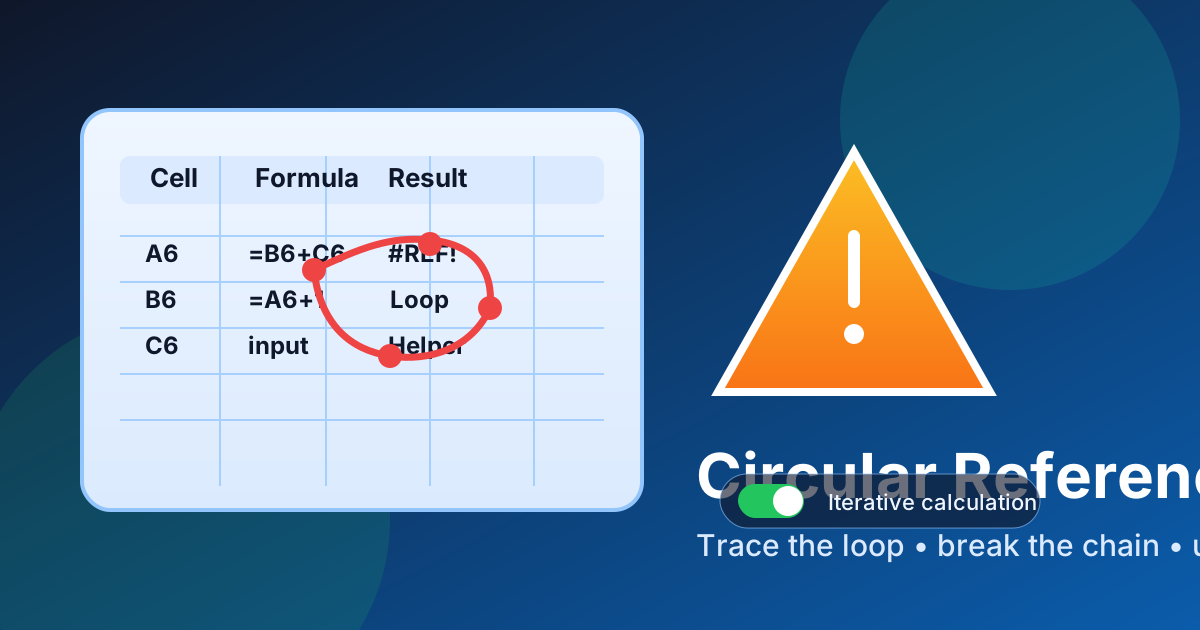
If Excel says you have a circular reference, the short answer is this: one of your formulas points back to itself, so Excel cannot resolve the calculation normally. The fix is usually to trace the loop, separate the input from the formula, and only use iterative calculation when the loop is intentional.

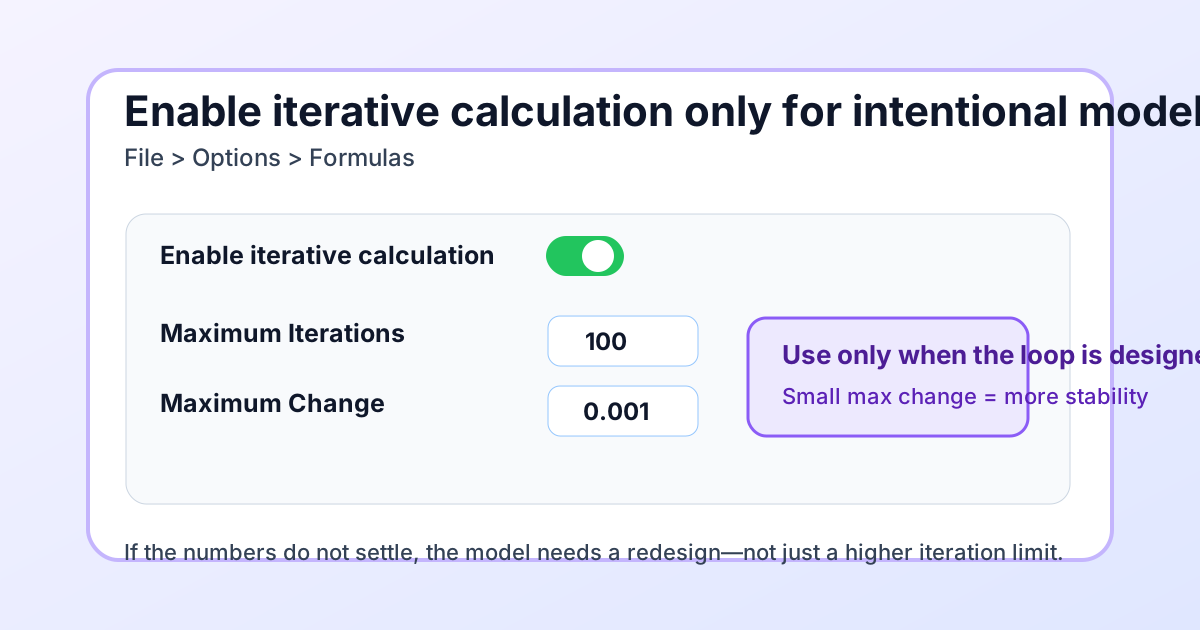
Microsoft default: Excel stops iterative calculation after 100 iterations or when values change by less than 0.001, according to Microsoft’s circular-reference guidance.
Quick answer: go to Formulas > Error Checking > Circular References, jump to the flagged cell, and then use Trace Precedents and Trace Dependents to see which cells feed the loop. If the formula was accidental, break the chain. If the circular reference is part of a model you intentionally designed, turn on iterative calculation and keep the iteration limits conservative.
Key takeaways
The key takeaway is that most circular references are accidental formula loops, not settings problems. Find the flagged cell, trace circular reference paths through its precedents and dependents, and separate inputs from calculated outputs. Enable iterative calculation only when the loop is deliberate, documented, and expected to converge.
- A circular reference is a loop: the formula depends on its own result directly or indirectly
- Excel usually surfaces the problem through a warning, a status-bar message, or the Circular References menu
- Trace Precedents and Trace Dependents are the fastest way to map the loop visually
- Most circular references should be fixed, not ignored
- Use iterative calculation only when the loop is deliberate and mathematically expected
- If the error appears after copying a formula, check your relative references and the range you filled
How do you find circular references in Excel?
The fastest way to find a circular reference in Excel is to start with the warning Excel already gives you, then jump straight to the cell in question and trace the dependency chain. In most cases, Excel is not being mysterious—it is telling you exactly where the loop begins.
Step 1: check the status bar and the Circular References menu
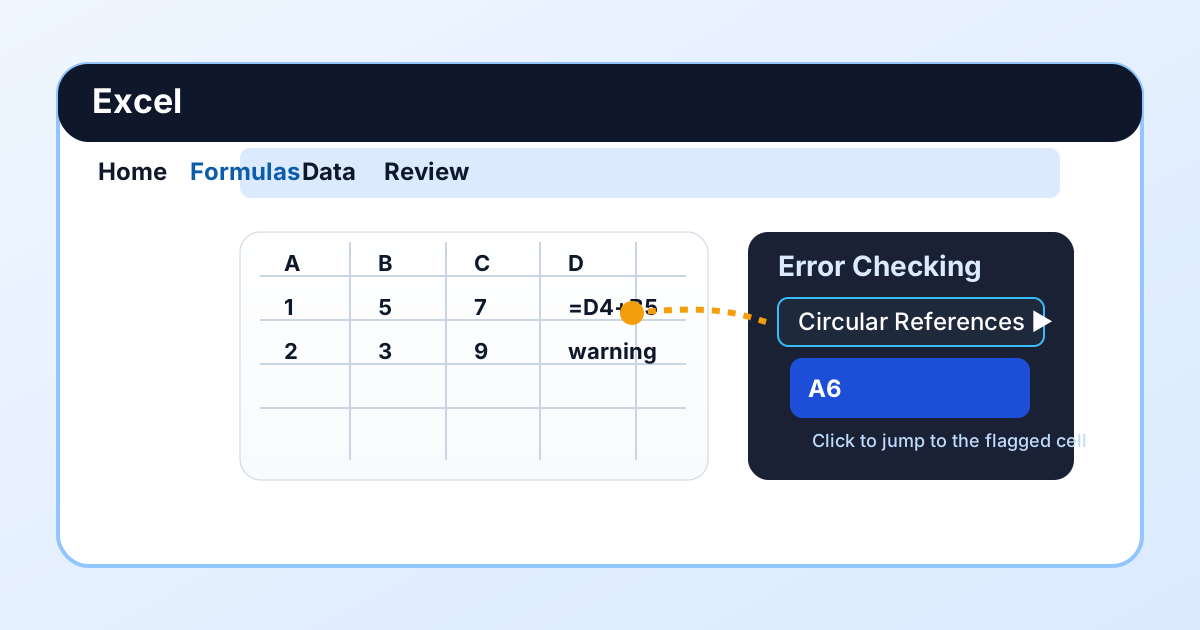
When Excel detects a circular reference, it often shows a message in the status bar. From there, open Formulas > Error Checking > Circular References. Excel lists the cell address or addresses involved in the loop, and clicking one of them takes you straight to the problem cell.
If you only do one thing, do this first. It is the quickest route from “something is broken” to “I know which cell started it.”
Step 2: trace precedents and dependents
Once you land on the cell, use the auditing tools:
- Select the suspect cell
- Go to Formulas
- Click Trace Precedents
- Click Trace Dependents
- Follow the arrows until you see the loop close on itself
These arrows show where the formula gets its inputs and which cells depend on the output. In an accidental loop, you will usually spot one cell that points back into the same chain.
Step 3: inspect the copied formulas around the loop
Circular references often happen in clusters, not just in one cell. Check the neighboring formulas, especially if you copied a formula down a column or across a row. One bad reference can create a loop that looks larger than it really is.
A good habit is to compare the flagged formula with the formula above it, below it, or to the left. If one reference shifted when it should have stayed fixed, that is usually the culprit.
What does Excel mean by a circular reference warning?
An Excel circular reference warning means a formula depends on its own result, either directly or through other cells, so normal calculation cannot resolve the chain. Treat the warning as a dependency problem: locate the flagged cell, identify which link closes the loop, and correct that link before trusting the output.
That can happen in two ways:
- Direct circular reference: the formula refers to its own cell, such as
=A1+1inside A1 - Indirect circular reference: A1 depends on B1, B1 depends on C1, and C1 eventually depends on A1
The warning matters because formulas are supposed to move forward through the workbook, not loop back into the same result. If you ignore the warning without understanding the loop, you can end up with totals that look plausible but are still wrong.
If you are troubleshooting broader formula problems too, the logic in Excel Average Formula Not Working is useful because broken ranges, text values, and hidden formula issues often show up alongside circular references.
How do you fix a circular reference in Excel?
The safest fix is to break the loop so that one cell supplies input and another cell handles the calculation. In most workbooks, that means moving a value into a helper cell, correcting a reference, or changing the model structure so the formula no longer points back to itself.
Fix 1: move the input out of the formula cell
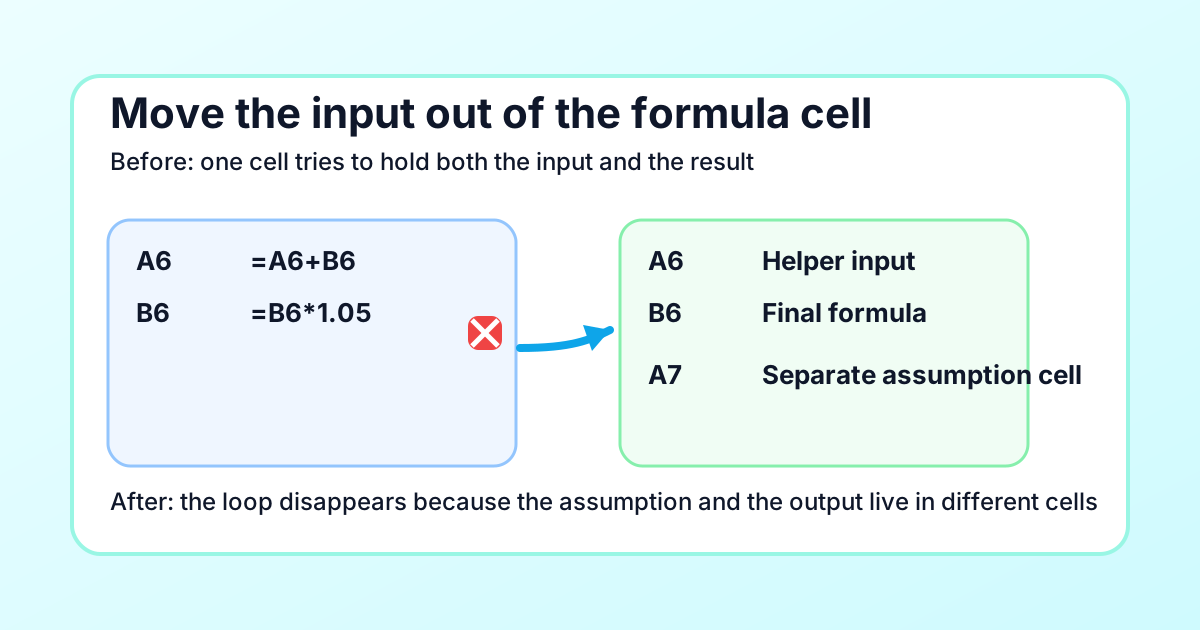
If a formula is trying to both hold an input and calculate a result, split those jobs into separate cells. For example, place the assumption in one cell and the calculation in another.
That seems obvious, but it is the fix behind a lot of “why is Excel stuck?” moments. The workbook stops looping the moment the formula cell no longer needs its own output as an input.
Fix 2: correct relative references
A circular reference sometimes appears after you fill a formula down a column. If the original formula was meant to keep one reference fixed, but the copy shifted it, the new version can point back into the same row or column.
This is where the dollar sign matters. If one input should stay anchored, lock it with $ before you copy the formula again. That is the same basic reference discipline covered in Excel Apply Formula to Entire Column.
Fix 3: reduce a self-referential range
Sometimes the issue is not a single cell; it is the range. A formula like =SUM(A1:A10) is harmless in B1, but if it appears inside A10 and A10 is included in the sum, you have created a loop.
When that happens, shrink the range or move the formula outside the cells it is trying to total.
Fix 4: use a helper column or helper row
Helper cells are one of the cleanest ways to remove circular logic. Instead of making one formula do everything, break the calculation into steps:
- input cells
- helper calculations
- final output
That keeps the workbook readable and makes it much easier to audit later.
Fix 5: check named ranges and structured references
Circular references are not always obvious in plain A1 notation. A named range or table reference can hide the loop if you are not watching closely. If Trace Precedents shows a weird jump to another table or a named range, inspect that object directly.
When should you use iterative calculation?
Use iterative calculation only when the circular reference is intentional. In some models, a loop is not a mistake—it is the design. Common examples include interest models, depreciation schedules, tax calculations, and other formulas that converge toward a stable answer.
What iterative calculation does
Iterative calculation tells Excel to keep recalculating a circular formula until the result stabilizes or until the workbook reaches the iteration limit.
That can be useful, but it also changes the rules of the workbook. Instead of treating circular logic as an error, Excel allows the loop and searches for a converged result.
How to turn it on
- Windows: open File > Options > Formulas
- Mac: open Excel > Preferences > Calculation
- Check Enable iterative calculation
- Set a sensible Maximum Iterations value
- Set Maximum Change to the convergence tolerance your model requires
If you are not sure you need this feature, stop and revisit the model first. Most accidental circular references should be fixed, not tolerated.
Good defaults for intentional loops
There is no single perfect setting, but start with an iteration limit that gives the model enough chances to converge and a Maximum Change value that matches the precision you need. Maximum Change is the stopping tolerance: a smaller value asks Excel to continue until successive results differ by less, but it does not make an unstable model stable.
If the result does not converge, the loop may be mathematically unstable, which means the formula structure needs redesigning anyway.
Why do circular references appear after copying a formula down?
This is one of the most common accidental causes. You enter a formula, fill it down, and suddenly Excel complains. The formula was probably correct in the first row, but a copied relative reference shifted into the wrong cell and closed the loop.
A few examples usually explain it:
- a summary row is included inside its own range
- a copied formula points back to the cell above instead of a separate input cell
- a fixed reference should have been absolute but was left relative
- a lookup or aggregate range accidentally includes the output cell
The quick check is simple: compare the first formula and the copied formula side by side. If one reference changed when it should have stayed anchored, fix the reference before you fill the range again.
That is also why formula hygiene matters when you build reusable sheets. A formula that behaves in one cell can start looping the moment you drag it across a larger range.
A practical workflow I use to audit circular references
A reliable circular-reference audit moves from detection to dependencies, then from formula structure to calculation settings. Start with Excel’s flagged cell, map the loop, compare neighboring formulas, and decide whether the cycle is accidental or intentional. This order isolates the cause before any workbook-wide setting can hide it.
I follow the same sequence every time:
- Read the status bar warning
- Jump to Formulas > Error Checking > Circular References
- Open Trace Precedents and Trace Dependents
- Inspect nearby copied formulas
- Check whether one value should be moved to a helper cell
- Decide whether the loop is accidental or intentional
- Only then consider iterative calculation
This order saves time because it starts with detection, then moves to structure, then moves to settings. Too many people go straight to options and turn on iterative calculation before they know whether the workbook actually needs it.
Common edge cases
The hardest circular references often cross boundaries that are easy to overlook: hidden worksheets, structured table references, linked workbooks, or frequently recalculating formulas. When the visible formula path seems incomplete, inspect those boundaries systematically. A disappearing trace arrow usually means the dependency continues somewhere else, not that the loop has ended.
Hidden sheets
A circular reference can involve a sheet you are not currently looking at. If the arrows seem to disappear, check whether another worksheet is feeding the loop.
Tables
Tables can make references look cleaner, but they can also make loops harder to spot. If the issue lives in a table column, inspect the formulas row by row.
External links
A formula may appear innocent on the surface but depend on another workbook that eventually points back to the first file. If the loop seems impossible, follow external links too.
Volatile formulas
Functions that recalculate often can make debugging noisier. They do not always create the circular reference, but they can make the workbook harder to reason about while you are tracing the path.
How circular references differ from other formula problems
Circular references differ from ordinary formula errors because they describe a loop in the calculation chain, not necessarily an invalid function or value. A circular cell can display a plausible result, especially when iteration is enabled, while #VALUE! or a failed lookup usually exposes its problem directly in the cell.
That is why circular references are easy to miss in financial models. The workbook may look “close enough” unless you are actively auditing dependencies. If the output drives decisions, you want the loop fixed or intentionally documented, not merely tolerated.
If your model also depends on formulas spilling down a range, it helps to understand related issues like Excel Apply Formula to Entire Column, because copied references and expansion logic are often what create the loop in the first place.
Summary
To resolve a circular reference, locate Excel’s flagged cell, trace both incoming and outgoing dependencies, and break the link that sends the calculation back to itself. Keep inputs and outputs separate, review copied ranges carefully, and reserve iterative calculation for intentional models whose convergence behavior you understand and document.
Use this checklist:
- find the flagged cell with Circular References
- map the arrows with Trace Precedents and Trace Dependents
- break the loop by separating input cells from output cells
- use helper cells when one formula is trying to do too much
- enable iterative calculation only when the loop is intentional
Once you understand whether the loop is accidental or designed, circular references stop being mysterious. They become a normal formula-auditing problem with a normal fix.
FAQ
Circular-reference questions usually come down to three decisions: where the loop begins, which formula link should change, and whether the cycle was intentional. The answers below prioritize the safest default—repair accidental self-reference first—while explaining when Excel’s tracing tools or iterative calculation settings are appropriate.
What is the quickest way to find a circular reference in Excel?
Use Formulas > Error Checking > Circular References first. That menu jumps you to the cell Excel detected, which is usually the fastest way to start.
Can Excel automatically tell me where the circular reference is?
Yes. Excel usually lists the cell address in the Circular References menu and often highlights the problem area through the status bar warning.
Should I always turn on iterative calculation if I see a circular reference?
No. Iterative calculation is for intentional circular models. If the loop was accidental, fix the formula structure instead.
Why does my workbook still look right even with a circular reference?
Because some loops still converge to a value or appear to calculate normally. That does not mean the structure is correct. It only means Excel found a way to finish calculating.
What is the best way to avoid circular references in the future?
Keep input cells and output cells separate, audit copied formulas carefully, and check your ranges before you fill a formula down or across a large block.
