
Excel COUNTIF Function: Complete Guide shows you how to count cells that meet one condition, whether that condition is text, a comparison like greater than, or a simple wildcard. If you only need one filter, COUNTIF is the quickest way to get a reliable count without building a more complex formula.
I use COUNTIF whenever I need a fast answer from a worksheet that already has clean data. It is one of the most practical formulas in Excel because it scales from simple label counts to useful reporting tasks such as counting qualified leads, finished tasks, or prices in a target band.
This guide keeps the focus on real spreadsheet work. You will see how to count cells with text, count if greater than, count between two numbers, and avoid the common formatting mistakes that make COUNTIF look broken when the issue is really the data.
Key Takeaways
- COUNTIF counts cells that match one condition
- COUNTIFS is the right upgrade when you need multiple conditions
- Wildcards make COUNTIF useful for text matching and partial matches
- Most COUNTIF problems come from data formatting, not the formula itself
Sourced stat block
- Microsoft documents one range/criteria pair for COUNTIF and up to 127 range/criteria pairs for COUNTIFS.
- Microsoft documents three wildcard characters for COUNTIF criteria:
*,?, and~.- In the official COUNTIF examples,
=COUNTIF(A2:A5,"*")returns 4 for a small text-only sample range.Source: Microsoft COUNTIF docs and Microsoft COUNTIFS docs
What COUNTIF Does in Excel
Microsoft’s COUNTIF documentation describes a single range/criteria pair, while COUNTIFS expands that pattern to as many as 127 range/criteria pairs. That makes COUNTIF the clean starting point for one-filter problems and COUNTIFS the better choice once your logic needs more than one condition.
COUNTIF is the formula I reach for when I already know the question I want answered. I do not need to sort the sheet, manually filter rows, or build helper columns just to count a category. I define the range, state the condition, and let Excel do the work.
That simplicity is what makes COUNTIF so valuable. It is lightweight enough for ad hoc analysis, but it is also stable enough for repeatable reporting. If you are checking how many sales hit quota, how many tickets are still open, or how many names appear more than once, COUNTIF gives you a direct answer.
A good mental model is this: COUNTIF is for one question and one condition. If the question becomes “How many East-region orders were over $500 in March?”, then you have crossed into COUNTIFS territory. The formula logic is the same idea, but COUNTIFS lets you stack multiple criteria without nesting helper formulas.
COUNTIF Syntax and Formula Setup
The safest COUNTIF formula is =COUNTIF(range, criteria), and Microsoft’s documentation shows three wildcard characters in play: *, ?, and ~. If you understand that structure, you can count text, numbers, and partial matches without memorizing lots of special cases.
The syntax is short, but it helps to think about each piece separately. The first argument is the range you want Excel to inspect. The second argument is the condition. That condition can be typed directly into the formula, or it can be built from a cell reference so the threshold remains editable.
A lot of people overcomplicate COUNTIF by trying to make the formula smart before they make it correct. I prefer to start with a literal condition first, test the result, and only then swap in a reference. That keeps the formula easy to audit and much easier to troubleshoot later.
Remember: the range goes first, the criteria second. Use * for text patterns, ? for a single character, and ~ when you need to escape a wildcard.
=COUNTIF(A2:A10,"West")
=COUNTIF(B2:B10,">100")
=COUNTIF(C2:C10,">"&D1)
=COUNTIF(C2:C10,"Q*")
=COUNTIF(C2:C10,"?at")
Count Cells With Text Using COUNTIF
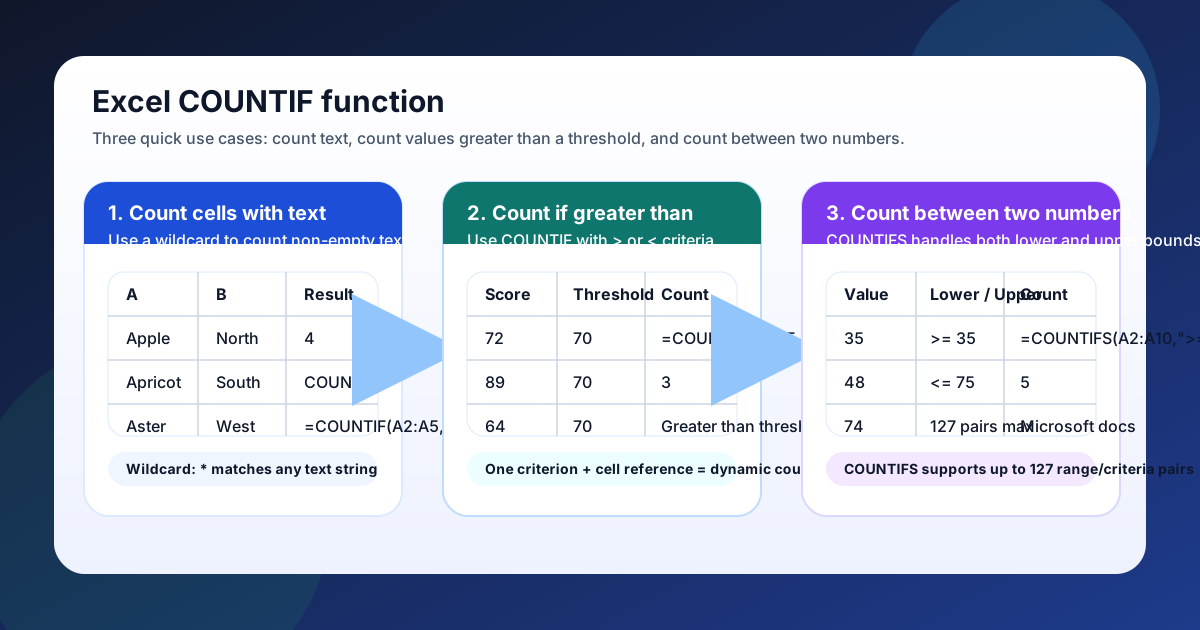
To count text, use =COUNTIF(range,"*"); Microsoft’s sample returns 4 when all four cells contain text. That wildcard trick is the fastest way to count non-empty strings, and it is often the first step in cleaning imported data.
When I say “count cells with text,” I mean cells that contain a text value rather than a pure number. Use =COUNTIF(A2:A100,"*") to count text-based rows, or add a prefix like Q* when you only want a subset of labels. That is especially handy when you are checking statuses, names, or product codes.
=COUNTIF(A2:A10,"*")
=COUNTIF(A2:A10,"Q*")
=COUNTIF(A2:A10,"*Completed*")
This pattern is especially helpful for imports and status columns because it shows how many rows have usable labels. If the total seems odd, check whether any cells contain empty strings from formulas or extra spaces from pasted data.
Count If Greater Than With COUNTIF
To count values above a threshold, COUNTIF with ">"&cell is enough for most sheets, and Microsoft’s docs show that criteria can be built from cell references rather than hard-coded numbers. That keeps the formula compact while still making the threshold easy to update.
This is one of the most useful COUNTIF patterns because it turns a static report into a reusable one. Instead of rewriting the formula every time the threshold changes, you put the cutoff in a cell and let the formula point to it. That makes the sheet faster to maintain and much easier to hand off to someone else.
A common example is sales performance. If column B contains monthly revenue and cell D1 contains the target, =COUNTIF(B2:B100,">"&D1) tells you how many records beat the target. You can change D1 at any time, and the count updates automatically.
=COUNTIF(B2:B100,">100")
=COUNTIF(B2:B100,">"&D1)
=COUNTIF(C2:C100,"<50")
=COUNTIF(C2:C100,"<"&E1)
The same pattern also works for less-than tests, and it is handy for discounts or budget ceilings. If you need a two-sided threshold, see Excel COUNTIF Between Two Numbers.
Count Between Two Numbers or Dates With COUNTIFS
When you need a closed interval like 35–75, switch to COUNTIFS; Microsoft documents up to 127 range/criteria pairs, so adding a second bound is the intended pattern, not a workaround. That is exactly why COUNTIFS exists: it extends the one-condition logic of COUNTIF into a multi-condition filter.
For a range like 35 to 75, COUNTIF alone is awkward because you need both a lower bound and an upper bound. COUNTIFS solves that cleanly with one criterion for each side of the interval. The result is readable, maintainable, and much less fragile than trying to force COUNTIF into a job it was not designed for.
A standard formula looks like this:
=COUNTIFS(A2:A100,">=35",A2:A100,"<=75")The same idea works for dates. Use COUNTIFS with a lower and upper bound, then confirm the dates are real Excel dates rather than text.
=COUNTIFS(A2:A100,">=4/1/2026",A2:A100,"<=4/30/2026")If the result looks wrong, test the boundaries one at a time. Count the >= side alone, then the <= side alone. That isolates whether the issue is the data, the date format, or the logic in the formula.
Fix Common COUNTIF Problems
Most COUNTIF errors come from text-formatted numbers, stray spaces, or the wrong wildcard. Microsoft’s wildcard rules only recognize three special characters, so if a formula misfires, the problem is usually the data rather than the function itself.
When COUNTIF seems broken, the first question I ask is whether Excel is seeing the values the same way I am. A cell that looks numeric may actually be text. A label that looks blank may contain spaces. A date that looks normal may be stored as a string. COUNTIF counts what Excel sees, not what your eyes assume.
If you want a quick repair checklist, try this:
- Normalize text with TRIM
- Convert text to numbers with VALUE or Text to Columns
- Test the formula on a tiny sample before copying it across the sheet
That last tactic saves time because you can prove the logic on five rows before applying it to five thousand. Once the small example works, the full-range formula usually works too. If it does not, the issue is almost always an inconsistency in the underlying data.
Practical COUNTIF Workflow for Real Sheets
A practical COUNTIF workflow is: clean the data, choose the right range, write the criterion, then validate the result against a small sample. Microsoft’s own examples make the point clear: a simple * wildcard can count four text cells in a toy range, which is a useful sanity check.
I like this sequence because it keeps the formula work separate from the data-quality work. A quick small-sample check is usually enough to confirm the logic before you fill the formula down the sheet.
=COUNTIF(A2:A100,"Qualified")
=COUNTIFS(A2:A100,"Qualified",B2:B100,">70")
Use COUNTIF for one condition and COUNTIFS when the logic gets more specific. If your workbook needs sum logic instead of count logic, pair the same approach with Excel SUMIF Not Blank.
A Quick Worked Example
If column A contains lead status and column B contains lead score, COUNTIF and COUNTIFS can answer two different questions fast. First, =COUNTIF(A2:A100,"Qualified") tells you how many leads are marked Qualified. Then =COUNTIFS(A2:A100,"Qualified",B2:B100,">70") narrows that list to the leads that are both qualified and above the score threshold.
That pattern is useful because it mirrors how real spreadsheets are built. You start with one easy question, then add a second condition only when you need to segment the result further. If you keep the criteria readable and the ranges consistent, the formulas stay easy to audit months later.
COUNTIF Edge Cases and Better Alternatives
Microsoft documents three wildcard characters for COUNTIF and up to 127 range/criteria pairs for COUNTIFS, which is a good reminder that COUNTIF is optimized for simple one-condition counting while more complex logic belongs in a multi-criteria formula. The edge cases below are the ones most likely to trip up a clean-looking worksheet.
COUNTIF is case-insensitive, so it treats West and west as the same match. That is usually helpful, because most reporting questions care about categories, not capitalization. But if your spreadsheet uses text case as a signal, COUNTIF will not preserve that distinction on its own.
Another common trap is the difference between blanks and empty strings. A cell that displays blank might still contain a formula returning "", which means Excel does not always treat it the same way as a truly empty cell. If your count is slightly off, compare the formula bar to the visible cell contents before changing the formula.
You can also combine COUNTIF with a small helper formula when you want OR logic. For example, if you need to count West or East, a simple pattern is:
=COUNTIF(A2:A100,"West")+COUNTIF(A2:A100,"East")That pattern is often easier to read than trying to jam two unrelated labels into one condition. Once the logic starts to resemble a search query instead of a single rule, it is usually time to split the problem into either separate COUNTIF calls or a fuller COUNTIFS setup.
For duplicates, COUNTIF is also useful as a diagnostic tool. If you need to find repeated values, count how often each item appears in the list and flag any result above 1. That gives you a lightweight check for imported data, product SKUs, customer names, or other fields that should be unique.
Frequently Asked Questions
Microsoft’s COUNTIF examples and wildcard rules cover most real-world questions, and the 127-pair COUNTIFS limit gives you plenty of room when your filters multiply. The practical takeaway is simple: start with COUNTIF, then switch to COUNTIFS when the worksheet needs more than one condition.
How do I count only visible rows with COUNTIF?
COUNTIF does not understand filter visibility on its own. If you need visible-only totals, use SUBTOTAL or AGGREGATE for the visibility part, then combine that logic with a helper column when needed.
Can COUNTIF match partial text?
Yes. Use * for any number of characters and ? for a single character. For example, =COUNTIF(A2:A10,"Prod*") counts values that begin with Prod.
Does COUNTIF work with dates?
Yes, as long as the dates are real Excel dates, not text. Use comparison operators such as >= and <=, and remember that date ranges usually need COUNTIFS when you want both start and end boundaries.
