
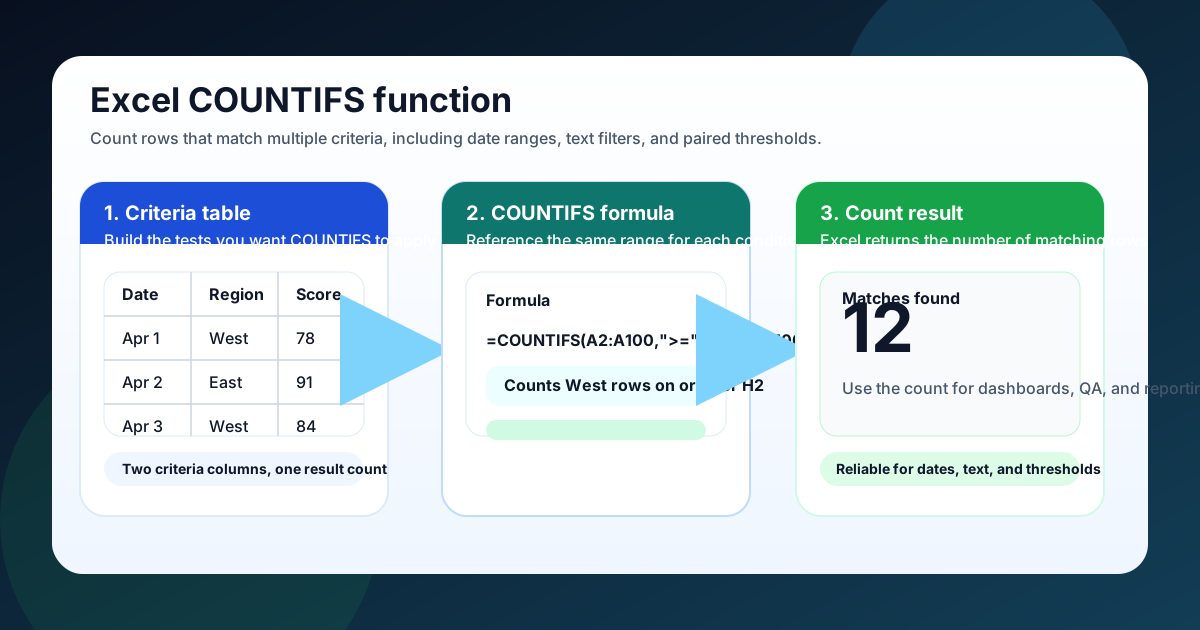
Use COUNTIFS when you need a count that depends on more than one rule. I reach for it whenever I want Excel to answer questions like “How many West-region orders shipped in April?” or “How many support tickets were closed this week and marked urgent?” The function is simple, dependable, and built for the kind of filtered counts that show up in real dashboards.
Stat block: Microsoft documents that COUNTIFS supports up to 127 range/criteria pairs. That is far more than most business reports need, so in practice the limit is usually your source data, not the function. Source: Microsoft COUNTIFS docs.
Key Takeaways
- COUNTIFS counts rows only when all listed criteria are true
- The same range can be tested more than once, which is how date ranges work
- Use cell references for criteria whenever you want a formula that updates cleanly
- If you only need one condition, COUNTIF is usually enough
What COUNTIFS does and when to use it
COUNTIFS is the right function whenever you want Excel to count records that meet several conditions at once. I use it for anything from lead scoring and sales reporting to inventory checks and QA audits, because it gives a yes-or-no decision for each row and then totals the rows that pass.
A COUNTIFS formula works best when the question can be translated into multiple filters. For example, you might want to count orders that are both “Paid” and “West,” or tickets that are “Urgent” and opened in the last seven days. That combination is exactly where COUNTIFS shines.
If your spreadsheet only needs one rule, COUNTIF is simpler. If the question needs two or more rules, COUNTIFS is the better choice because it keeps the logic visible in one formula instead of hiding it inside nested IF statements or helper columns.
How COUNTIFS syntax works
The COUNTIFS syntax is straightforward: each condition is a range + criteria pair, and Excel checks all the pairs in order. I think of it as a row-by-row interview. If a row passes every test, it gets counted. If it fails even one test, it does not.
=COUNTIFS(criteria_range1, criteria1, [criteria_range2, criteria2], ...)The important part is that every criteria range must be the same size as the rows you are counting. If one range runs from A2:A100 and another runs from B2:B100, that is fine. If one range is shorter, Excel cannot line the rows up correctly and the result will be wrong or rejected.
Here is a simple pattern for text plus number logic:
=COUNTIFS(B2:B100,"West",C2:C100,">=75")That formula counts rows where column B is West and column C is at least 75. I like this pattern because it stays readable even when the criteria get more specific.
How to count with two conditions
COUNTIFS is especially useful when you need a clean answer to a two-condition question. In most reports, the first condition narrows the category and the second condition narrows the timing, amount, or status. That makes the result much more useful than a single raw count.
A common example is counting orders in one region above a minimum value. Suppose column A holds the region and column B holds the order value. You could use:
=COUNTIFS(A2:A100,"West",B2:B100,">1000")That formula counts only the rows that belong to the West region and also exceed 1,000. If you want the threshold to be editable, replace the hard-coded number with a cell reference:
=COUNTIFS(A2:A100,"West",B2:B100,">"&E2)I prefer the cell-reference version for dashboards because it lets a manager change the threshold without editing the formula. It also makes the workbook easier to audit later, because the logic is still visible in the worksheet.
How to count dates in a range with COUNTIFS
COUNTIFS is one of the cleanest ways to count date ranges in Excel. The trick is to apply two tests to the same date column: one for the lower bound and one for the upper bound. That gives you an inclusive range, which is usually what reporting needs.
=COUNTIFS(A2:A100,">="&G2,A2:A100,"<="&H2)In this example, G2 holds the start date and H2 holds the end date. Excel counts every row where the date in column A falls inside that window. I like this approach because it is both flexible and easy to explain to someone else on the team.
If you want to count dates after a certain day and do not need an upper bound, you can keep only the lower test:
=COUNTIFS(A2:A100,">="&G2)That pattern is handy for month-to-date reporting, open-ended audits, and any situation where the relevant question is “How many happened on or after this date?”
How to handle multiple criteria and OR logic
COUNTIFS handles AND logic naturally: every listed condition must be true. When people say they want “multiple criteria,” they usually mean that exact behavior. If you need one row to satisfy all the tests, COUNTIFS is the right tool, because it keeps the formula clean and avoids extra helper logic.
OR logic is a little different, because COUNTIFS does not treat multiple values in the same argument as an OR test. When I need “A or B,” I usually solve it by adding separate COUNTIFS formulas together or by using a helper column that converts the OR logic into a single flag.
For example, to count West or East orders above 500, I might write:
=COUNTIFS(A2:A100,"West",B2:B100,">500")+COUNTIFS(A2:A100,"East",B2:B100,">500")That is simple, readable, and easy to maintain. If the workbook needs a lot of OR branches, I would rather add a helper column than make the formula harder to follow.
How to troubleshoot zero results and bad matches
When COUNTIFS returns zero, I usually check the ranges first. The most common mistake is a range mismatch, where one criteria range starts or ends on a different row than the others. Once the ranges line up, I check the criteria syntax, especially the quotes around comparison operators.
Another common issue is data type drift. Dates that look like dates may actually be text, and numbers imported from CSVs can carry hidden spaces or apostrophes. If that happens, COUNTIFS will not match them even when the cells look correct on screen.
I also watch for exact text mismatches. If the cell contains West with an extra space, "West" will not match it. In those cases, trimming the source data or using a cleanup helper column is the fastest fix.
If you are counting a date range and the result seems too low, check whether the stored values include times. Excel dates with time stamps can fall outside an inclusive range if you only test against a midnight end date. In that case, I often move the upper bound to the next day and use < instead of <=.
COUNTIFS vs COUNTIF vs SUMIFS
COUNTIF counts one condition, COUNTIFS counts many conditions, and SUMIFS adds values only when several conditions are true. I use that distinction constantly when I am building a workbook, because the function name usually tells me what kind of question I am really asking.
If I only need to count all cells that match one label, COUNTIF is enough. If I need to count rows by region, date, and status, COUNTIFS is the right choice. If I want the total sales amount for the same kind of filtered rows, I switch to SUMIFS instead.
That also means COUNTIFS often lives beside other formula patterns in the same workbook. If you are working through the related math behind conditional totals, the Excel SUMIFS Function guide is the natural companion. If you only need the simpler one-condition route, the Excel COUNTIF Between Two Numbers post shows how a basic count can be adapted to a range.
The practical takeaway is simple: use the lightest function that answers the question. That keeps your formulas easier to debug and your spreadsheet easier for someone else to inherit later.
Copy-and-paste COUNTIFS examples
COUNTIFS gets much easier once you see a few ready-made patterns. I keep a small library of formulas for score thresholds, date windows, blank checks, and wildcard text matches because those are the cases that show up in dashboards again and again. Once you memorize the pattern, the only thing that changes is the range and the business question.
A classic range count looks like this:
=COUNTIFS(C2:C100,">=70",C2:C100,"<=90")That formula counts scores between 70 and 90, inclusive. It is a nice example of COUNTIFS working as a bounded filter on a single column, and it is often the first pattern I use when I need to measure performance bands, quality scores, or service levels.
If I want to count records in a specific month, I use a date range and cell references:
=COUNTIFS(A2:A100,">="&E2,A2:A100,"<"&EOMONTH(E2,0)+1)That version counts every date on or after the start date in E2 and before the first day of the next month. I prefer the < next month pattern because it handles timestamps cleanly when the source data includes times.
Wildcard text matches are just as useful:
=COUNTIFS(B2:B100,"North*")That counts any row where the text in column B starts with North. I use this for product names, region labels, and imported data where the values are consistent but not always identical. If I need a contains-style match instead, I switch to "*North*".
Blank checks are also straightforward:
=COUNTIFS(D2:D100,"")That counts empty cells in column D. In practice, I use this to track missing assignments, incomplete intake forms, or rows that still need a status update. It is a quick sanity check that helps me spot gaps before they become reporting problems.
The bigger point is that COUNTIFS is not just for complicated reports. It is also a practical cleanup tool, a validation tool, and a way to turn a messy sheet into something you can trust.
A quick COUNTIFS workflow you can reuse
COUNTIFS becomes much easier when you follow the same setup every time. I start by writing the business question in plain English, then I identify each test one by one, then I map each test to a range and a criterion. That keeps me from building formulas backward.
For example, “How many West-region orders closed in April with scores of at least 75?” becomes three separate tests: region equals West, date falls in April, and score is at least 75. Once those tests are visible, the formula almost writes itself.
Here is the compact version of that workflow:
=COUNTIFS(A2:A100,"West",B2:B100,">="&G2,B2:B100,"<="&H2,C2:C100,">=75")That formula is the kind of thing I would use in a KPI dashboard or a recurring monthly report. It is readable, scalable, and easy to update when the business question changes.
A small habit makes a big difference here: I test each condition one at a time before I combine them. If the West-only version works, and the date-only version works, I know the combined formula should work too. That method saves me from debugging several problems at once.
Another trick is to keep helper cells visible on the sheet. I usually place the start date, end date, and threshold values in nearby input cells so the formula stays short. That makes review easier for someone else and gives me a cleaner place to update the report next month.
Final take
COUNTIFS is the best Excel function for counting rows that have to satisfy more than one rule. Use it for date windows, numeric thresholds, status filters, and multi-column reporting. If you keep the ranges aligned and the criteria explicit, the formula stays reliable even as the workbook grows.
One final habit that pays off is documenting the intent next to the formula. A short note such as “counts West-region orders closed in the current month” makes the workbook easier to audit six months later, especially when the person opening it did not build it in the first place. That tiny bit of context can save a lot of guesswork when the report is reused, copied, or handed off to another teammate.
If you are building a recurring dashboard, I also recommend testing the formula against a known sample total before you trust it for decision-making. COUNTIFS is simple, but the simplicity can hide bad source data if no one checks the output. A quick spot-check against filtered rows or a pivot table gives you confidence that the logic still matches the business question.
