
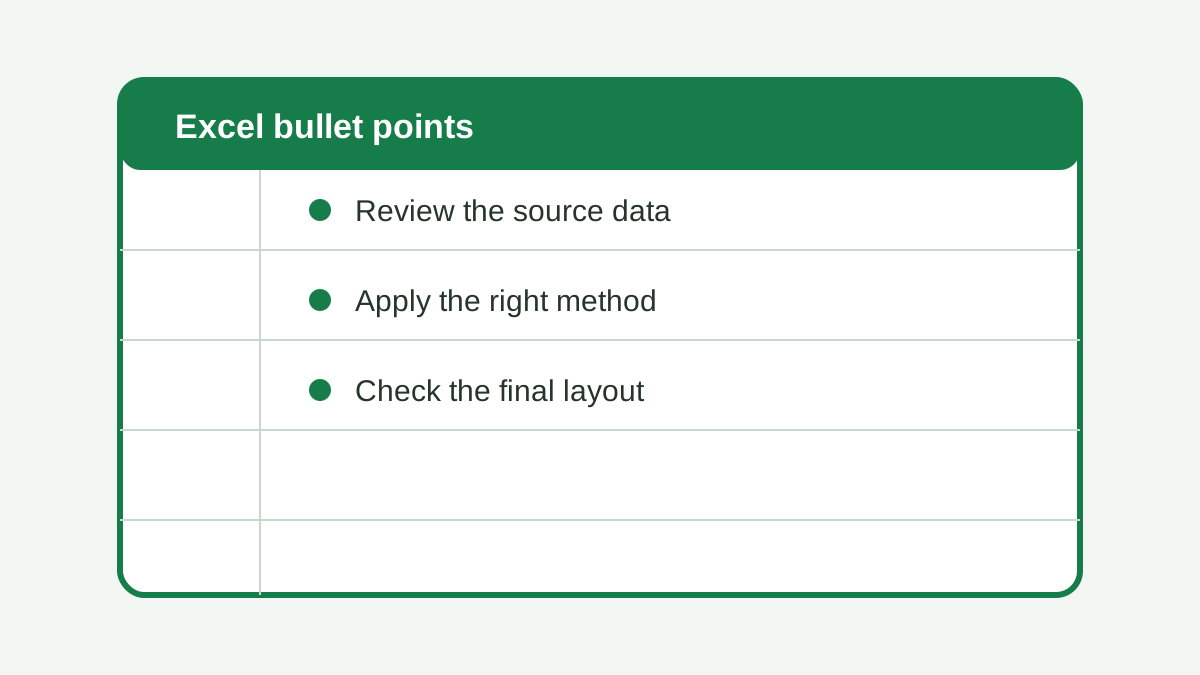
Excel does not have a Word-style Bullets button, but it can still display clear bulleted lists. The best method depends on whether you need one quick mark, several lines inside one cell, or a formula-driven list that updates with your data. This guide covers each option without assuming the Windows shortcut works everywhere.
How do you add bullet points manually in Excel?
For a quick list, insert a bullet character, type the item, and either move to the next row or add a line break inside the same cell. Microsoft allows up to 253 line feeds in one cell, so multi-line lists are supported, although separate rows are usually easier to sort and filter.
Step 1: choose one cell or several rows
Decide how the list will be used before formatting it. Put one item per row when people need to sort, filter, validate, or reference individual items. Use multiple lines in one cell when the list is mainly a compact note, label, instruction, or dashboard annotation.
Step 2: insert the first bullet
Copy this bullet—•—and paste it at the start of the cell, followed by a space. You can also insert it from Excel’s Symbol dialog, described in the next section. Copy and paste is often the fastest choice for a short, one-off list because it avoids platform-specific numeric-keypad shortcuts.
Step 3: add the item text
Type the label after the bullet. If every item has its own cell, press Enter and repeat in the next row. You can copy the bullet cell down first, then replace only the text. Keeping one item per row gives each item a real address, which makes later formulas and formatting much simpler.
Step 4: add another line inside the same cell
To keep several items in one cell, edit the cell and place the cursor after the first item. On Windows, press Alt+Enter. On Mac, press Control+Option+Return. Type the next bullet and item after the break. Microsoft documents these as different platform shortcuts, so do not substitute the Windows keys on Mac.
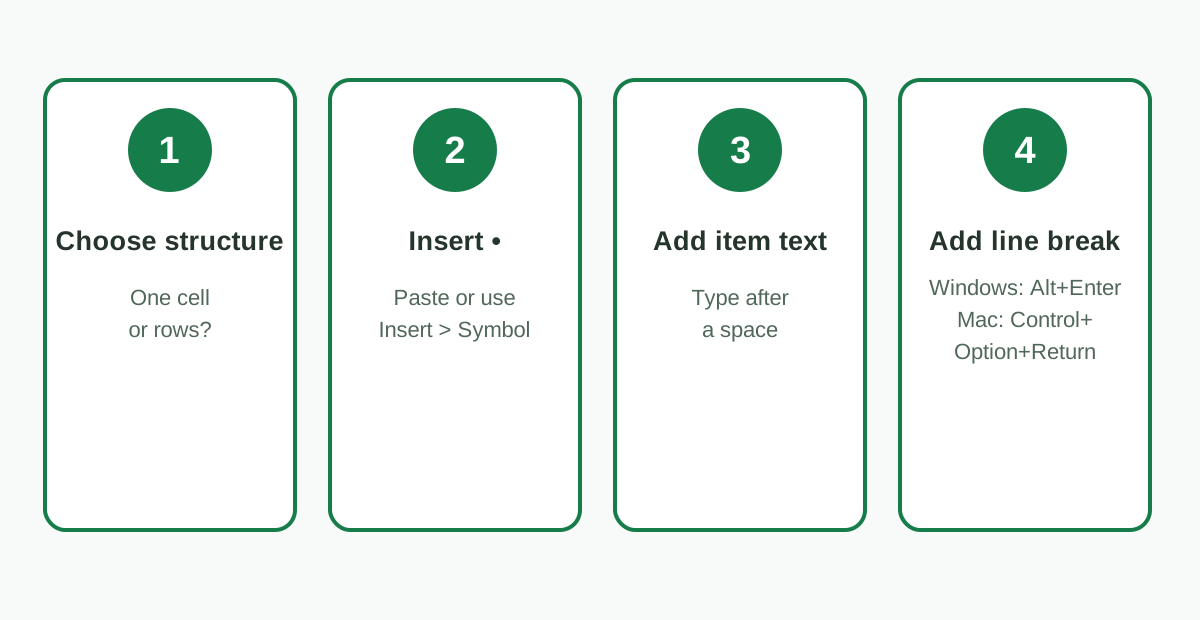 Choose the cell structure, insert a bullet, add text, and use the correct in-cell line-break shortcut.
If part of the list disappears, turn on Home > Wrap Text and adjust the row height. Our Excel Wrap Text guide explains the display settings and the difference between automatic wrapping and deliberate line breaks.
Source: Microsoft’s Excel specifications and limits list a maximum of 253 line feeds per cell and 32,767 characters per cell. Those limits support compact notes, but they do not make a single cell the best data structure for a long operational list.
How do you insert a symbol bullet in Excel?
Use Excel’s Symbol dialog when you want to choose the bullet visually and confirm that the current font contains it. The standard bullet is Unicode code point 8226. Inserting the character directly avoids dependence on a numbered code-page shortcut and works well for headings, labels, and short lists.
Insert a bullet from the Symbol dialog
- Select the cell and enter edit mode by double-clicking it or pressing F2 on Windows.
- Place the cursor where the bullet should appear.
- Choose Insert > Symbol.
- Select a normal text font such as Arial or Calibri.
- Find •, choose Insert, and close the dialog.
- Add a space and type the item text.
On Windows, you can also insert bullets with alt+7 when your keyboard has a numeric keypad on its right side. Hold Alt and press 7 on that keypad; the number row above the letters is not the documented route. Microsoft’s worksheet-bullet instructions state both the shortcut and the right-side keypad requirement.
If the character looks like a hollow square, the selected font may not contain that glyph. Change the cell to a common font or choose another visible bullet in the Symbol dialog. A font problem affects display; it does not mean Excel has converted the cell into a real list object.
Copy and paste a symbol bullet
Copying • from a trusted source is equally valid. Paste it into the formula bar or while editing the cell, not over a selected cell that already contains text. For repeated manual entries, keep a clean bullet in a spare cell and copy it where needed.
The phrase symbol bullet describes the character itself, not a special Excel formatting feature. That distinction matters: Excel stores the bullet as text, so sorting and searching treat it as part of the cell value unless you keep the bullet in a separate display column.
How do you create bullets with an Excel formula?
For a list that should update automatically, join a bullet character to the source text with a formula. UNICHAR(8226) is the portable modern choice where UNICHAR is available because it asks for a Unicode code point. Formula bullets are especially useful when the source items change or expand.
Suppose the item text begins in A2. In B2, enter:
=UNICHAR(8226)&" "&A2Fill the formula down. Column B now displays each source item with a bullet while column A keeps the underlying text clean. If blank source cells should remain blank, use:
=IF(A2="","",UNICHAR(8226)&" "&A2)This pattern is safer than typing bullets into source data because it separates presentation from content. It also lets you change the marker in one formula rather than manually editing every row. If the final values must be static, copy the results and use Paste Special > Values in a destination column.
Why CHAR(149) is not the portable default
You may see this older formula:
=CHAR(149)&" "&A2It can display a bullet in some Windows configurations, but it is Windows/code-page dependent. Microsoft says CHAR returns a character from the character set used by the computer and distinguishes Windows ANSI from the Macintosh character set. That makes CHAR(149) a compatibility technique, not a dependable cross-platform specification.
Use UNICHAR(8226) when supported. Microsoft describes UNICHAR as returning the character represented by a Unicode number and lists it for current Windows and Mac editions of Excel. For an older version without UNICHAR, insert or copy the bullet directly and test the workbook on every target platform.
Sources: Microsoft Support on the CHAR function explains its computer character-set behavior; Microsoft Support on the UNICHAR function documents the Unicode-number behavior and supported Excel versions.
How do you add bullet points in Excel on Mac?
On Mac, insert or paste the bullet normally, then press Control+Option+Return for another line inside the same cell. Microsoft documents that combination for macOS. Windows uses Alt+Enter, so instructions that tell Mac users to press Alt+Enter are mixing platforms and may not create the intended break.
Make a multi-line bullet list on Mac
- Double-click the cell and paste or insert •.
- Add a space and type the first item.
- Press Control+Option+Return.
- Paste or insert the next bullet and type the second item.
- Choose Home > Wrap Text if every line is not visible.
Repeat the shortcut only while editing inside the cell. If Excel accepts the entry and moves the selection instead, return to edit mode, position the insertion point in the text, and try again. The line break is stored in the cell value; Wrap Text controls whether the row shows it cleanly.
Use formulas across Mac and Windows
UNICHAR(8226) is the better formula when the workbook moves between current Mac and Windows versions of Excel. The returned character is based on Unicode rather than the environment-specific mapping used by CHAR. Still test the chosen font, column width, and row height wherever the workbook will be presented.
Source: Microsoft Support on starting a new line inside a cell specifies Control+Option+Return on macOS and Alt+Enter on Windows.
Which Excel bullet method should you use?
Choose the method from the job the list must do, not from whichever shortcut you remember. Direct symbols are best for a few static labels, formulas suit changing row-based data, and in-cell line breaks suit compact notes. Separate rows remain the strongest structure for sorting, filtering, and later analysis.
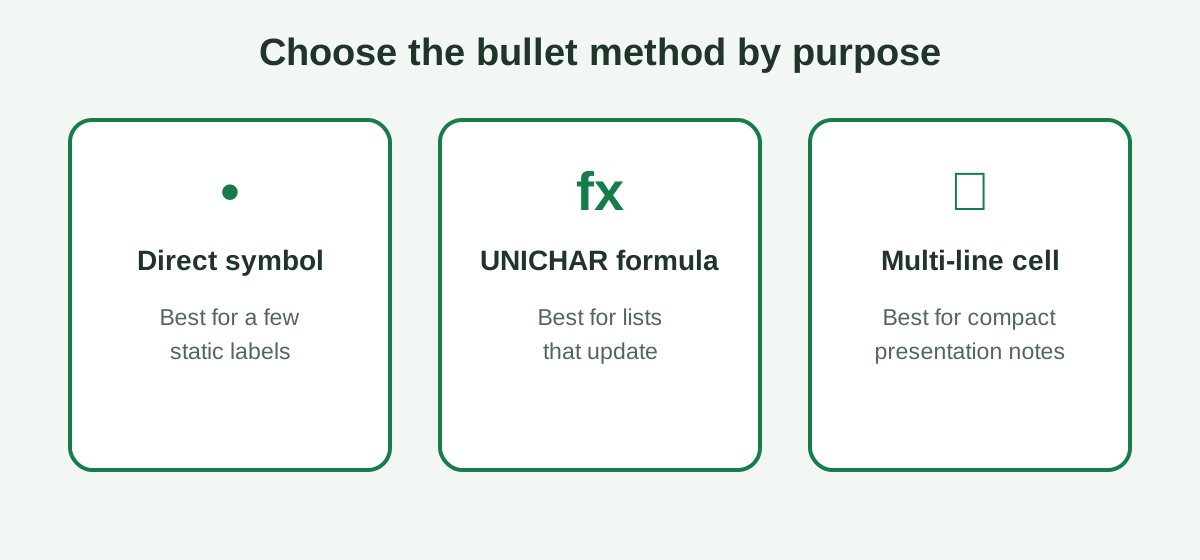 Direct symbols are quick, formula bullets update, and multi-line cells trade structure for compact presentation.
Compare the methods
| Method | Best for | Main advantage | Main caution |
|---|---|---|---|
| Copy or Symbol dialog | A few static labels | Fast and visual | Bullet becomes part of the text |
UNICHAR(8226) formula | Lists driven by source cells | Updates automatically | Requires a supported Excel version |
CHAR(149) formula | A tested Windows-only legacy file | Works in some Windows environments | Code-page dependent and not portable |
| Several lines in one cell | Notes and dashboard labels | Compact display | Harder to sort, filter, and edit |
| One item per row | Operational or analytical lists | Strongest data structure | Uses more worksheet space |
Prefer separate rows for working data
A multi-line cell looks tidy, but Excel cannot independently sort or filter the lines inside it. Put each task, requirement, or note in its own row when the list drives work. Add a formula bullet in a display column if the visual marker still helps readers.
Use one cell for presentation notes
One-cell bullets make sense in a title block, report note, dashboard card, or instruction panel where the lines belong together. Keep the list brief, turn on Wrap Text, and set vertical alignment to Top. Also check the result after exporting or printing because row heights can change.
What common bullet-point problems should you fix?
Most bullet problems come from platform shortcuts, fonts, or data structure rather than the bullet character itself. Check whether you are editing inside the cell, using the correct line-break keys, and displaying a font that contains the glyph. Then decide whether the list should really occupy separate rows.
The shortcut moves to another cell
Enter cell-edit mode first. Double-click the cell or select it and press F2 on Windows, then position the cursor. Use Alt+Enter on Windows or Control+Option+Return on Mac. Pressing Enter while the cell is merely selected confirms the value and moves the selection.
The list shows on one line
Turn on Wrap Text and verify that actual line breaks exist. Automatic wrapping breaks text according to column width; it does not create a deliberate boundary between list items. Increase row height if the worksheet has a fixed height that hides later lines.
A square appears instead of a bullet
Change to a common font with the bullet glyph. When the issue comes from CHAR(149), replace that formula with UNICHAR(8226) where supported. The second formula requests the Unicode bullet directly instead of asking the machine’s local code page to interpret 149.
Bullets interfere with sorting
Keep the source text in one column and calculate the decorated display in another. Sort or filter using the source column. This prevents the leading character from affecting text order and makes it possible to reuse the same values without formatting in charts, exports, or lookups.
FAQ
Excel bullet questions usually reduce to four choices: one cell or many rows, static symbols or formulas, Windows or Mac, and visual display or working data. The answers below use Microsoft’s documented shortcuts and function behavior so the same workbook does not depend on an untested platform assumption.
Can I make a bulleted list inside one Excel cell? Yes. Edit the cell, type or insert a bullet, add the item text, and insert an in-cell line break before the next bullet. Use Alt+Enter on Windows or Control+Option+Return on Mac, then turn on Wrap Text so every line remains visible.
What is the most portable bullet formula in Excel? Use UNICHAR(8226) with text, such as =UNICHAR(8226)&” “&A2, in versions that support UNICHAR. It requests the Unicode bullet directly. CHAR(149) can produce a bullet in some Windows environments, but CHAR follows the computer’s code page and is not equally portable.
Why does CHAR(149) not show a bullet on my computer? CHAR translates a number through the character set used by the computer. Microsoft documents Windows ANSI and Macintosh character sets for CHAR, so code 149 can produce different results across environments. Use UNICHAR(8226), insert the symbol directly, or copy and paste a bullet instead.
How do I put several bullets in separate Excel cells? Put one item in each row, insert or generate a bullet in an adjacent column, and fill the formula down. This structure sorts, filters, and edits more reliably than storing the whole list in one cell. Combine the bullet and item only when presentation requires it.
Do Excel for Windows and Excel for Mac use the same line-break shortcut? No. Microsoft documents Alt+Enter for an in-cell line break on Windows and Control+Option+Return on Mac. Excel for the web also uses Alt+Enter when editing a cell. Use the shortcut for the platform where you are editing, then enable Wrap Text if needed.
Final takeaway
Use a pasted or inserted bullet for a quick label, UNICHAR(8226) for a formula-driven list, and separate worksheet rows when each item is real data. For several bullets in one cell, use the platform’s documented line break and Wrap Text. Avoid treating CHAR(149) or the Windows shortcut as universal.
