
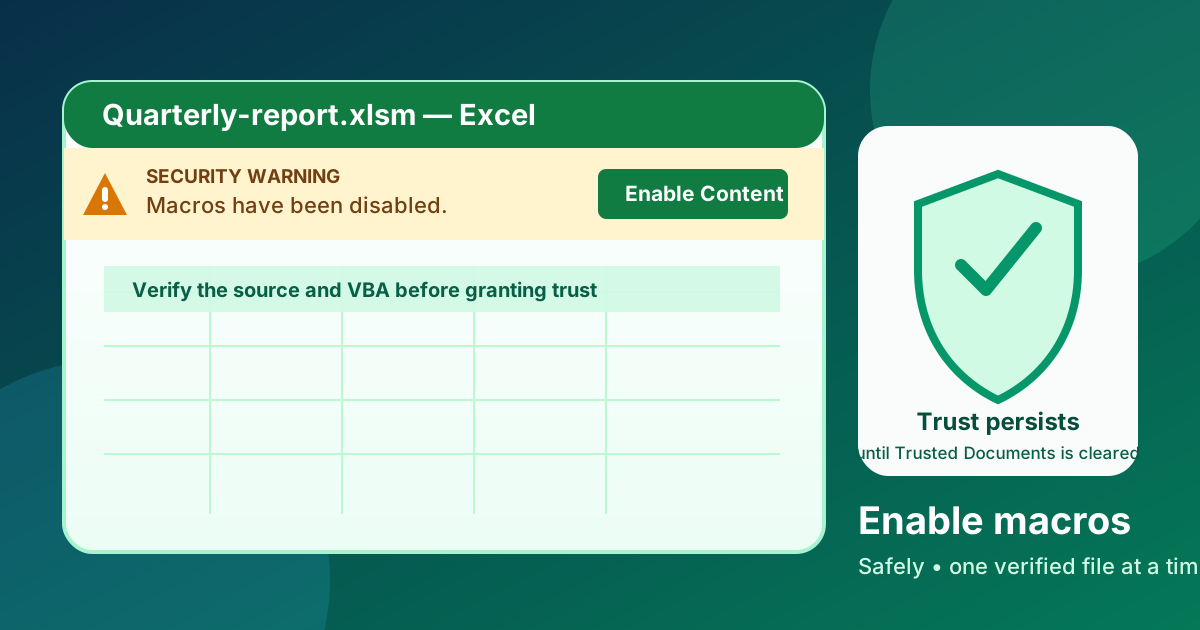
How to enable macros in Excel comes down to choosing the narrowest trust option that matches the file. For a verified, eligible local workbook showing the yellow warning bar, click Enable Content and remember that trust persists. A Windows internet or email file may instead show Security Risk with no Enable Content button. For repeat-use files, prefer a controlled trusted location or digitally signed macro. Avoid turning on all macros globally.
Stat block — Microsoft’s current guidance
Microsoft’s dated support article, “Change macro security settings in Excel”, documents 4 macro security settings plus a separate developer-only checkbox for trust access to the VBA project object model. Its metadata shows ms.date 04/23/2026 and an updated_at timestamp of 2026-06-25 04:35 AM.
Key Takeaways
- Enable Content on an eligible file normally stores persistent trust for 1 file; it does not sandbox its VBA
- Excel’s Trust Center offers 4 macro-setting choices, so you can match the policy to the risk
- Trusted locations and signed macros are the best long-term options for repeated VBA work
- You do not need macros enabled just to view or edit a workbook
Windows, Mac, and web paths are different
The Trust Center steps and Enable Content workflow in this guide apply to Excel desktop on Windows. On Mac, go to Excel > Preferences > Security and choose among 3 options: Enable all macros, Disable all macros with notification (the default), or Disable all macros without notification. Microsoft explains those choices in its Mac macro-security guide.
Excel for the web can open and edit a workbook that contains VBA, but it cannot create, run, or edit the macros. Use Open in Desktop App when the automation itself needs attention. See Microsoft’s Excel for the web VBA guidance.
What does it mean to enable macros in Excel?
The short answer is that enabling macros lets Excel run VBA code in a workbook. That allows buttons, automated cleanup, message boxes, and repetitive tasks to work with a single click. You can allow macros only when you trust the workbook and its creator; otherwise, keep the code disabled.
Macros are powerful because they remove friction, but they also create risk if you let unknown code run. VBA can reach beyond the open workbook: Microsoft documents APIs that read, write, copy, and delete files and start executable programs. Trust the code, not merely the visible cells.
Microsoft says you do not need to enable macros to view or edit the file. Inspect the workbook and confirm its source before deciding whether to trust the automation.
How do I enable macros for just one workbook?
On Windows, the quickest answer for an eligible local file is to use the yellow security warning bar after verifying the source and code. Click Enable Content, confirm the prompt if Excel asks again, and leave the global macro policy alone.
This route keeps the exception attached to one workbook, but normal Enable Content is not temporary. Microsoft says it creates a trusted document: later openings suppress the Message Bar, even if active content is changed or added. The prompt usually returns if the file moves. You have not changed Excel’s global macro setting, but you have stored a persistent trust decision.
Step-by-step: enable macros for a single file
- Open the workbook.
- Look for the Security Warning or Macros have been disabled bar near the top.
- Click Enable Content.
- If Excel prompts you again, confirm that you trust the file.
- Close and reopen the workbook once to confirm the expected trust behavior.
The workbook stays trusted across sessions on that device. Because later VBA changes may run without a new warning, trust both the source and the file’s ongoing chain of custody.
To revoke that decision, use File > Options > Trust Center > Trust Center Settings > Trusted Documents, select Clear all Trusted Documents so that they are no longer trusted, and confirm. Microsoft exposes a clear-all action rather than an individual-workbook remove button. The next time you open an eligible workbook, Excel asks again.
There is a distinct one-session case. Microsoft says some files cannot become trusted documents because of policy, an unsafe location, or file type. When that interface offers Enable All Content, it enables active content for that session only; the Message Bar returns on reopen. Do not confuse that fallback with the normal persistent Enable Content flow. See Microsoft’s Trusted documents guidance, updated November 13, 2024.
What if an internet or email file has no Enable Content button?
Current Microsoft 365 apps on Windows block VBA in many internet downloads and email attachments by default using Mark of the Web. In that state, Excel shows a Security Risk banner instead of the usual Enable Content path. Changing the four Macro Settings does not necessarily override that block, and organization policy can prevent exceptions entirely.
If you have independently verified the source and code, close Excel, right-click the file in Windows, choose Properties, and select Unblock on the General tab. For controlled repeat-use files, an administrator-managed trusted location or trusted site may be more appropriate. Do not unblock an unexpected attachment. Microsoft’s current Mark-of-the-Web guidance explains the supported options and policy limits.
Why this method is better than changing all macros
One-file trust narrows which document may start code; it does not sandbox what that VBA can affect. Verify unfamiliar code, keep backups, and use a test environment when needed.
What Each Trust Center Setting Actually Means
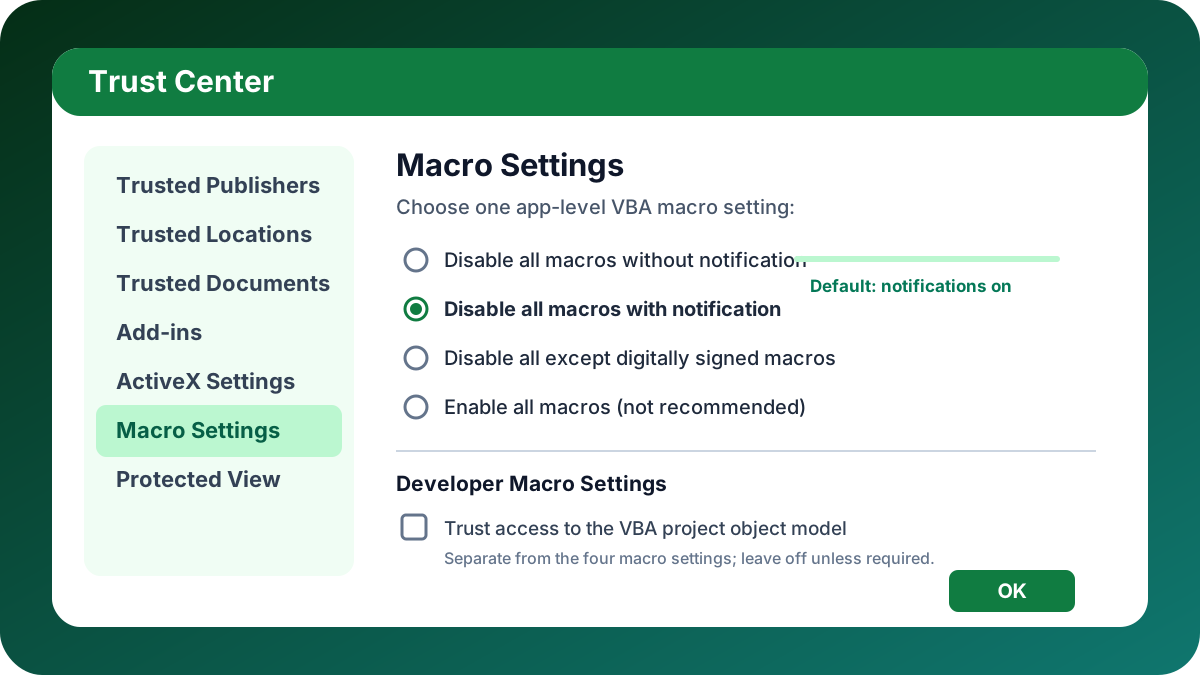
On Windows desktop, Microsoft’s Trust Center guidance documents four VBA policies at File > Options > Trust Center > Trust Center Settings > Macro Settings. They range from silent blocking to unrestricted execution. Use this screen for a persistent Excel-wide rule, not for a one-file trust decision.
The 4 macro settings Excel gives you
| Setting | What it does | Best for |
|---|---|---|
| Disable all macros without notification | Blocks macros and suppresses warnings | Locked-down environments |
| Disable all macros with notification | Blocks macros but shows the warning bar | Most everyday users |
| Disable all macros except digitally signed macros | Allows signed code from trusted publishers | Teams that ship signed VBA |
| Enable all macros | Runs every macro without confirmation | Isolated testing only |
The default notification option supports file-by-file decisions while stopping unknown code from launching silently.
How to change the setting safely
- Open Excel and go to File.
- Choose Options.
- Select Trust Center.
- Open Trust Center Settings.
- Choose Macro Settings.
- Pick the least permissive setting that still fits your workflow.
- Restart Excel and test the workbook again.
When in doubt, choose the setting that shows a warning rather than the one that removes the warning. That keeps your decisions explicit.
Where the developer-only checkbox fits
If you need to enable VBA automation that touches the project itself, look for Trust access to the VBA project object model. That is a separate developer-only control, and it is off by default. It exists for advanced code that needs to inspect or edit VBA components, not for ordinary macro execution.
Use that checkbox only when reviewed automation must inspect or alter VBA modules programmatically. Ordinary reporting macros usually do not need it.
Which Setting Should You Choose?
Choose the least permissive option that supports the workflow. Use notification-based approval for eligible local files, a controlled trusted location for recurring internal work, and signed-only trust for distributed projects. A Mark-of-the-Web Security Risk block is separate from these choices. Reserve Enable all macros for an isolated test environment.
Recommended setting by scenario
| Scenario | Recommended choice | Why |
|---|---|---|
| Eligible local file with a yellow Security Warning | Enable Content | Trusts that verified file without changing global policy |
| Windows internet or email file with Security Risk and no Enable Content | Keep blocked; if independently verified, close Excel and use Properties > Unblock, or follow an administrator-approved trust path | Mark of the Web is evaluated separately from the normal warning bar |
| Monthly template in a fixed folder | Trusted location | Reduces repeated prompts |
| Team-shared VBA project | Digitally signed macros | Keeps trust tied to a publisher |
| Testing new code in a sandbox | Enable all macros | Only when the environment is disposable |
| Advanced automation that edits VBA | Trust access to the VBA project object model | Required for code-generation workflows |
Trusted locations versus signed macros
A trusted location is a folder that Excel treats as safe. If a file sits there, Excel skips the normal macro prompt. That is convenient for files you use every day, but it should be reserved for a small number of controlled folders.
Microsoft’s Trusted Locations guidance warns that files there bypass some threat-protection and file-block checks, with all active content enabled. Treat the folder as a security boundary: restrict who can write to it, avoid broad network shares, and never make Downloads a trusted location. A malicious file copied into that folder can run without the warning you rely on elsewhere.
Digitally signed macros add another layer because the trust is attached to the publisher, not just the folder. That makes signatures ideal when a file moves between machines or users. If your team ships the same automation to multiple people, signing the project is usually the better long-term choice.
Why I avoid enabling every macro
I avoid the least restrictive option because it turns every workbook into a potential code runner. Microsoft’s own warning is clear that running all macros makes the computer vulnerable to malicious code. In other words, the convenience is real, but the security tradeoff is too broad for day-to-day use.
If broad execution is unavoidable, confine it to an isolated test environment rather than your everyday Excel profile.
What should I do if Excel still blocks the macro?
If Excel still blocks a macro, do not assume the VBA is broken. Mark of the Web, the effective Trust Center or administrator policy, signed-only mode, Excel 4.0 (XLM) controls, antivirus detection, Protected View, workbook or worksheet protection, file format, and code errors are all distinct possibilities.
Troubleshooting checklist
- Confirm the workbook is an actual macro-enabled file, not a plain
.xlsx - Reopen the workbook and look for a security warning bar
- Check for a Security Risk banner or Mark of the Web on a downloaded or emailed file
- Check the effective Trust Center choice and ask IT whether Group Policy or cloud policy overrides it
- If signed-only mode is active, verify the project signature and that its certificate is trusted and current
- For legacy Excel 4.0 macros, review the separate Enable Excel 4.0 macros when VBA macros are enabled and File Block controls
- Review antivirus or Microsoft Defender detections; Microsoft says compatible antivirus scans macro workbooks for known viruses before opening
- Exit Protected View only for a verified file, and check workbook/worksheet protection or read-only state
- Finally, inspect the VBA project for compile errors, missing references, or broken event handlers
Microsoft documents the separate XLM controls, antivirus scan behavior, and Protected View states. A remaining failure can still be policy, security software, protection state, or code; the checklist identifies which layer owns it.
What to do when a workbook is protected
A protected worksheet can stop your macro from doing the exact job it was written to do. The fix is not always to disable protection permanently. Sometimes the right answer is to let the code run against a protected sheet in a controlled way. If that is your situation, see my guide on how to run macros in protected worksheets for the UserInterfaceOnly:=True pattern.
That pattern lets code make changes while the user still sees a locked sheet. It is a much better option than unprotecting and reprotecting everything manually inside a fragile macro.
Where message boxes fit after macros are enabled
Once macros are working, I often add a confirmation prompt so users know what is happening. The Excel VBA Message Box guide is the best companion article if you want to ask yes/no questions, warn about irreversible actions, or show a completion message when the macro finishes.
That is a good example of why enabling macros is not the end of the workflow. It is the starting point for making the workbook behave like a guided tool instead of a static grid.
How do trusted locations and signed macros fit into a long-term workflow?
For recurring automation, a tightly controlled trusted location suits a fixed machine or managed folder because Excel bypasses normal checks there. A digitally signed project ties trust to its publisher instead, so it scales better across users and devices. Restrict write access to trusted folders and protect signing keys.
A practical progression
- Verify the code, then use Enable Content for one workbook.
- Move repeat-use files into a trusted location.
- Sign the VBA project if the file will be shared.
- Clear stale trusted-document records when trust should be revoked.
- Keep Enable all macros off unless you are in a sandbox.
What to remember about VBA trust
Macro security is really about two boundaries. A workbook, folder, or publisher determines which code may start; it does not sandbox what that code may do. VBA still runs with your accessible files and programs in reach. Keep trusted locations tightly controlled, sign distributed code, and clear trusted-document state when a file’s source or ownership changes.
FAQ
The safest way to enable Excel macros is to trust only verified workbooks, using Enable Content for a single eligible local file or a controlled trusted location or digital signature for repeat use. Keep notification-based macro blocking on by default, because downloaded or emailed files can remain blocked separately.
How many macro security options does Excel offer?
Excel for Windows documents 4 VBA macro settings in Trust Center, while Excel for Mac offers 3 choices under Excel > Preferences > Security. Both platforms include a notification-based default. Compare Microsoft’s Windows settings with its Mac settings.
Can I enable macros for just one workbook instead of changing everything?
Yes. For 1 eligible local file with the yellow warning bar, Enable Content creates a trusted document; trust normally persists without changing Excel for Windows’ 4 global VBA macro settings. An internet or email file with Mark of the Web may instead show Security Risk with no Enable Content. Microsoft documents trusted documents and blocked internet files.
What is the safest macro setting for everyday Excel use?
Use the notification-based default and approve only verified files. It is 1 of 4 Windows choices and 1 of 3 Mac choices; both Microsoft articles warn against Enable all macros because potentially dangerous code can run. See Microsoft’s macro guidance.
Can Excel for the web run or edit VBA macros?
No. Excel for the web supports 0 of 3 VBA actions: creating, running, or editing macros. It can edit a workbook that contains them, but VBA work requires Open in Desktop App. Microsoft documents all 3 limitations.
