
Summing a column in Excel means adding the numbers in one vertical range. The fastest options are AutoSum (Alt+=), a manual =SUM formula, or a Table total row. Use AutoSum for a quick one-off total, SUM when you need exact range control, and Tables when you want totals that grow automatically.
This guide covers the three methods above, plus the common traps: blank cells, text mixed with numbers, partial ranges, multi-sheet totals, and totals that come back as 0. For deeper formula syntax, see the full Excel SUM formula guide.
Stat block
Microsoft caps a worksheet at 1,048,576 rows and 16,384 columns, so fast, reliable column totals still matter at scale.
Source: Microsoft Excel specifications and limits, accessed July 18, 2026.
What is the fastest way to sum a column in Excel?
The fastest way is AutoSum: click the empty cell below your column, press Alt+=, and hit Enter. Excel scans upward, inserts a SUM formula, and returns the total in one step. It is best for a clean column with no gaps, subtotals, or stray labels.
AutoSum stops at the first blank cell, text label, or worksheet edge it finds, so check the highlighted range before pressing Enter.
Where AutoSum can go wrong is when the column isn’t as clean as it looks: a stray blank row, a subtotal row, or a text value like “N/A” can make Excel stop too early. In those cases, adjust the highlighted range before you confirm the formula.
How do I use AutoSum to total a column in Excel?
To use AutoSum, select the cell below your numbers, go to the Home tab, and click AutoSum (Σ). Excel proposes the range; press Enter to accept it, or drag the selection first if the suggestion is not right for your data.
AutoSum can total several adjacent columns at once: select the empty cells beneath the data and click AutoSum once. Excel fills one SUM formula per column instead of merging everything into a single total.
It also works for rows. Select the cell to the right of a row of numbers and use the same button or shortcut.
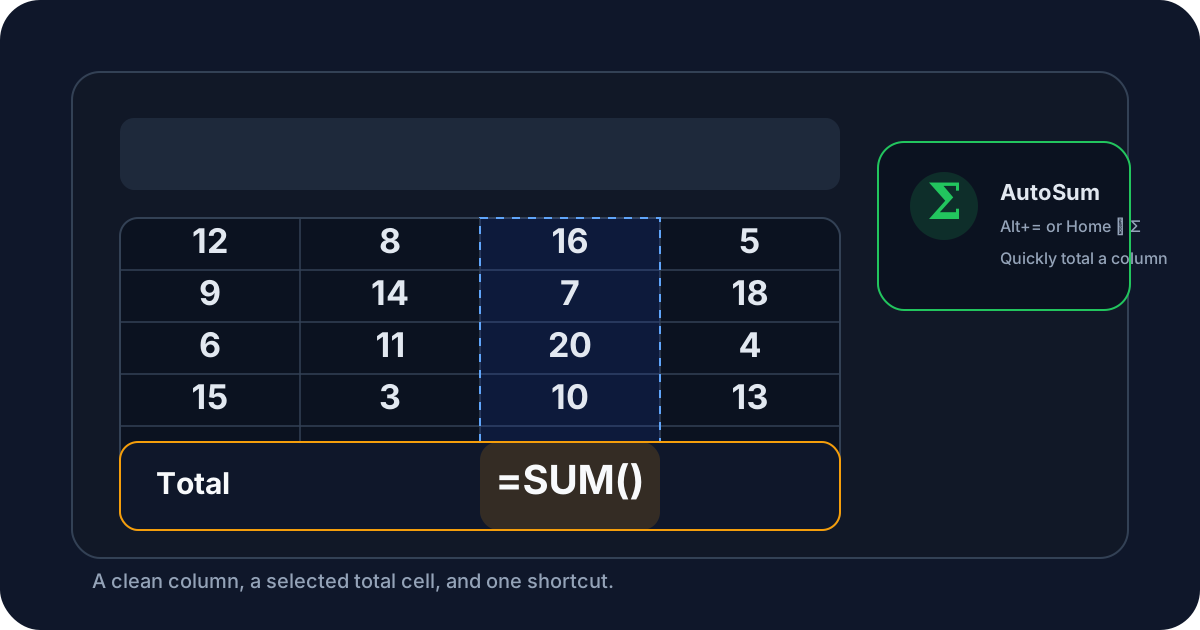 The AutoSum button on the Home tab detects the column above the active cell and proposes a SUM range automatically
How do I write a SUM formula to add a column manually?
Click an empty cell, type =SUM(, select the range such as A2:A500, close the parenthesis, and press Enter. Manual SUM gives you exact control over what gets counted, which is useful when AutoSum guesses the wrong range or stops too early.
The basic syntax is =SUM(number1, [number2], ...). For a column of order amounts in B, =SUM(B2:B500) adds numeric values and ignores text or blanks.
If the column will keep growing, reference a wider range such as B2:B1000 so you do not need to edit the formula every time new rows appear. For the full range of ways SUM combines with other functions, see the dedicated Excel SUM formula guide.
What is the keyboard shortcut to sum a column in Excel?
The keyboard shortcut is Alt+= on Windows, pressed with the empty cell below your column selected. This sum shortcut inserts the same AutoSum-generated formula you’d get from clicking the ribbon button, just without leaving the keyboard, which makes it noticeably faster once it becomes a habit.
On a Mac, the equivalent shortcut is Shift+Command+T in current Excel versions, though keyboard layouts can vary. The shortcut inserts a live formula rather than a static number, so the total recalculates automatically when the source range changes.
The shortcut scans upward from the active cell and proposes the range it finds. If you select multiple empty cells across several columns first, Excel fills one total per column in a single keystroke.
How do I sum a column that has blank cells or text mixed in?
SUM handles blank cells and text automatically by ignoring them, so a column mixing numbers with empty rows or the occasional text label like “pending” will still total correctly for the actual numeric entries. You don’t need to clean the data first — SUM simply skips anything that isn’t a genuine number.
The catch is numbers that are formatted or entered as text, which look identical to real numbers on screen but get skipped by SUM the same way a text label would. This usually happens when data is imported from a CSV, copied from a web page, or entered with a leading apostrophe. A quick check is cell alignment: numbers are right-aligned by default, while text is left-aligned.
To fix numbers stored as text, select the affected cells, use Data > Text to Columns and click Finish without changing any settings, or multiply the range by 1 in a helper column with a formula like =A2*1. Either approach converts the text-formatted values into real numbers that SUM will include going forward.
How do I sum only part of a column instead of the whole column?
To sum part of a column, reference just the rows you need in the SUM formula, such as =SUM(C10:C25) instead of the entire column, or select that specific range before clicking AutoSum instead of letting it guess the full extent automatically. This is the right approach whenever a column contains more than one logical section of data.
A common case is a column with several small tables stacked on top of each other, separated by blank rows or headers — quarterly figures, department totals, or a running log broken into months. AutoSum usually stops at the first blank row, but it is still worth checking the proposed range before accepting it.
If the section you want to total shifts position as rows are inserted or deleted above it, an Excel Table (covered next) handles that automatically, since its total row always tracks the current data range rather than a fixed set of cell addresses.
How do I total a column in an Excel Table so new rows are included automatically?
Convert the range to a Table with Ctrl+T, then turn on the Total Row from the Table Design tab. Excel adds a total to the bottom of the column, keeps it attached to the Table, and updates it automatically as new rows are added above the total.
Once the Total Row is visible, click the cell under any column and choose Sum, Average, Count, or another summary from the dropdown. Behind the scenes, Excel uses SUBTOTAL here rather than plain SUM, so hidden rows are excluded when a filter is applied.
That filter-aware behavior is useful in sales logs, expense trackers, and inventory sheets. If you need the same filtered-only result outside a Table, use SUBTOTAL or AGGREGATE; the SUM formula for filtered cells guide shows the syntax.
How do I sum a column across multiple sheets in a workbook?
To sum the same column across several sheets, use a 3-D reference like =SUM(Jan:Dec!B2), which totals cell B2 across every sheet from Jan through Dec in one formula, as long as those sheets are laid out identically. This avoids writing a separate SUM for each sheet and then adding those totals together manually.
The 3-D reference syntax names the first and last sheet in the range, separated by a colon, followed by an exclamation point and the cell or range to total on each of those sheets. It only works cleanly when every sheet shares the same layout — the same data in the same cell or range on each tab — since Excel applies the identical reference to all of them without adjusting for structural differences between sheets. If your monthly sheets have inconsistent layouts, a more reliable alternative is consolidating the data onto one sheet first, or building a summary sheet that pulls each month’s already-calculated total with individual cell references instead of a 3-D formula.
This technique is especially common in monthly or departmental reporting workbooks, where the same expense categories, product lines, or line items repeat identically on every tab, and a single year-end summary sheet needs one number per category pulled from all twelve months at once.
Why is my column total showing 0, blank, or an error?
A total showing 0 usually means the referenced range is empty, points to the wrong cells, or contains only text-formatted numbers. A blank result often means the formula itself has an issue, and an error value points to a more specific structure problem in the formula.
SUM ignores ordinary text and blank referenced cells, so a label in A20 does not cause #VALUE! by itself. An operator chain such as =A1+B1, however, can return #VALUE! when either referenced cell contains text. SUM also propagates actual error values: if a cell in its range contains #N/A, #VALUE!, or #REF!, the total returns an error instead of skipping that cell.
A #REF! error means the formula points to cells that were deleted or moved. Fix the broken reference first and confirm the intended range. Although =IFERROR(SUM(A2:A500), 0) suppresses the error, it can mask a broken reference as a plausible zero and let an incorrect total flow into a report. Use that fallback only when zero is explicitly the desired result after you have verified the references.
If the number looks wrong without returning an error, revisit the blank-cells-and-text section above. Text-formatted numbers are a common reason a SUM total comes in lower than expected, and the problem is rarely obvious from the cell display alone.
If the column is filtered and the total doesn’t match what you can visibly see, remember that plain SUM always includes hidden rows regardless of any filter applied to the sheet — only SUBTOTAL and AGGREGATE respect what’s currently hidden. The SUM formula for filtered cells guide walks through exactly which function number to use for a visible-only total.
Quick reference
Use this quick reference to choose the right column-total method without guesswork. It covers the five most common workflows: a fast AutoSum total, a controlled SUM range, a filtered total, a multi-sheet formula, and safe handling for broken references in busy workbooks.
- Fastest single total: select the empty cell below the column, press Alt+= (Windows) or Shift+Command+T (Mac), then Enter
- Manual control over the range:
=SUM(A2:A500) - Total that ignores filtered rows: convert to a Table (Ctrl+T) and turn on the Total Row, or use
=SUBTOTAL(109, range) - Total across identical sheets:
=SUM(Jan:Dec!B2) - Broken reference: fix and verify the reference first; use
=IFERROR(SUM(A2:A500), 0)only when a zero fallback is intentional
FAQ
Use these five answers to resolve the most common column-summing questions: the fastest shortcut, totaling several columns, diagnosing a wrong result, understanding SUM’s 255-argument limit, and excluding hidden rows. Each answer includes numeric context so you can check it against a real workbook.
What is the fastest way to sum a column in Excel?
Click the empty cell below your column, then press Alt+= and Enter. This inserts AutoSum’s SUM formula and calculates the total in about two seconds. Speed matters because Excel worksheets support up to 1,048,576 rows per Microsoft’s official specifications, and efficient techniques save significant time across large datasets.
Can AutoSum total more than one column at the same time?
Yes. Select the empty cells below each column at once, then click AutoSum, and Excel inserts a separate SUM formula per column instead of one combined total. This matters as sheets grow, since a single Excel worksheet supports up to 16,384 columns according to Microsoft’s worksheet specifications.
Why does my SUM formula show 0 or the wrong number?
The most common cause is numbers stored as text, which SUM ignores. For example, if 20 cells appear filled but 3 values are text, SUM adds only the 17 numeric cells and can look too low. Convert text-formatted values to numbers, verify the intended range, and check referenced cells for errors.
Is there a limit to how many numbers the SUM function can add?
SUM accepts up to 255 individual arguments, according to Microsoft’s official function documentation, where each argument can itself be a single cell or an entire range. In practice this ceiling is rarely a problem, since one argument can cover an entire column of thousands of rows.
How do I sum a column without counting hidden or filtered-out rows?
Swap SUM for SUBTOTAL or AGGREGATE, both of which can be told to ignore hidden rows. This distinction gets more important as data grows: Excel worksheets can hold up to 1,048,576 rows per Microsoft’s specifications, and a plain SUM formula will silently include every one of them, filtered or not.
