
Copilot in Excel is the fastest way to turn a plain-English request into a spreadsheet action. If you want to write formulas, summarize a table, or get a chart suggestion without wrestling with the ribbon, Copilot can help.
In this how to use Copilot in Excel guide, I’ll show you how I use Excel Copilot for formulas, Copilot data analysis, and worksheet cleanup, plus how it compares with How to Use ChatGPT with Excel, Excel AI Analysis, and Excel AI Plugin.
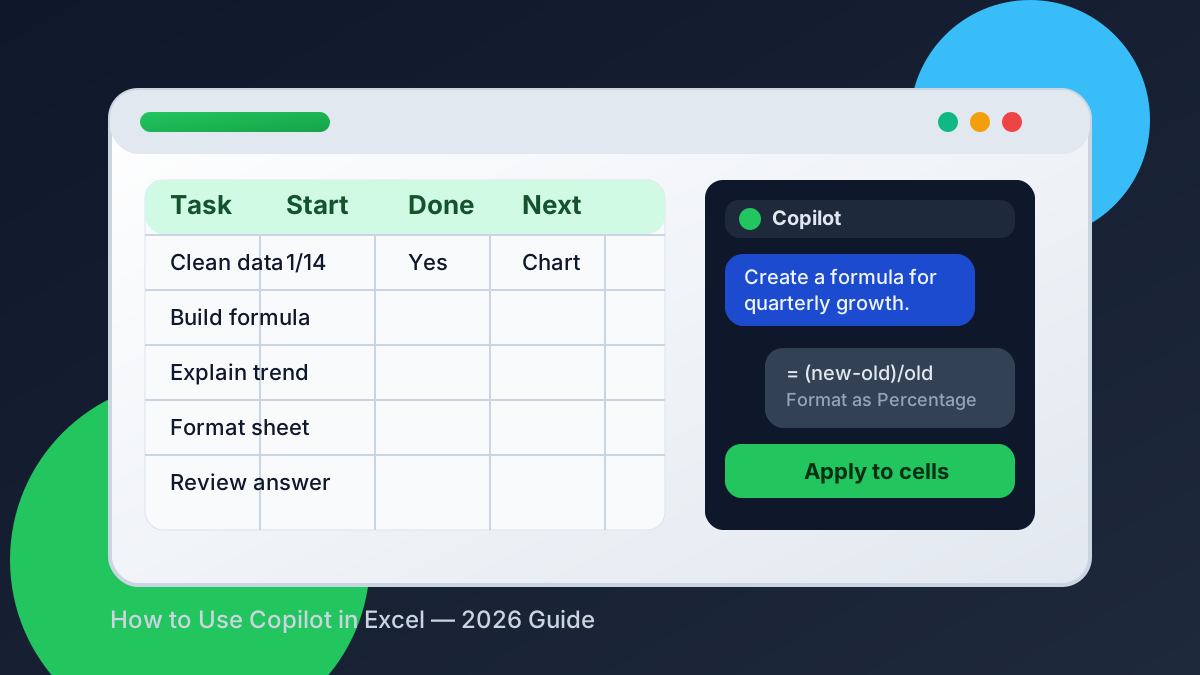
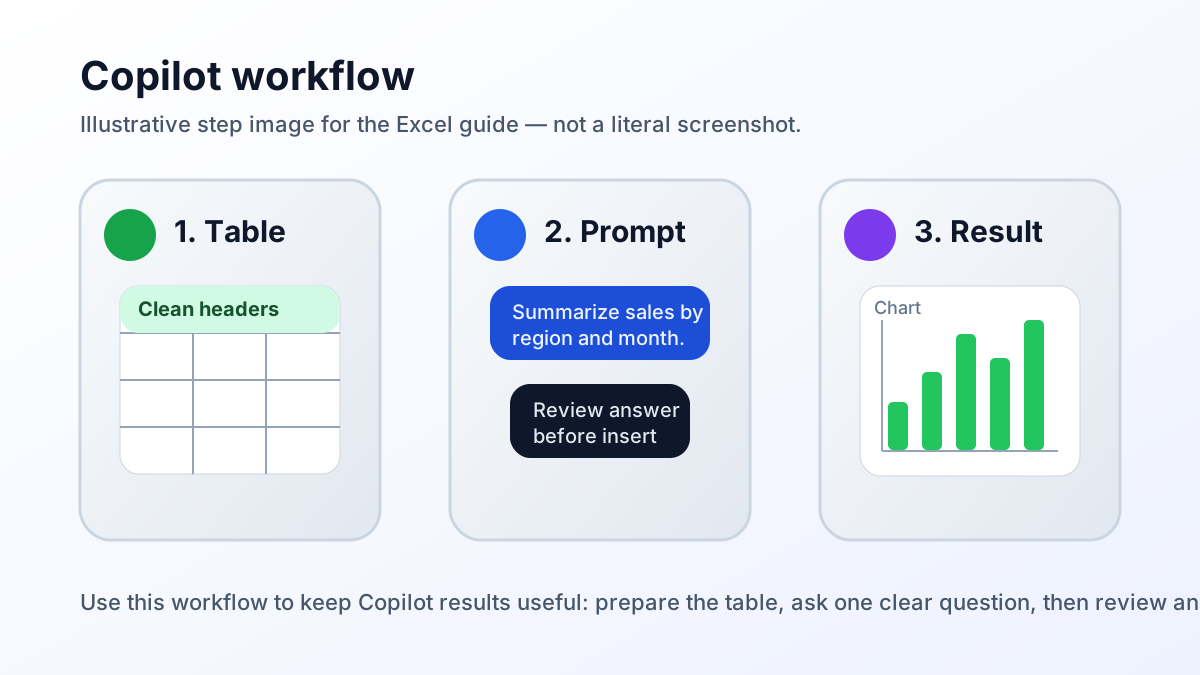
Illustrative workflow art, not a literal screenshot. The actual Copilot panel and ribbon placement can vary by Microsoft 365 build, region, and license.
Quick takeaways
- Copilot formulas work best when your data is in a clean Excel table with clear headers.
- Copilot data analysis is strongest for summaries, trends, and first-pass chart ideas.
- 365 Copilot Excel is most reliable when you ask one specific question at a time.
- You still need to check the output, especially when the workbook has blanks, merged cells, or inconsistent labels.
Why workbook structure still matters
Microsoft Excel specifications and limits say a worksheet can hold 1,048,576 rows and 16,384 columns.
That matters because Copilot works best when the workbook is already organized. Big sheets are not the problem; messy structure is.
What Copilot in Excel actually does
Copilot in Excel is best understood as a conversation layer over your workbook. It does not magically make every spreadsheet smart, but it does make common work faster: formula drafting, data summarization, chart creation, and plain-English explanations. If you already know what you want, Copilot can often help you get there faster.
If you are coming from traditional Excel workflows, this is a big shift. You no longer need to remember every function name before you start. You can ask for the outcome first, then refine the formula or analysis after Copilot gives you a draft.
How to open Copilot and prepare your workbook
Before you start, sign in with an eligible Microsoft 365 account. Qualifying options include Personal or Family with AI credits, Microsoft 365 Premium, commercial Microsoft 365 Copilot, and Copilot Chat-eligible Microsoft 365 or Office 365 business or enterprise plans. App version, settings, and organizational policies also affect availability; check Microsoft’s Copilot FAQ for current requirements.
Use a modern format such as .xlsx, set Formulas > Calculation Options > Automatic, and organize analysis data as an Excel table or table-like range with one header row. Microsoft’s analysis guide says Copilot supports one or multiple supported ranges in a workbook, but not unstructured data. Tables also make formulas, filters, charts, and cleanup more dependable.
AutoSave is not required. Microsoft’s current Copilot in Excel tips say Copilot works with it on or off. Leave it on to sync changes; turn it off before experimenting if you do not want direct edits saved automatically. Save a backup or use version history for sensitive workbooks.
Open Copilot and choose how it works
Microsoft’s current Get started with Copilot in Excel flow is:
- Open the workbook and select the Copilot icon in the lower-right corner of Excel.
- Copilot opens in edit mode by default. Use the mode control in the pane to choose edit, plan, or chat before submitting your prompt.
- Choose edit mode when you want Copilot to make direct changes with Excel’s built-in features. It can create a step-by-step plan, run it in the workbook, and evaluate the result while you watch the changes in the pane.
- Choose plan mode when you want a structured approach you can review and confirm before editing starts.
- Choose chat mode when you want analysis or an answer kept in the chat pane without workbook changes.
- If an edit is going in the wrong direction, select Stop at the lower-right of the chat input to pause or stop it. Review the resulting cells, formulas, charts, and assumptions before accepting the result; use Undo or version history when you need to revert a direct change.
That last review is part of the workflow, not an optional polish step. Copilot can change cell values, formulas, ranges, worksheets, formatting, charts, and PivotTables directly, so inspect the workbook itself rather than trusting only the summary in the pane.
How to use Copilot formulas in Excel
Copilot formulas are best when you already know the business question but do not want to hand-build the formula from scratch. I use them for margin calculations, category flags, lookups, rolling sums, and quick logic checks. The trick is to tell Copilot what the result should mean, not just what cells to reference.
For example, instead of asking “write a formula,” I ask something closer to “create a formula that shows gross margin percentage for each row using revenue in column C and cost in column D.” That extra context helps Copilot avoid vague answers and makes the output easier to audit.
My usual formula workflow looks like this:
- Describe the business outcome in one sentence.
- Name the relevant columns and what they contain.
- Ask for the formula in Excel syntax.
- Test it on a small sample of rows.
- Check for edge cases such as blanks, zeros, or text values.
This helps with repetitive tasks. For the same formula in a column, Copilot can draft it once; fill or copy it down after confirming the logic. For complex cases, compare the formula with a manual version or a ChatGPT explanation.
A good example prompt is: “In my sales table, write a formula that returns ‘At Risk’ when the renewal date is within 30 days and annual value is below 5000, otherwise return ‘Stable.’” That prompt is far better than “make a formula for churn.”
When you use Copilot formulas well, you save time without losing control. That is the real win: faster drafting, but still human-reviewed output.
How to use Copilot for data analysis
Copilot data analysis is where the feature becomes genuinely useful for reporting. I use it when I want an answer to a question like “what changed last month?” or “which region is underperforming?” without manually building a pivot table first. It is especially good at turning a spreadsheet into a first-pass narrative.
My favorite use case is quick exploration. I ask Copilot to summarize a table, point out trends, or identify unusual values. Then I use that output to decide which chart, pivot table, or filter I should build next. In other words, Copilot helps me choose the next analytical step.
A practical analysis workflow looks like this:
- Ask for a summary of the table.
- Ask for the top drivers of change.
- Ask which rows look unusual.
- Ask for a chart recommendation.
Copilot is particularly strong when the sheet has clearly labeled time periods, categories, and metrics. If you ask “show me the sales trend by region,” it can usually help you discover whether the trend is flat, seasonal, or concentrated in one segment. That is often enough to move from raw data to a useful story.
If you need a more technical analysis pipeline, pair Copilot with Excel AI Analysis or use Python in Excel for heavier statistical work. Copilot can still help you frame the question, but the deeper math may belong in a different tool.
How to clean and format data with Copilot
Copilot is helpful for cleaning and formatting, but only if you stay specific. I do not ask it to “fix the sheet.” I ask it to standardize dates, split names, flag blanks, or identify duplicate-looking entries. That narrower request gives much better results and reduces the chance that Copilot changes something important.
The most useful cleanup tasks are the boring ones: consistent casing, obvious duplicates, simple parsing, and standard formatting. If a dataset has one column storing full names, another with mixed date formats, and a third with inconsistent labels, Copilot can help you plan the cleanup before you start editing cells.
Here is how I usually handle a messy sheet with Copilot:
- Ask it to summarize the data quality issues it sees.
- Ask it to identify likely duplicates or mismatched labels.
- Ask it to suggest a cleanup sequence, not just a single formula.
- Apply the changes to a copy of the workbook first.
- Recheck the cleaned result before using it in a report.
Formatting works the same way. Copilot can help suggest a chart or basic layout, but you should still make the workbook readable yourself. I like to keep headings bold, freeze the top row, use consistent number formats, and keep a clean color palette. That way the workbook still feels professional even after AI helps with the initial draft.
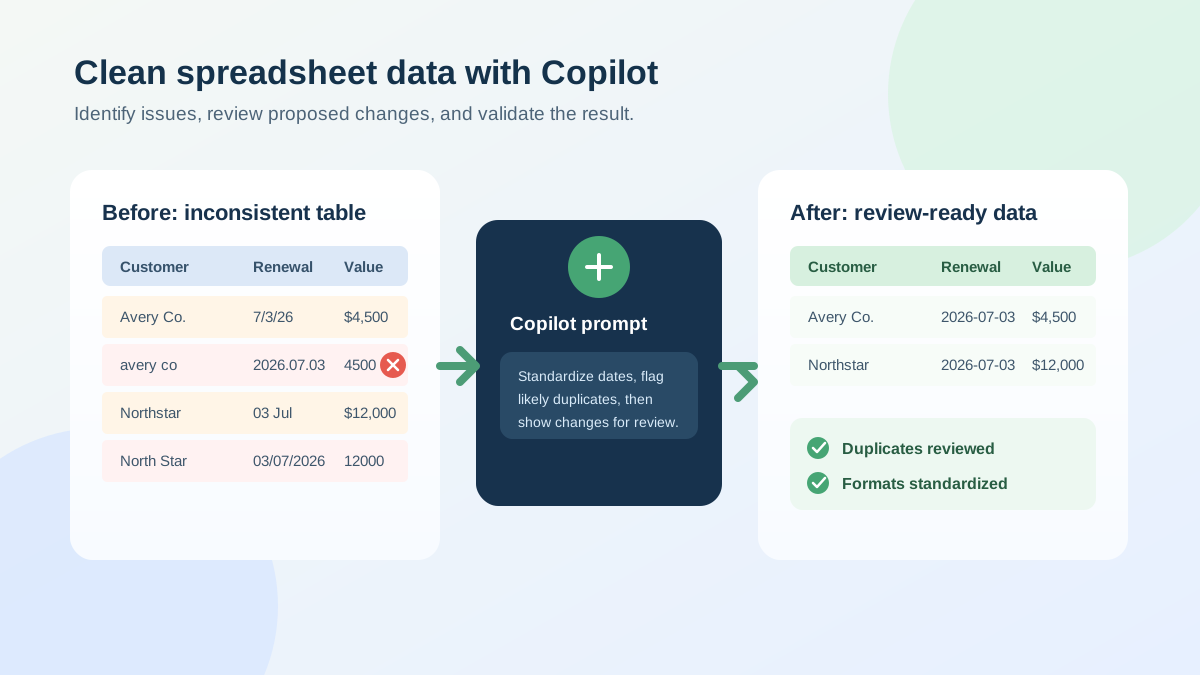
One extra safeguard is worth the minute it takes: ask Copilot to list the proposed changes before you apply them. Review that list for deleted rows, replaced values, or assumptions about blanks, then save a copy of the original sheet. This makes the cleanup process reversible and gives you a simple record of what changed if someone questions a number later.
If you are comparing methods, Copilot is faster than manual cleanup, but it is not always as precise as a purpose-built formula or Power Query step. I use it to accelerate the first 80%, then I take over for the final 20%.
Use Data > Clean Data for focused cleanup
Excel also has a dedicated AI-assisted cleanup path for specific inconsistencies. In supported builds, select the data, open the Data tab, and choose Clean Data. Excel inspects the table and presents suggestion cards for inconsistent text, mixed number formats, and extra spaces; review each suggestion, then apply the correction you want or leave the original value unchanged.
Microsoft’s current Clean Data in Excel guide says this version is available to Copilot customers in Excel for the web and Windows, is rolling out gradually, and may not yet appear in every country or region. It works best with data formatted as an Excel table, up to 100 columns and 50,000 rows, and currently performs best in English. Treat it as a targeted consistency checker, not a promise to repair every kind of messy workbook.
How to keep Copilot results reliable
Copilot is useful, but it is not trustworthy by default. The safest way to use it is to assume every answer needs verification until you prove otherwise. That sounds cautious, but it is exactly how I treat Excel Copilot in real projects where a bad formula or misleading summary could cause trouble.
My reliability checklist is simple. I test formula outputs on a small sample, I look for edge cases, and I compare Copilot’s summary against the raw table before I use it anywhere important. If the workbook contains blanks, mixed types, or merged cells, I become even more careful because the model can misread the structure.
A few habits make Copilot much safer to use:
- Always ask one specific question per prompt.
- Name the columns instead of saying “this data.”
- Use a sample workbook or duplicate sheet when experimenting.
- Compare the AI output against a manual calculation.
- Save the prompt and answer if you need an audit trail later.
This is where Copilot differs from a generic chatbot. It is tightly connected to Excel, which makes it convenient, but it also means bad workbook structure can mislead the assistant. If you are unsure whether the result is right, ask Copilot to explain its logic in plain English and then verify it yourself.
That same mindset applies to any AI-assisted spreadsheet workflow. Whether you are using Copilot, ChatGPT, or another add-in, the human still owns the final answer. The AI is there to reduce friction, not to replace judgment.
Copilot vs ChatGPT vs Excel AI plugins
Copilot, ChatGPT, and Excel AI plugins overlap, but they are not the same tool. I choose between them based on where I want the work to happen. If I am already inside the workbook and want a quick action, Copilot is usually the best choice. If I need broader reasoning or drafting, ChatGPT often wins.
The simplest comparison is this:
- Copilot in Excel is best for workbook-native actions.
- ChatGPT with Excel is best for explanation, brainstorming, and prompt refinement.
- Excel AI plugins are best when you want third-party features or a different price point.
That means Copilot is not always the right answer, even though it is very good. For example, if I need a full tutorial, a step-by-step explanation, or a second opinion on a formula, I may start in ChatGPT and then bring the result back into Excel. If I want to stay inside the workbook and keep moving quickly, Copilot is the better fit.
For readers who are still deciding which path to take, I recommend using this rule: if the task lives inside one workbook, start with Copilot; if the task needs broader thinking or you are working across many tools, start with ChatGPT or a plugin. That approach gives you the best of both worlds.
FAQ
Copilot in Excel is a workbook-native AI assistant that can draft formulas, analyze structured data, clean inconsistencies, and make direct edits. Open the lower-right Copilot icon, choose the mode, describe the outcome, and verify each change before relying on it.
What is Copilot in Excel?
Copilot in Excel is Microsoft’s AI assistant for building and editing workbooks. Depending on the mode you choose, it can make direct workbook changes, propose a plan, or answer questions in the chat pane.
How do I use Copilot to write formulas?
Open Copilot, name the table or range and relevant columns, and describe the result you want. Review the formula and test edge cases such as blanks, zeros, and text values before relying on it.
Can Copilot analyze data in Excel?
Yes. Copilot can return summaries, trends, outliers, charts, and PivotTables. Its data-analysis experience supports tables and table-like ranges, including multiple supported ranges across a workbook, but not unstructured data.
Is Copilot in Excel a replacement for ChatGPT?
No. Copilot is designed for workbook-native work and can edit Excel directly in edit mode. ChatGPT is useful for broader explanation, planning, and drafting outside the workbook, so the better tool depends on where the task needs to happen.
Conclusion
If you want a practical answer to how to use Copilot in Excel, the answer is simple: keep your data clean, ask specific questions, and verify the output before you trust it. That workflow gives you the best of both worlds — the speed of AI and the reliability of human review.
