
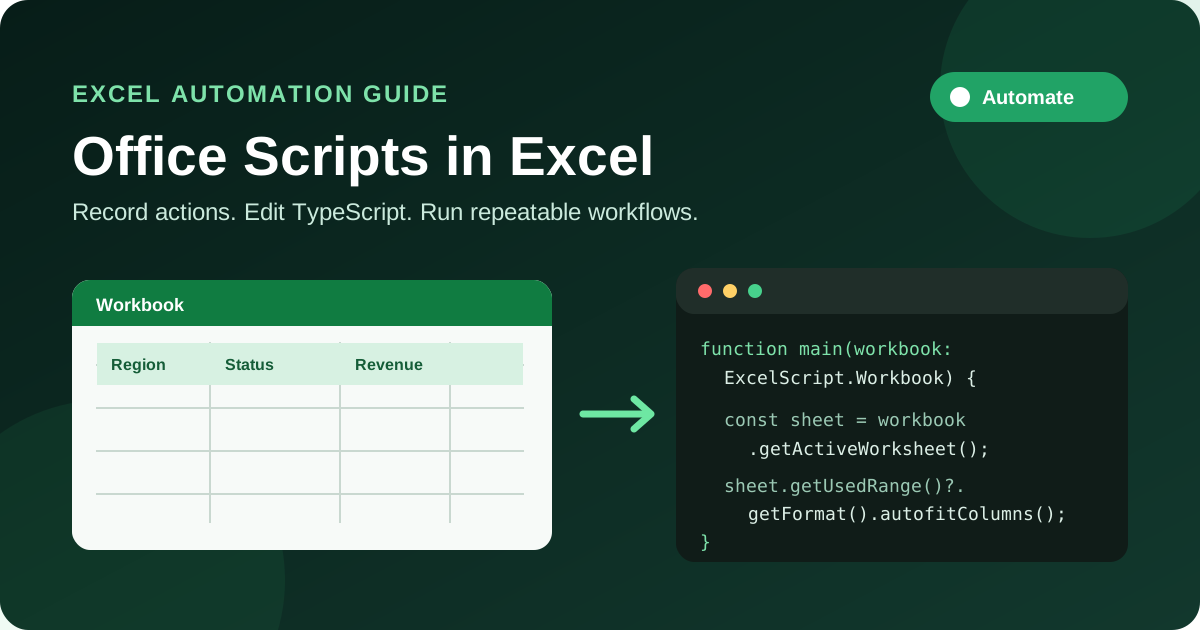
Office Scripts in Excel turn repeated worksheet actions into reusable automation. You can record a task without writing code, inspect the generated TypeScript, and extend it with conditions, loops, tables, formatting, and Power Automate. This guide builds a practical script and explains where Office Scripts fit beside VBA.
Documented automation limits: Microsoft allows each user up to 1,600 calls per day to the Power Automate Run script action, and synchronous Power Automate operations have a 120-second timeout. These are service limits, not workbook performance targets. Source: Microsoft Learn, “Platform limits and requirements with Office Scripts” (accessed July 24, 2026).
What are Office Scripts in Excel?
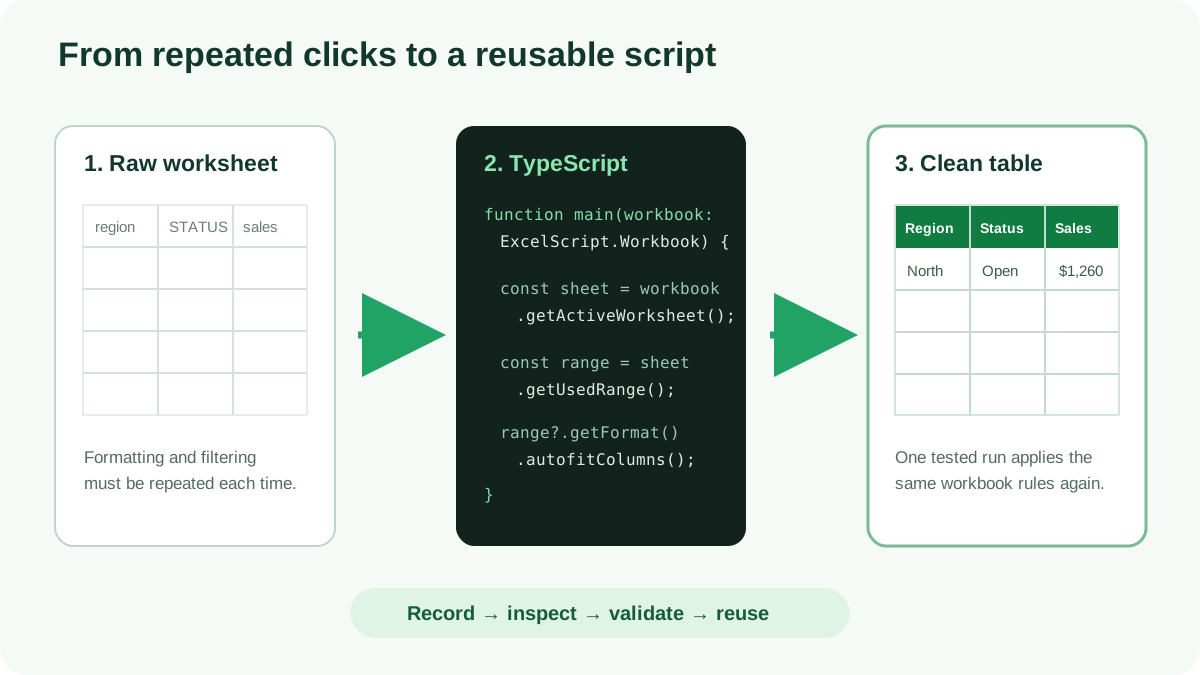
Office Scripts are TypeScript programs that read and change an Excel workbook through Microsoft’s ExcelScript object model. Every script starts with a main function that receives an ExcelScript.Workbook. You can generate code with the recorder, edit it in Excel’s code editor, and rerun the same procedure consistently.
The object model follows the workbook’s structure. A workbook contains worksheets; worksheets expose ranges, tables, charts, shapes, and other objects. A script gets the object it needs, then calls methods such as getRange(), setValues(), addTable(), or autofitColumns().
Office Scripts are a good fit for repeatable, bounded work:
- Standardize incoming worksheets before analysis.
- Apply the same table style and number formats each week.
- Add formulas or values to known ranges.
- Sort or filter a table using named columns.
- Return workbook data to a Power Automate flow.
- Give colleagues a button for an approved process.
The automation is not a continuously running add-in. A script starts, works through main, and ends. It does not preserve private in-memory state between runs, and it does not listen for workbook events.
Office Scripts vs VBA: which should you use?
Office Scripts and VBA both automate Excel, but their operating models differ. Microsoft’s Office Scripts and VBA comparison describes Office Scripts as secure, cross-platform, cloud-based automation and VBA as desktop-focused automation. Choose according to the environment, trigger, and integrations you need rather than treating Office Scripts as a line-for-line replacement for an existing macro.
| Requirement | Office Scripts | VBA |
|---|---|---|
| Excel for the web | Supported | Not supported |
| Current Excel for Windows and Mac | Supported with eligible access | Supported |
| Power Automate cloud flows | Native Run script action | No native VBA connector |
| Excel-level events | Not supported | Supported |
| Access to the local computer | Workbook only | Can integrate with desktop resources |
| Language | TypeScript with ExcelScript APIs | Visual Basic for Applications |
| File format | Script stored separately in OneDrive or SharePoint | Macro stored in .xlsm or related macro-enabled file |
Use Office Scripts when colleagues work across the web, Windows, and Mac; when a cloud flow should run the process; or when workbook-scoped access is a security advantage. Use VBA when a desktop-only solution needs worksheet or workbook events, legacy object-model coverage, COM/OLE integration, or local file-system interaction.
Microsoft notes that VBA still covers more desktop Excel features. A large VBA system should therefore be assessed by capability, not translated mechanically. For a concrete legacy example, see importing a CSV with Excel VBA and QueryTables. A new scheduled cloud workflow may instead be a stronger Office Scripts candidate.
How do you check availability and prerequisites?
Before building automation, confirm that the Automate tab appears in Excel and that your account meets Microsoft’s current platform requirements. Business and education use requires a supported Microsoft 365 license, connected experiences, internet access, and OneDrive for Business. Personal and Family support remains a preview and has different prerequisites.
Microsoft currently lists Excel for the web, Excel for Windows version 2210 or later, and Excel for Mac for business and education users. Office Scripts do not run in Excel for iOS. The feature can also be unavailable because an administrator disabled it, a Conditional Access policy blocks storage, or required sharing settings are restricted.
Scripts are normally saved as .osts files in OneDrive > Documents > Office Scripts. Microsoft’s Office Scripts storage documentation says Excel recognizes scripts in OneDrive, SharePoint, or those shared with a workbook. That cloud storage requirement means offline-only automation is not the right use case.
If the Automate tab is missing, check the signed-in account, Excel version, connected experiences, internet access, OneDrive availability, and organization policy. Do not assume that seeing Excel desktop automatically grants Office Scripts or Power Automate rights; licensing and tenant controls are separate gates.
How do you record your first Office Script?
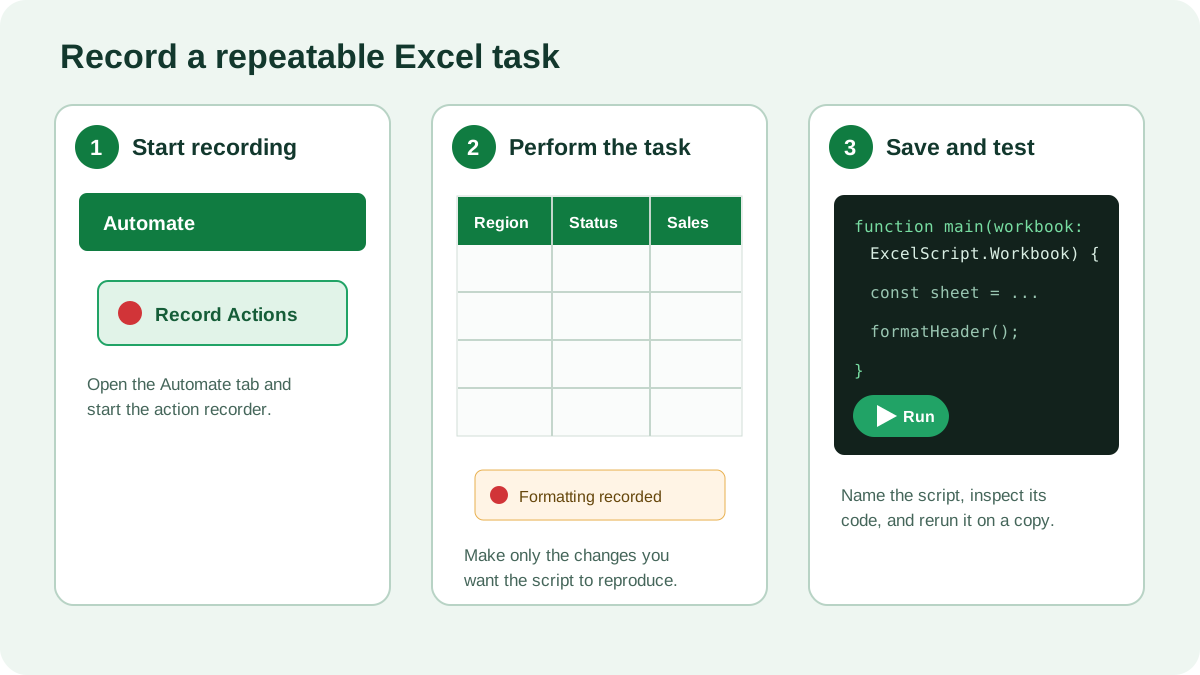
The Action Recorder converts supported workbook actions into code, making it the fastest way to learn the API. Start with a small sample workbook and a short, deterministic procedure. Avoid recording exploratory clicks or selecting unrelated cells, because the recorder captures the actions you perform rather than the business intent behind them.
- Open a workbook in a supported version of Excel.
- Select Automate > Record Actions.
- Perform a simple sequence: enter headers, format the header row, and resize the columns.
- Review the action cards as Excel records each change.
- Select Stop, give the script a specific name, and inspect the generated code.
- Reset or duplicate the sample sheet, then select Run to test the result.
Microsoft’s Office Scripts best-practices guide also recommends Copy as code when you only need the API calls for one action. Record that action, copy its code, and paste the useful lines into a cleaner script instead of keeping every recorded selection.
Recording creates a starting point, not automatically production-ready automation. Generated code may refer to the active worksheet or a fixed address that worked only during recording. Read each object reference, rename unclear variables, remove redundant selections, and retest against a fresh workbook with the same expected structure.
How do you edit Office Scripts with TypeScript?
Open Automate > New Script > Create in Code Editor to write from scratch, or open a recorded script and select Edit. Office Scripts use TypeScript, but Microsoft applies some language restrictions and exposes synchronous-looking workbook APIs through the ExcelScript namespace rather than the separate Office Add-ins JavaScript API.
This small example writes a two-dimensional array to cells, formats the header, and resizes the columns:
function main(workbook: ExcelScript.Workbook) {
  const sheet = workbook.getActiveWorksheet();
  const output = sheet.getRange("A1:C4");

  output.setValues([
    ["Product", "Units", "Revenue"],
    ["North", 14, 1260],
    ["Central", 11, 990],
    ["South", 18, 1710],
  ]);

  const header = sheet.getRange("A1:C1");
  header.getFormat().getFont().setBold(true);
  header.getFormat().getFill().setColor("#107C41");
  header.getFormat().getFont().setColor("#FFFFFF");
  output.getFormat().autofitColumns();
}
setValues() expects a rectangular two-dimensional array whose rows and columns match the target range. Values can be strings, numbers, or booleans. Batch reads and writes like this are usually clearer and faster than repeatedly moving through individual cells.
The workbook parameter is the entry point. getActiveWorksheet() returns the current sheet, getRange() returns cells by address, and getFormat() exposes font, fill, alignment, and sizing objects. These are real Office Scripts calls documented in Microsoft’s ExcelScript API reference.
How do you build a reusable table-cleanup script?
A useful production script should validate assumptions, operate on meaningful objects, and make few workbook round trips. The following example turns the active sheet’s used range into a table when needed, formats it, filters an optional Status column to Open, and returns a summary that Power Automate can consume.
function main(workbook: ExcelScript.Workbook) {
  const sheet = workbook.getActiveWorksheet();
  const usedRange = sheet.getUsedRange();

  if (!usedRange) {
    throw new Error("The active worksheet has no data.");
  }

  const existingTables = sheet.getTables();
  let table: ExcelScript.Table;

  if (existingTables.length === 0) {
    table = sheet.addTable(usedRange, true);
  } else {
    table = existingTables[0];
  }

  const tableRange = table.getRange();
  const headerRange = table.getHeaderRowRange();
  headerRange.getFormat().getFill().setColor("#107C41");
  headerRange.getFormat().getFont().setColor("#FFFFFF");
  headerRange.getFormat().getFont().setBold(true);
  tableRange.getFormat().autofitColumns();
  tableRange.getFormat().autofitRows();

  let statusColumn: ExcelScript.TableColumn | undefined;
  for (const column of table.getColumns()) {
    if (column.getName() === "Status") {
      statusColumn = column;
      break;
    }
  }

  if (statusColumn) {
    statusColumn.getFilter().applyValuesFilter(["Open"]);
  }

  return {
    worksheet: sheet.getName(),
    rowCount: table.getRowCount(),
    filteredToOpen: statusColumn !== undefined,
  };
}
The blank-sheet guard produces a useful error instead of trying to create a table from nothing. The existing-table check makes repeat runs safer. The named-column search avoids assuming that Status occupies a fixed position, while the optional filter lets workbooks without that header finish successfully.
For another cloud automation pattern, read Excel to CSV with Power Automate. CSV output carries values rather than Excel’s formulas, styles, charts, and multiple sheets, so decide explicitly what the receiving system needs before automating an export.
How do you run, share, and schedule a script?
Run a personal script from the Automate gallery or code editor after testing it on a copy of the workbook. For a team workflow, associate the script with the workbook and optionally add a worksheet button. People with write permission can then run it, subject to licensing, storage, and administrator sharing policy.
Sharing links the script to the workbook; it does not embed the script’s source as a VBA project. Microsoft says a shared script remains in its creator’s OneDrive unless moved to SharePoint. For team-owned processes, consider SharePoint storage and organizational retention so an employee departure does not orphan critical automation.
Power Automate’s Excel Online (Business) connector can call Office Scripts in scheduled or event-driven flows. Define parameters after the workbook argument to accept flow input, and return a JSON-compatible value when later actions need results. Changing a script’s parameters or return type can require recreating the Run script action so its schema refreshes.
Test unattended runs with representative files. Power Automate has platform limits, and some APIs behave differently without Excel’s user interface. External fetch calls from a script fail when run through Power Automate; use an appropriate HTTP or connector action in the flow instead.
What security and cross-platform caveats matter?
The ExcelScript object model is workbook-scoped: it does not provide general access to the computer hosting Excel. Scripts run interactively can make external fetch calls, but they cannot reuse the signed-in person’s authentication tokens; OAuth2 sign-in flows are unsupported. This narrower desktop boundary still leaves script sharing, workbook permissions, external endpoints, flow connections, and data-loss-prevention policy to govern.
Someone who can run a shared script may change workbook data, so inspect unfamiliar code and test it on a copy. Use descriptive names, preserve source ownership, limit workbook access, and document expected inputs. OneDrive and SharePoint permissions control access to stored script files independently of ordinary workbook settings.
Administrators can control Office Scripts availability, sharing, and use with Power Automate. Microsoft recommends reviewing Microsoft Purview data loss prevention policies because flows can move workbook data between connectors. Conditional Access restrictions on OneDrive or SharePoint can also prevent scripts from being available on unmanaged devices.
Cross-platform does not mean identical in every environment. Microsoft warns that the recorder can occasionally generate an API unsupported outside Excel for the web; other users see a warning. Validate important scripts in each target—web, Windows, and Mac—and remember that workbook buttons do nothing in Excel versions that lack Office Scripts support.
How do you troubleshoot Office Scripts?
When a script fails, identify whether the problem is availability, workbook structure, code, permissions, or the execution host. Reproduce it in the code editor with a small workbook first, read the reported line number, and verify every named sheet, table, column, and range before debugging Power Automate around an invalid workbook assumption.
Common fixes include:
- Guard
getWorksheet("Name")orgetUsedRange()results before using them. - Prefer table and header names over hard-coded column positions.
- Keep reads and writes outside loops when a range operation can handle the batch.
- Confirm a flow connection can access both the workbook and stored script.
- Remove
fetchfrom scripts invoked through Power Automate. - Split or optimize work that approaches the 120-second flow timeout.
- Rerecord one action to discover the current API pattern.
Office Scripts TypeScript does not support every modern TypeScript feature. Microsoft’s current restrictions document says the runtime uses TypeScript 4.0.3, disallows explicit and implicit any, and does not support eval. Let the editor infer precise types or provide types such as ExcelScript.TableColumn | undefined.
Use console.log() for concise diagnostics in the code editor, but do not rely on console output as a durable audit log. For operational automation, return a compact status object to Power Automate and let the flow record, notify, retry, or route failures through managed actions.
FAQ
These answers summarize what Office Scripts are, how they differ from VBA, where they run, how automation starts, and where Microsoft stores script files. They also mirror the structured FAQ data attached to this article, so readers and search systems receive the same guidance without contradictory versions.
What are Office Scripts in Excel?
Office Scripts are reusable TypeScript programs that automate workbook tasks in supported versions of Excel. You can create one by recording actions or writing code, then run it manually, from a workbook button, or through Power Automate.
Are Office Scripts the same as VBA macros?
No. Office Scripts are designed for cloud-connected, cross-platform Excel automation and do not have VBA’s general access to local computer resources. VBA is a desktop technology with broader Excel and computer integration, event support, and a different security model.
Do Office Scripts work on Mac and Windows?
Yes, Office Scripts are supported in current eligible versions of Excel for Windows and Mac, as well as Excel for the web. They are not supported in Excel for iOS, and availability still depends on licensing, connected experiences, storage, and administrator policy.
Can an Office Script run automatically?
Yes. Power Automate can call a script from a scheduled or event-driven cloud flow with a qualifying business license. Office Scripts do not have Excel-level events, so a script otherwise runs when a person starts it or selects an associated workbook button.
Where are Office Scripts stored?
Microsoft stores Office Scripts as .osts files in OneDrive by default, typically in Documents/Office Scripts. Scripts can also be saved in SharePoint. Sharing a script with a workbook links it to the file; it does not embed a separate copy in the workbook.
Final takeaway
Office Scripts bring recorder-assisted TypeScript automation to cloud-connected Excel. Start with one stable manual process, record or code it through real ExcelScript objects, validate workbook assumptions, and test every target platform. Choose VBA for desktop-specific capabilities; choose Office Scripts when shareable workbook automation and Power Automate are the stronger fit.
Keep the first version narrow and reversible. A script that reliably cleans one known table is more valuable than a generic script that guesses at workbook structure. Once the workbook contract is clear, add parameters, return values, team ownership, and a managed flow without weakening the validation that made the manual run dependable.
