
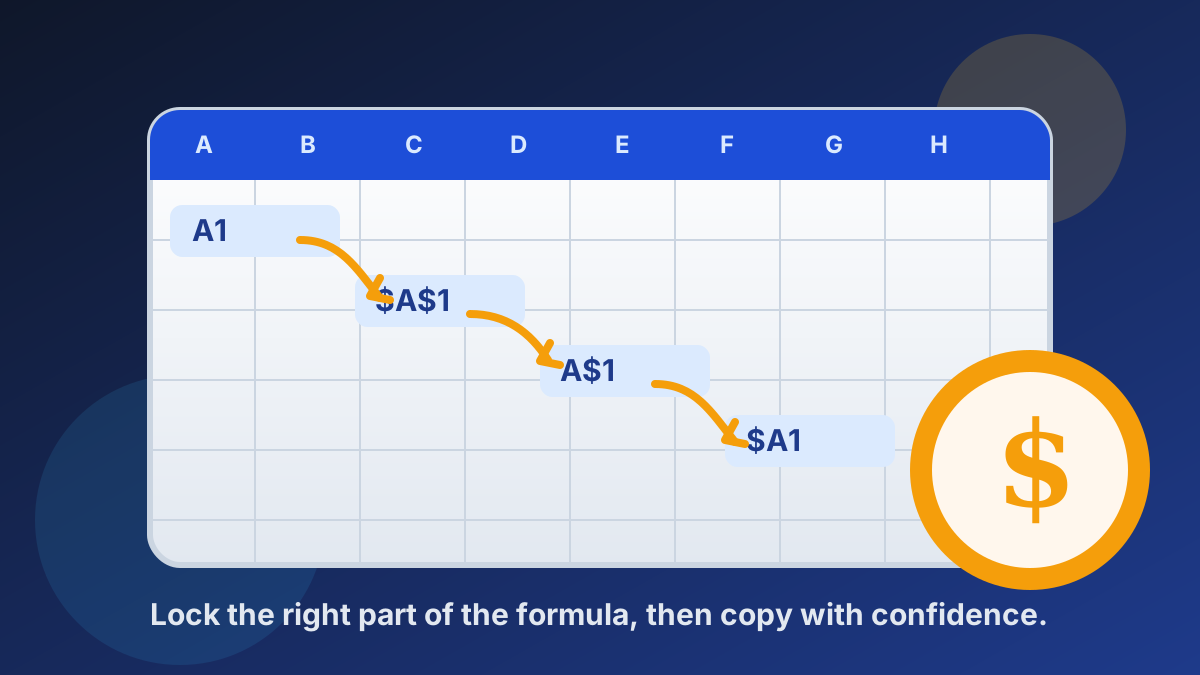
The $ sign in Excel controls what happens to a cell reference when you copy a formula. A plain reference such as A1 moves; $A$1 stays fixed; $A1 and A$1 lock just one direction. Once you can choose among those behaviors, copied formulas become predictable instead of fragile.
That is the heart of excel $ meaning: the character is not currency formatting inside a formula. It is a reference lock. You use it when a formula should keep a particular input, header, or column in view while the rest of the formula adapts to its new position.
Sourced reference fact (Microsoft Support, accessed July 2026): Microsoft documents four standard A1-style reference forms:
A1,$A$1,A$1, and$A1. Its examples show a relative formula adjusting after a copy, while a fully absolute formula remains unchanged.Source: Microsoft Support — Switch between relative and absolute references
What the $ symbol means in Excel formulas
The $ symbol tells Excel to hold part of a cell address steady during a copy. Put it before a column letter to lock the column, before a row number to lock the row, or in both places to lock the entire address. It changes formula-copy behavior, not the value stored in the cell.
Consider a worksheet where each sale in column B needs the same commission rate from D2. In the first result cell, write =B2*$D$2. When you copy that formula down, B2 changes to B3, B4, and so on, but $D$2 remains the commission rate cell every time.
This is different from typing a dollar sign into a label or applying a currency format. In a formula, it belongs immediately before a reference component. In a number format, it is just a display character. Keeping those two jobs separate makes formulas easier to inspect.
Relative references move with the formula
Relative references are Excel’s default and they are the right choice when each copied formula should follow its row or column. If =A2+B2 moves from C2 to C3, it becomes =A3+B3, preserving the same relationship between the formula and its inputs without any manual edits.
That movement is useful for repeated calculations. A list of orders might have quantity in A, unit price in B, and a line total in C. Enter =A2*B2 once, then fill down. Each row automatically uses its own quantity and price rather than repeatedly pointing back to row 2.
Relative references can cause trouble only when a formula includes an input that should not move. If the tax rate lives in a single setup cell, copying a formula with D2 instead of $D$2 will make the tax-rate address drift row by row. The formula may still return a number, which is why this mistake can be hard to spot.
Absolute references lock the entire address
An absolute reference locks both the column and row, so $D$2 always means cell D2 wherever the formula is copied. Use it for a fixed rate, control value, lookup input, or other one-cell assumption that every calculation must share. It is Excel’s most direct way to prevent reference drift.
For example, suppose D2 contains a discount rate and C2 contains the first price. =C2*(1-$D$2) lets the price change as the formula moves down, while the discount rate remains fixed. Put that formula in C3 and Excel changes the first address to C3 but preserves the second as $D$2.
Absolute references also make intent visible to anyone auditing a workbook. A reviewer can see the dollar signs and immediately know that the formula is deliberately tied to a common assumption. That clarity is especially helpful in budgeting files, reports, and reusable templates that pass between several people.
Mixed references lock one direction only
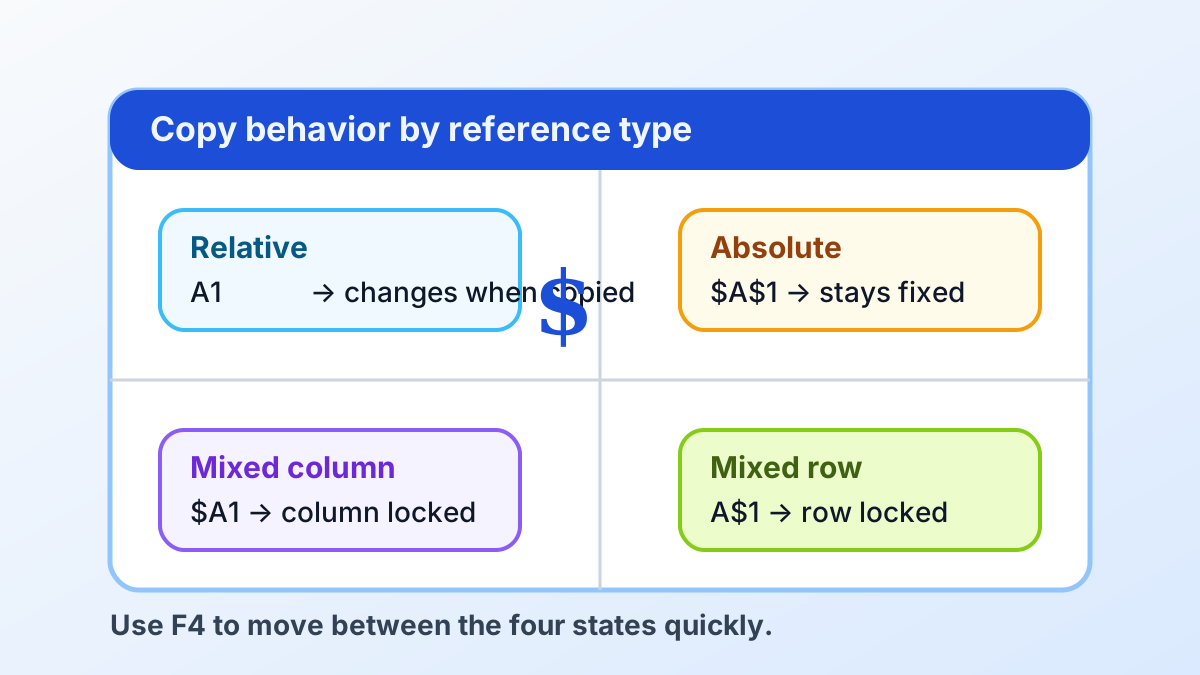
A mixed reference locks either the row or the column, giving a copied formula one fixed axis and one moving axis. $A1 keeps column A while rows change; A$1 keeps row 1 while columns change. This is the pattern to use for two-dimensional tables, schedules, and calculation grids.
Imagine a multiplication table with row labels in column A and column labels in row 1. In B2, use =$A2*B$1. Copy it across and down: the first reference always reads from column A for the current row, while the second always reads from row 1 for the current column.
The same approach works for pricing matrices, forecast models, and scorecards. Ask which label should follow you horizontally and which should follow you vertically. The answer tells you whether the dollar sign belongs before the column letter, the row number, or both.
A quick reference cheat sheet
Choose a reference type by deciding what is allowed to change after you copy a formula. Relative references move in both directions, absolute references move in neither, and mixed references move along one axis. Treat the dollar signs as a small map of what Excel may update, rather than syntax to memorize.
| Reference type | What stays fixed | Example | Good use |
|---|---|---|---|
| Relative | Nothing | A1 | A repeated row-by-row calculation |
| Absolute | Row and column | $A$1 | A rate, constant, or fixed lookup cell |
| Mixed column | Column only | $A1 | A row label in a copied grid |
| Mixed row | Row only | A$1 | A column header in a copied grid |
If you fill only downward, a fixed column may not matter, but a fixed row might. If you fill only across, the opposite may be true. Before locking anything, make one test copy and compare the old and new formulas. That quick check often reveals exactly which component should stay fixed.
How to use the F4 lock cell reference shortcut
The F4 lock cell reference shortcut is the fastest Windows method for changing a selected reference from relative to absolute or mixed. While you edit a formula, place the cursor on the reference and press F4 repeatedly. Excel cycles through the available forms so you do not need to type each dollar sign.
Start with =B2*D2 in a formula cell. Click within D2 in the formula bar, then press F4. It becomes $D$2; press again for D$2, again for $D2, and again to return to D2. Press Enter once the reference displays the behavior you need.
Microsoft’s reference guide describes the relationship between copied formulas and these forms, including relative, absolute, and mixed references. If F4 triggers a hardware action on your laptop, use the function-key modifier configured by your keyboard, or simply enter the dollar signs directly in the formula bar.
Mac keyboard settings and Excel versions can assign function keys differently, so avoid assuming one universal Mac shortcut. The dependable method is to edit the formula, select the cell address, and add $ before the column, row, or both. The formula result is identical regardless of how you entered the characters.
Build a pricing formula that copies safely
For a practical formula, keep changing line-item values relative and lock the one common assumption with an absolute reference. A formula such as =B2*C2*(1+$D$2) lets quantity and price move for every row while every result uses the same rate stored in D2. It is simple, readable, and easy to test.
Set up a small example before filling a long column:
- Put quantity in B2, unit price in C2, and a tax or fee rate in D2.
- In E2, enter
=B2*C2*(1+$D$2). - Copy E2 to E3 and inspect the new formula.
- Confirm that B2 and C2 changed to B3 and C3, while
$D$2did not change.
This pattern keeps business logic in one place. If the rate changes, update D2 and every dependent result recalculates. More importantly, you do not hide the rate inside dozens of formulas, where a later editor may change one instance but miss another.
For another common pattern, use a mixed reference in a grid. Put product multipliers across row 1 and regional multipliers down column A. In B2, =$A2*B$1 is designed to fill in both directions. It is much safer than building a separate formula for every intersection.
Diagnose reference drift after copying formulas
When a copied formula returns an unexpected value, inspect its references before changing the function itself. Reference drift means an address moved when it should have stayed fixed, or stayed fixed when it should have moved. Comparing the original formula with the copied formula usually identifies the problem within a minute.
Check the first copied cell instead of filling the whole range immediately. If =B2*$D$2 becomes =B3*$D$2, the copy behavior is correct. If it becomes =B3*D3, the rate was relative and needs to become $D$2. If it becomes =$B$2*$D$2, you may have locked too much.
Useful questions during a formula check include:
- Should this input change for each record or remain common to the whole worksheet?
- Am I copying down, across, or in both directions?
- Is the changing part a column, a row, or both?
- Does the formula in the adjacent cell point at the expected input cells?
Color-coded references in Excel’s formula editor can help you see the linked cells. You can also use the arrow keys while editing to select a reference visually. The goal is not to put dollar signs everywhere; it is to make the movement of every address intentional.
Use named ranges and tables when they improve clarity
Dollar signs remain useful, but named ranges and Excel Tables can make larger workbooks easier to read. A name such as TaxRate can be clearer than $D$2, and a table’s structured references can follow records as the table grows. Choose the approach that makes the calculation easiest to understand and maintain.
For a one-cell assumption, name D2 TaxRate and write =B2*TaxRate. The name communicates why the input is fixed, while Excel keeps the reference behind it. This is often a good fit for shared templates, provided names are consistent and someone can find them later.
Tables are useful when calculations live alongside growing lists of data. A structured reference such as =[@Quantity]*[@Price] describes the relationship by column name instead of cell coordinate. You may still need ordinary absolute or mixed references outside the table, particularly in summary cells and reporting grids.
The trade-off is transparency for your audience. A short formula with $D$2 can be easier for a beginner to trace than a workbook full of named ranges. Use the simplest mechanism that clearly shows what is fixed, what moves, and where a person should update an assumption.
Copy formulas down a column without breaking them
To copy a formula down safely, first make the reference choices in one cell, then verify the next copy before filling the entire range. Relative inputs should advance to the next row, while absolute inputs should keep their dollar signs and their address. This small test prevents a subtle mistake from spreading through a worksheet.
You can drag the fill handle, double-click it when an adjacent data column is continuous, or select a range and use Excel’s fill command. The copying method does not change the reference rules. Excel applies the same relative, absolute, and mixed behavior whether the formula moves one cell or thousands.
If you need a walkthrough of the fill methods themselves, read How to Apply a Formula to an Entire Column in Excel. For examples that use fixed references inside totals and running calculations, see Excel SUM Formula.
Before sharing a workbook, test a few formulas at the top, middle, and bottom of the data. A formula can look consistent while referring to the wrong row after an insertion, a copied block, or a changed layout. Deliberate reference locking makes those checks faster and keeps the workbook more dependable.
Frequently asked questions about Excel references
The questions below summarize the practical difference between relative, absolute, and mixed references. The short answer is that the dollar sign controls whether the row, column, or entire address moves during a copy. Use the smallest amount of locking that preserves the calculation pattern you actually intend to repeat.
What does the dollar sign mean in an Excel formula?
The dollar sign locks a column, a row, or both parts of a cell reference when you copy a formula. $A$1 locks both parts, $A1 locks the column, and A$1 locks the row.
When should I use an absolute reference instead of a relative one?
Use an absolute reference when every copy of a formula must use one fixed cell, such as a tax rate, exchange rate, threshold, or lookup input. Use a relative reference when the address should move with each row or column.
What is the difference between $A1 and A$1?
$A1 locks column A while allowing the row to change. A$1 locks row 1 while allowing the column to change. Both are mixed references, useful in grids and two-dimensional calculations.
How do I cycle through reference types in Excel?
While editing a formula on Windows, select the reference and press F4 to cycle through relative, absolute, and mixed forms. On a Mac, use the shortcut shown by your Excel version and keyboard settings, or type dollar signs directly.
Can I avoid dollar signs altogether?
Sometimes. Named ranges and Excel Tables can make formulas easier to read and reduce manual locking. Dollar signs still give you precise, portable control when a formula must keep a row, a column, or a single cell fixed.
