
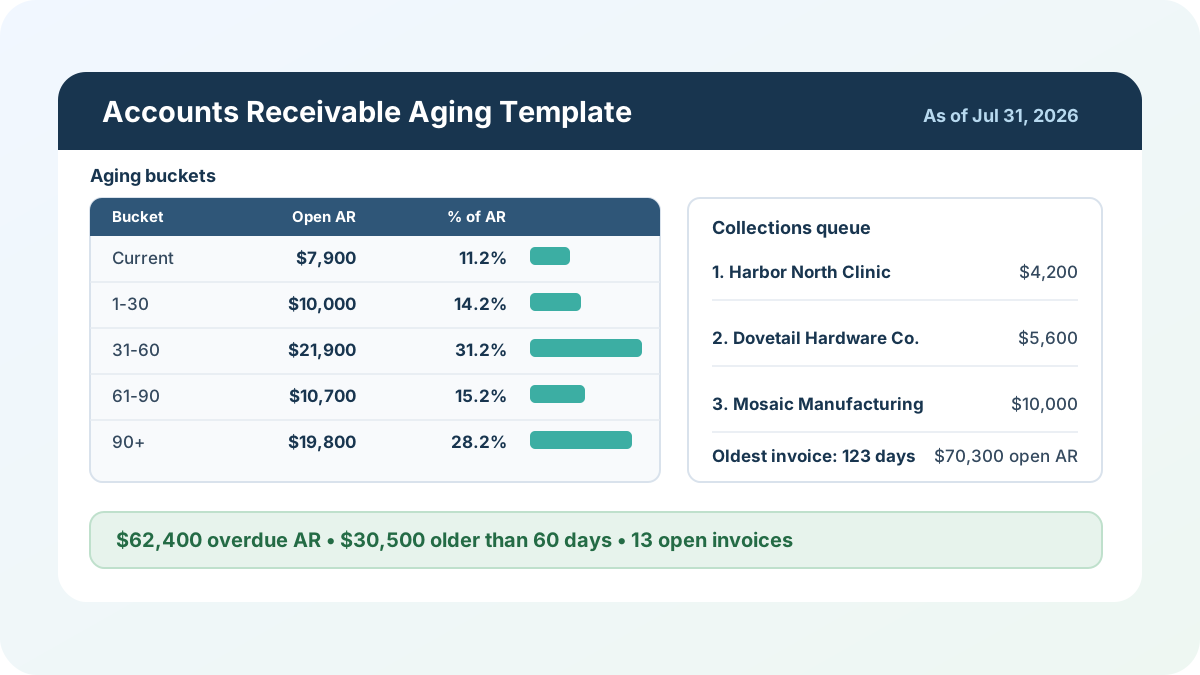
The accounts receivable report I trust most is not the prettiest one. It is the one that tells me, without a meeting and without five tabs of detective work, which invoices are still open, how old they are, and who should be called first. That is what this accounts receivable aging report template is built to do. You enter an invoice-level customer ledger, set one as-of date, and the workbook rolls everything into aging buckets, a collections queue, and a one-page dashboard.
Download the accounts receivable aging template - it is a plain .xlsx, no macros, no external data connections, and no sign-up. Open it in Excel or import it into Google Sheets, then replace the synthetic sample invoices with your own AR ledger.
I built this as a working model, not a decorative report. The sample file includes invoices that are current, newly overdue, more than 60 days past due, more than 90 days past due, partially paid, and fully paid. That mix matters. A template with only three perfect sample rows can look fine in a screenshot and still fail the first time a real customer makes a partial payment or a closed invoice stays in the ledger for historical context.
Who is this template for?
I built this for small finance teams, bookkeepers, operators, and business owners who need an AR aging view but do not have a full receivables system producing one automatically. If your accounting system can export customer, invoice number, invoice date, due date, invoice amount, and payments received, you can paste that data into this workbook and get an aging report out of it.
The template also works as a teaching example if you want to see practical AR formulas in a connected workbook. It uses a calculated balance, date arithmetic, nested IF bucket logic, SUMIF bucket totals, and an INDEX/MATCH collections queue driven by LARGE. I kept the formula set deliberately narrow so the same file stays portable between Excel and Google Sheets.
It is not accounting software. It will not send reminders, pull bank deposits, reconcile unapplied cash, process credit memos, or decide whether an invoice should be written off. What it does well is the part I still see teams rebuild by hand every month: turning a raw invoice list into a readable aging schedule and a practical collections priority list.
What’s in the workbook, sheet by sheet
The workbook ships with five sheets, in this exact order:
- Instructions - setup steps, a color legend, Google Sheets notes, limitations, and a clean-room disclosure. Every formula, layout, and sample figure in the workbook was authored from scratch for Excel.TV, using only synthetic data.
- Customer Ledger - the invoice-level input sheet. You enter customer name, invoice number, invoice date, due date, invoice amount, payments received, payment terms, collection owner, and notes. Balance, Days Past Due, Aging Bucket, Open Invoice Flag, and Priority Score calculate automatically.
- Aging Buckets - the rollup sheet for Current, 1-30, 31-60, 61-90, and 90+ balances. It also shows open invoice count, percent of open AR, and a suggested collection action for each bucket.
- Collections Queue - a calculated top-six list of open overdue invoices, ranked by days past due first and balance second. It pulls the customer, invoice number, balance, age, bucket, owner, and action note from Customer Ledger.
- Summary Dashboard - the management view. Set the as-of date here, then review total open AR, overdue AR, percent overdue, 60+ exposure, 90+ exposure, open invoice count, oldest open invoice days, bucket totals, and the top collection priority.
The required inputs are invoice-level records: customer, invoice number, invoice date, due date, invoice amount, payments received, payment terms, owner, and notes. The main outputs are open balance, days past due, aging bucket, bucket totals, overdue AR, 60+ exposure, 90+ exposure, open invoice count, and the collections queue.
How to use the AR aging template
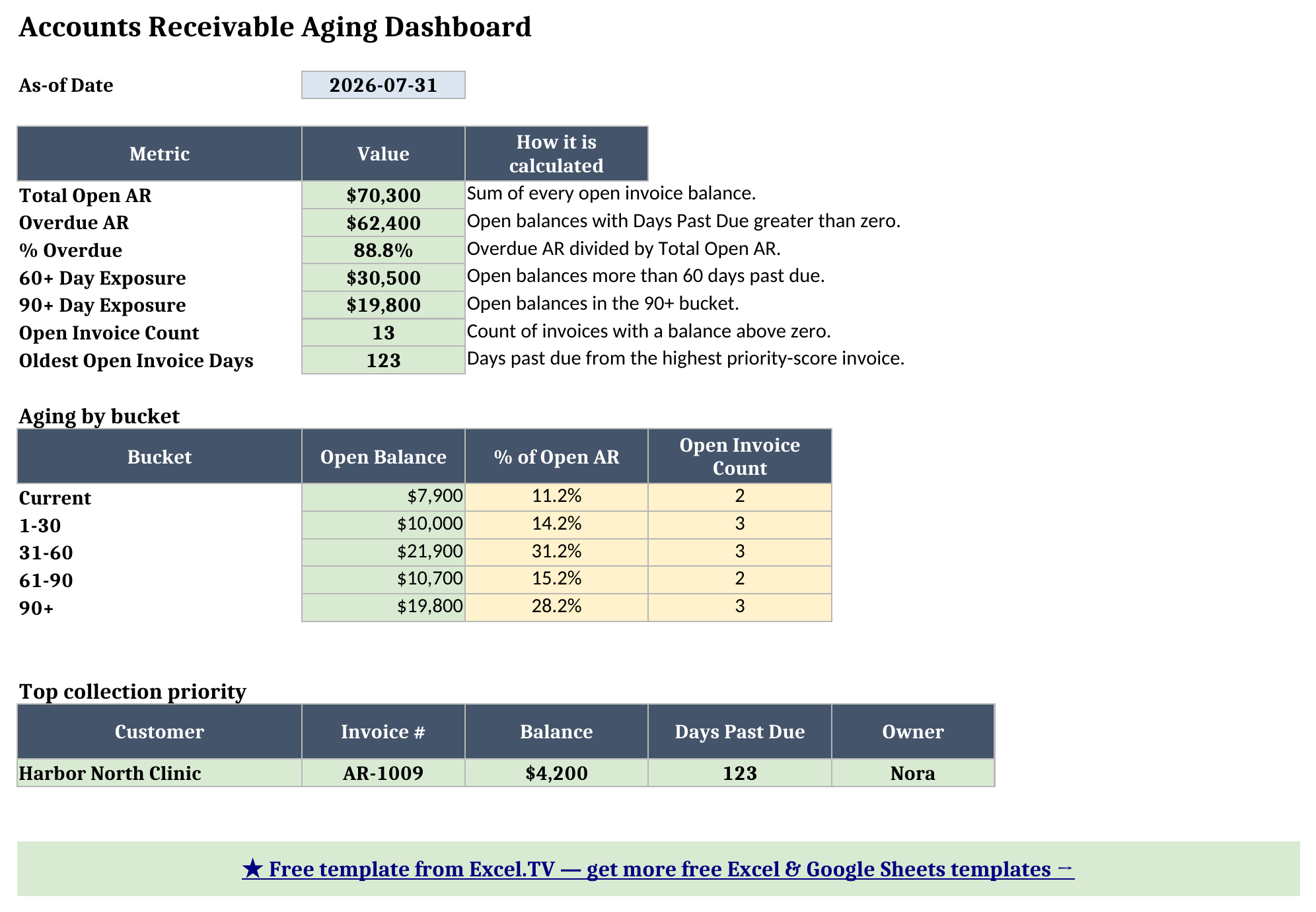
Start on Summary Dashboard and set the As-of Date. The sample workbook uses 2026-07-31, which is why the worked example below says Harbor North Clinic is 123 days past due. If you change the as-of date to the end of a different month, every day count and bucket assignment recalculates from that date.
Then open Customer Ledger and replace the sample invoices with your own. The blue columns are inputs. The yellow columns are calculated, so do not type over them unless you are intentionally changing the model. The most important input discipline is payments: enter payments received in the Payments Received column and let Balance calculate as invoice amount minus payments. If you type a balance directly, the report stops tying back to the invoice and payment history you entered.
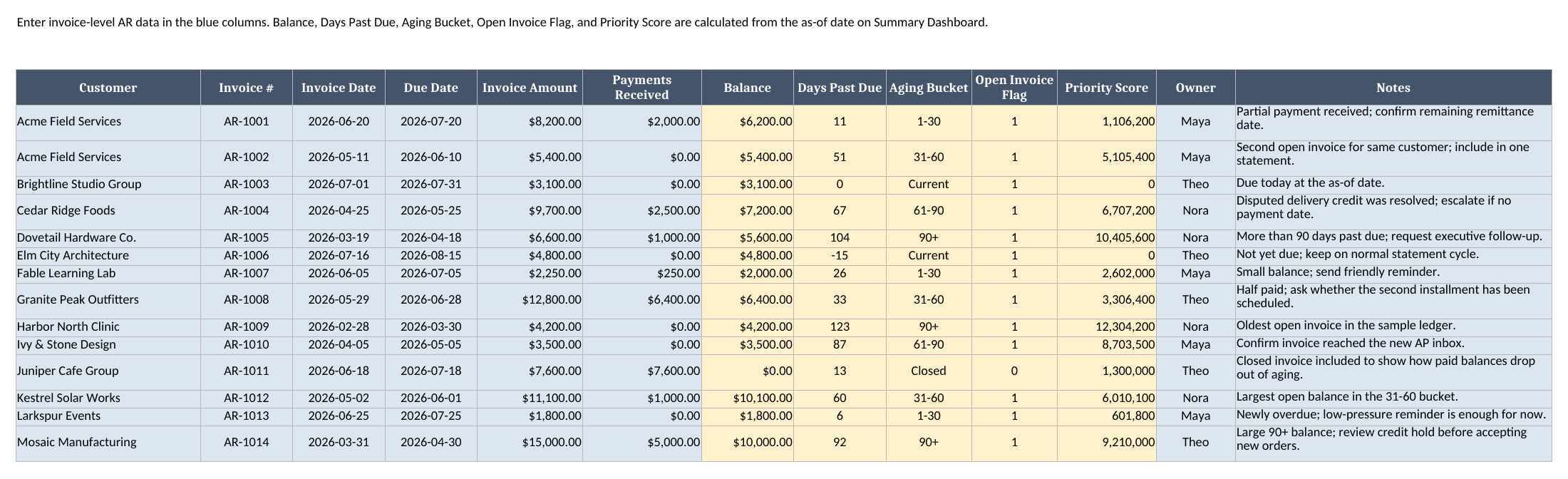
I included a fully paid sample invoice for Juniper Cafe Group on purpose. Its invoice amount is $7,600 and payments received are $7,600, so the calculated balance is zero and the bucket becomes Closed. That row stays visible in the ledger, but it drops out of the open AR totals because the open balance is zero. That is usually what I want in a working spreadsheet: history can remain in the input table without inflating the dashboard.
How the aging buckets work
The bucket logic is intentionally plain. Each row on Customer Ledger calculates Days Past Due as:
=As-of Date - Due DateThen Aging Bucket uses a nested IF formula that reads the open balance and day count:
=IF(Balance<=0,"Closed",IF(Days<=0,"Current",IF(Days<=30,"1-30",IF(Days<=60,"31-60",IF(Days<=90,"61-90","90+")))))I used a manually entered as-of date instead of TODAY() because I want the report to be stable. If you send a month-end aging report to a controller on August 2, it should still show the July 31 aging position when they open it on August 5. A volatile current-date formula is convenient for quick checks, but it can quietly move the numbers after the report has already been reviewed. Here, the date is visible and intentional.
The Aging Buckets sheet then uses SUMIF to total open balances by bucket. For example, the 31-60 row sums every Customer Ledger balance whose calculated bucket is 31-60. The invoice count works the same way, except it sums the open-invoice flag instead of dollars.
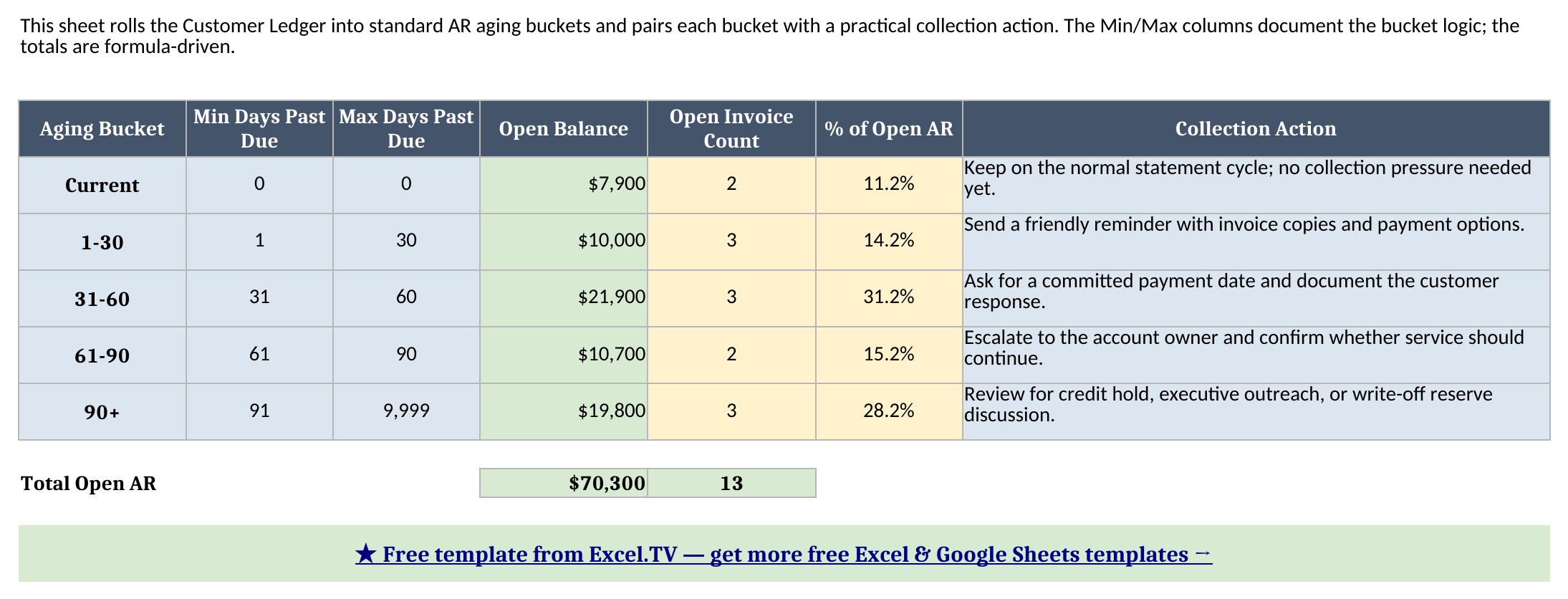
The sample file’s recalculated bucket totals are:
| Aging Bucket | Open Balance | Open Invoice Count | % of Open AR |
|---|---|---|---|
| Current | $7,900 | 2 | 11.2% |
| 1-30 | $10,000 | 3 | 14.2% |
| 31-60 | $21,900 | 3 | 31.2% |
| 61-90 | $10,700 | 2 | 15.2% |
| 90+ | $19,800 | 3 | 28.2% |
| Total Open AR | $70,300 | 13 | 100.0% |
Those percentages are not typed into the article by hand. They come from the workbook after LibreOffice recalculation, using each bucket’s open balance divided by total open AR.
How the collections queue ranks invoices
The collections queue is where I made one opinionated choice. It ranks by age first, not by dollars first. The hidden helper behind that is a Priority Score on Customer Ledger:
=IF(Days Past Due>0,Days Past Due*100000+Balance,0)That score makes the oldest overdue invoice rise to the top, while still using balance as a tie-breaker when two invoices have the same day count. Collections Queue uses LARGE to find the highest scores, then INDEX/MATCH to pull the matching customer, invoice number, balance, days past due, bucket, owner, and action note.
There are other defensible ways to rank collections. A credit manager might put the largest 90+ balance first. A sales-led organization might prioritize strategic accounts differently. I used age-first ranking because it prevents a very old smaller invoice from getting buried forever behind newer large balances. In the sample workbook, the top row is Harbor North Clinic, invoice AR-1009, with a $4,200 balance that is 123 days past due. Mosaic Manufacturing has a larger $10,000 balance, but it is 92 days past due, so it lands below the older Harbor North and Dovetail Hardware invoices.
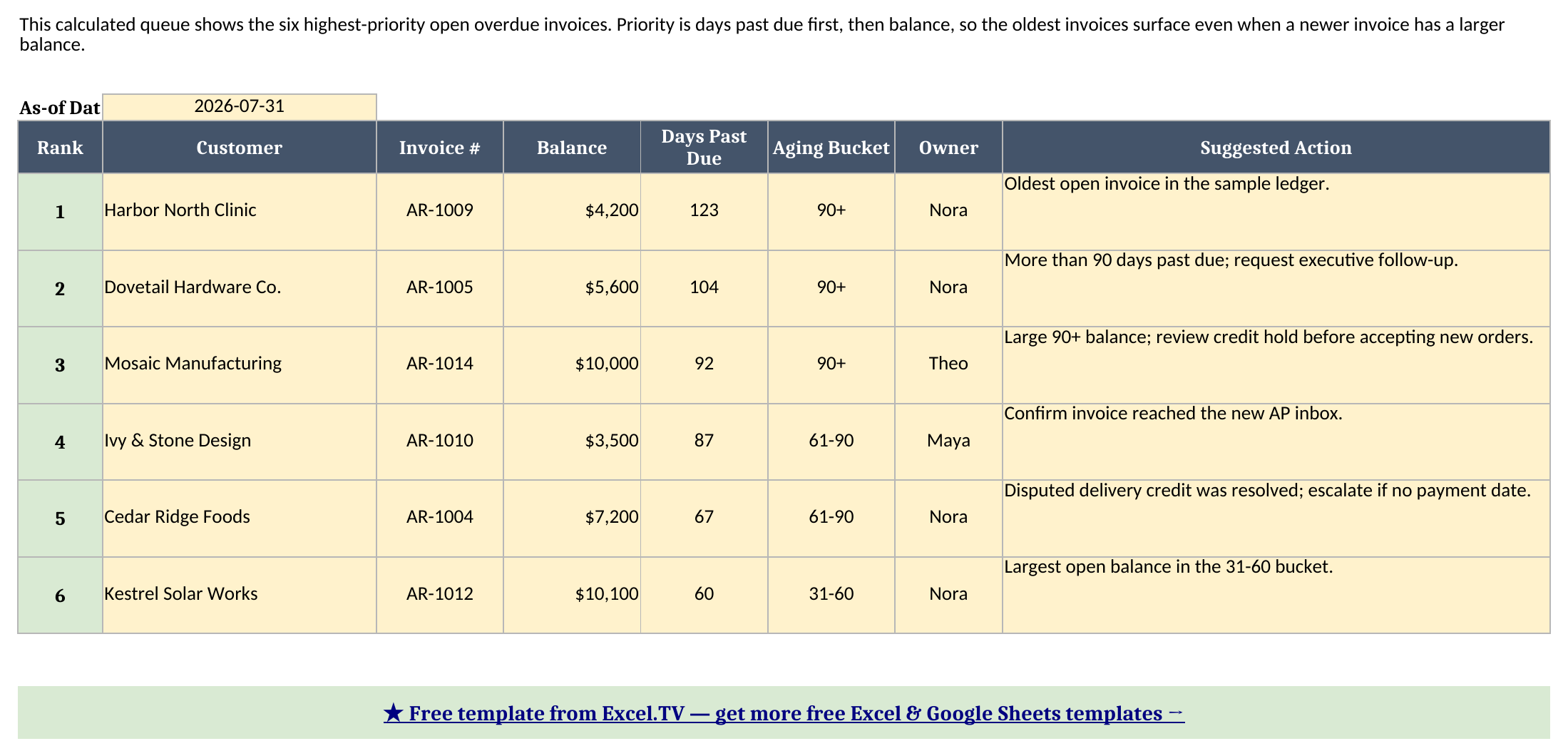
This is the sheet I would hand to the person doing follow-up. It does not just say “90+ is bad.” It names the invoices, the owners, and the notes that should shape the next call.
Worked example: July 31 AR aging
The sample ledger is built around a July 31, 2026 as-of date. After recalculation, the Summary Dashboard shows:
| Metric | Value |
|---|---|
| Total Open AR | $70,300 |
| Overdue AR | $62,400 |
| % Overdue | 88.8% |
| 60+ Day Exposure | $30,500 |
| 90+ Day Exposure | $19,800 |
| Open Invoice Count | 13 |
| Oldest Open Invoice Days | 123 |
Here is how I read that report. Total open AR is $70,300, but only $7,900 is current. That means $62,400 is already overdue, or 88.8% of the open AR balance. The largest bucket is 31-60 at $21,900, which tells me there is still time to recover a meaningful part of the balance with normal follow-up. But the part I would not ignore is the $30,500 older than 60 days. That is the combination of the 61-90 and 90+ buckets, and it is the number I would put in front of management if we were discussing cash risk.
The queue makes the next step concrete. Harbor North Clinic is the oldest item at 123 days past due. Dovetail Hardware is next at 104 days. Mosaic Manufacturing is third at 92 days and carries the largest balance among those oldest invoices at $10,000. I would not start by emailing every customer the same generic reminder. I would start with those three, check whether the notes explain a dispute or missing invoice copy, and decide whether the 90+ balances need owner escalation or credit hold review.
That is the job of a useful ar aging template: not just calculating buckets, but shortening the path from “we have receivables” to “these are the invoices we need to act on today.”
How do I use this in Google Sheets?
Google Sheets is a first-class destination for this workbook. Open Google Sheets, choose File > Import > Upload, select the downloaded .xlsx, and choose Insert new sheet(s). The formulas used in this workbook - SUM, SUMIF, SUMIFS, IF, IFERROR, INDEX, MATCH, ABS, ROUND, LARGE, and arithmetic - are supported in Google Sheets, so no formula substitutions are required.
If you’d rather skip the download-and-import step entirely, use this one-click copy link: make a copy of the Accounts Receivable Aging Template in Google Sheets. Google will prompt you to save it to your own Drive.
The same as-of-date workflow applies after import. Change the date on Summary Dashboard, then review Customer Ledger, Aging Buckets, Collections Queue, and Summary Dashboard exactly the same way you would in Excel. The owner dropdowns and payment-term dropdowns should carry over as data validation when the .xlsx is imported.
If your team lives in Sheets, I would still keep the same monthly control: save or export a month-end copy after review. An AR aging report is often used as a point-in-time management artifact, and the visible as-of date helps preserve that discipline even in a collaborative workbook.
Limitations to know before you rely on this
A few things are worth understanding before you replace the sample data with live receivables:
- The as-of date is manual. That is deliberate. It keeps month-end reports stable and avoids a volatile
TODAY()dependency, but it also means someone has to update the date before each review. - The workbook assumes one row per invoice. If you split one invoice across multiple rows, the totals will still calculate, but the collections queue may treat those rows as separate follow-up items.
- Payments are entered at the invoice level. There is no separate cash application table, unapplied cash logic, or credit memo workflow.
- The queue uses an age-first priority score. That is a useful default, but it is not the only possible collections policy. If your team prioritizes balance size first, change the priority score formula deliberately and document the change.
- Exact priority-score ties return the first match. The
LARGEplusMATCHpattern returns the first matching ledger row if two invoices have the exact same score. - No macros or external connections. Everything is a native formula. That is what keeps the workbook portable between Excel and Google Sheets.
I would rather make those edges clear now than let the spreadsheet pretend to be a full receivables platform. Used for what it is - a clean invoice-level aging schedule, dashboard, and collections queue - it gives you a practical monthly AR review without turning the workbook into something fragile.
Download the accounts receivable aging report template and replace the sample ledger with your own customer invoices. The buckets, dashboard, and queue will follow from there.
