
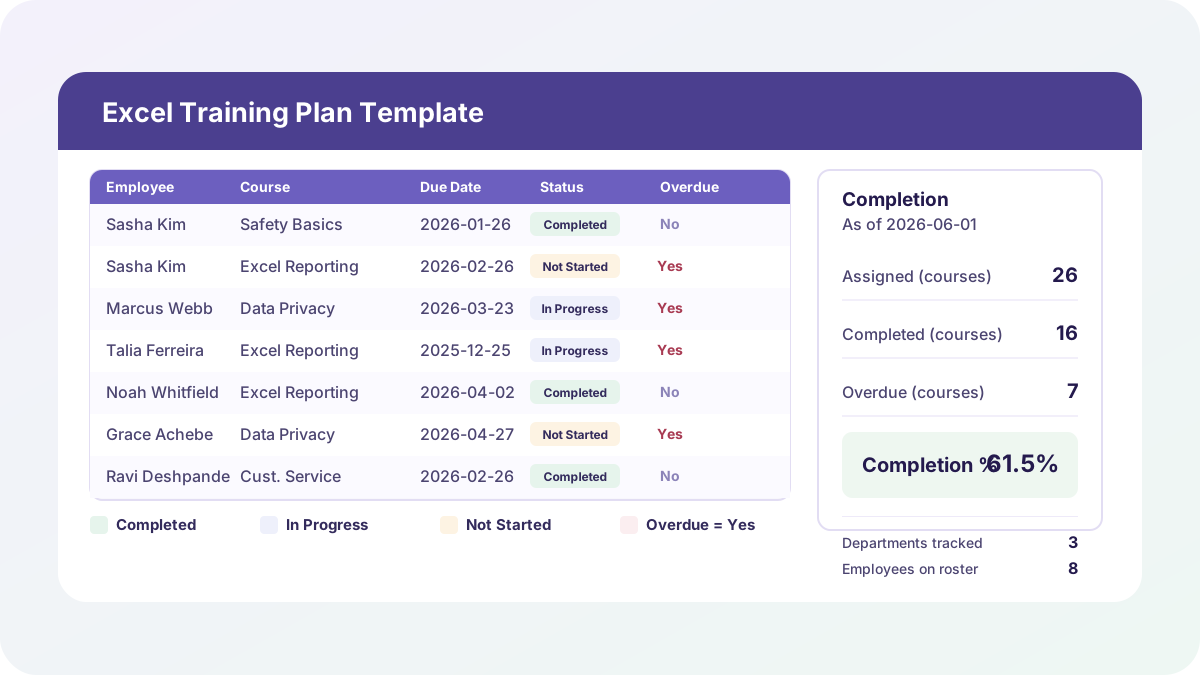
Every version of an “Excel training plan” I’ve been asked to fix has the same root problem: someone built a list of courses, a list of employees, and a due-date column that was typed once and never touched again. Three months later nobody can say who’s actually behind, because “behind” was never calculated — it was guessed. This excel training plan template replaces the guessing with three formulas: a due date computed from each employee’s start date and each course’s target window, an overdue flag computed against a single as-of-date input, and a completion percentage that rolls up automatically by employee and by department.
Download the excel training plan template — it’s a plain .xlsx, no macros, no external data connections, and no sign-up. Open it in Excel or Google Sheets and start replacing the sample roster and course catalog with your own.
Who is this template for?
I built this for the manager or HR coordinator running a required-training program for a small team — think workplace safety basics, data privacy compliance, or a role-specific onboarding course — who needs one place to answer “who’s done, who’s not, and who’s overdue” without cross-referencing a course list against a roster by hand. If you’ve been searching for an employee training tracker excel file, a training log template excel, or an onboarding checklist excel template, this one workbook handles the assignment tracking, the due-date math, and the completion reporting together instead of asking you to stitch a spreadsheet together from scratch every time HR adds a new course.
What’s in the workbook, sheet by sheet
The workbook ships with six sheets, in this exact order:
- Instructions — setup steps, a colour legend, and a clean-room disclosure: every formula, layout, and sample figure in this workbook was authored from scratch for Excel.TV. No vendor template, workbook, or dataset was downloaded, inspected, or adapted to build it.
- Settings — one input: the “As of date” every Overdue calculation on Training Log compares against.
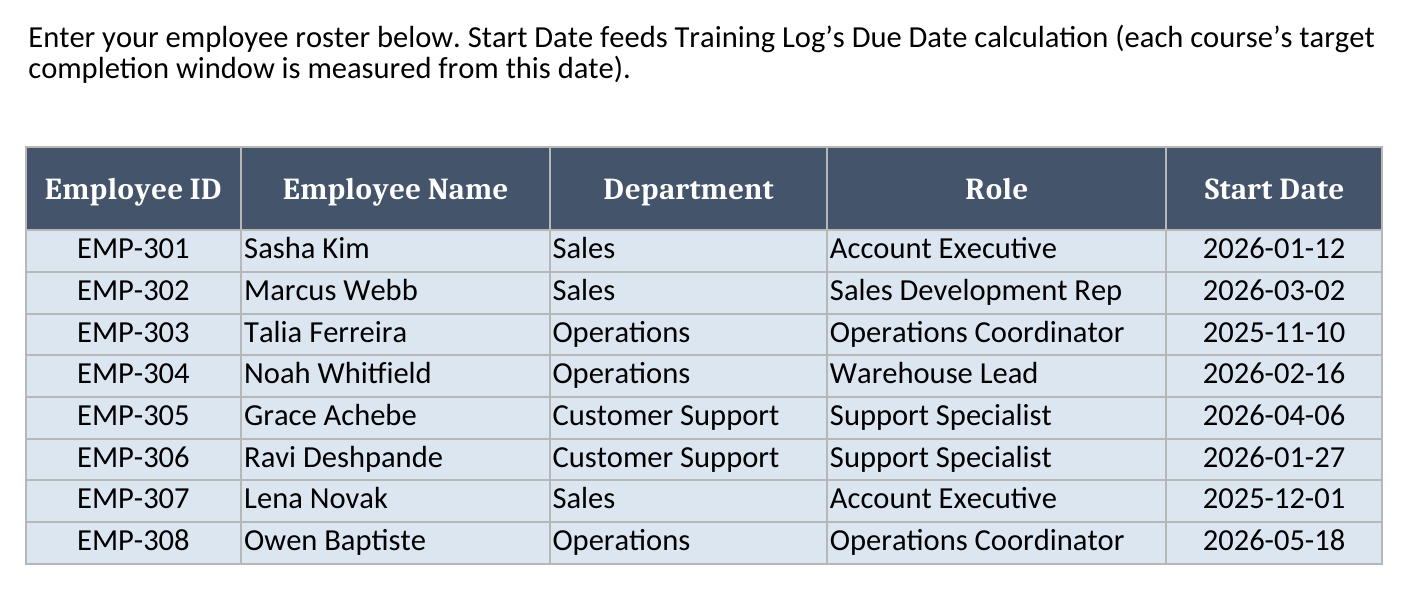
- Roster — your employee list: ID, name, department, role, and start date.
- Courses — your course catalog: course name, whether it’s required, and a target completion window in days.
- Training Log — one row per employee-course assignment, where Employee Name, Department, Required, Due Date, Due Month, and Overdue all calculate automatically from Roster and Courses.
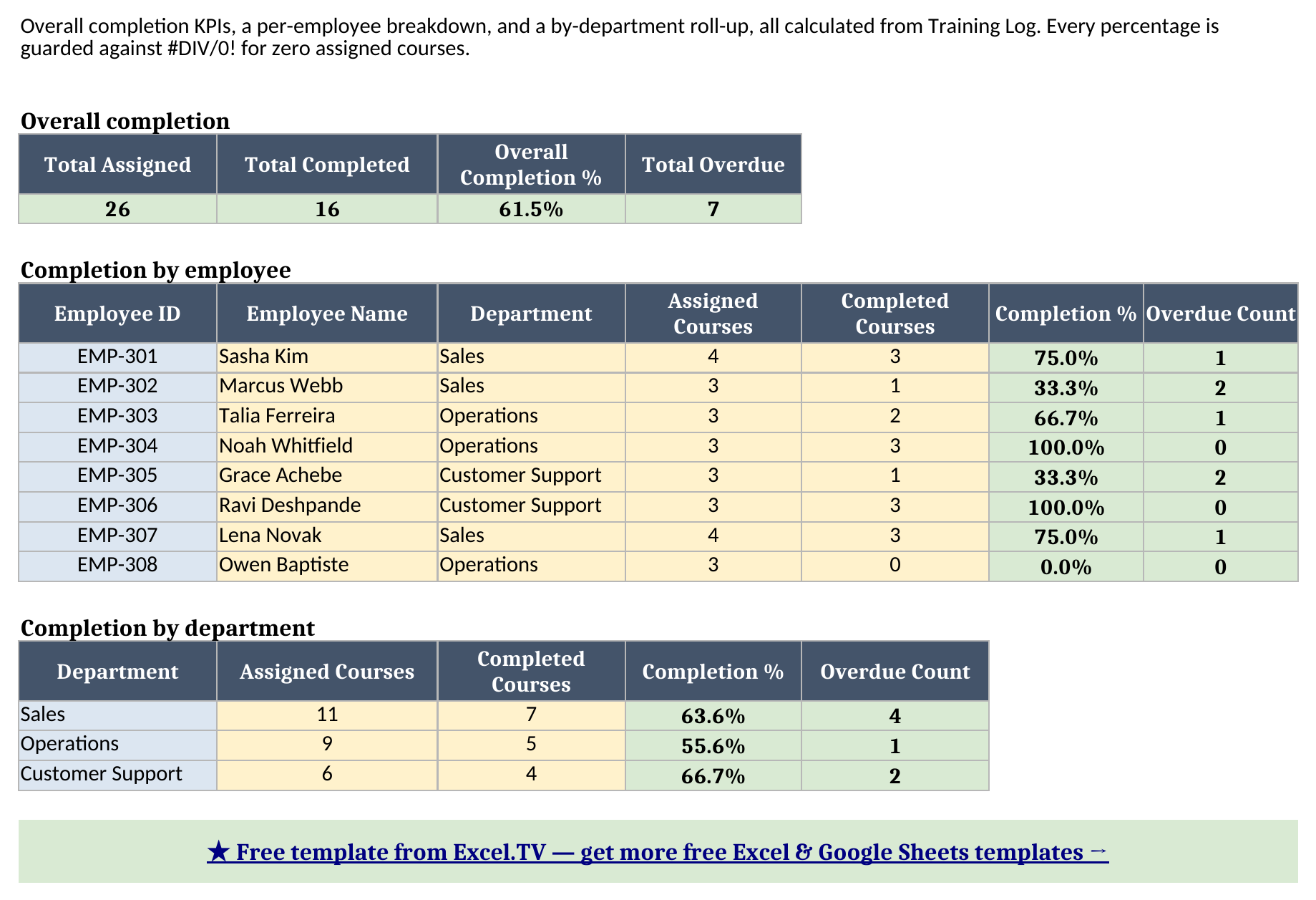
- Summary — overall completion KPIs, a per-employee completion table, and a by-department roll-up, all calculated from Training Log.
The required inputs are the roster and course catalog, plus a Completion Status and (once finished) a Completed Date per assignment row on Training Log. The main outputs are Summary’s completion percentages and overdue counts, which recalculate the instant you change a status, a completed date, or the As-of date.
How do I set up my own training plan?
- Open Settings and set the “As of date” to the date you want Overdue calculations measured against — this is a typed input, not the live calendar, so never leave it blank and remember to update it yourself when you revisit the workbook.
- Open Roster and replace the eight sample employees with your own team. Keep each Employee ID unique, and set each person’s department, role, and start date — the department dropdown is pre-populated from the sample department list, so add your own departments there first if they differ.
- Open Courses and replace the sample catalog with your own courses, marking each one Required (Yes/No) and setting its target completion window in days.
- Open Training Log and add one row per employee-course assignment: pick the Employee ID and Course from the dropdowns, then type the Completion Status (Not Started, In Progress, or Completed) and, once finished, the Completed Date.
- Open Summary and review the overall completion KPIs, the per-employee table, and the by-department roll-up.
How the Due Date and Overdue flag actually work
This is the part most homemade training trackers skip entirely, which is exactly why they drift out of date. Due Date on Training Log isn’t typed — it’s INDEX(Roster's Start Date, MATCH on Employee ID) + INDEX(Courses' Target Completion Window, MATCH on Course), so if an employee’s start date or a course’s window changes, every due date recalculates without you touching a single row. Due Month reads TEXT(Due Date,"mmm yyyy") so you can scan a month at a glance without parsing a full date. And Overdue is IF(Completed Date<>"","No",IF(Due Date<As-of Date,"Yes","No")) — a row with a completed date is never overdue, full stop, regardless of what its due date says; a row with no completed date is overdue only once its due date falls strictly before the Settings sheet’s As-of date. That last detail matters: in the sample data, Owen Baptiste’s Workplace Safety Basics is due exactly on the As-of date of June 1, 2026, and it correctly shows not overdue — a course due today isn’t overdue yet, it’s due today.
Deliberately, none of this touches TODAY(). If Overdue read the real calendar, the same workbook would show a different overdue count depending on when you happened to open it, and verify:recalc-style checks would never produce the same answer twice. Typing the As-of date once on Settings means the workbook always recalculates identically, and you control exactly which point in time you’re evaluating against.
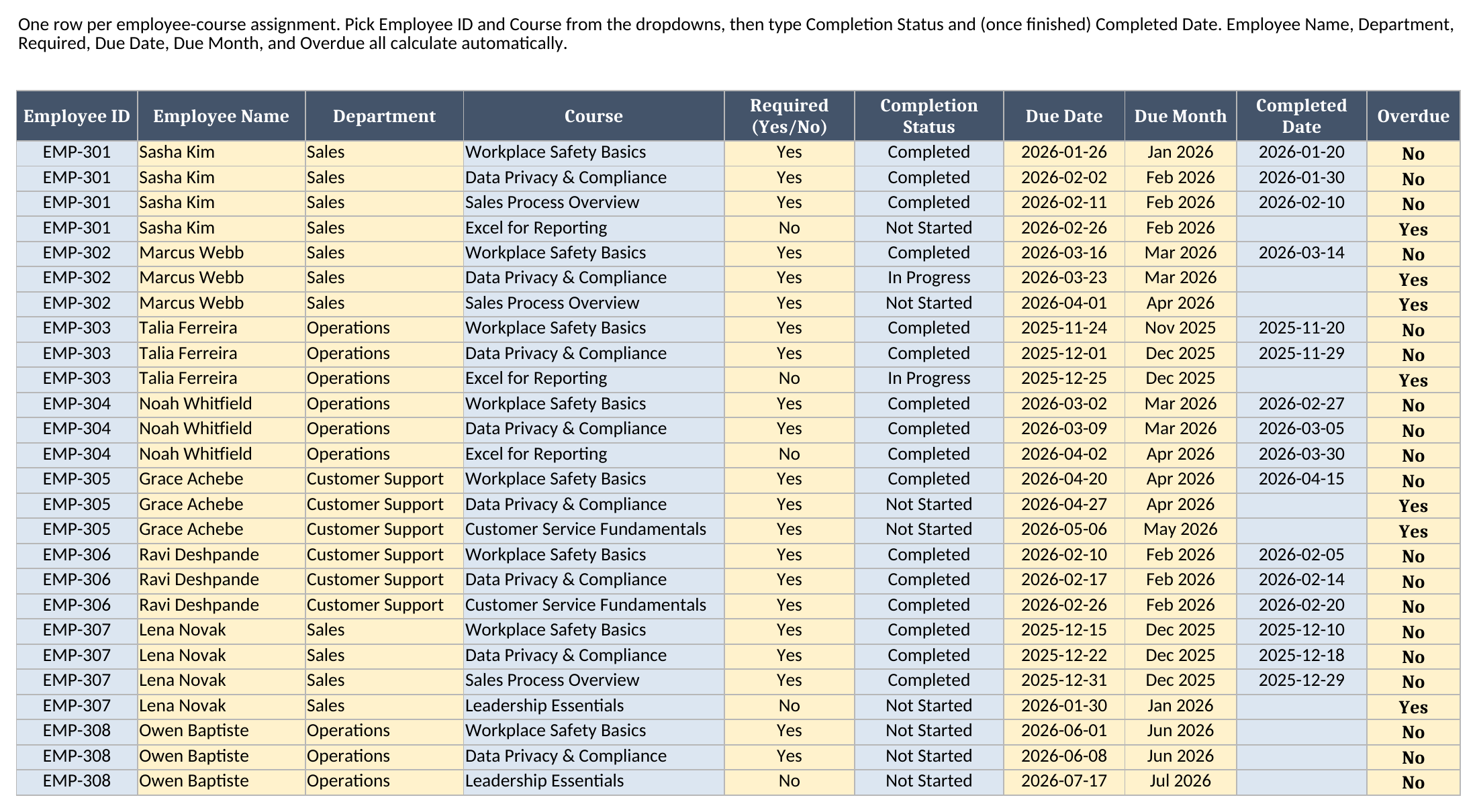
The Department column on Training Log is worth calling out too — it’s an INDEX/MATCH lookup back to Roster, not a second place you type department names. That one lookup is what lets Summary’s by-department roll-up work off Training Log directly with COUNTIF and COUNTIFS, instead of needing a separate join step.
Worked example: eight employees, three departments, one reconciled workbook
Here’s the full Summary output for the sample roster, pulled straight from the workbook after a full formula recalculation:
Completion by employee
| Employee | Assigned | Completed | Completion % | Overdue Count |
|---|---|---|---|---|
| Sasha Kim | 4 | 3 | 75.0% | 1 |
| Marcus Webb | 3 | 1 | 33.3% | 2 |
| Talia Ferreira | 3 | 2 | 66.7% | 1 |
| Noah Whitfield | 3 | 3 | 100.0% | 0 |
| Grace Achebe | 3 | 1 | 33.3% | 2 |
| Ravi Deshpande | 3 | 3 | 100.0% | 0 |
| Lena Novak | 4 | 3 | 75.0% | 1 |
| Owen Baptiste | 3 | 0 | 0.0% | 0 |
Completion by department
| Department | Assigned | Completed | Completion % | Overdue Count |
|---|---|---|---|---|
| Sales | 11 | 7 | 63.6% | 4 |
| Operations | 9 | 5 | 55.6% | 1 |
| Customer Support | 6 | 4 | 66.7% | 2 |
And the three overall KPIs at the top of Summary: Total Assigned 26, Total Completed 16, Overall Completion % 61.5%, Total Overdue 7.
Every row checks out the way it should. Sasha Kim’s 3 completed out of 4 assigned is exactly 75.0%, and her one overdue row is Excel for Reporting — an optional course she hasn’t started, due February 26, 2026, well before the June 1 As-of date. Owen Baptiste shows 0.0% completion, not a broken formula: he’s a recent hire with three assignments and none completed yet, and the IFERROR guard on Summary’s Completion % formula is exactly what keeps a row like his from throwing #DIV/0! instead of a clean zero. Notice, too, that Owen’s Overdue count is 0 even with zero completions — none of his three due dates have passed the As-of date yet, which is the boundary case the Overdue formula is built to get right.
How do I use this in Google Sheets?
Open Google Sheets, choose File > Import > Upload, select the downloaded .xlsx, and pick “Insert new sheet(s).” Every formula in this workbook — SUM, COUNTIF, COUNTIFS, IF, IFERROR, INDEX, MATCH, and TEXT — is natively supported in Google Sheets, so nothing needs to be rewritten. The dropdown data validation on Training Log’s Employee ID and Course columns also carries over automatically.
If you only need to inspect the workbook before editing it, the Excel viewer guide covers desktop and browser options for opening .xlsx files without desktop Excel.
If you’d rather skip the download-and-import step entirely, use this one-click copy link: make a copy of the Excel Training Plan Template in Google Sheets. Google will prompt you to save it to your own Drive, and from there it behaves identically to the Excel version — same sheets, same formulas, same Due Date, Overdue, and completion roll-ups.
If you’re tracking who’s actually in the building on the days they’re supposed to be, my attendance tracker template is the natural companion — it handles daily attendance, PTO, and sick-leave tracking, while this workbook handles the “what have they been trained on” side of the same team.
Limitations to know before you rely on this
A few things are worth knowing before you put a real training program’s due dates in:
- Due Date assumes the completion window starts at the employee’s Start Date, not a separate assignment date. If you assign a course to an existing employee well after their start date — a refresher course, say — that row’s Due Date will be measured from their original start date, not from when you actually assigned it. Adjust that row’s Due Date formula to reference an assignment-date column if you need that distinction.
- One row per assignment, no partial credit. There’s no mechanism for a half-completed or in-progress percentage within a single course — Completion Status is Not Started, In Progress, or Completed, and only “Completed” counts toward the completion percentage.
- Overdue depends on you updating the As-of date. Because this template deliberately avoids
TODAY()(to keep it deterministic and portable), the Overdue column only reflects reality as of whatever date you’ve typed into Settings — it will not silently update itself as real time passes. - Departments and courses are typed lists, not enforced against a master table beyond dropdown validation. Renaming a department on Roster after Training Log rows already reference the old name will break that lookup for existing rows; update Training Log’s Department formulas to re-pull the new value, or re-select the affected rows.
- No macros, no external connections. Everything here is a native formula. That’s deliberate — it’s what keeps the workbook portable between Excel and Google Sheets with zero substitutions.
I’d rather you know these limitations going in than discover one mid-audit. Once your roster, course catalog, and As-of date are set, the rest of the workbook takes care of itself.
Download the excel training plan template and swap in your own team and courses whenever you’re ready.
