
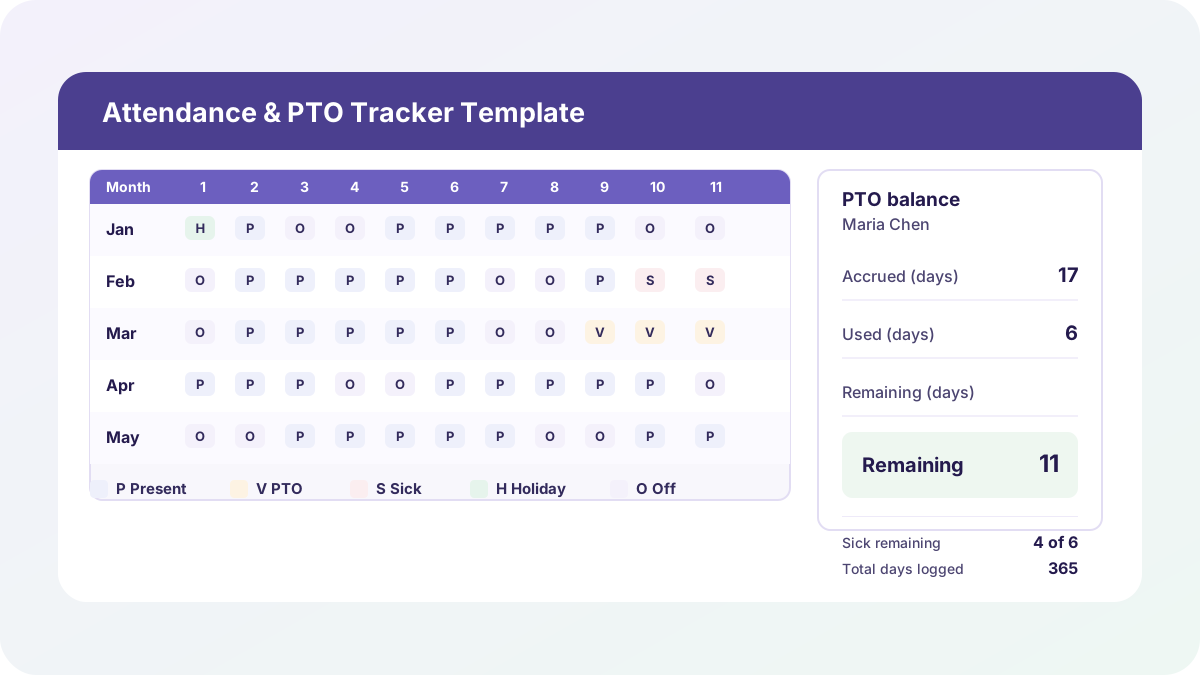
Every attendance-tracking conversation I have with a small-business owner starts the same way: they’ve got a PTO spreadsheet, a separate sick-leave log somebody built in a panic during flu season, and a paper attendance sheet taped to a filing cabinet, and none of the three numbers agree with each other. This attendance tracker excel template fixes that by putting daily attendance marking, PTO accrual, and sick-leave tracking in one workbook — one roster, one calendar, one set of running balances that stay in sync because they’re the same underlying data.
Download the attendance tracker excel template — it’s a plain .xlsx, no macros, no external data connections, and no sign-up. Open it in Excel or Google Sheets and start replacing the sample roster and dates with your own.
Who is this template for?
I built this for the owner-operator or office manager tracking a handful of hourly or salaried employees by hand — no HR platform, no time-clock system, just a need to know who’s out, why, and how much PTO or sick time they have left. If you’ve been searching for an employee attendance tracker excel file, a standalone pto tracker excel template, or a vacation tracker excel template, this one workbook does all three jobs at once instead of asking you to stitch three files together and reconcile them every payroll cycle.
What’s in the workbook, sheet by sheet
The workbook ships with five sheets, in this exact order:
- Instructions — setup steps, the status-code legend, and a clean-room disclosure: every formula, layout, and sample figure in this workbook was authored from scratch for Excel.TV. No vendor template, workbook, or dataset was downloaded, inspected, or adapted to build it.
- Employees — your roster: employee ID, name, department, hire date, monthly PTO accrual rate, beginning PTO balance (carryover), and annual sick-leave allowance.
- Attendance Log — one row per employee per month (5 employees × 12 months = 60 rows in the sample), with a column for every day of the month. This is where you actually type a status code into each day.
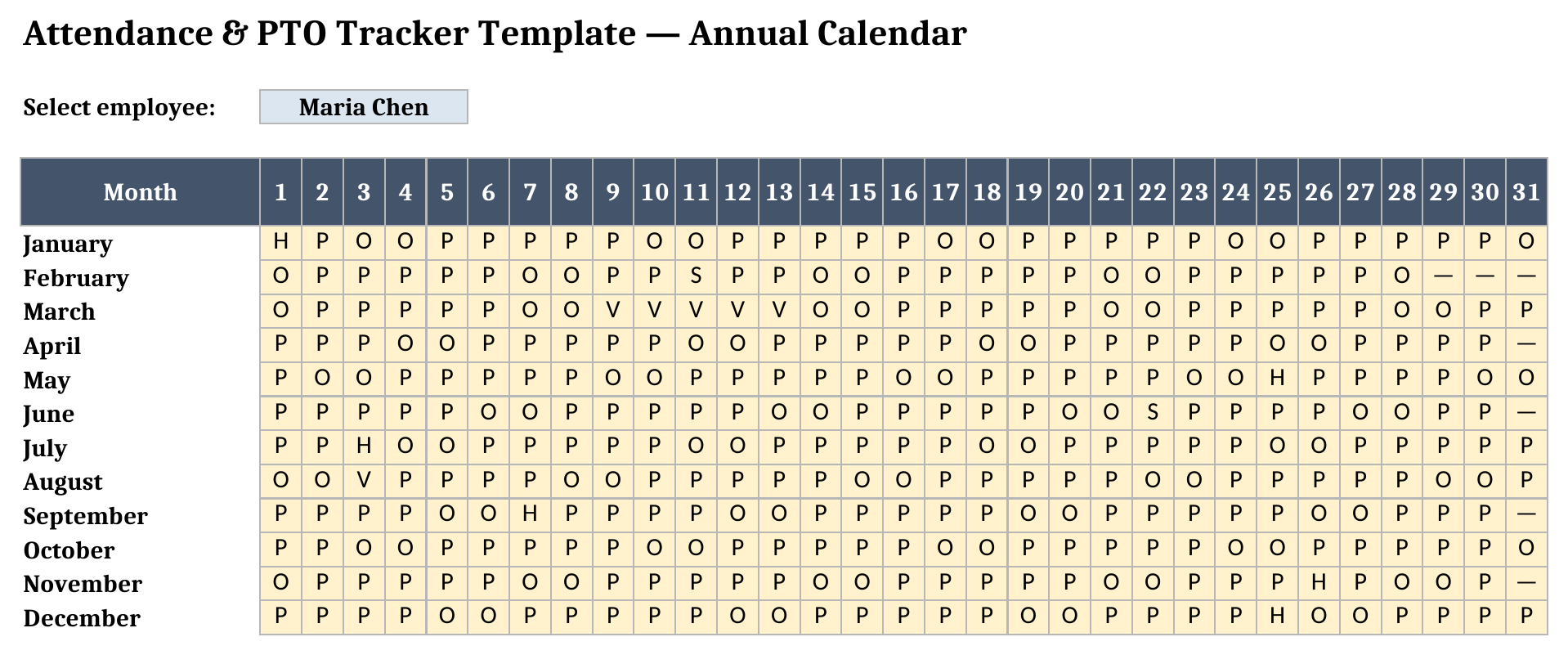
- Attendance Calendar — pick one employee from a dropdown and see their entire year, all 12 months by all 31 day columns, on a single page.
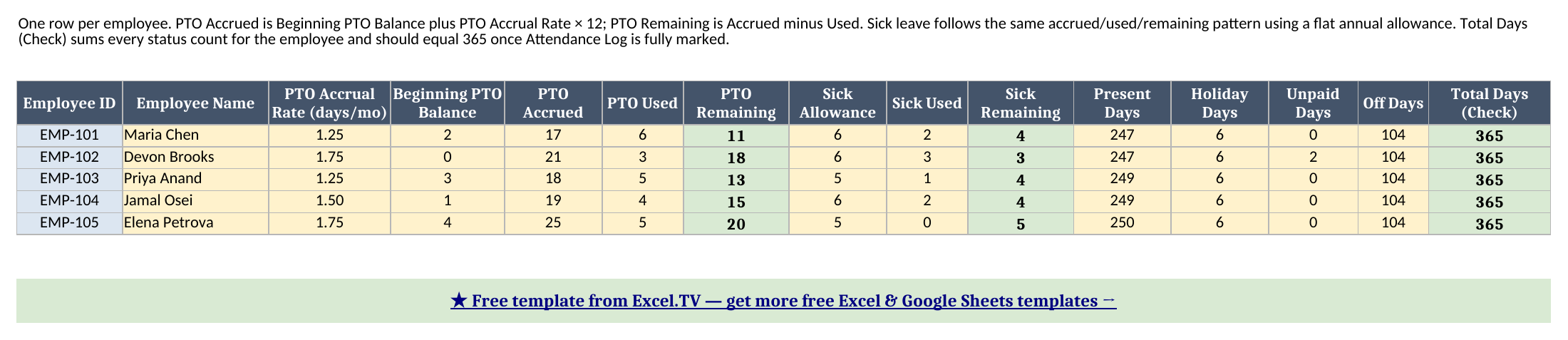
- PTO Summary — one row per employee: PTO accrued, used, and remaining, and the same three numbers for sick leave, plus a reconciliation check.
The required inputs are the roster and policy numbers on Employees, and a daily status code per employee on Attendance Log. The main outputs are PTO Summary’s accrued/used/remaining columns, which recalculate the instant you change a status code or a policy input.
How do I mark daily status and read the calendar?
- Open Employees and replace the five sample employees with your own team. Keep each Employee ID unique, and set each person’s monthly PTO accrual rate, beginning PTO balance, and annual sick allowance.
- Open Attendance Log. For each employee/month row, type a single-letter status code into every day column that applies: P (present), V (PTO/vacation), S (sick), H (company holiday), U (unpaid leave), or O (off — weekend or non-scheduled day). Every day column already has dropdown validation limiting entries to those six codes.
- A handful of day columns near the end of a row are pre-filled with an em dash (—) instead of a dropdown — those are days that don’t exist in that month (day 31 in a 30-day month, or days 29-31 in February). Leave them alone; don’t type a status over them.
- Open Attendance Calendar, choose an employee from the dropdown at the top, and review their full annual calendar — the same status codes you typed on Attendance Log, laid out as 12 rows by 31 columns.
- Open PTO Summary and read each employee’s accrued, used, and remaining PTO and sick balances.
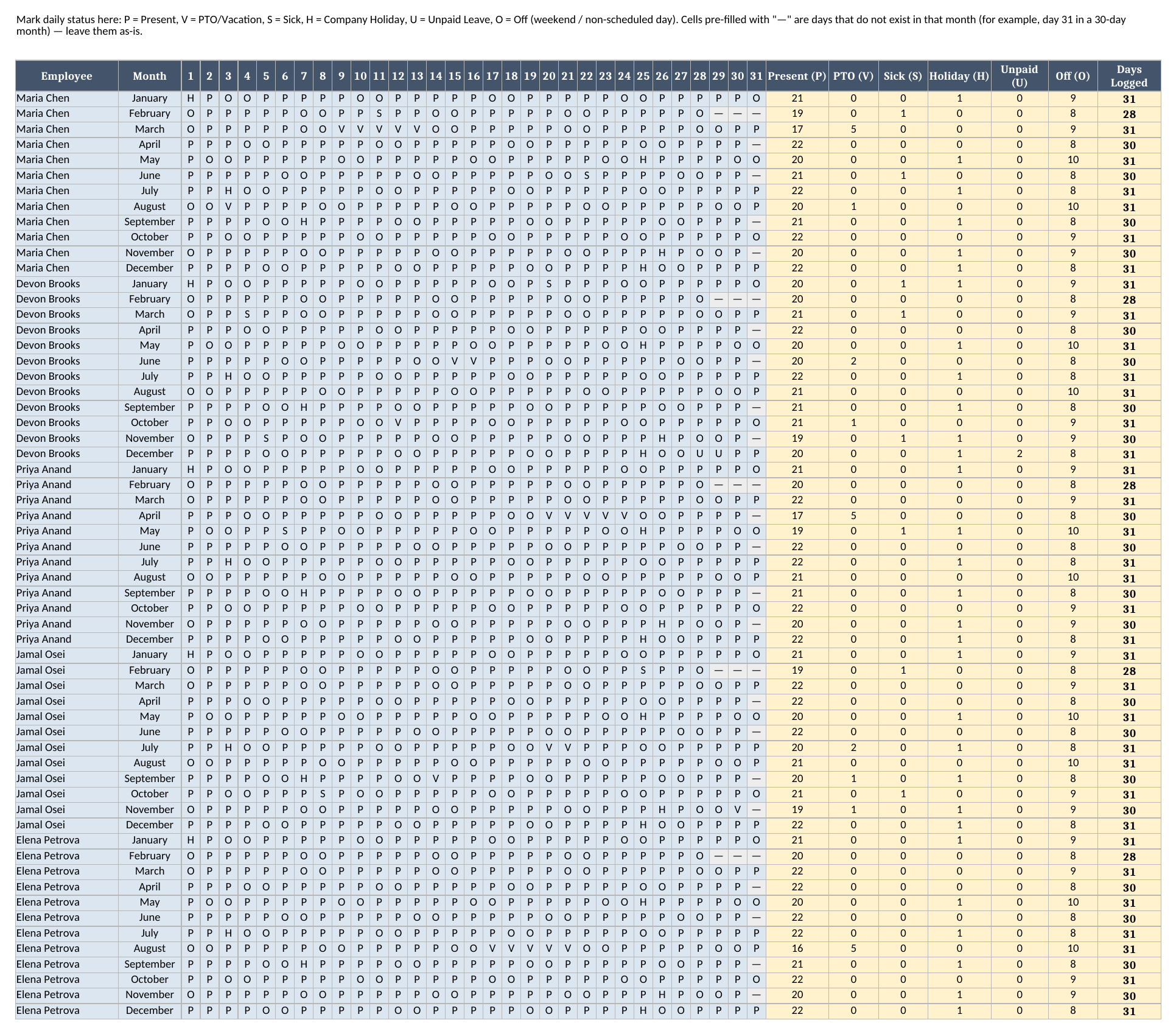
The Present/PTO/Sick/Holiday/Unpaid/Off count columns and the Days Logged column on Attendance Log all use plain COUNTIF over each row’s 31-day range, so a status code that doesn’t exist in a shortened month simply isn’t counted — there’s nothing to reconcile by hand.
How the PTO accrual and the annual calendar viewer actually work
This is the part most homemade trackers get wrong or skip entirely. PTO Accrued on PTO Summary is calculated as Beginning PTO Balance + PTO Accrual Rate × 12 — the beginning balance is your typed carryover from before this tracking year, and the accrual rate is a flat monthly rate you set per employee on Employees. Both numbers are typed inputs, not formulas — if you want a different mechanic (a per-pay-period rate × 26 pay periods instead of 12 months, an annual lump-sum grant, or a hard cap on carryover), change the Beginning PTO Balance input or the accrual formula in that one cell rather than rebuilding the sheet. PTO Used is a SUMIF that sums the PTO-day count from every one of that employee’s 12 rows on Attendance Log, and PTO Remaining is simply Accrued minus Used. Sick leave mirrors this exactly, except Sick Allowance is a flat annual number instead of an accrual rate — most small-team sick policies are a flat annual bank rather than something that accrues.
The other mechanic worth explaining is how Attendance Calendar shows one employee’s full year on a legible page instead of the wide 41-column Attendance Log grid. Every Attendance Log row ends with a hidden helper column concatenating Employee and Month into one text key (="Maria Chen"&"|"&"March", for example). Attendance Calendar’s employee dropdown builds that same key, MATCHes it against the helper column to find the right row once, then uses INDEX against that row for each of the 31 day columns. No array formulas, no WEEKDAY or EOMONTH — just INDEX, MATCH, IFERROR, and text concatenation, all of which round-trip identically through Google Sheets.
Worked example: five employees, one reconciled workbook
Here’s the full PTO Summary output for the sample roster, pulled straight from the workbook after a full formula recalculation:
| Employee | PTO Accrued | PTO Used | PTO Remaining | Sick Allowance | Sick Used | Sick Remaining | Total Days (Check) |
|---|---|---|---|---|---|---|---|
| Maria Chen | 17 | 6 | 11 | 6 | 2 | 4 | 365 |
| Devon Brooks | 21 | 3 | 18 | 6 | 3 | 3 | 365 |
| Priya Anand | 18 | 5 | 13 | 5 | 1 | 4 | 365 |
| Jamal Osei | 19 | 4 | 15 | 6 | 2 | 4 | 365 |
| Elena Petrova | 25 | 5 | 20 | 5 | 0 | 5 | 365 |
Every row’s math checks out the way it should: Accrued − Used = Remaining for both PTO and sick leave (17 − 6 = 11 for Maria Chen, 21 − 3 = 18 for Devon Brooks, and so on down the table). Notice Elena Petrova’s Sick Used is 0 — that’s not a placeholder or a broken formula, it’s a legitimately zero count for an employee who didn’t take a sick day in the sample year, and COUNTIF handles that exactly the way you’d want.
The Total Days (Check) column is the reconciliation I’d run on any tracker before trusting it: it sums PTO Used, Sick Used, Present Days, Holiday Days, Unpaid Days, and Off Days for the employee, and it comes out to exactly 365 for all five employees, matching the sample year. For Maria Chen specifically, that’s 247 Present days, 6 PTO days used, 2 Sick days used, 6 Holiday days, 0 Unpaid days, and 104 Off (weekend) days — 247 + 6 + 2 + 6 + 0 + 104 = 365. If you mark every day for every employee and this column ever comes out to anything other than the number of days in your tracking year, that’s your signal something got double-marked or skipped on Attendance Log.
How do I use this in Google Sheets?
Open Google Sheets, choose File > Import > Upload, select the downloaded .xlsx, and pick “Insert new sheet(s).” Every formula in this workbook — SUM, COUNTIF, SUMIF, IF, IFERROR, INDEX, MATCH, and the & concatenation operator — is natively supported in Google Sheets, so nothing needs to be rewritten. The dropdown data validation on Attendance Log’s Employee and Month columns, and on Attendance Calendar’s employee selector, also carries over automatically.
If you’d rather skip the download-and-import step entirely, use this one-click copy link: make a copy of the Attendance & PTO Tracker Template in Google Sheets. Google will prompt you to save it to your own Drive, and from there it behaves identically to the Excel version — same sheets, same formulas, same PTO and sick-leave rollups.
If you’re tracking hours worked in addition to attendance, my timesheet template is the natural companion — it handles weekly, bi-weekly, and monthly hourly pay with overtime math, while this workbook handles the “who was here and why” side of the same team. And if you’re building out a fuller back-office reporting kit, my finance dashboard template covers monthly budget-vs-actual once payroll and attendance numbers feed into it.
Why one workbook instead of three separate trackers
I deliberately didn’t ship this as three thin templates — a calendar-only attendance sheet, a standalone PTO tracker, and a separate sick-leave log — because that’s exactly the setup that causes the mismatched-numbers problem I described at the top. When attendance, PTO, and sick leave live in three different files, someone eventually marks a vacation day on the calendar but forgets to log it on the PTO tracker, and the two numbers drift apart until nobody trusts either one. Here, Attendance Log is the single source of truth: mark a day once, and PTO Summary, the sick-leave columns, and Attendance Calendar all read from that same row. There’s exactly one place to make a correction, not three.
Limitations to know before you rely on this
A few things are worth knowing before you put a real team’s PTO balances in:
- One status code per day, no half-days. This template doesn’t support marking half a PTO day or splitting a day between sick and present — each day gets exactly one code.
- PTO accrual doesn’t prorate for a mid-year hire, and beginning balance isn’t capped by a formula. The Beginning PTO Balance and PTO Accrual Rate on Employees are typed inputs; add a
MIN()around the Beginning PTO Balance formula yourself if your policy caps carryover, and manually prorate the accrual rate for an employee who started partway through the year. - Sick leave is a flat annual allowance, not an accrual. If your policy accrues sick time the way it accrues PTO, copy the PTO Accrued formula pattern into the Sick Allowance column rather than using it as-is.
- Attendance Calendar is read-only by design. Mark daily status on Attendance Log; Attendance Calendar only shows one employee’s year at a time so it stays legible on a single page — you can’t type into it directly.
- One calendar year at a time. The sample year is 2026 (not a leap year — February has 28 days). To track a new year, you’d duplicate the workbook or clear and re-date Attendance Log’s Month labels for the new year’s day counts.
- No macros, no external connections. Everything here is a native formula. That’s deliberate — it’s what keeps the workbook portable between Excel and Google Sheets with zero substitutions.
I’d rather you know these limitations going in than discover one after a payroll cycle. Once your roster and policy numbers are set on Employees, the rest of the workbook takes care of itself.
Download the attendance tracker excel template and swap in your own team whenever you’re ready.
