
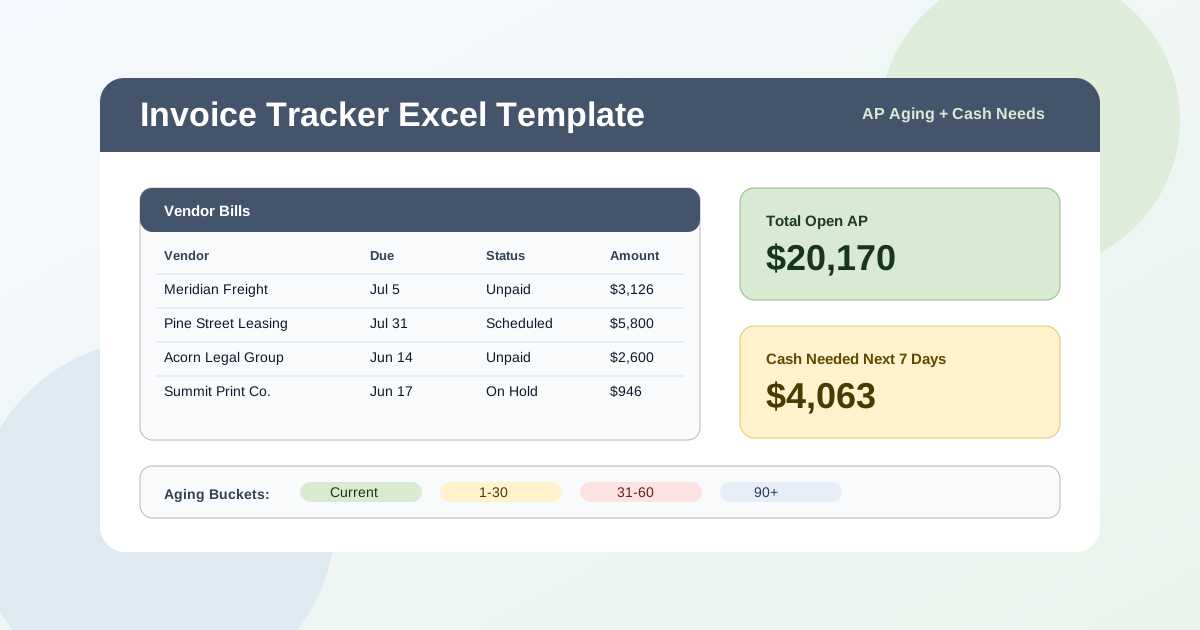
If I only had one page to review before an accounts payable payment run, I would not choose a raw invoice list. I would choose the combination this invoice tracker excel template is built around: total open AP, overdue AP, cash needed in the next seven days, a real aging report, and the three largest scheduled payments, all tied back to the same vendor bill rows. A plain list tells me what exists. This workbook tells me what needs cash, what is late, and what I should ask about before approving payments.
Download the invoice tracker excel template - it is a plain .xlsx, no macros, no external data connections, no signup, and no email gate. Open it in Excel or import it into Google Sheets and replace the synthetic sample bills with your own vendor invoices.
Video walkthrough
I made the short walkthrough below from the actual generated workbook screenshots, not from a mockup. It moves through the same sequence I use in the workbook: start with Vendor Bills, check Aging, review Cash Requirements, then make the payment-run decision on Summary.
Who is this template for?
I built this for the small business AP workflow where bills arrive from vendors all month, but the actual payment decision happens in batches. That might be a weekly payment run, a twice-monthly controller review, or a cash-constrained process where the owner wants to know which bills are overdue before releasing anything. If your current system is a shared spreadsheet called “Invoices” with a status column nobody trusts, this template is meant to give that file structure.
The important distinction is that this is an invoice tracker for bills you owe, not an invoice generator for bills you send to customers. I already have a separate invoice template for creating customer invoices. This one is the accounts payable side: vendor bills, due dates, statuses, aging buckets, and payment timing. It is closer to an accounts payable tracker excel workbook than a printable invoice document.
It is not a full AP subledger. There is no approval routing, bank connection, automatic duplicate detection, partial-payment ledger, or posting to the general ledger. I would still use accounting software as the system of record. But for a team that needs a clear payment-run worksheet - especially one that can move between Excel and Google Sheets - this is the layer I want between the vendor inbox and the bank portal.
What’s in the workbook, sheet by sheet
The workbook ships with six sheets in this exact order:
- Instructions - setup notes, the color legend, Google Sheets import guidance, limitations, and a clean-room disclosure. Every formula, layout decision, vendor name, and dollar amount was authored from scratch for Excel.TV.
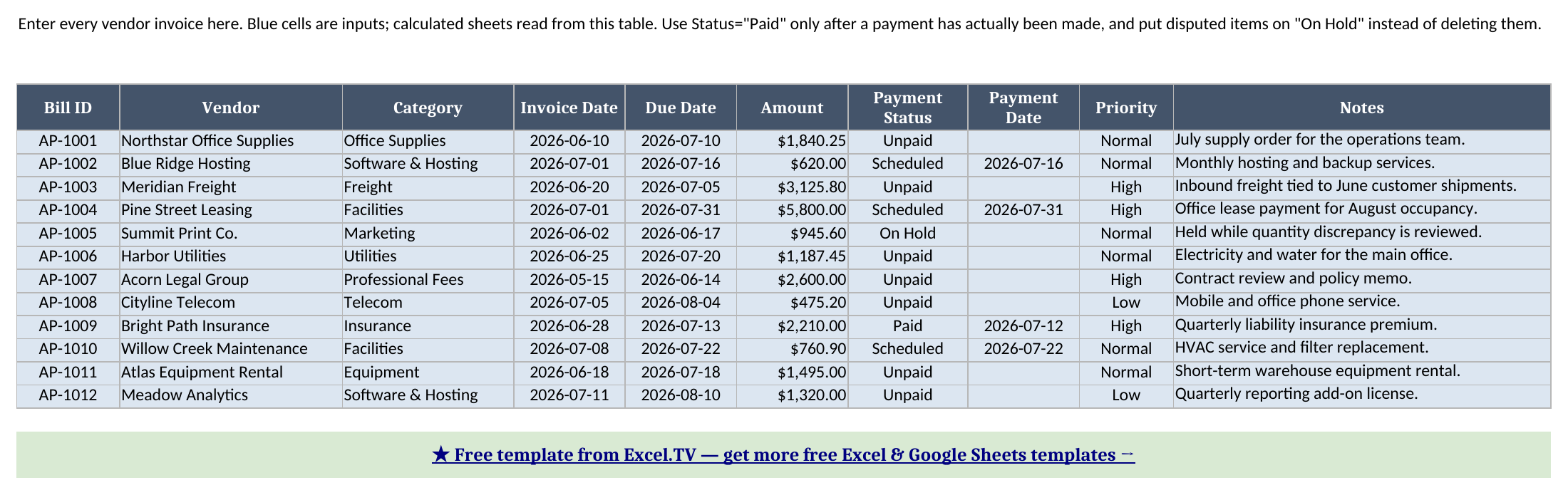
- Vendor Bills - the input table. This is where you enter Bill ID, Vendor, Category, Invoice Date, Due Date, Amount, Payment Status, Payment Date, Priority, and Notes.
- Payment Calendar - a calculated schedule that assigns every bill to a cash-timing bucket against the Summary as-of date: Overdue, Next 7 Days, 8-14 Days, 15-30 Days, Later, Paid, or On Hold.
- Aging - the calculated AP aging report. It shows days past due, aging bucket, open amount, and helper bucket columns for Current, 1-30, 31-60, 61-90, and 90+.
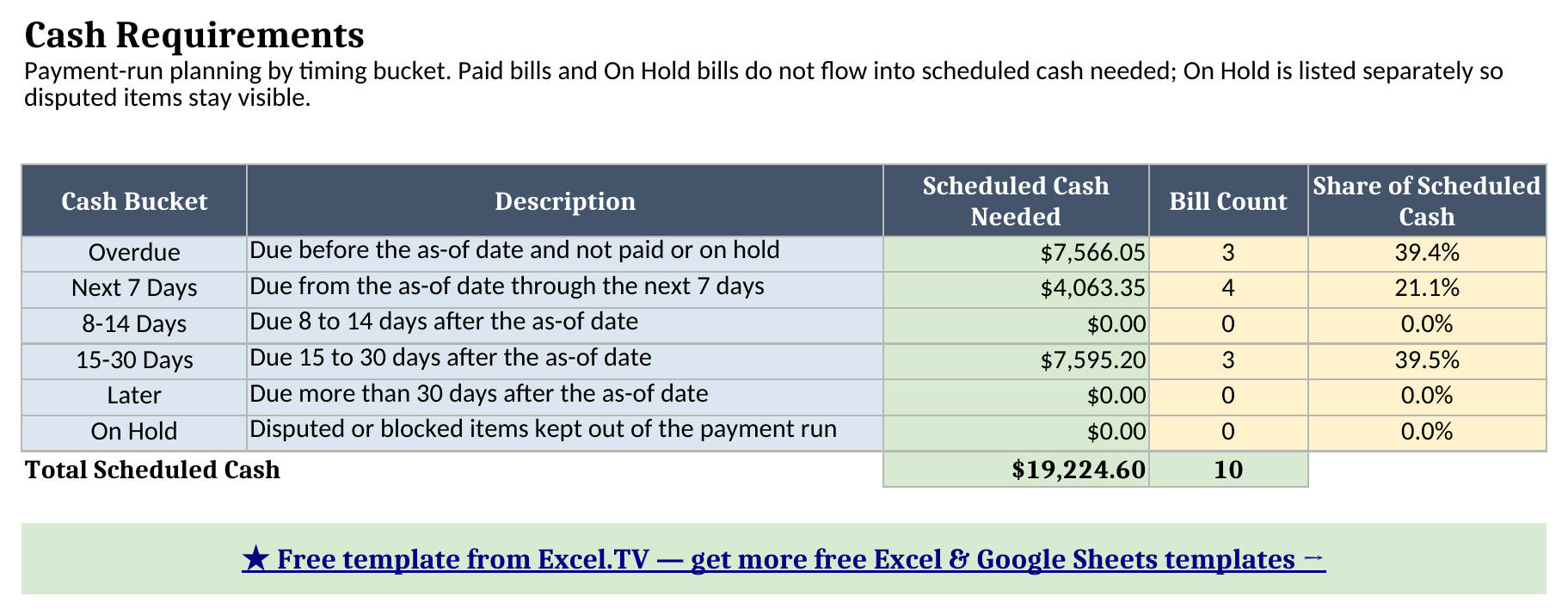
- Cash Requirements - a payment-run rollup that uses
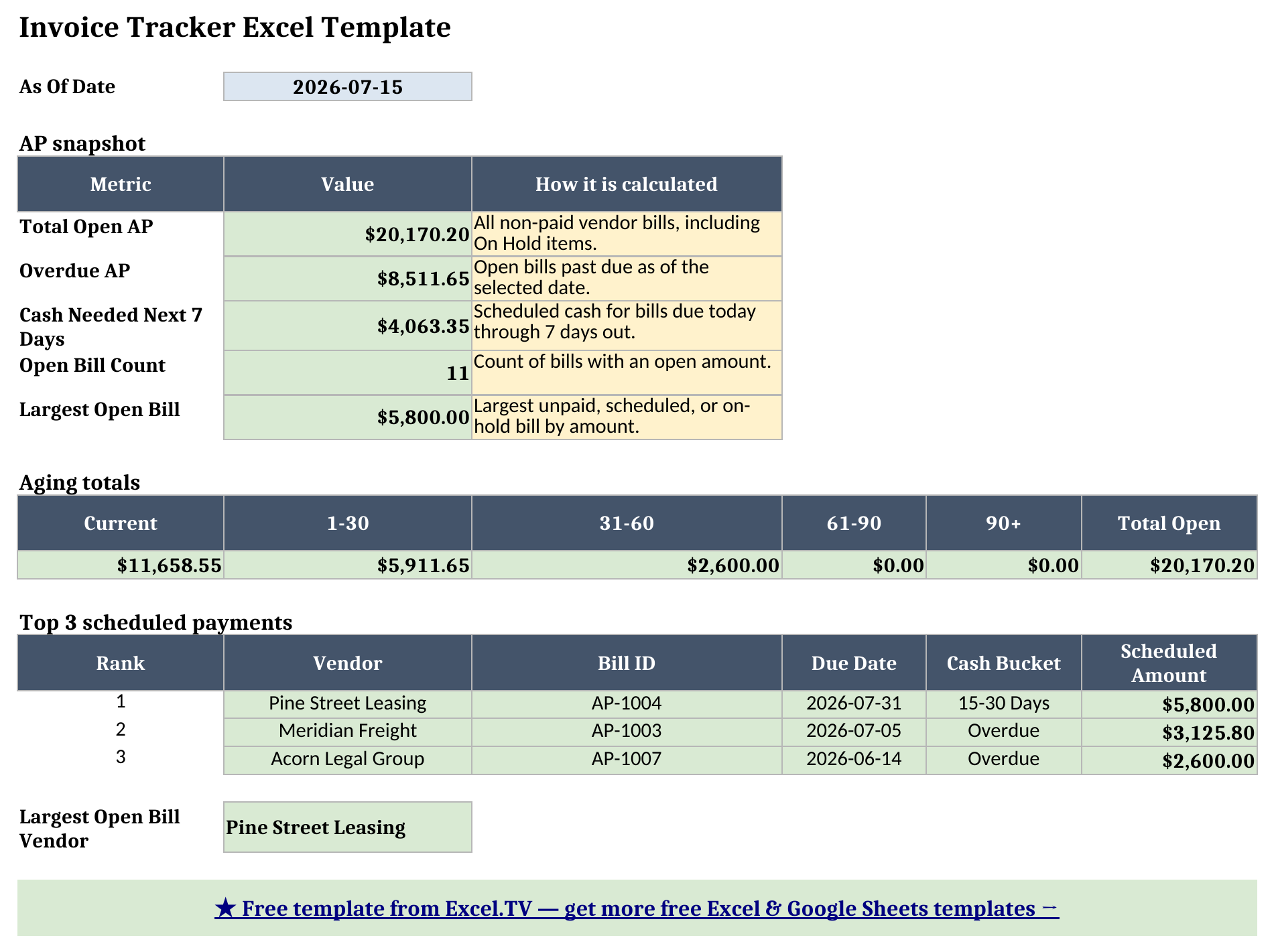
SUMIFto total scheduled cash by timing bucket. - Summary - the one-page dashboard: as-of date, total open AP, overdue AP, cash needed next 7 days, open bill count, largest open bill, aging totals, and top 3 scheduled payments.
The required inputs are all on Vendor Bills, plus the As Of Date on Summary. The main outputs are the AP snapshot metrics on Summary, the aging bucket totals, the Cash Requirements payment-run table, and the top-3 scheduled payment list.
How I set up the invoice tracker
Start on Vendor Bills. I intentionally made this the only data-entry sheet because most tracking workbooks get fragile when the same invoice information is typed in three places. If a due date changes, I want to change it once. If a bill moves from Unpaid to Scheduled, I want that status change to flow into the calendar, aging report, cash requirements, and dashboard without copy-paste.
The Payment Status dropdown has four values: Unpaid, Scheduled, Paid, and On Hold. I use those words deliberately. Scheduled means a payment is planned but not yet complete. Paid means the money actually went out. On Hold means the bill is still a liability, but I do not want it included in the payment run because something is disputed or blocked.
That distinction matters. If I simply deleted a disputed bill, total AP would look lower than it really is. If I left it as Unpaid, the cash forecast would tell me to fund a payment I already know should not be released. Keeping On Hold separate lets the workbook show both truths: the bill is still open, and it should not be part of scheduled cash needed.
How the aging report works
The Aging sheet reads the As Of Date from Summary and subtracts each bill’s Due Date. A paid bill gets zero open amount. A non-paid bill keeps its full amount open and then falls into one aging bucket:
| Days past due | Aging bucket |
|---|---|
| 0 or not yet due | Current |
| 1 to 30 days | 1-30 |
| 31 to 60 days | 31-60 |
| 61 to 90 days | 61-90 |
| More than 90 days | 90+ |
The formula pattern is intentionally plain: nested IF statements, date arithmetic, and no dynamic arrays. I could make a cleverer version with newer functions, but I would rather have an ap aging report template that imports cleanly into Google Sheets and older Excel workbooks than a prettier formula that breaks for half the people downloading it.
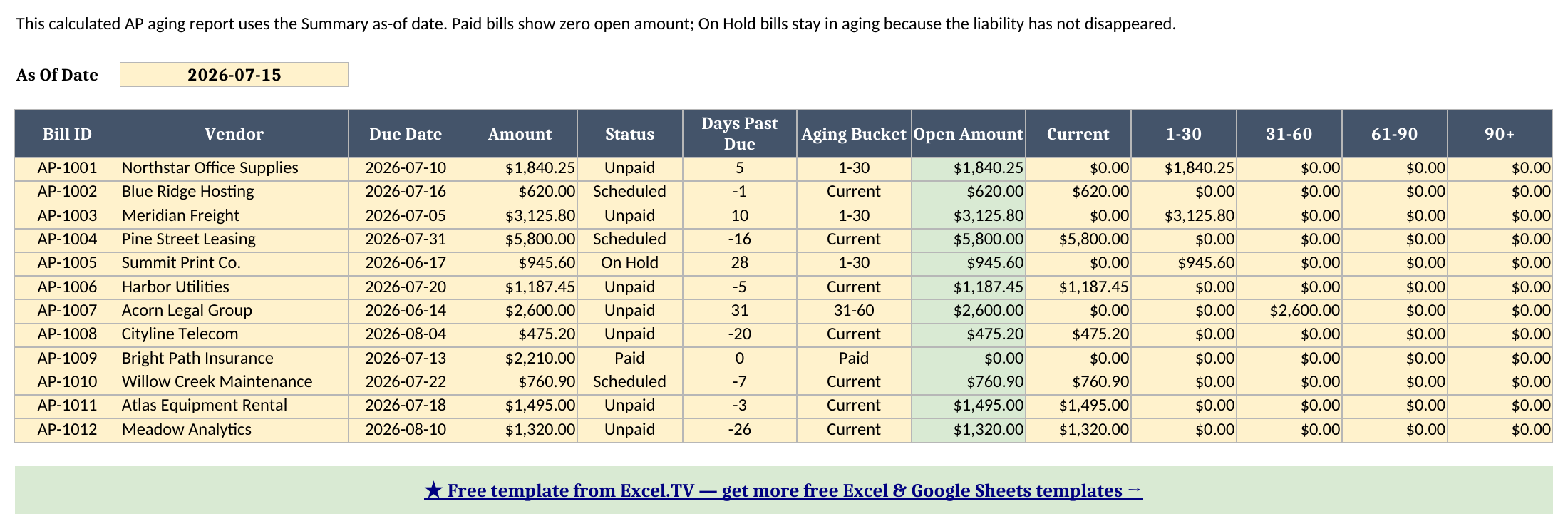
In the sample file, the Summary as-of date is July 15, 2026. That makes Meridian Freight 10 days past due, so it lands in the 1-30 bucket. Acorn Legal Group is 31 days past due, so it lands in 31-60. Blue Ridge Hosting is due tomorrow, so it is still Current.
Worked example: the July 15 payment run
Here is the sample workbook after a full LibreOffice recalculation, using July 15, 2026 as the As Of Date:
| Metric | Recalculated value |
|---|---|
| Total Open AP | $20,170.20 |
| Overdue AP | $8,511.65 |
| Cash Needed Next 7 Days | $4,063.35 |
| Open Bill Count | 11 |
| Largest Open Bill | $5,800.00 |
| Largest Open Bill Vendor | Pine Street Leasing |
The difference between total open AP and scheduled cash is the key thing to understand. Total Open AP is every non-paid bill, including the Summit Print Co. bill that is on hold. Scheduled cash excludes Paid bills and On Hold bills, because those should not be funded in the next payment batch.
For this sample payment run, the Cash Requirements sheet recalculates to:
| Cash bucket | Scheduled cash needed | Bill count |
|---|---|---|
| Overdue | $7,566.05 | 3 |
| Next 7 Days | $4,063.35 | 4 |
| 8-14 Days | $0.00 | 0 |
| 15-30 Days | $7,595.20 | 3 |
| Later | $0.00 | 0 |
| On Hold | $0.00 | 0 |
| Total Scheduled Cash | $19,224.60 | 10 |
Those figures match the workbook formulas. Overdue scheduled cash is Northstar Office Supplies ($1,840.25), Meridian Freight ($3,125.80), and Acorn Legal Group ($2,600.00), totaling $7,566.05. The on-hold Summit Print Co. bill is still in aging and total open AP, but it is not in scheduled cash. Next 7 Days is Blue Ridge Hosting ($620.00), Harbor Utilities ($1,187.45), Willow Creek Maintenance ($760.90), and Atlas Equipment Rental ($1,495.00), totaling $4,063.35.
The top-3 scheduled payments on Summary are Pine Street Leasing at $5,800.00, Meridian Freight at $3,125.80, and Acorn Legal Group at $2,600.00. That is exactly the list I would review before approving a payment batch. Pine Street is the largest cash item but not overdue. Meridian and Acorn are both overdue, so those are the ones I would chase down first if cash is tight.
How do I use this in Google Sheets?
Google Sheets is a first-class use case for this workbook. Download the .xlsx, open Google Sheets, choose File > Import > Upload, select invoice-tracker-template.xlsx, and choose Insert new sheet(s). The status and priority dropdowns carry over, and the formulas do not need substitutions.
The workbook stays inside the formula set I trust for Excel/Sheets portability: SUM, SUMIF, SUMIFS, IF, IFERROR, INDEX, MATCH, ABS, ROUND, LARGE, normal arithmetic, date subtraction, and comparison operators. There are no macros, no external workbook links, no Power Query connections, and no vendor data connectors.
If you would rather skip the download-and-import step, use this one-click copy link: make a copy of the Invoice Tracker Template in Google Sheets. Google will prompt you to save it to your own Drive, and from there it behaves like the Excel version: same six sheets, same AP aging logic, same cash requirements rollup, and the same status and priority dropdowns.
How I would use it in a real payment process
My weekly rhythm would be simple. First, I would export or type new vendor bills into Vendor Bills. Then I would update status: invoices already released become Paid, approved payments become Scheduled, disputed invoices become On Hold, and everything else stays Unpaid.
Second, I would set the As Of Date on Summary. This one cell controls the workbook’s timing logic. If I change it from July 15 to July 22, the aging buckets and payment calendar move with it. That is better than hard-coding “this week” into formulas, because the workbook remains auditable after the payment run is finished.
Third, I would review Cash Requirements before opening the bank portal. The payment-run question is not “how much AP exists?” It is “how much cash do we need to release now?” This workbook answers that by separating overdue, next 7 days, 8-14 days, 15-30 days, and later.
Finally, I would use Summary for the conversation with the owner, controller, or department lead. If cash is available, the top-3 list helps confirm the largest items before payment. If cash is constrained, the aging totals make it obvious which vendors are already late and which payments can wait.
Limitations to know before you rely on this
A few things are worth knowing before you put real vendor bills in:
- No partial payments. Each bill is either open at the full amount or paid at zero open amount. If you make a partial payment, split the bill into two rows or add a remaining-balance column and extend the formulas.
- No duplicate detection. Keep Bill ID unique and review vendor/invoice combinations yourself before payment approval.
- On Hold stays in AP aging. That is intentional. A disputed bill is still unpaid, so it stays in total open AP, but it is excluded from scheduled cash requirements.
- The as-of date drives everything. Update Summary before relying on Aging or Cash Requirements.
- Top-3 ties are not broken. The workbook uses
LARGEplusMATCH; if two scheduled payments have the exact same amount, the first matching row is returned. - No macros or external connections. This is deliberate. It keeps the workbook portable between Excel and Google Sheets.
I would rather be clear about those boundaries than pretend a spreadsheet is a full AP system. Used for the right job - tracking vendor bills, aging open invoices, and planning a payment run - this template gives you the structure that a plain invoice list is missing.
Download the invoice tracker excel template and replace the sample vendor bills with your own. The aging report, cash requirements, and summary dashboard will follow from there.
