
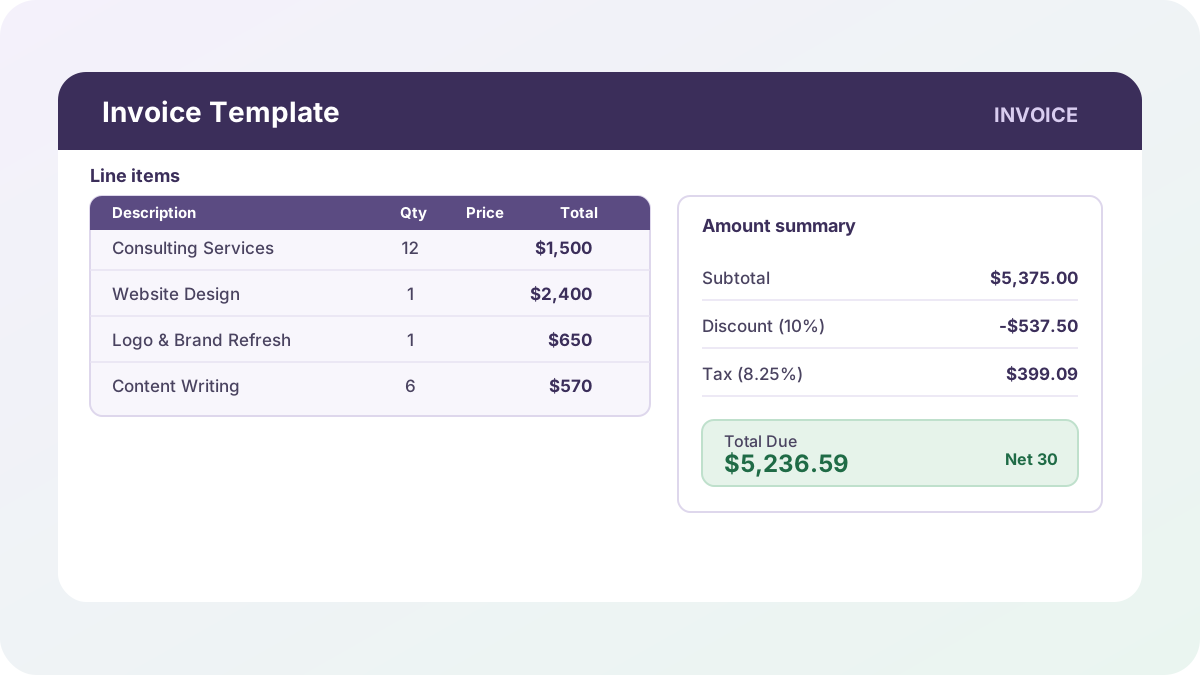
Every freelancer and small shop I’ve helped get their books in order hits the same wall eventually: they’ve got a decent-looking invoice, but it’s a static document. Someone has to do the discount math by hand, the tax gets added as a typed-in number that’s easy to get wrong, and there’s no record anywhere of what’s been billed versus what’s actually been paid. This invoice template fixes all three at once — line totals, discount, and tax all calculate themselves, and a linked log sheet keeps a running tally of every invoice you send.
Download the invoice template — it’s a plain .xlsx, no macros, no external data connections, and no sign-up. Open it in Excel or Google Sheets and start replacing the sample company and client details with your own.
Who is this template for?
I built this for anyone billing clients directly — freelancers, consultants, small agencies, contractors, or a small business owner who’s outgrown a plain Word document but isn’t ready to pay for invoicing software. If you’re issuing more than the occasional invoice, you’ve probably already felt the specific pain this template solves: re-typing a subtotal formula every time, forgetting whether last month’s client got a 10% discount, or not having any single place that shows what’s actually been collected versus what’s still sitting unpaid. This workbook is also a reasonably approachable teaching example if you want to see a toggled IF formula (percent vs. fixed discount), a ROUND-wrapped tax calculation, and a cross-sheet SUMIF all working together.
It is not accounting software. There’s no client database, no recurring billing, and no automatic reminders — it’s a spreadsheet, and it’s honest about that. If you need those things, this is still a useful bridge until you’re ready to pay for dedicated invoicing tools, and the Invoice Log sheet is structured so it could later feed a more complete tracking workbook without rebuilding your historical data.
What’s in the workbook, sheet by sheet
The workbook ships with three sheets, in this order:
- Instructions — a short setup guide plus a clean-room disclosure: every formula, layout, and sample figure in this workbook was authored from scratch for Excel.TV. No vendor template, workbook, or dataset was downloaded, inspected, or adapted to build it.
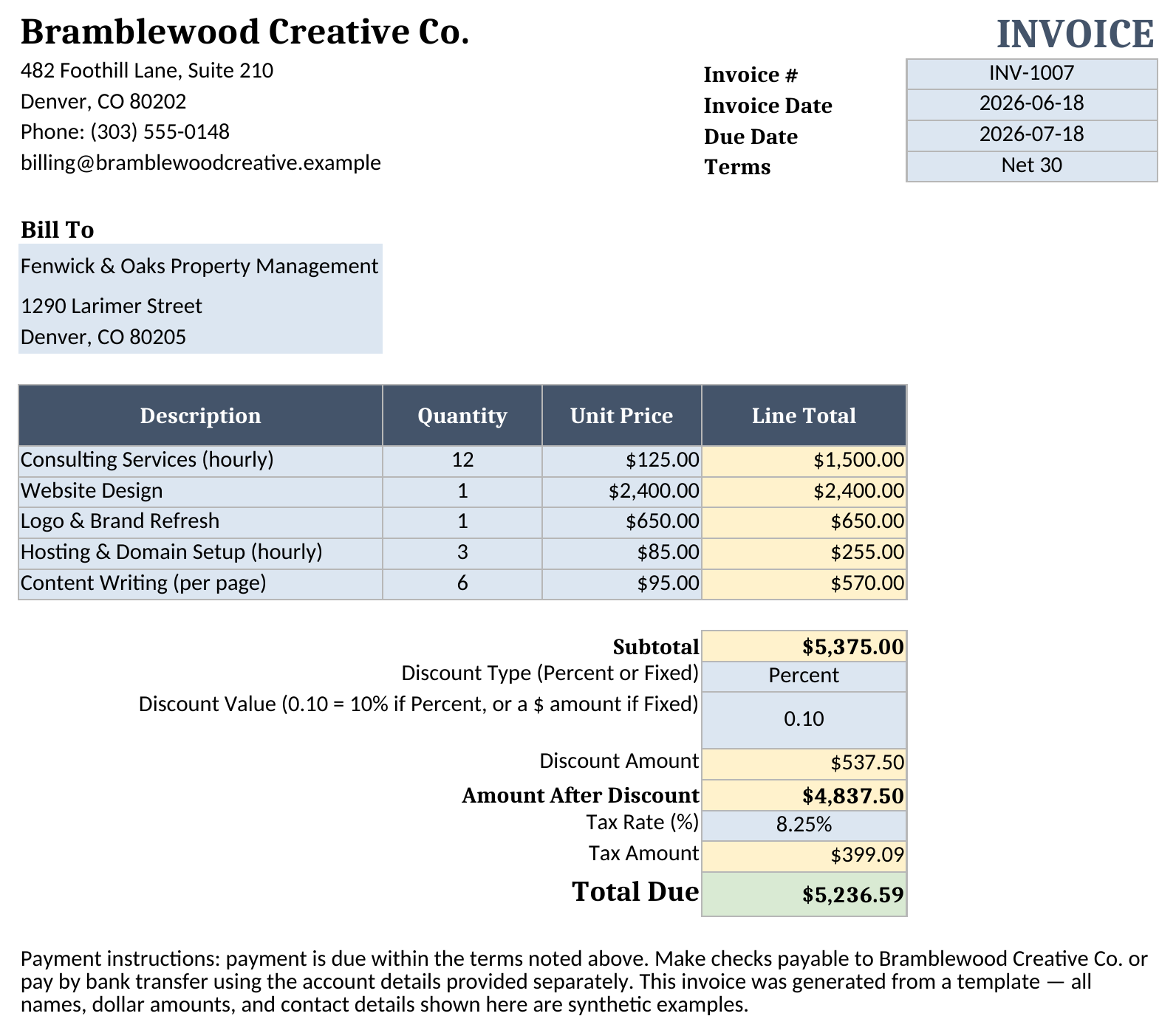
- Invoice — the printable document: your company block, a Bill To block for the client, invoice number/date/due date/terms, a line-item table with auto-calculating Line Totals, a Subtotal, a discount block (Percent or Fixed), a Tax Rate, and a Total Due.
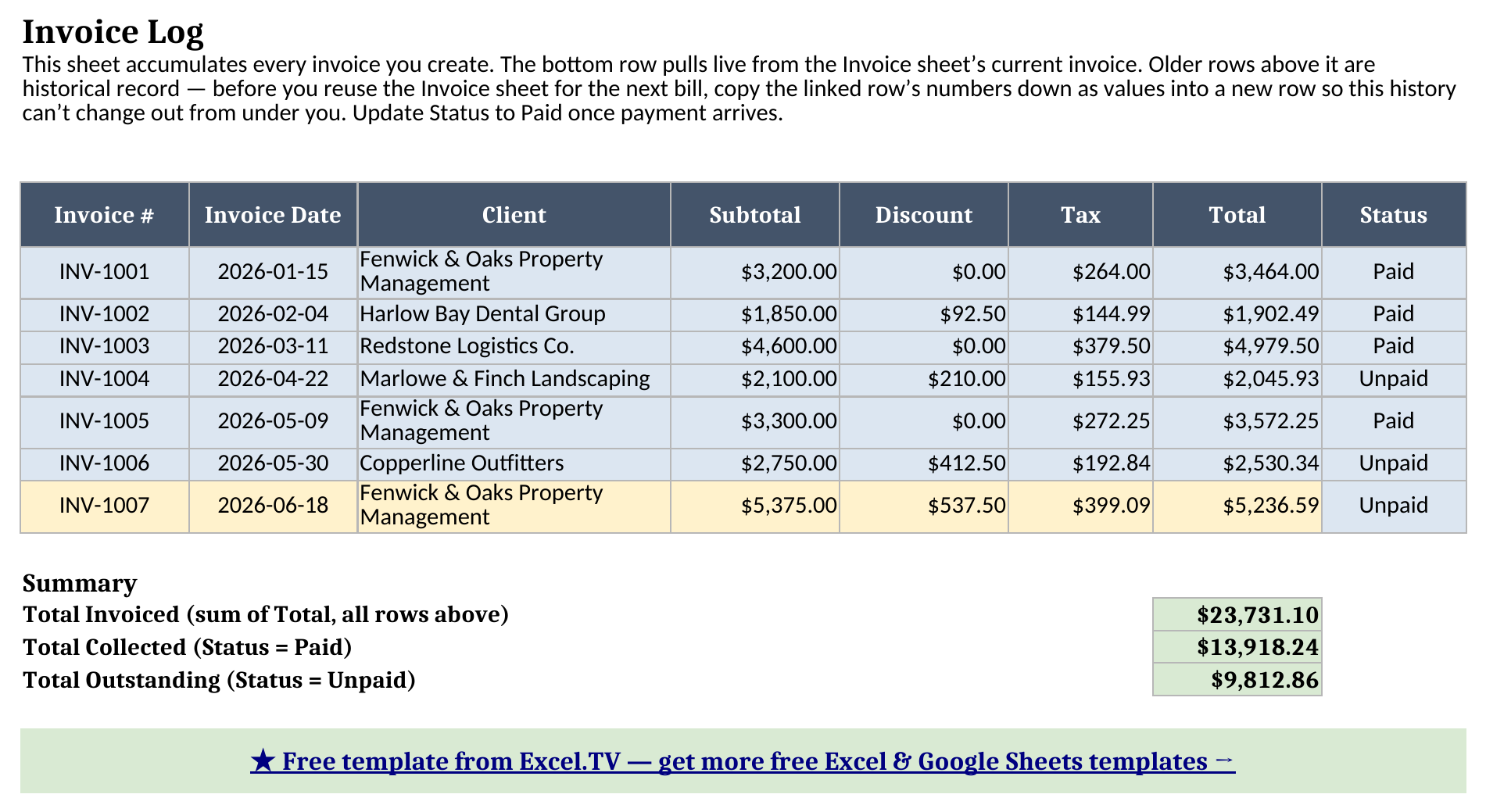
- Invoice Log — a running record of every invoice you’ve issued. The bottom row pulls live from whatever’s currently on the Invoice sheet; the rows above it are historical, each with a Paid/Unpaid status, and a Summary block totals what’s been invoiced, collected, and left outstanding.
The required inputs are your company and client details, invoice number/date/terms, each line item’s description/quantity/unit price, the discount type and value, and the tax rate — all on the Invoice sheet. The main outputs are Subtotal, Discount Amount, Tax Amount, and Total Due on Invoice, plus Total Invoiced, Total Collected, and Total Outstanding on Invoice Log — every one of which recalculates the moment you change an input cell.
How do I set up the invoice template?
- Open Invoice and replace the company block at the top left (name, address, phone, email) with your own business information.
- Fill in the Bill To block with your client’s name and address, and set Invoice #, Invoice Date, Due Date, and Terms in the top-right block.
- Enter each line item’s Description, Quantity, and Unit Price. Line Total, Subtotal, Discount Amount, Tax Amount, and Total Due all recalculate automatically as you type — you never touch a Line Total cell directly.
- Set Discount Type to Percent or Fixed and enter the Discount Value — 0.10 for a 10% discount if Percent, or a flat dollar amount if Fixed — then set Tax Rate as a decimal (0.0825 for 8.25%).
- Once the invoice is finished and sent, open Invoice Log and copy that invoice’s finished numbers into a new row as values, so the record is preserved before you start the next invoice (more on why this matters below).
Item codes aren’t part of this template, but the same discipline that keeps a lookup-driven workbook honest still applies here: keep each line item on its own row inside the table, and don’t type a number directly into a Line Total cell — if a formula gets overwritten with a typed value, it stops updating when you change the quantity or price above it.
How the discount and tax math actually works
The mechanic I get asked about most with any invoice template is discounting, because “10% off” and “$50 off” are both things a client negotiates, and most spreadsheets I’ve seen pick one and force you to rebuild the formula if you need the other. This template handles both with one toggle: a Discount Type cell that’s either “Percent” or “Fixed,” read by a single formula on the Discount Amount cell — =IF(Discount Type="Percent", Subtotal*Discount Value, Discount Value). Flip the toggle and the same Discount Value cell means something different: 0.10 becomes a 10% cut off the subtotal, or type 50 and it’s a flat $50 off, no formula editing required either way.
Tax follows the discount, not the subtotal, which is the detail that trips people up when they build this by hand: Tax Amount is =ROUND(Amount After Discount * Tax Rate, 2), not the pre-discount subtotal times the rate. That ordering matters — tax the full subtotal and you’ll overcharge every discounted client, an easy mistake when you’re doing the math in your head instead of letting a formula enforce the order. The ROUND wrapper matters too: without it, the calculation keeps its full floating-point precision internally, which is how invoices end up with a Total Due like $5,236.5900000001 instead of a clean $5,236.59 that matches what you’d write on a check.
Worked example
Here’s the sample invoice in the template, recalculated end to end — five line items for a website design and content project, a 10% percent discount, and 8.25% tax:
| Line Item | Quantity | Unit Price | Line Total |
|---|---|---|---|
| Consulting Services (hourly) | 12 | $125.00 | $1,500.00 |
| Website Design | 1 | $2,400.00 | $2,400.00 |
| Logo & Brand Refresh | 1 | $650.00 | $650.00 |
| Hosting & Domain Setup (hourly) | 3 | $85.00 | $255.00 |
| Content Writing (per page) | 6 | $95.00 | $570.00 |
| Amount | Value |
|---|---|
| Subtotal | $5,375.00 |
| Discount (10% Percent) | $537.50 |
| Amount After Discount | $4,837.50 |
| Tax (8.25%) | $399.09 |
| Total Due | $5,236.59 |
Every number above came straight out of the workbook after a full formula recalculation — nothing was typed in or rounded by hand for this article. The $399.09 tax figure is exactly what ROUND($4,837.50 × 0.0825, 2) returns, and Total Due is Amount After Discount plus that Tax Amount, landing on $5,236.59.
How the invoice log ties billing history together
This is the part of the template I think earns its keep the most. Invoice Log’s bottom row — INV-1007 in the sample data — isn’t typed in at all; every cell is a cross-sheet formula pointing back at Invoice: ='Invoice'!D19 for Subtotal, ='Invoice'!D26 for Total, and so on. That means as long as the Invoice sheet is showing this invoice, the log’s current row always matches it exactly, with zero chance of a copy-paste transcription error.
The six rows above it are a different kind of cell entirely: typed values, not formulas, representing invoices already finished and sent. That’s deliberate, not an oversight. A formula link is live — it shows whatever’s currently on the Invoice sheet. A finished invoice needs to stay put. So the workflow is: finish an invoice, copy the linked row’s numbers down into a new row as values, then change the Invoice sheet for the next bill. Skip that step and the “history” you thought you’d saved will silently update to reflect whatever invoice you’re working on next — exactly the kind of quiet data-integrity problem that erodes trust in a spreadsheet. Once that habit sticks, the Summary block does the rest: Total Invoiced sums every Total in the log, and Total Collected and Total Outstanding each run a SUMIF against the Status column, splitting $23,731.10 in lifetime invoices into $13,918.24 collected and $9,812.86 still outstanding.
How do I use this in Google Sheets?
Google Sheets is a first-class destination for this invoice template, not an afterthought. Open Google Sheets, choose File > Import > Upload, select the downloaded .xlsx, and pick “Insert new sheet(s).” Every formula in this workbook — SUM, SUMIF, IF, IFERROR, and ROUND — is natively supported in Google Sheets, so nothing needs to be rewritten, and the Discount Type and Status dropdowns’ data validation carries over with it.
If you only need to inspect the invoice workbook before editing it, the Excel viewer guide explains desktop and browser options for opening .xlsx files without desktop Excel.
If you’d rather skip the download-and-import step entirely, use this one-click copy link: make a copy of the Invoice Template in Google Sheets. Google will prompt you to save it to your own Drive, and from there it behaves identically to the Excel version — same sheets, same formulas, same discount toggle.
How this differs from a generic invoice template
Most free invoice templates handle line items and maybe a flat tax rate and stop there. This one is built around two things I don’t see paired together very often: a discount toggle that handles percent and fixed amounts with one formula instead of two separate templates, and an Invoice Log designed to actually accumulate — not just a second tab you’re supposed to structure yourself. If your billing never involves a discount and you never need to look back at what’s outstanding, a bare-bones template will serve you fine. If you’ve ever had to answer “how much does this client owe us across every invoice,” the log here is doing real work.
If you also run a monthly close process once the invoices start piling up, my finance dashboard excel template picks up where this leaves off, turning actuals and budget into a one-page variance view. And if your invoicing is tied to job costing rather than a flat project fee — change orders, cost-to-complete, that kind of thing — my construction budget template is built for that side of the work instead.
Limitations to know before you rely on this
A few things worth knowing before you put real client numbers in:
- The Discount Value cell does double duty. It’s read as a percent (decimal) or a fixed dollar amount depending on the Discount Type toggle, and the cell’s number format doesn’t switch automatically between the two — double-check which mode you’re in before typing a number.
- Tax Rate is one flat rate per invoice. There’s no support for per-line-item tax exemptions or multiple tax jurisdictions on a single bill, which some service businesses with mixed taxable/non-taxable line items will run into.
- Invoice Log’s current row is a live link, not a snapshot. If you change the Invoice sheet before copying that row’s numbers down as values, the “history” changes with it — see the section above for why that matters and how to avoid it.
- No client database, recurring billing, or reminders. This is a single-invoice-at-a-time workbook with a log behind it, not a substitute for dedicated invoicing software if your volume outgrows a spreadsheet.
- No macros, no external connections. Everything here is a native formula. That’s deliberate — it’s what keeps the workbook portable between Excel and Google Sheets with zero substitutions.
I’d rather you know these going in than discover them the first time a client asks a question this template can’t answer. Once you’ve got the discount toggle and the “copy history down as values” habit down, the rest takes care of itself.
Download the invoice template and start replacing the sample company details and line items with your own — the discount toggle, the tax math, and the invoice log will all follow.
