
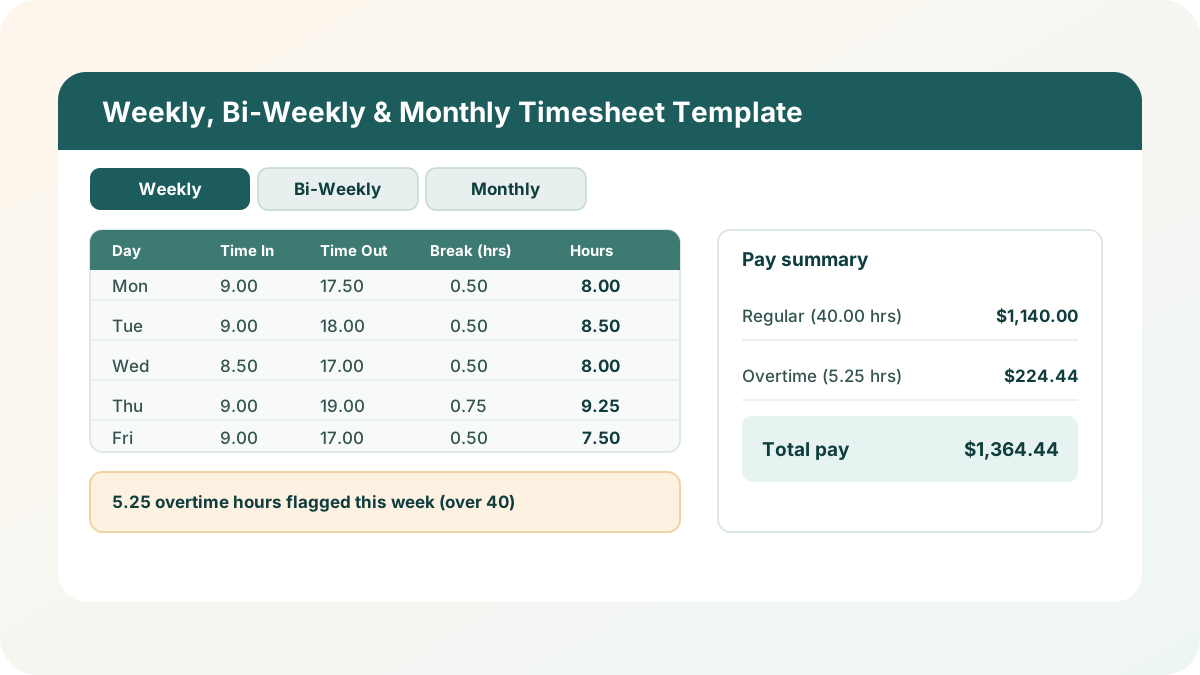
Every time-tracking conversation I have with a small business ends the same way: someone picked a timesheet template months ago that only handles one pay cycle, and then the company switched from weekly to bi-weekly payroll, or a new monthly-invoiced contractor joined the team, and now there are two or three different files floating around with slightly different overtime math in each one. If you’re tracking technicians or crews who work across job sites, time tracking software for field service can capture hours on the job itself. This excel timesheet template fixes that by putting all three pay-period variants — weekly, bi-weekly, and monthly — in one workbook, with the same hourly rate, the same overtime rule, and the same unpaid-break deduction behind all three.
Download the excel timesheet template — it’s a plain .xlsx, no macros, no external data connections, and no sign-up. Open it in Excel or Google Sheets and start replacing the sample hours with your own.
Who is this template for?
I built this for hourly employees, their managers, and small-business owners who log time by hand — no time-clock software, no HR platform, just Time In, Time Out, and a break. If your pay cycle is weekly, bi-weekly, or monthly, one of the three sheets in this workbook already matches it, and if your pay cycle changes later, the other two are sitting there ready to go without you hunting down a different time sheet template. It’s also a solid teaching example if you want to see per-block overtime math, a shared Settings sheet, and decimal-hour time arithmetic working together in one connected model.
What’s in the workbook, sheet by sheet
The workbook ships with five sheets, in this exact order:
- Instructions — a short setup guide plus a clean-room disclosure: every formula, layout, and sample figure in this workbook was authored from scratch for Excel.TV. No vendor template, workbook, or dataset was downloaded, inspected, or adapted to build it.
- Settings — the employee name, manager name, hourly rate, weekly overtime threshold, and overtime multiplier. All three timesheet sheets read these values, so changing a rate or a threshold here updates every variant at once.
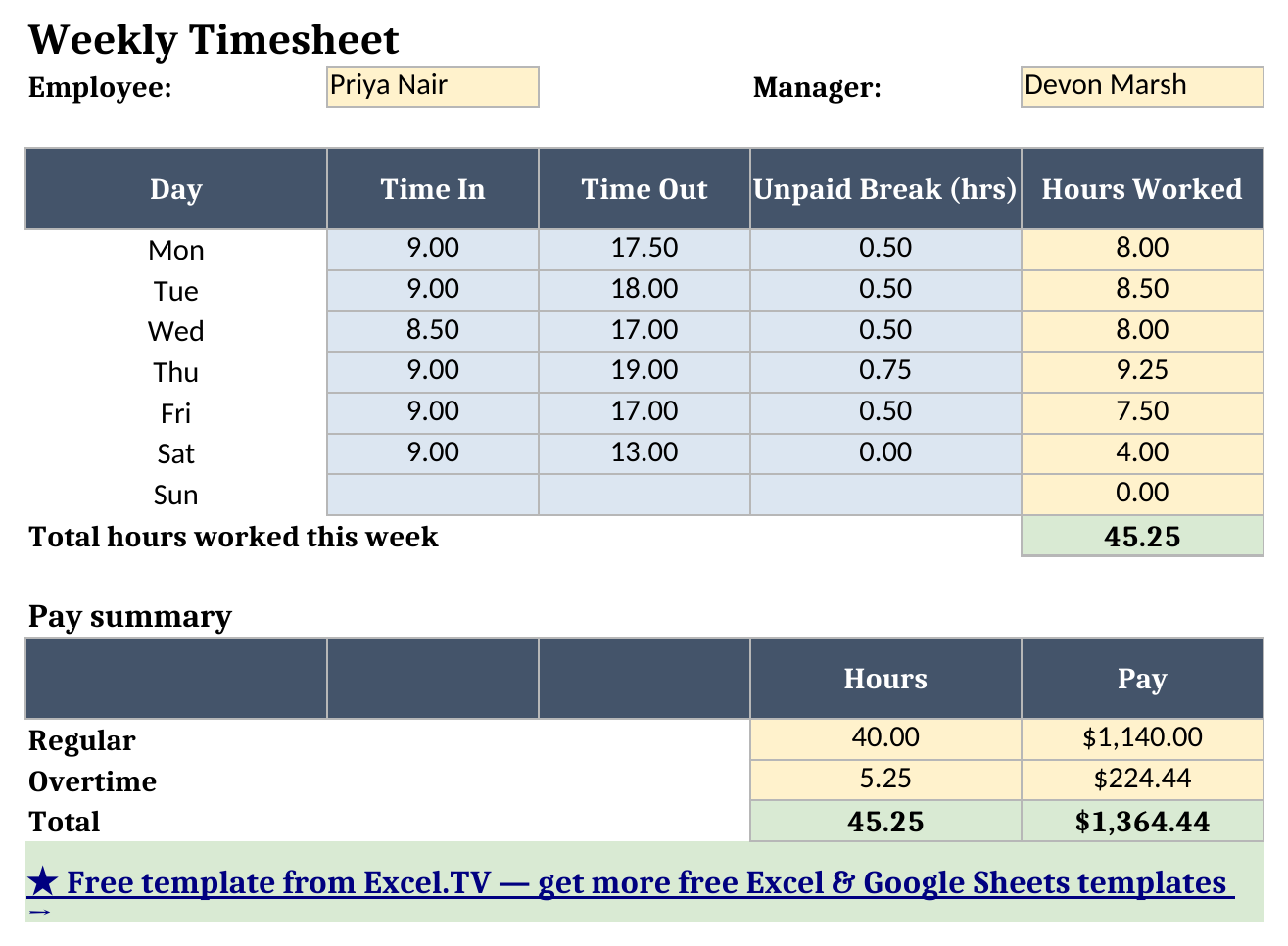
- Weekly Timesheet — a single 7-day workweek (Monday through Sunday), with a Pay Summary at the bottom.
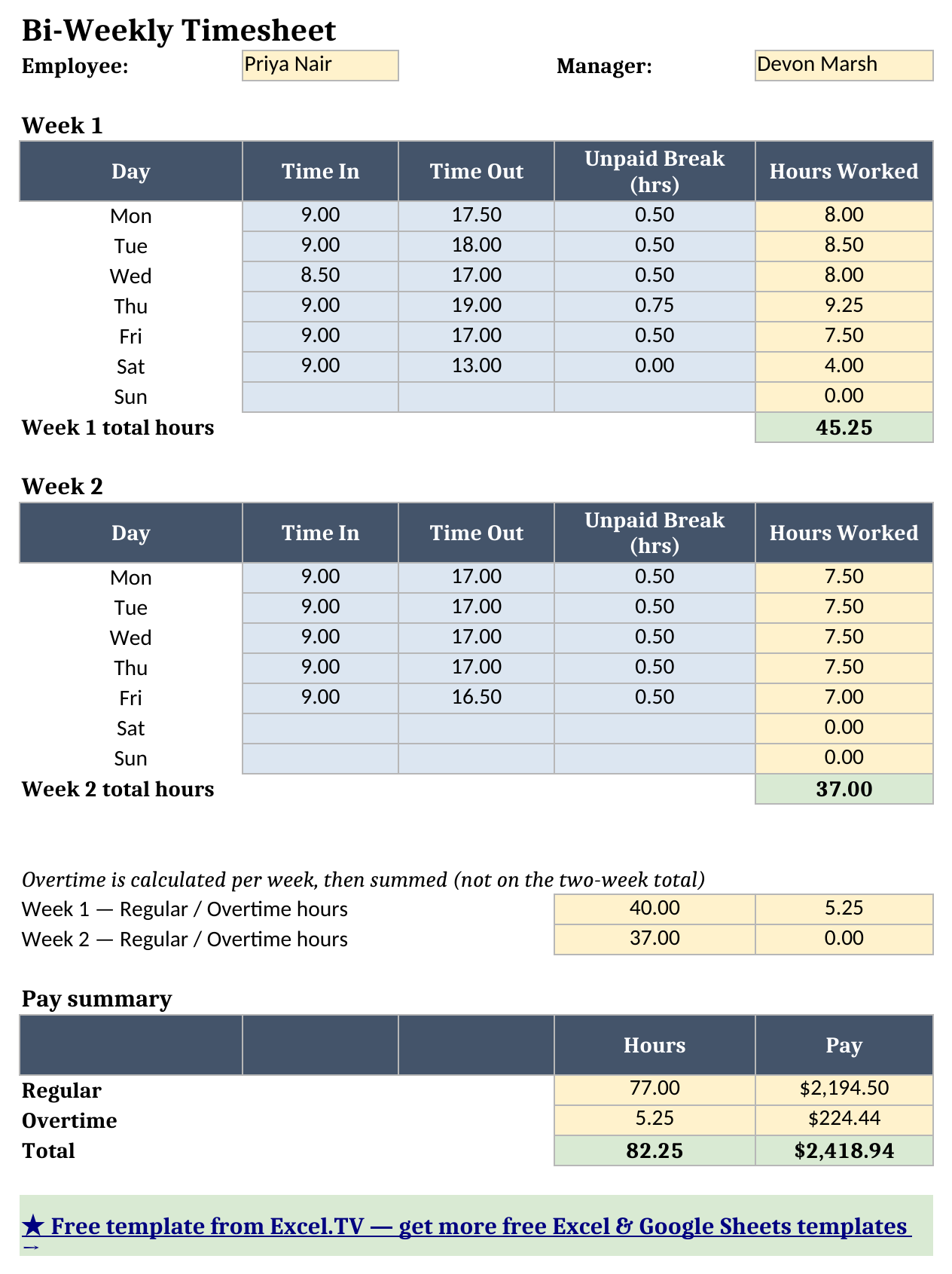
- Bi-Weekly Timesheet — two consecutive 7-day workweeks, each with its own overtime calculation, then a combined Pay Summary for the full pay period.
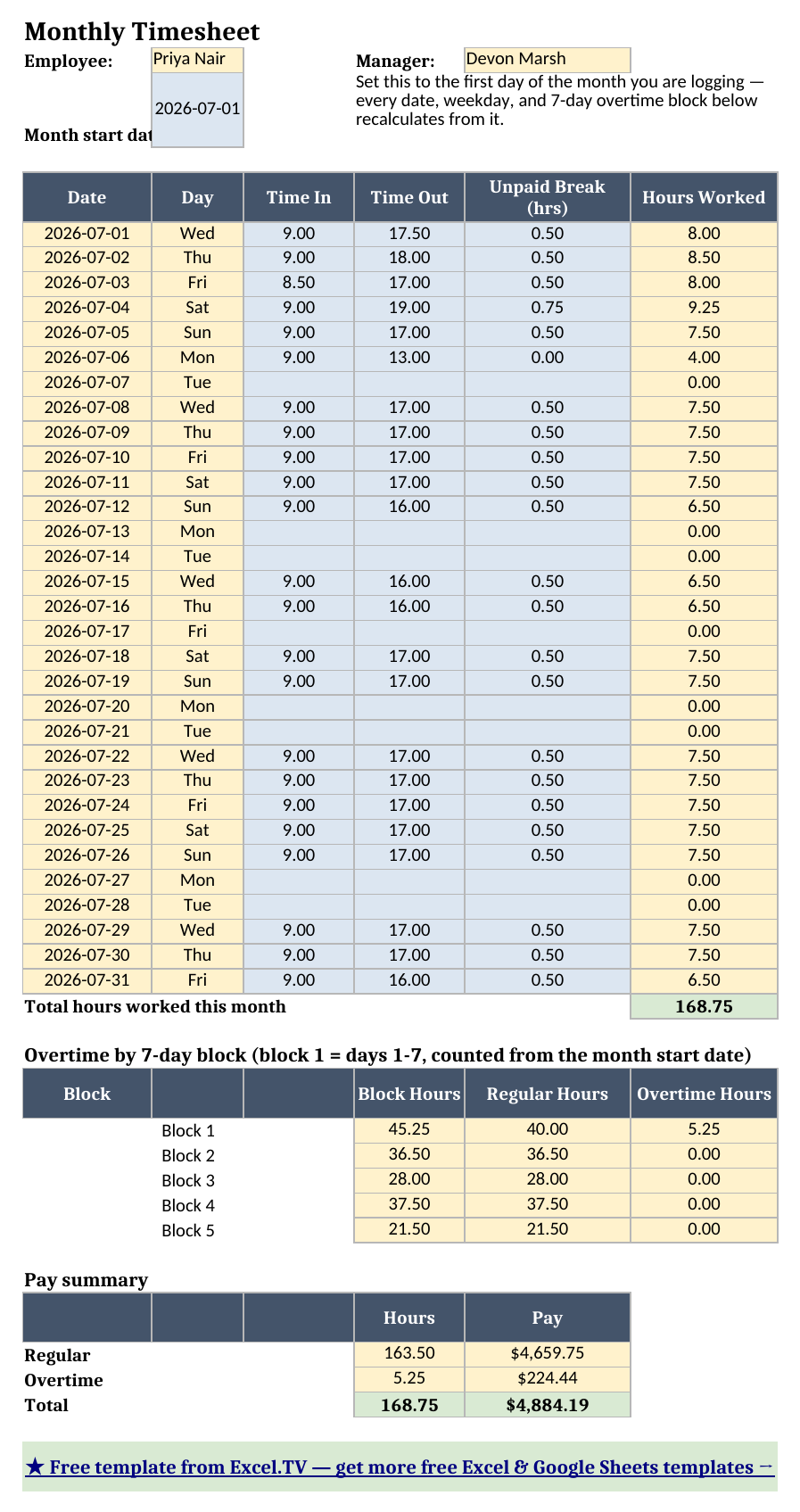
- Monthly Timesheet — a full calendar month (up to 31 days) that automatically splits into 7-day blocks from whatever start date you enter, with a per-block overtime rollup and a Pay Summary for the month.
The required inputs are the hourly rate and overtime rules on Settings, and Time In, Time Out, and unpaid break hours per day on whichever timesheet sheet matches your pay cycle. The main outputs are each sheet’s Pay Summary — regular hours, overtime hours, regular pay, overtime pay, and total pay — which recalculates the instant you edit a time or a break value.
How do I set up the timesheet template excel workbook?
- Open Settings and enter the employee name, manager name, hourly rate, weekly overtime threshold (defaults to 40 hours), and overtime multiplier (defaults to 1.5x).
- Pick the sheet that matches your pay cycle — Weekly Timesheet, Bi-Weekly Timesheet, or Monthly Timesheet. You only need to fill in one; the other two are ready whenever your pay cycle changes.
- On your chosen sheet, enter Time In and Time Out as decimal hours in 24-hour time (9.00 = 9:00 AM, 13.5 = 1:30 PM, 17.75 = 5:45 PM) and the unpaid break length in decimal hours (0.5 = 30 minutes). Leave a day blank if it wasn’t worked.
- On the Monthly Timesheet only, also set the Month Start Date cell — every date, weekday label, and 7-day overtime block recalculates from that one date.
- Review the Pay Summary at the bottom of your sheet: regular hours, overtime hours, and total pay all update automatically.
Because Time In and Time Out are plain decimal-hour numbers rather than Excel’s time-of-day format, Hours Worked is just subtraction — Time Out minus Time In minus the break — with a floor at zero so a typo can’t produce a negative result.
How the overtime math actually works across pay periods
This is the part most homemade timesheet templates get wrong, and it’s the reason I built the bi-weekly and monthly variants the way I did: overtime is calculated on a 7-day workweek, never on the full pay-period total. On the Weekly Timesheet, that’s simple — one week, one overtime calculation, comparing the week’s total hours against the 40-hour threshold on Settings.
Bi-Weekly Timesheet is where it matters more. The sheet totals Week 1 and Week 2 separately, calculates regular and overtime hours for each week on its own, and only then adds those two results together for the pay period’s Pay Summary. In my worked example below, Week 1 comes in at 45.25 hours (5.25 hours of overtime) and Week 2 comes in at 37 hours (no overtime) — a combined 82.25 hours for the pay period. If you instead averaged or summed the two weeks before checking for overtime, you’d calculate a very different, and legally wrong, overtime number, since a standard workweek overtime rule doesn’t care what a different week in the same pay period did.
Monthly Timesheet extends the same idea across a whole month: it splits your chosen month into 7-day blocks counted from the Month Start Date you enter, calculates each block’s regular and overtime hours independently, and sums all five blocks into the month’s Pay Summary. The block boundaries are shown (and hidden helper values excluded) directly on the sheet, so you can see exactly which days landed in which block.
Worked example: the same employee, three pay cycles
I used the same sample week of hours — an employee named Priya Nair, at $28.50/hour, with a 40-hour weekly overtime threshold and a 1.5x overtime multiplier — across all three sheets, so you can see how the same underlying data rolls up differently depending on which variant you’re looking at. These numbers are pulled straight from the workbook after a full formula recalculation:
| Sheet | Regular Hours | Overtime Hours | Regular Pay | Overtime Pay | Total Pay |
|---|---|---|---|---|---|
| Weekly Timesheet | 40.00 | 5.25 | $1,140.00 | $224.44 | $1,364.44 |
| Bi-Weekly Timesheet | 77.00 | 5.25 | $2,194.50 | $224.44 | $2,418.94 |
| Monthly Timesheet | 163.50 | 5.25 | $4,659.75 | $224.44 | $4,884.19 |
Notice that the overtime hours and overtime pay are identical — 5.25 hours, $224.44 — on every single sheet. That’s not a coincidence; it’s the point. Every variant’s sample data includes the exact same 45.25-hour overtime week (Monday through Saturday, with a half-day Saturday), and because overtime is always calculated per 7-day block, that one week’s 5.25 hours of overtime shows up the same way whether it’s the whole Weekly Timesheet, Week 1 of the Bi-Weekly Timesheet, or Block 1 of a 31-day Monthly Timesheet. The regular hours and total pay simply add up more days as the pay period gets longer — 40 hours for the week, 77 hours across two weeks (40 + 37), and 163.5 hours across the full month’s five 7-day blocks.
Grab the timesheet template excel workbook if you want to change the hourly rate, the overtime threshold, or the hours themselves and watch every sheet’s Pay Summary recalculate live.
How do I use this in Google Sheets?
This is one of the templates where google sheets timesheet template searchers run into the most friction elsewhere, and it’s worth being specific about why. Open Google Sheets, choose File > Import > Upload, select the downloaded .xlsx, and pick “Insert new sheet(s).” Every formula in this workbook — SUM, SUMIF, IF, IFERROR, INDEX, MATCH, MIN, MAX, ABS, ROUND, CHOOSE, WEEKDAY, and EOMONTH — is natively supported in Google Sheets, so nothing needs to be rewritten.
The time-format gotcha that trips up most timesheet templates in Google Sheets is entering Time In and Time Out as clock times with AM/PM. Excel’s time-of-day serial format and Google Sheets’ interpretation of typed times don’t always round-trip identically — a cell that displays “9:00 AM” in Excel can import as a slightly different underlying value in Sheets, especially once locale or regional settings differ between the two files, which throws off any hours-worked subtraction downstream. This template sidesteps that entirely: Time In and Time Out are plain decimal numbers (9.00, 17.5), so the subtraction that produces Hours Worked behaves byte-for-byte the same in both products. If you’re building your own timesheet from scratch and want it to survive a move to Google Sheets, decimal hours are the safer format to standardize on.
If you’d rather skip the download-and-import step entirely, use this one-click copy link: make a copy of the Timesheet Template in Google Sheets. Google will prompt you to save it to your own Drive, and from there it behaves identically to the Excel version — same sheets, same formulas, same overtime rollups.
If you’re assembling a fuller back-office reporting kit alongside payroll and haven’t built out your monthly numbers yet, my finance dashboard template covers the budget-vs-actual side of monthly close, and my restaurant inventory spreadsheet is a good pairing if labor cost tracking needs to sit next to food cost and prime cost in the same reporting cadence.
Limitations to know before you rely on this
A few things are worth knowing before you put real payroll numbers in:
- Overtime is 7-day-block based, not calendar-week based. Weekly and Bi-Weekly always start their blocks on the “Mon” row as laid out; Monthly counts its blocks from whatever Month Start Date you enter, not from a Sunday-Saturday or Monday-Sunday calendar week. A 31-day month’s final block will only be 2-3 days.
- No California-style daily overtime or double-time. This template only implements a weekly-threshold overtime rule (hours over 40/week at 1.5x by default). It doesn’t model daily overtime (over 8 hours/day), double-time thresholds, or a custom workweek start day — add those rules yourself if your state or company policy requires them.
- No overnight shifts. Time Out must be a larger decimal-hour value than Time In on the same day. If a shift crosses midnight, log it as two rows — one ending at midnight, one starting at midnight the next day.
- A break entered in error understates hours, silently. Unpaid break hours are subtracted before overtime is calculated, and there’s no validation catching a break value that’s obviously too large for the shift — double-check break entries if a Pay Summary number looks low.
- No macros, no external connections. Everything here is a native formula. That’s deliberate — it’s what keeps the workbook portable between Excel and Google Sheets with zero substitutions.
I’d rather you know these limitations going in than discover one mid-payroll. Once you’ve picked the right variant for your pay cycle and set the Settings sheet correctly, the rest of the workbook takes care of itself.
Download the excel timesheet template and swap in your own hours whenever you’re ready.
