
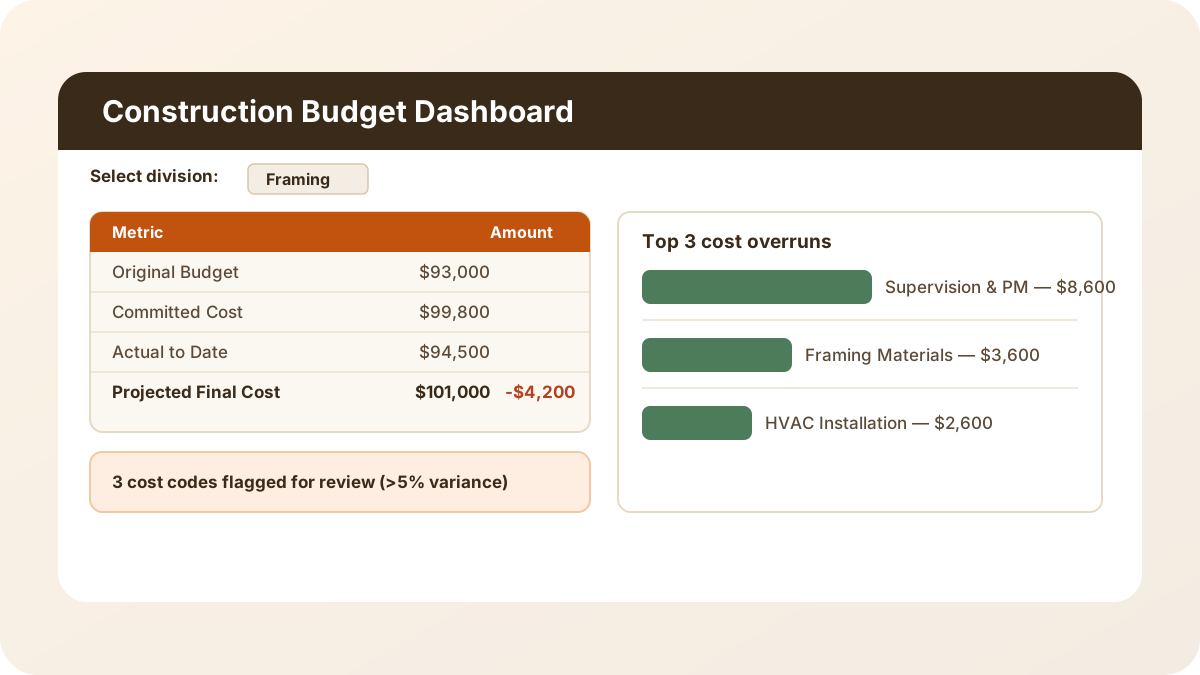
Every construction job I’ve helped build a cost report for runs into the same problem: the original estimate lives in one place, the subcontracts and purchase orders live in another, the paid invoices live in a third, and change orders get tracked in an email thread until someone finally puts them in a spreadsheet. By the time anyone can answer “are we going to come in over budget,” the job is half over. This construction budget template is my answer to that — one workbook where original budget, approved change orders, committed cost, and actual cost roll up automatically into a cost-to-complete forecast and a one-page dashboard, broken out by division.
Download the construction budget template — it’s a plain .xlsx, no macros, no external data connections, and no sign-up. Open it in Excel or Google Sheets and start replacing the sample cost codes with your own.
Who is this for?
I built this for the person running job costing on a single construction project — a general contractor, a project manager, or an owner-builder — who has outgrown a flat “budget vs. actual” list but doesn’t have a dedicated job-cost or ERP system. If you can list your cost codes and enter an original budget, a committed subcontract value, and an actual cost paid for each one, this workbook turns that into a real cost report: revised budget after change orders, cost-to-complete, projected final cost, and which cost codes need attention. It’s also a solid teaching example for seeing SUMIFS, two-level INDEX/MATCH, and a division-filtered dashboard work together in one connected model.
What’s in the workbook, sheet by sheet
The workbook ships with eight sheets, in this exact order, because each one depends on the sheet before it:
- Instructions — a setup guide plus a clean-room disclosure: every formula, layout, and sample figure in this workbook was authored from scratch for Excel.TV. No vendor template, workbook, or dataset was downloaded, inspected, or adapted to build it.
- Cost Codes — the master list of 14 sample cost codes across six divisions (code, division, description, notes). Everything else in the workbook looks up from this list.
- Budget Input — the original budgeted amount for each cost code, set at the start of the job.
- Committed Cost Input — the committed cost for each cost code: the signed subcontract or purchase order value, whether or not it’s been fully invoiced.
- Actual Cost Input — the actual cost paid to date for each cost code, plus an Additional Anticipated Cost column for scope you know is coming but haven’t committed yet.
- Change Orders — a log of every change order, with its cost code, status (Approved, Pending, or Rejected), amount, and date.
- Budget vs Committed vs Actual — a fully calculated sheet that pulls every input together for every cost code: revised budget, committed cost, actual cost, cost-to-complete, projected final cost, and variance.
- Dashboard — the one-page summary: a division selector, project totals for budget/committed/actual/cost-to-complete, a count of cost codes flagged for review, change-order totals by status, and the three biggest cost overruns.
The required inputs are four things per cost code: an original budget, a committed cost, an actual cost to date, and — only where it applies — an additional anticipated cost beyond what’s currently committed. The main outputs are the Dashboard’s project totals, the projected over/under figure, the flagged-cost-code count, and the top-3 overrun ranking — all of which recalculate the instant you change the division selector or edit an input cell.
How do I set up the construction budget spreadsheet?
- Open Cost Codes and replace the sample cost-code list with your own — keep each Cost Code unique, since every lookup in the workbook keys off it, and assign each one a Division from the dropdown.
- Open Budget Input and enter the original budgeted amount for each cost code.
- Open Committed Cost Input and enter the committed subcontract or PO value for each cost code as contracts get signed.
- Open Actual Cost Input and enter the actual cost paid to date for each cost code, updating it as invoices get paid. Use the Additional Anticipated Cost column only for scope that isn’t committed yet.
- Log every change order on Change Orders as it comes in, and mark its status Approved, Pending, or Rejected.
- Go to Dashboard and use the division selector to review one division at a time, or read the project totals for the whole job.
Because Description on the input sheets is an INDEX/MATCH formula rather than typed text, a typo in a cost code shows up immediately as “(unknown cost code)” instead of silently mismatching later.
How the variance sheet compares budget, committed, and actual cost
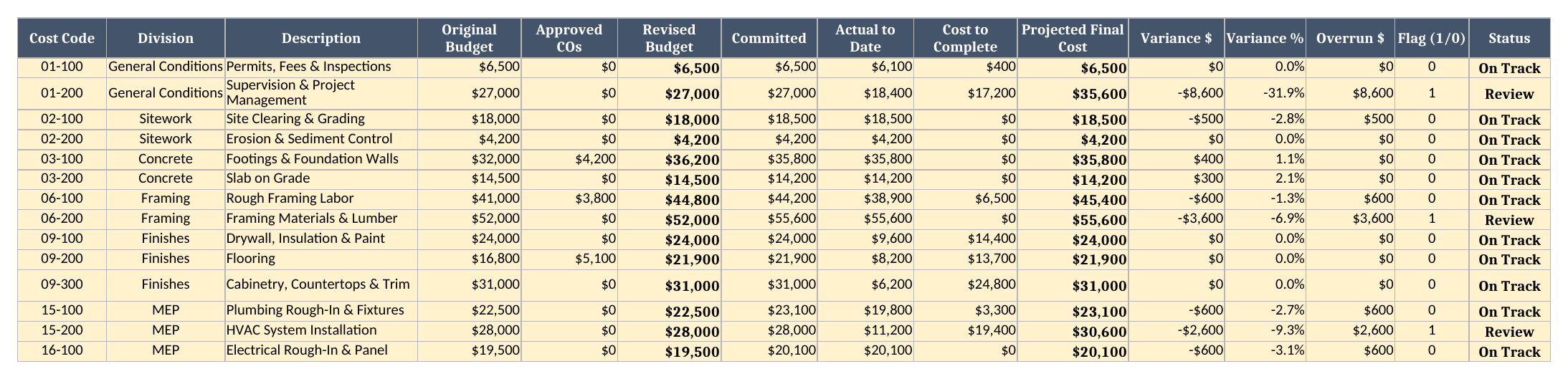
Budget vs Committed vs Actual is where the real work happens, and you never type into it. For every cost code it pulls the original budget, sums any Approved change orders for that code with SUMIFS, and adds them together for a revised budget. It pulls committed cost and actual cost to date with INDEX/MATCH, calculates cost-to-complete as whichever is larger — committed minus actual, or zero — plus the additional anticipated cost, then adds actual cost and cost-to-complete for a projected final cost. A Flag column marks any cost code more than 5% off its revised budget in either direction, and a Status column turns that into a plain “Review” or “On Track.”
Looking at the screenshot below, Supervision & Project Management (01-200) is projected to land at $35,600 against a $27,000 revised budget — a 31.9% overrun — the biggest miss on the job. Framing Materials & Lumber (06-200) and HVAC System Installation (15-200) are flagged too, which puts the project at three flagged cost codes total.
Worked example: a 14-cost-code custom home build
I built one full job’s worth of synthetic sample data into the template — 14 cost codes across six divisions, five change orders in three different statuses — specifically so you can see the dashboard react to a real job instead of a single flat number. Here’s what the workbook shows for each division, pulled straight from the Budget vs Committed vs Actual sheet:
| Division | Revised Budget | Committed | Actual to Date | Cost to Complete | Projected Final | Variance |
|---|---|---|---|---|---|---|
| Sitework | $22,200 | $22,700 | $22,700 | $0 | $22,700 | -$500 (-2.3%) |
| Concrete | $50,700 | $50,000 | $50,000 | $0 | $50,000 | $700 (1.4%) |
| Framing | $96,800 | $99,800 | $94,500 | $6,500 | $101,000 | -$4,200 (-4.3%) |
| MEP | $70,000 | $71,200 | $51,100 | $22,700 | $73,800 | -$3,800 (-5.4%) |
| Finishes | $76,900 | $76,900 | $24,000 | $52,900 | $76,900 | $0 (0.0%) |
| General Conditions | $33,500 | $33,500 | $24,500 | $17,600 | $42,100 | -$8,600 (-25.7%) |
| Project total | $350,100 | $354,100 | $266,800 | $99,700 | $366,500 | -$16,400 (-4.7%) |
The project as a whole is tracking $16,400 over its $350,100 revised budget — a projected 4.7% overrun. Two change orders drove most of the revised-budget increase: unforeseen rock excavation added $4,200 to Concrete, and an owner-requested bonus room added $3,800 to Framing, both Approved. A third change order — a $2,600 HVAC efficiency upgrade — is still Pending, so it hasn’t touched the budget yet, but I built its cost into the Additional Anticipated Cost column on Actual Cost Input so the projected final cost already reflects the risk. General Conditions carries the single largest overrun by far: Supervision & Project Management is projected to run $8,600 over budget because the job is taking longer to close out than originally scheduled. Framing Materials & Lumber ($3,600 over) and the HVAC installation ($2,600 over, mostly that same pending upgrade) round out the top three.
This is exactly what I want a job costing template to do: let one number — the projected over/under figure — tell you whether the job needs a closer look, and let the top-3 ranking tell you where to look first, without opening the change-order log, the subcontract file, and the AP ledger separately.
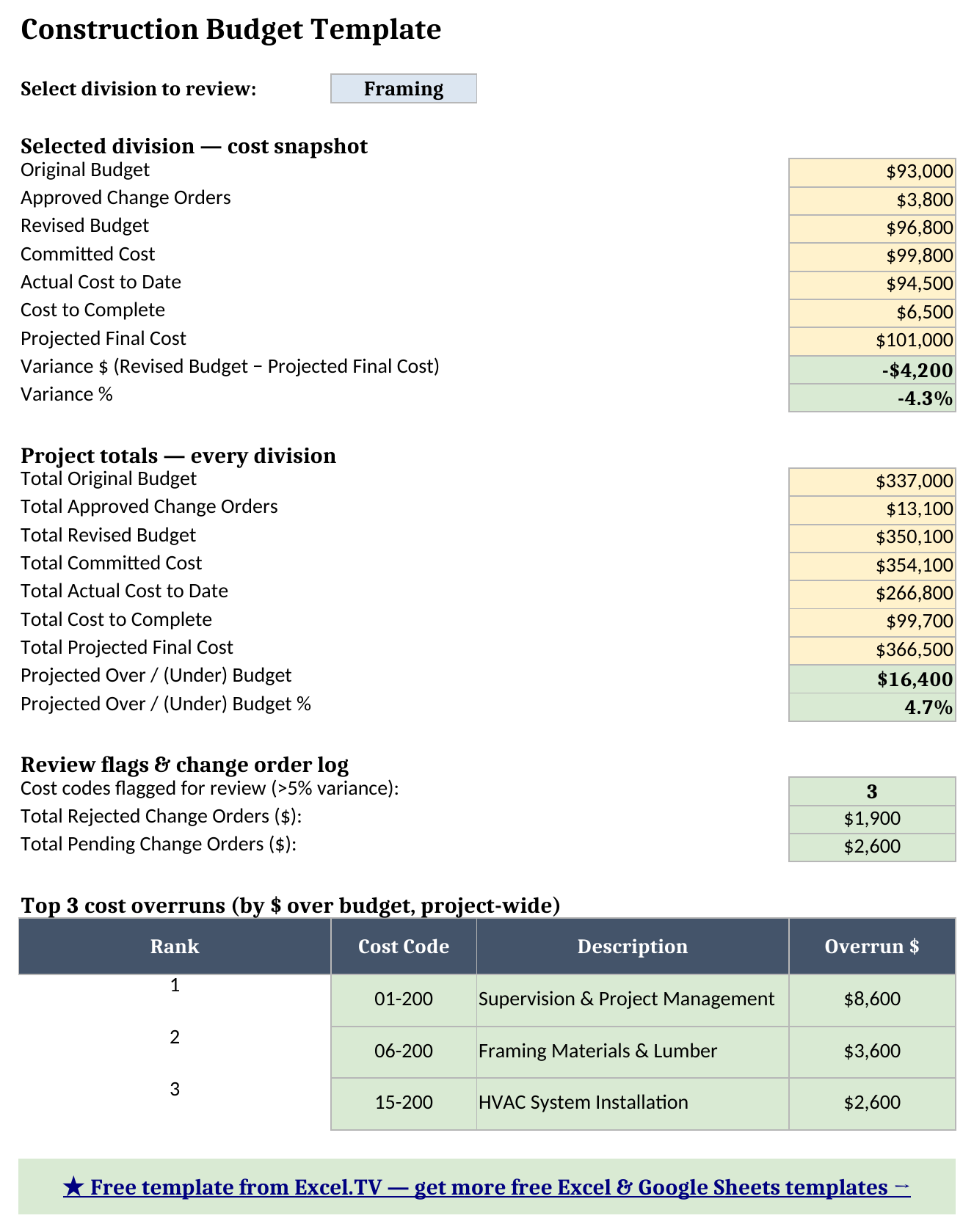
Grab the construction budget template if you want to flip the division selector yourself and watch these numbers update live, or change a change order’s status from Pending to Approved and watch the revised budget move.
How do I use this in Google Sheets?
Google Sheets is a first-class destination for this construction cost estimate template, not an afterthought. Open Google Sheets, choose File > Import > Upload, select the downloaded .xlsx, and pick “Insert new sheet(s).” Every formula in this workbook — SUM, SUMIF, SUMIFS, IF, IFERROR, INDEX, MATCH, ABS, and LARGE — is natively supported in Google Sheets, so nothing needs to be rewritten, and the division-selector dropdown’s data validation carries over with it.
If you’d rather skip the download-and-import step entirely, use this one-click copy link: make a copy of the Construction Budget Template in Google Sheets. Google will prompt you to save it to your own Drive, and from there it behaves identically to the Excel version — same sheets, same formulas, same division selector.
If you’re new to the idea, this job costing primer explains how labor, materials, and overhead roll up to a job. If you’re setting up job costing for the first time and want a simpler starting point before you add change orders and cost-to-complete forecasting, my Excel budget template is a good place to start; and if this project also needs a recurring monthly close once the job is running, my finance dashboard excel template is built for that ongoing reporting cadence.
Limitations to know before you rely on this
A few things are worth knowing before you put real numbers in:
- Every sheet needs the same cost-code order. The workbook assumes each cost code is unique and appears exactly once, in the same set of rows, on Cost Codes, Budget Input, Committed Cost Input, and Actual Cost Input. Insert a row in one sheet without inserting it in the others and the lookups will mismatch.
- Cost-to-complete depends on a manual estimate. The Additional Anticipated Cost column exists specifically for scope beyond what’s currently committed, and it’s only as accurate as whoever enters it. Update it as the job progresses — a stale estimate will make the projected final cost look better (or worse) than reality.
- Only Approved change orders move the budget. Pending and Rejected change orders stay in the log and show up in the Dashboard’s totals by status, but neither one changes a cost code’s revised budget until you change its status to Approved.
- The 5% review threshold is a fixed sample value. Change the flag formula on Budget vs Committed vs Actual directly if your job needs a tighter or looser tolerance — construction jobs with thin margins often want 3%, while a job with a healthy contingency might use 10%.
- Ties in the top-3 ranking aren’t broken. The
LARGE+MATCHpattern that ranks the three biggest overruns returns the first matching cost code if two cost codes tie exactly on dollar overrun. That’s an inherent limitation of this lookup pattern without an added tie-breaker column. - No macros, no external connections. Everything here is a native formula. That’s deliberate — it’s what keeps the workbook portable between Excel and Google Sheets with zero substitutions.
I’d rather flag these limitations up front than have you discover them mid-job. Once you know the cost-code-order rule and the Approved-only rule for change orders, the rest of the workbook takes care of itself.
