
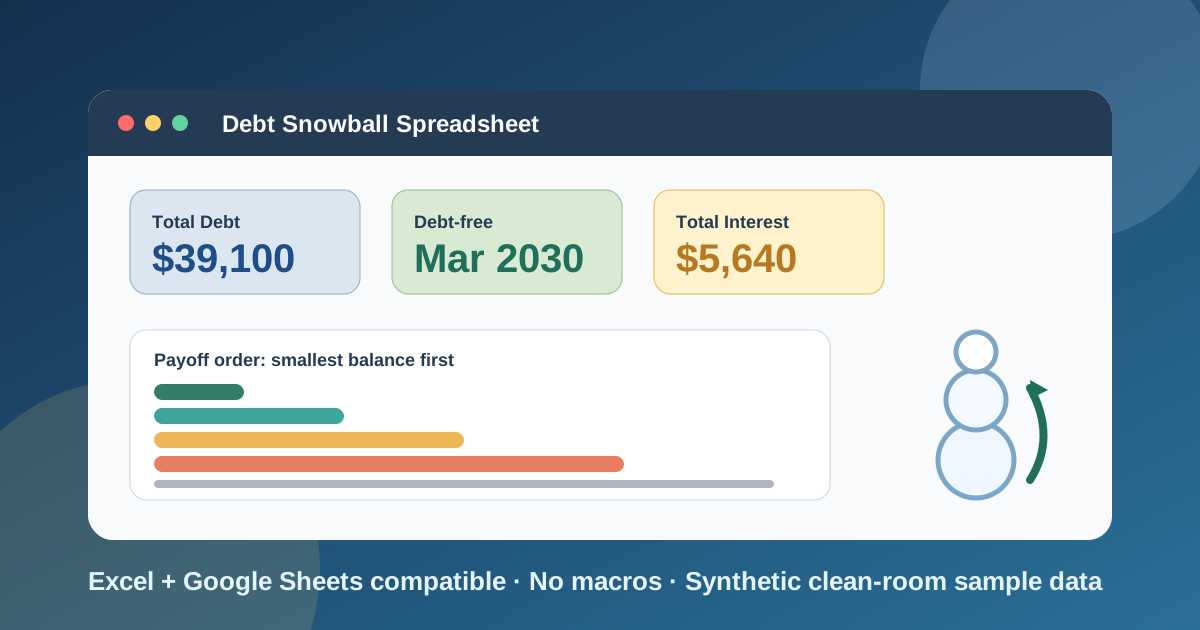
I built this debt snowball spreadsheet for the spreadsheet version of a very ordinary problem: you owe money in several places, each one has its own balance, interest rate, and minimum payment, and you cannot tell which one to attack first or when you will actually be done. A loan schedule only covers one loan. A budget tells you what you can spare. Neither one puts several debts in order and runs the plan month by month.
Download the debt snowball spreadsheet - it is a plain .xlsx, no macros, no external data connections, and no sign-up. Open it in Excel or import it into Google Sheets, replace the synthetic sample debts with your own, and the payoff order, the monthly schedule, and the dashboard recalculate from there.
The workbook does one thing: it takes a fixed monthly payment budget, pays every minimum, sends everything left over to the first debt in line, and rolls each paid-off debt’s payment into the next one. You pick the order with a dropdown, Snowball or Avalanche, and watch the debt-free month move.
Video walkthrough
Here’s a short video walkthrough of the workbook, with captions, showing the four working sheets in order.
Who I built this for
I built this for anyone with more than one debt and a plan to pay them down: a household with two credit cards, a car loan, and a student loan, a couple consolidating after a big purchase, or someone who just wants to see a payoff date they can trust. If you have a single loan, the loan amortization schedule template is the better fit. It models one loan in detail, including extra payments. This workbook is for the moment you have several balances and need to decide the order.
It assumes you want answers to five practical questions:
- What do I owe in total, and what do I pay each month?
- Which debt should I pay off first under my chosen method?
- In what month does each debt hit zero?
- How much interest will the whole plan cost?
- When will I be completely debt-free?
If you have not yet worked out how much you can put toward debt each month, start with the how to do a budget spreadsheet on Excel guide or grab the Excel budget template. The number you find there becomes the “extra monthly payment” on the Debts sheet.
What’s in the workbook, sheet by sheet
The workbook ships with five sheets, in this exact order:
- Instructions - setup steps, a color legend, the clean-room disclosure, a Google Sheets note, and limitations.
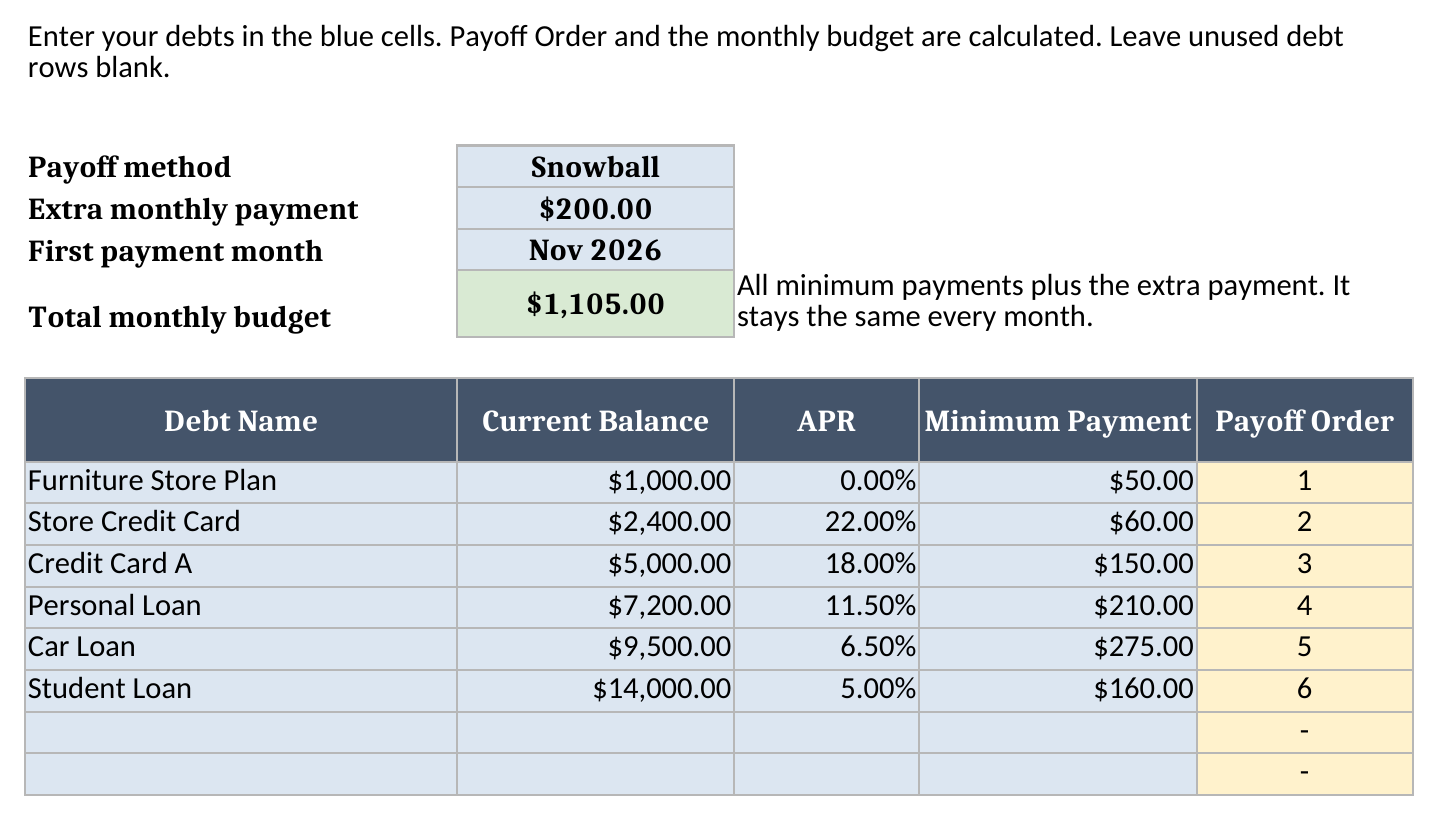
- Debts - your inputs. At the top are three settings: the payoff method (Snowball or Avalanche), the extra monthly payment, and the first payment month. Below them is a table with room for eight debts: name, current balance, APR, and minimum payment. A calculated Payoff Order column ranks each debt for the method you chose.
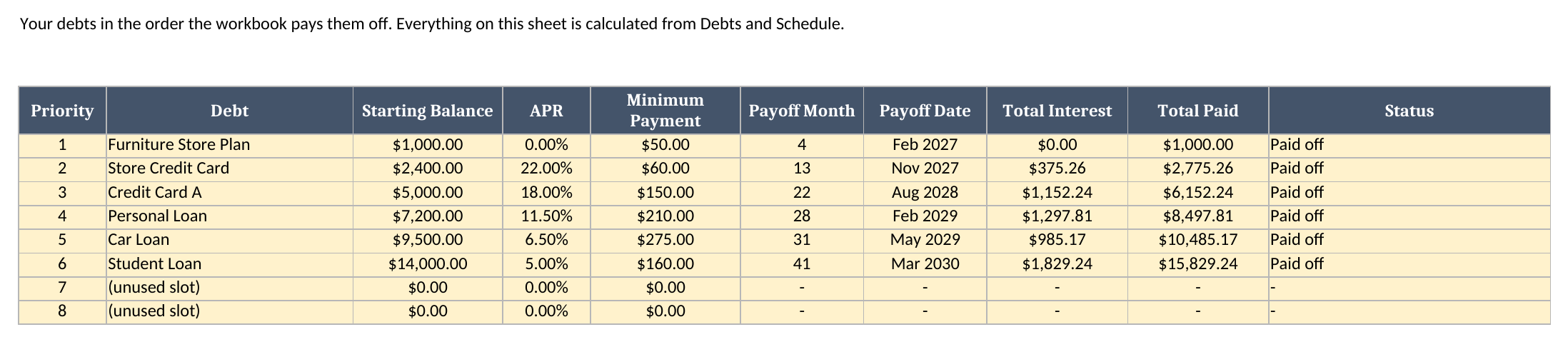
- Payoff Plan - calculated. It lists the debts in payoff order and shows each one’s starting balance, payoff month, payoff date, total interest, and total paid.
- Schedule - calculated. A 120-month ledger with one row per debt per month: opening balance, interest, minimum paid, extra available, extra paid, and closing balance.
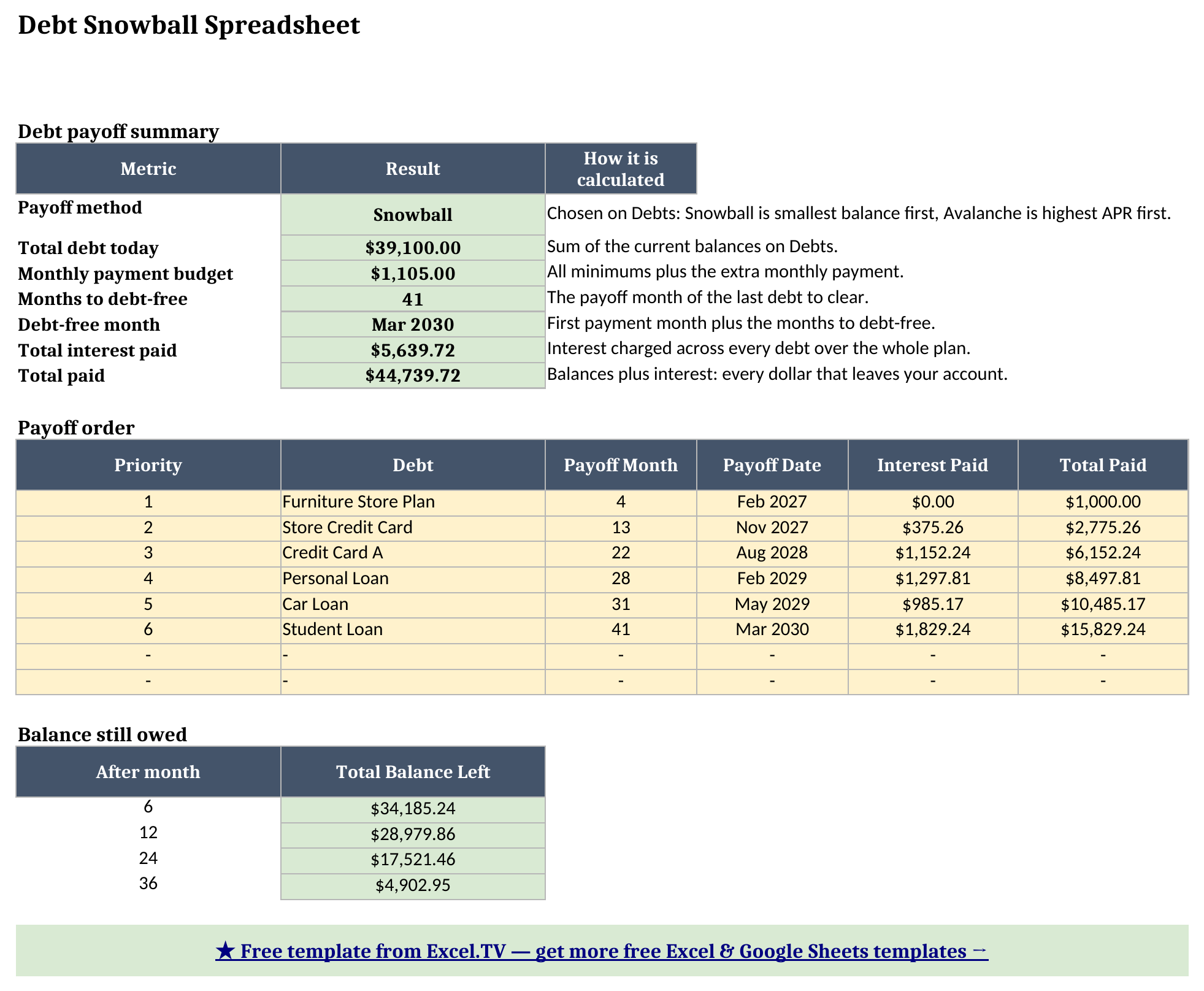
- Dashboard - the one-page output: total debt, monthly budget, months to debt-free, debt-free month, total interest, total paid, the payoff order, and the total balance left after months 6, 12, 24, and 36.
The inputs are the blue cells on Debts. Everything yellow is a formula and everything green is a headline result, so it is obvious where your data goes and where it does not.
How I set up the Debts sheet
Debts is the only sheet you need to type on. Replace the six sample debts with your own, one per row, and leave unused rows blank. The workbook ignores blank rows.
For each debt enter the current balance, the APR as a percentage, and the minimum monthly payment. APR is the rate your statement shows, so 18% goes in as 18%. A 0% promotional balance goes in as 0%; the workbook handles it as a debt that costs nothing to carry, which is exactly what makes the snowball order interesting.
Then set the three settings at the top. The extra monthly payment is the amount you can pay above the combined minimums. In the sample it is 200.00. The first payment month sets the calendar for the schedule and the dates on the dashboard. The total monthly budget, 1,105.00 in the sample, is the sum of all minimums plus the extra payment. It stays the same every month, and that single constant is the reason payments roll forward cleanly: when a debt disappears, its minimum does not vanish from your budget, it moves to the next debt.
How the workbook ranks your debts
The Payoff Order column is where the method choice happens. I deliberately avoided SORT, FILTER, and the other newer functions, because they do not behave the same way everywhere and they make a workbook harder to audit. The ranking uses COUNTIF instead.
Under Snowball, a debt’s rank is the number of debts with a smaller balance, plus one, plus a tie-break. Under Avalanche, it is the number of debts with a higher APR, plus one, plus the same tie-break. The tie-break counts how many debts at or above the current row share the exact same value, so two debts with identical balances still get different ranks (the one listed first goes first). A debt with a balance but no APR typed in is read as 0%, so it still gets a rank. Every debt ends up with a unique rank from 1 up to however many debts you entered.
Payoff Plan then reads those ranks with INDEX and MATCH: priority 1 is whichever debt holds rank 1, priority 2 is whichever holds rank 2, and so on. That is why changing one dropdown on Debts reorders the entire plan. Nothing else needs to be touched.
How the monthly schedule rolls payments forward
Schedule is the engine, and it is worth understanding because it is the part a single-loan template does not have. Each month is a block of eight rows, one per priority slot. The logic inside a block is the same every month:
- Opening balance is last month’s closing balance for that debt. In month 1 it is the starting balance from Payoff Plan.
- Interest is the opening balance times the APR divided by 12, rounded to the cent.
- Minimum paid is the debt’s minimum payment, or the opening balance plus interest if that is smaller, so a nearly finished debt never gets overpaid.
- Extra available is the monthly budget minus every minimum paid that month, handed to the first debt in line. Whatever that first debt cannot absorb passes to the next row.
- Extra paid is the smaller of what the debt still owes after its minimum and the extra money available.
- Closing balance is opening balance, plus interest, minus minimum paid, minus extra paid.
Because the monthly budget is fixed and the extra is calculated as budget minus minimums actually paid, the rollover is automatic. When the first debt reaches zero, its minimum stops being paid, the “extra available” number grows by exactly that amount, and the larger pot lands on debt number two. There is no circular reference and no manual step.
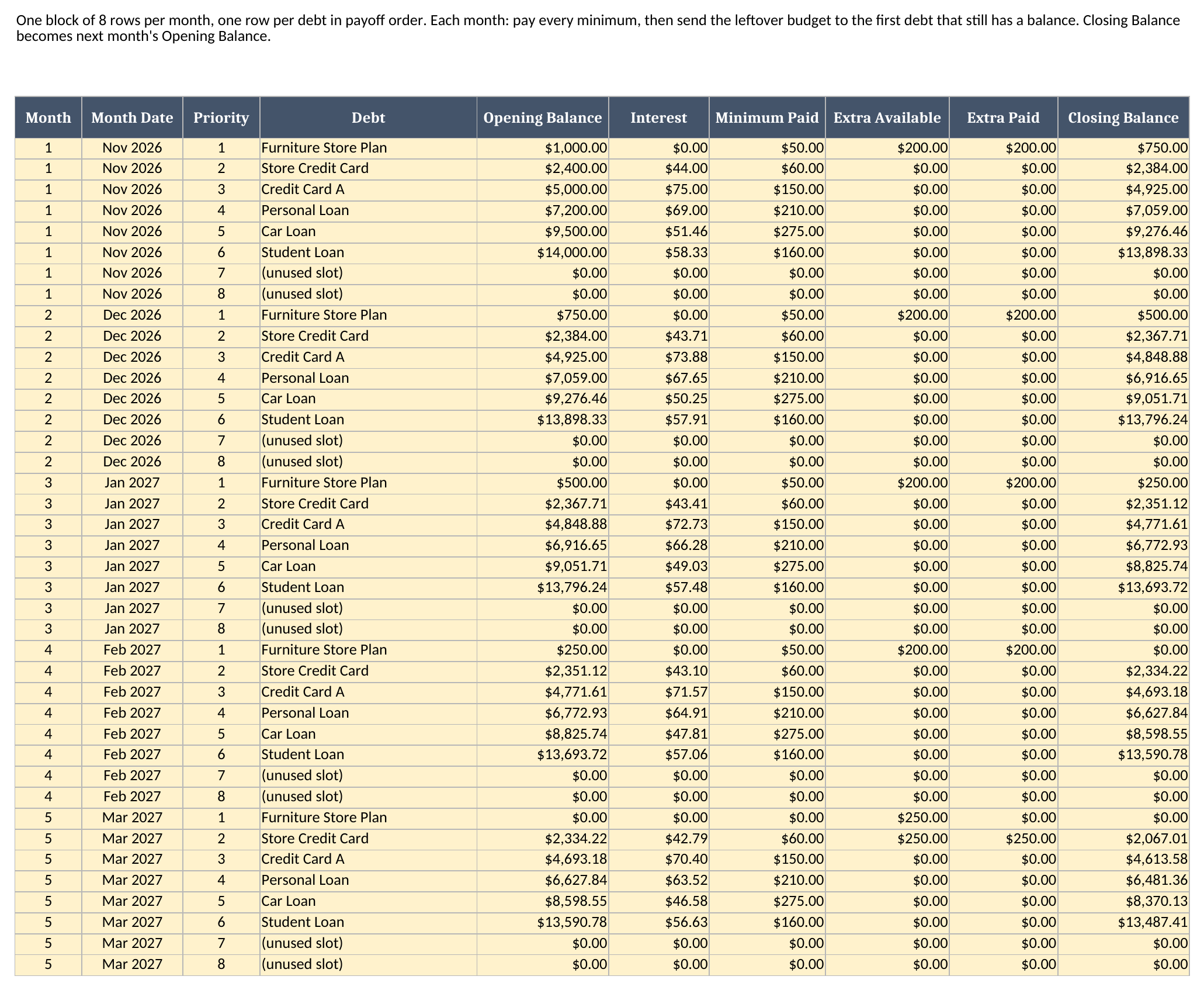
That screenshot shows the first five months of the 120-month ledger. Look at month 4 and month 5 for the furniture plan, which I use as the worked example below.
Worked example from the sample workbook
The sample workbook has six synthetic debts and a first payment month of November 2026. All six have a combined balance of 39,100.00 and combined minimums of 905.00. With the extra 200.00, the monthly budget is 1,105.00. Every number below is the value the workbook produces after a full recalculation.
The 5,000.00 balance on Credit Card A at 18% APR starts with a month-1 interest charge of 75.00, because 5,000.00 times 18% divided by 12 is 75.00. The other opening interest charges are 44.00 on the Store Credit Card, 69.00 on the Personal Loan, 51.46 on the Car Loan, and 58.33 on the Student Loan. The Furniture Store Plan is at 0% APR, so it costs nothing to carry.
The furniture plan is the smallest balance, so Snowball puts it first. It has a 1,000.00 balance, a 50.00 minimum, and the full 200.00 extra pointed at it, so it receives 250.00 a month and is gone in month 4. In month 4 its opening balance is 250.00. It receives the 50.00 minimum plus 200.00 extra, and its closing balance is 0.00. In month 5 the 250.00 that used to go to the furniture plan becomes extra available, and the Store Credit Card, now first in line, receives 250.00 of extra on top of its 60.00 minimum.
Here is the full dashboard result for the sample data:
| Metric | Result |
|---|---|
| Total debt today | 39,100.00 |
| Monthly payment budget | 1,105.00 |
| Months to debt-free | 41 |
| Debt-free month | Mar 2030 |
| Total interest paid | 5,639.72 |
| Total paid | 44,739.72 |
And the payoff order the workbook produces under Snowball:
| Priority | Debt | Payoff month | Payoff date | Interest paid |
|---|---|---|---|---|
| 1 | Furniture Store Plan | 4 | Feb 2027 | 0.00 |
| 2 | Store Credit Card | 13 | Nov 2027 | 375.26 |
| 3 | Credit Card A | 22 | Aug 2028 | 1,152.24 |
| 4 | Personal Loan | 28 | Feb 2029 | 1,297.81 |
| 5 | Car Loan | 31 | May 2029 | 985.17 |
| 6 | Student Loan | 41 | Mar 2030 | 1,829.24 |
The dashboard also shows how fast the total shrinks. After month 6 the combined balance is 34,185.24. After month 12 it is 28,979.86, after month 24 it is 17,521.46, and after month 36 it is 4,902.95. The pace picks up as paid-off debts hand their payments forward, which is the snowball in action.
Snowball versus avalanche, and why this is not a loan schedule
I changed the Payoff method cell from Snowball to Avalanche and recalculated, with every other input untouched. The workbook now attacks the highest APR first: the Store Credit Card at 22% goes first and is paid off in month 11, then Credit Card A in month 22, the Personal Loan in month 28, the Car Loan in month 31, and the Student Loan in month 41. The 0% Furniture Store Plan goes last and is paid off in month 20.
Total interest under Avalanche is 5,445.16, against 5,639.72 under Snowball, a difference of 194.56. Total paid falls from 44,739.72 to 44,545.16. Both plans finish in month 41, so with this particular set of debts the avalanche saves money and does not save time.
That difference is the honest answer to the snowball-versus-avalanche argument. The avalanche is cheaper because it never lets a high-rate balance sit while a low-rate one gets paid. The snowball gives you a finished debt in month 4 instead of month 11, which for many people is the difference between sticking with the plan and abandoning it. Pick the one you will actually follow. The workbook makes switching free, so you can run both and decide with real numbers rather than a rule of thumb.
It also helps to be clear about what this workbook is not. A loan amortization schedule follows one loan from origination to payoff, with a fixed payment and a principal-and-interest split. This workbook follows many debts at once, with a shared budget and an order of attack. They answer different questions, and you can use both: model a car loan on its own, then enter its current balance here.
How to use this in Google Sheets
This workbook also works as a debt payoff spreadsheet in Google Sheets. Import the .xlsx directly:
- Download the workbook from the Excel template link.
- Open Google Sheets.
- Choose File > Import > Upload.
- Select the downloaded
.xlsxfile. - Choose Insert new sheet(s) or create a new spreadsheet from the upload.
- Review the Payoff Plan and Dashboard sheets after import.
No formula substitutions are required for the workbook as authored. The formulas are limited to SUM, SUMIF, SUMIFS, COUNTIF, COUNTIFS, IF, IFERROR, ISNUMBER, INDEX, MATCH, MIN, MAX, ROUND, DATE, YEAR, MONTH, TEXT, and arithmetic. Those functions are native to Excel and Google Sheets. The Snowball and Avalanche dropdown is standard data validation, so it comes across in the import too.
The one thing I always check after a Google Sheets import is the visual formatting. Column widths, colors, and the month format on the date cells can render slightly differently between spreadsheet engines. The calculations are intentionally plain, so the numbers should match what you see in Excel. If a month date looks off, set the cell format to a month and year pattern and the underlying value is unchanged.
How to customize the template safely
Start by replacing the sample debts on Debts. Keep the same columns, enter the APR as a percentage, and leave unused rows blank rather than typing zeros. A blank row is skipped. A row with a balance of zero is treated as a real debt that is already paid.
Then set the extra monthly payment to a number you can actually keep up. The plan is only as good as the budget behind it. If your extra payment changes next year, the cleanest way to model it is to run the workbook twice: once with today’s number and once with the new one, and compare the debt-free months on the Dashboard.
Resist editing the yellow cells. Payoff Order, the whole of Payoff Plan, and every Schedule row are formulas, and overwriting one breaks the chain that carries balances from month to month. If you want to see a different scenario, change an input on Debts and let the formulas do the work.
The workbook holds eight debts, and that limit is built into every sheet: Payoff Plan has eight priority rows and Schedule is laid out as a block of eight rows per month. Copying rows does not add a ninth slot, and a half-extended copy can report an unpaid debt as cleared in month 1. If you owe more than eight debts, combine the smallest ones into one line: their total balance, their total minimum payment, and the balance-weighted average APR (each APR times its balance, added up, divided by the total balance). Do not leave a debt out to fit the limit. The monthly budget is the sum of the minimums you enter, and the debt-free month is the last payoff among the debts you enter, so a debt you omit is missing from both and the forecast would be too optimistic. A combined line is a close approximation, since the workbook then pays those debts as one.
Limitations to know before relying on it
A few limitations are worth stating plainly:
- It is a planning tool, not financial advice. It models the math of a payoff plan. It does not know your lender’s terms, fees, or promotional deadlines.
- The budget is fixed. The workbook assumes you pay the same total every month: all minimums plus the extra payment. A real minimum on a credit card often falls as the balance falls, so paying the original minimum amount is part of what makes the plan work.
- Interest is simple monthly interest. The workbook charges APR divided by 12 on the opening balance, rounded to the cent. Some lenders compound daily, and a final payment on your statement may differ from the workbook by a few cents.
- No new charges. It does not model new purchases, late fees, or rate changes. Stop adding to the cards while you follow the plan.
- A low minimum may never pay off. If a debt’s minimum payment is smaller than its monthly interest, that balance does not shrink on minimums alone. Payoff Plan flags any debt that is not cleared within 120 months.
- Eight debts and 120 months. Both limits are fixed in the workbook as built. Debts past the eighth row are ignored, and a debt that is not cleared by month 120 is flagged on Payoff Plan.
I built the file this way because a debt plan should be easy to inspect. The formulas are visible, the sample data is synthetic, the inputs are separated from the outputs, and every dashboard number ties back to ordinary rows on the Schedule sheet. That is what makes it something you can trust enough to follow for three years.
Grab the debt snowball spreadsheet, replace the sample debts with your own, and let the dashboard tell you the one date that matters: the month you are debt-free.
