
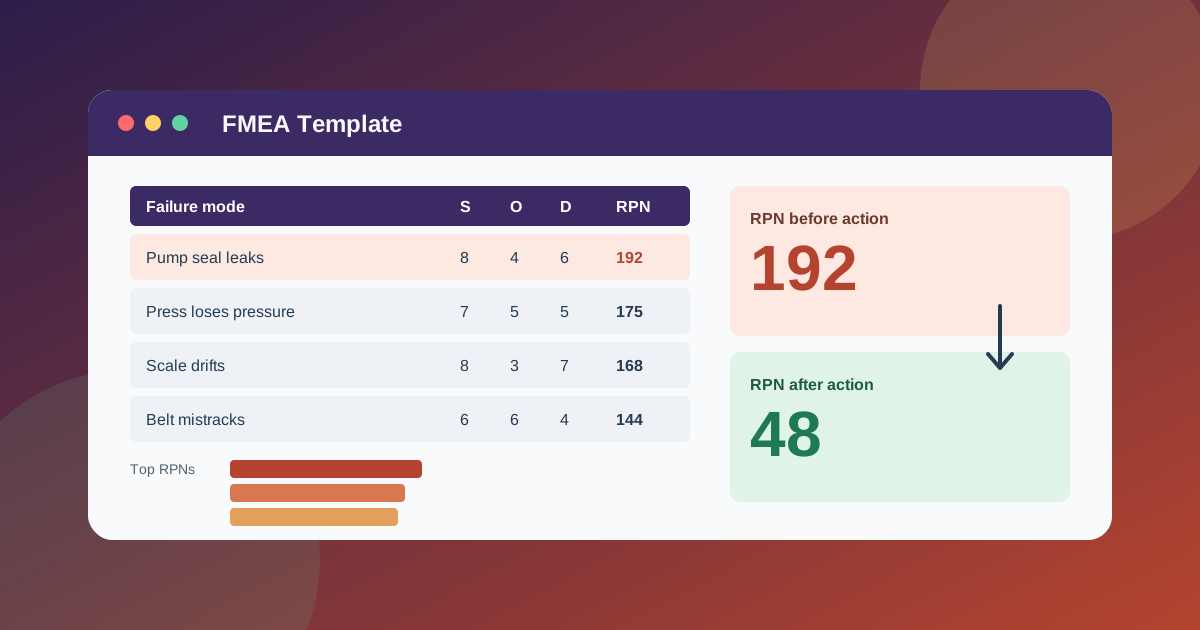
I built this FMEA template for the spreadsheet version of a conversation I have heard in a lot of plants and offices: someone says “what could go wrong with this?”, everyone has an opinion, and ten minutes later nobody can say which problem to fix first. A Failure Mode and Effects Analysis (FMEA) is a structured way to answer that before anything breaks. You list what could fail, rate how bad it would be, how often it would happen, and how likely you are to catch it, and the numbers tell you where to start.
Download the FMEA template - it is a plain .xlsx, no macros, no external data connections, and no sign-up. Open it in Excel or import it into Google Sheets, replace the synthetic sample rows with your own failure modes, and the risk levels, action list, and dashboard recalculate from there.
If you already keep equipment records, this is the planning companion to them. My preventive maintenance schedule template tracks what was serviced and what is due. The FMEA sits one step earlier: it helps you decide which failures deserve a preventive task in the first place.
Video walkthrough
Here’s a short video walkthrough of the workbook, with captions, showing how the sheets fit together.
Who I built this for
I built this for a quality engineer, maintenance lead, operations manager, process owner, or small business owner who needs a failure mode and effects analysis template that a team can fill in during a one-hour meeting without special software. It works for a machine, a production step, a service process, or a project plan. Anywhere you can finish the sentence “this could fail by…”, the same columns apply.
It is also meant for the person who has to run the meeting. FMEA sessions go wrong in two ways: the ratings turn into an argument about what a “7” means, or the list of actions gets lost in the meeting notes. I tried to fix both. The Rating Scales sheet gives the team plain-language definitions to point at, and the Action Tracker pulls every open action into one list so nothing depends on someone’s memory.
The workbook is built around five practical questions:
- What could fail, and what happens when it does?
- Why would it fail, and what controls do we have today?
- How risky is each failure mode, scored the same way every time?
- What are we going to do about the risky ones, who owns it, and by when?
- Did the action actually lower the risk?
What’s in the workbook, sheet by sheet
The workbook ships with five sheets, in this exact order:
- Instructions - a short setup guide, color legend, clean-room disclosure, Google Sheets note, and limitations.
- Rating Scales - editable 1 to 10 definitions for Severity, Occurrence, and Detection, plus two inputs: the RPN action threshold and the severity override level.
- FMEA Worksheet - the analysis itself. Each row holds an item or process step, its function, the failure mode, the effect, the cause, and the current controls. Next to those are the three ratings, the calculated RPN and risk level, the recommended action with an owner, due date, and status, and the revised ratings and revised RPN after the action.
- Action Tracker - a calculated list of every failure mode with an open action, highest RPN first, flagged Overdue, Due soon, or On track against the As Of Date.
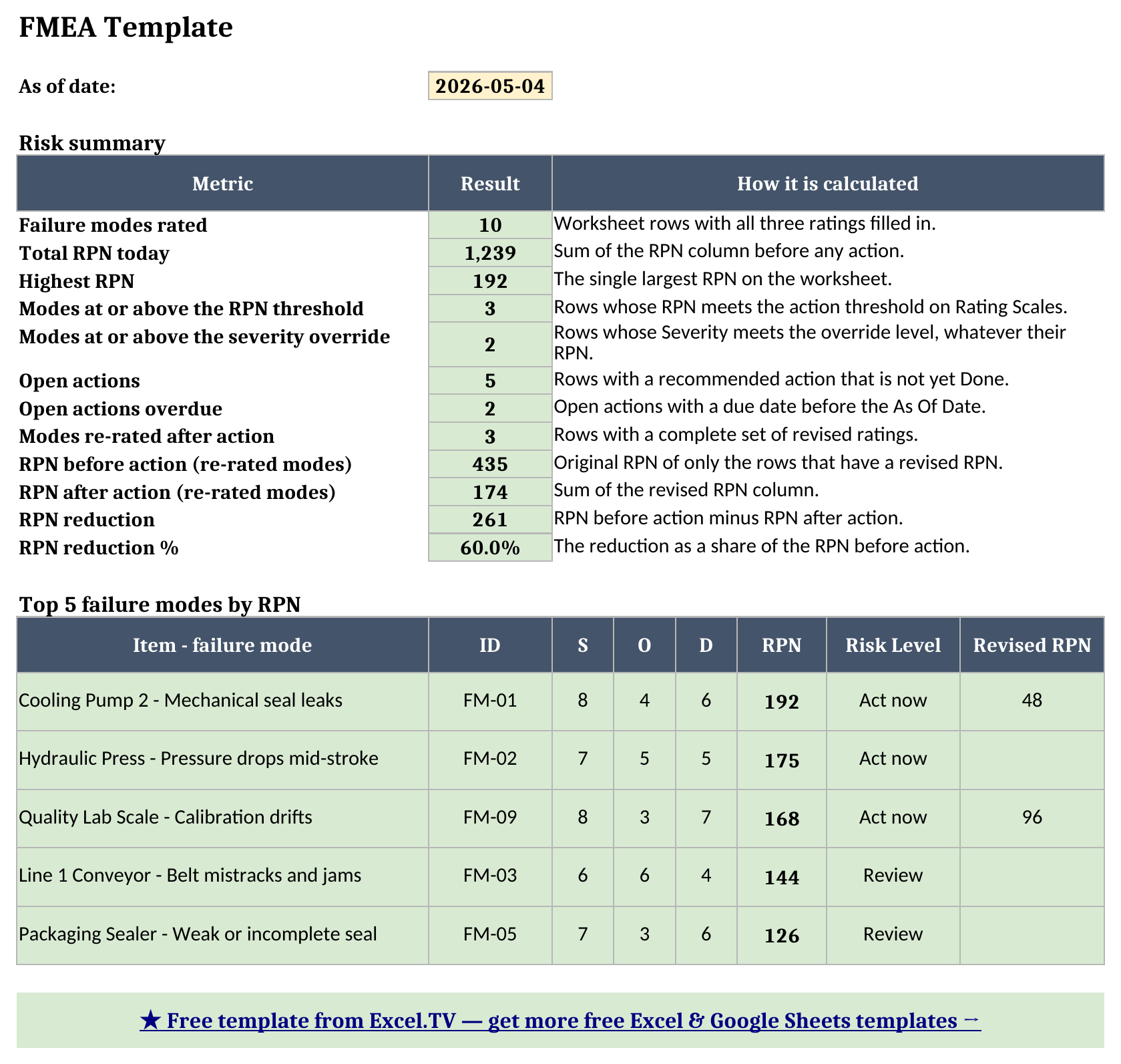
- Dashboard - the one-page output: failure modes rated, total and highest RPN, how many modes need action, open and overdue actions, the RPN reduction from finished actions, and the top five failure modes.
The required inputs are the rows on FMEA Worksheet, the two settings on Rating Scales, and the As Of Date on Action Tracker. Everything else calculates. As in my other templates, blue cells are for your data, yellow cells are formulas, and green cells are headline results.
How I set up the Rating Scales
Rating Scales is the sheet most FMEA files skip, and it is the one that saves the most time. Severity, Occurrence, and Detection each run from 1 to 10, and higher is worse on every scale. That last point trips people up on Detection. A Detection rating of 10 does not mean you detect the failure well; it means you have no real way to catch it before it reaches the customer. A 1 means an automatic control stops the problem before it moves on.
I wrote the descriptions from scratch in everyday language and tied Occurrence to how often the cause shows up, such as about once a year at a 3 and about once a month at a 6. Your numbers will differ. A hospital, a bakery, and a machine shop do not share the same idea of “once a month,” so edit the wording until the whole team agrees what each number means. The workbook only cares that the ratings are whole numbers from 1 to 10.
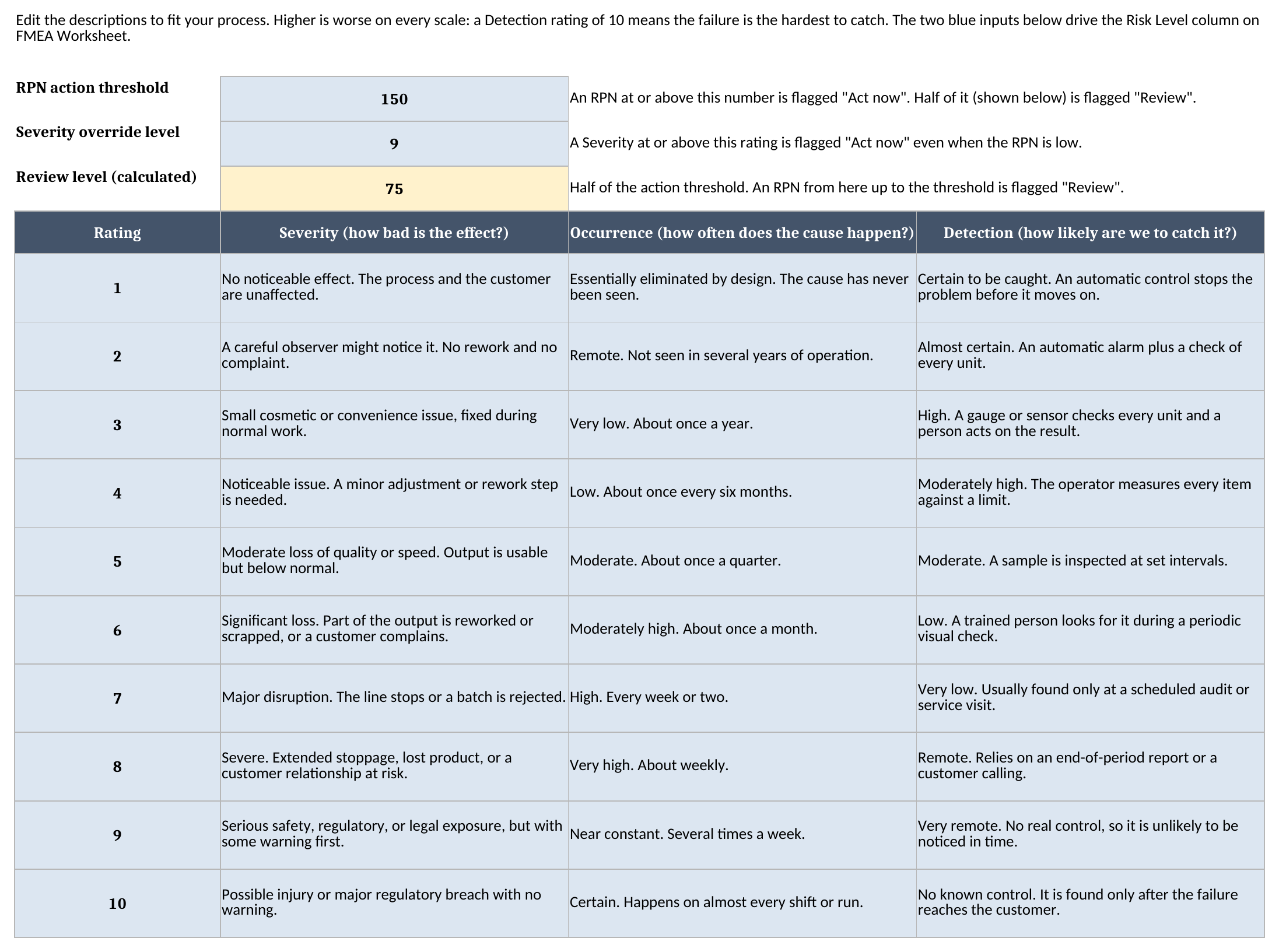
The two blue inputs at the top drive the Risk Level column, and a yellow cell below them calculates the review level. The RPN action threshold is set to 150 in the sample: any failure mode at or above it is flagged “Act now,” and anything at or above half of it (75 in the sample) is flagged “Review.” The severity override level is set to 9: any failure mode with a Severity at or above it is flagged “Act now” no matter how low its RPN is. I will explain why in a moment.
How the FMEA Worksheet turns ratings into RPN
FMEA Worksheet has one row per failure mode, and it reads left to right the way a team talks through it. Start with the item and its function, then ask how it could fail, what the effect would be, what causes it, and what you already do to prevent or catch it. Only after that do you rate it.
The calculation is simple on purpose:
RPN = Severity × Occurrence × Detection
Because each rating runs from 1 to 10, an RPN can range from 1 to 1,000. The RPN column uses a formula that only calculates when all three ratings are present, so a half-finished row stays blank instead of showing a misleading zero. The Risk Level column then compares the RPN and the Severity with the two inputs on Rating Scales.
The right-hand side of the sheet is where the analysis turns into action. For any failure mode that needs it, write the recommended action, an owner, a due date, and a status of Open, In Progress, or Done. When the action is finished, set the status to Done and enter a revised Severity, Occurrence, and Detection. The workbook calculates the revised RPN and the RPN reduction without any extra steps.
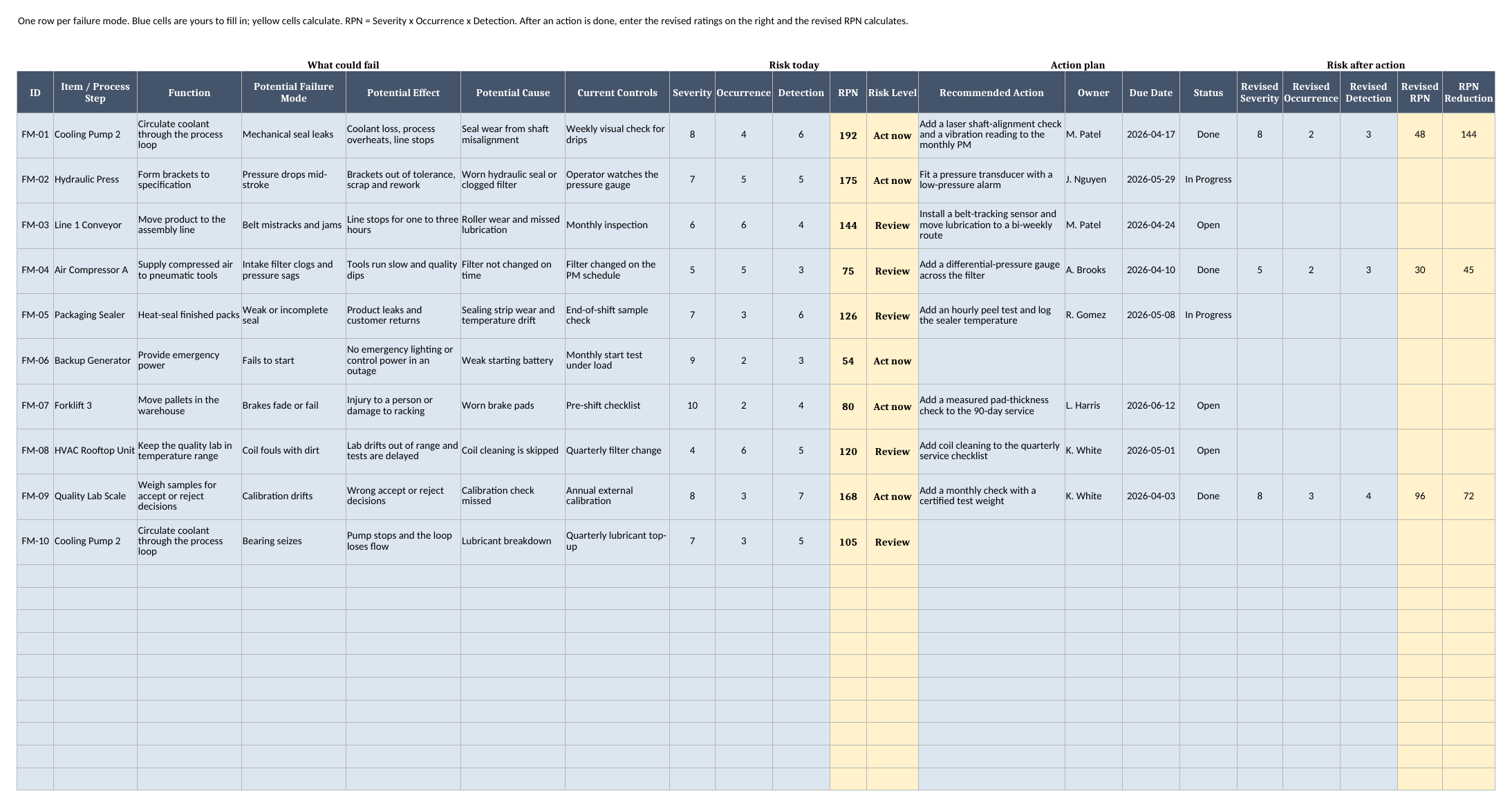
I put the three ratings in the middle of the sheet and grouped the columns under four headings: what could fail, risk today, action plan, and risk after action. When a team opens the file cold, the headings tell them how to read it.
Why RPN alone can mislead you
RPN is useful, but it is only one way to prioritize, and I would be doing you a disservice if I presented it as the final word. Multiplying three numbers means very different situations can land on the same score, and a catastrophic-but-rare failure can score lower than an annoying-but-common one.
The sample data shows this on purpose. The forklift brake failure is rated Severity 10, Occurrence 2, and Detection 4, which is an RPN of 80. The backup generator failing to start is rated 9, 2, and 3, an RPN of 54. Both RPNs are well below the highest score of 192, yet both involve serious harm. That is exactly what the severity override is for: both rows show “Act now” even though neither would make the top five by RPN.
Newer industry guidance has moved in the same direction. The AIAG and VDA FMEA handbook prioritizes with a method called Action Priority instead of ranking by RPN. Its tables are published and copyrighted, so I did not reproduce or imitate them. If your customer or quality system requires Action Priority, treat this workbook as the place to capture the analysis and use their method to decide priority. If you only need a fast, transparent way to rank risk inside your own team, RPN plus a severity override is a reasonable place to start.
How the Action Tracker keeps actions from getting lost
Action Tracker is a calculated sheet, and the only thing you type on it is the As Of Date. It looks at the FMEA Worksheet, finds every row that has a recommended action that is not yet Done, and lists them highest RPN first. For each one it shows the owner, due date, status, and how many days remain until the due date, then labels the action Overdue, Due soon (within 14 days), or On track.
I built it with LARGE, INDEX, and MATCH instead of a newer dynamic-array function so the same formulas work in Excel and Google Sheets with no changes. Under the hood, a hidden helper column on the worksheet gives each open action a sort key made from its RPN plus a tiny tie-breaker, so two actions with the same RPN still appear in a stable order.
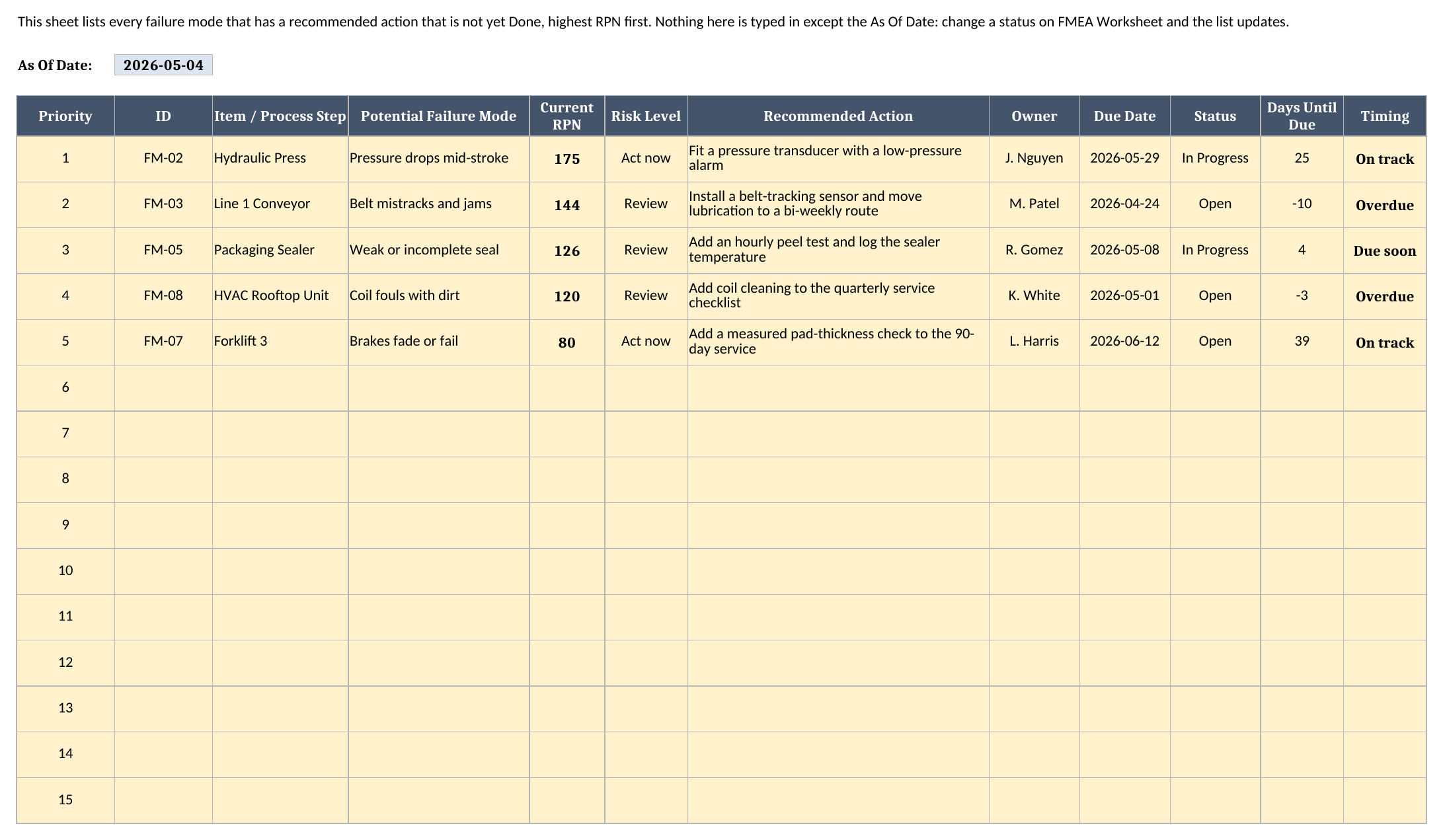
Change a status to Done on the worksheet and that action drops off the tracker the next time the workbook recalculates. Change the As Of Date and the Overdue and Due soon flags update.
Worked example from the sample workbook
The sample workbook analyzes ten synthetic failure modes across the same kinds of equipment I used in the maintenance template, with an As Of Date of May 4, 2026. The numbers below come from recalculating the generated workbook.
The clearest example is the first row, a mechanical seal leak on a cooling pump:
| Failure mode | Severity | Occurrence | Detection | RPN |
|---|---|---|---|---|
| Cooling Pump 2 seal leaks, today | 8 | 4 | 6 | 192 |
| Same failure mode, re-rated after action | 8 | 2 | 3 | 48 |
The recommended action was a laser shaft-alignment check and a vibration reading added to the monthly preventive maintenance. Severity did not change, because a leaking seal would still stop the line. The action lowered Occurrence from 4 to 2, since misalignment is the cause, and Detection from 6 to 3, since a vibration reading catches the problem before a person would see a drip. The workbook calculates a revised RPN of 48 and an RPN reduction of 144.
Three failure modes are marked Done and re-rated. Here is how they compare:
| Failure mode | RPN before | RPN after | Reduction |
|---|---|---|---|
| Cooling Pump 2 seal leaks | 192 | 48 | 144 |
| Air Compressor A filter clogs | 75 | 30 | 45 |
| Quality Lab Scale calibration drifts | 168 | 96 | 72 |
The Dashboard rolls everything up, again from the recalculated workbook:
| Metric | Result |
|---|---|
| Failure modes rated | 10 |
| Total RPN today | 1,239 |
| Highest RPN | 192 |
| Modes at or above the RPN threshold (150) | 3 |
| Modes at or above the severity override (9) | 2 |
| Open actions | 5 |
| Open actions overdue | 2 |
| RPN before action (3 re-rated modes) | 435 |
| RPN after action (3 re-rated modes) | 174 |
| RPN reduction | 261 |
| RPN reduction % | 60.0% |
Two of the five open actions are overdue as of May 4: the conveyor belt-tracking sensor, due April 24, and the HVAC coil cleaning, due May 1. One more, the hourly peel test on the packaging sealer, is due in four days. That is the conversation I want the dashboard to start: not just which risks are highest, but which promised fixes are late and whether the finished ones moved the number.
If you want to track the RPN reduction alongside your other operating numbers, my management KPI scorecard is a natural place to carry a headline figure like total RPN from month to month.
How an FMEA differs from a maintenance log
People sometimes ask me whether this replaces a maintenance log. It does not, and the two do different jobs. A maintenance log is a record of what already happened: this pump was serviced on this date, and this repair took this many hours. An FMEA looks ahead. It asks what could fail, scores the risk, and decides what to do before the failure shows up in the log.
The two work well together. Use the FMEA to find the failure modes with the highest risk, then turn the recommended actions into recurring tasks on a schedule like the one in the preventive maintenance schedule template. Over time, the log tells you whether your Occurrence ratings were realistic, and you can revise the FMEA with real data instead of guesses.
How to use this in Google Sheets
This workbook also works as an FMEA template Google Sheets file. Import the .xlsx directly:
- Download the workbook from the Excel template link.
- Open Google Sheets.
- Choose File > Import > Upload.
- Select the downloaded
.xlsxfile. - Choose Insert new sheet(s) or create a new spreadsheet from the upload.
- Review the FMEA Worksheet, Action Tracker, and Dashboard sheets after import.
No formula substitutions are required for the workbook as authored. The formulas are limited to SUM, SUMIF, COUNT, COUNTIF, MAX, IF, IFERROR, AND, OR, INDEX, MATCH, LARGE, ROW, and arithmetic, all of which Excel and Google Sheets support. The Status dropdown and the 1 to 10 rating checks are standard data validation, so they come through the import as well.
The one thing I always check after an import is the visual formatting. Column widths, row heights, and colors can render slightly differently between spreadsheet engines. The calculations are intentionally plain; the visuals are the only part I would look at before sending the file to a team.
How to customize the template safely
Start with Rating Scales. Read each description and rewrite the ones that do not match your process, then set the RPN action threshold and the severity override level to numbers your team agrees on. I chose 150 and 9 for the sample because they produce a useful mix of flags, but they are starting points, not rules.
Then replace the sample rows on FMEA Worksheet. Keep the columns in place and type over the blue cells. If you need more rows than the 20 provided, copy a full row of formulas down, then extend the ranges used by the Action Tracker and the Dashboard so the new rows are included. Leave the hidden helper columns on the right of the worksheet alone; the Action Tracker and the top-five list depend on them.
If your team prefers a different “due soon” window, edit the Timing formula on Action Tracker. The sample uses 14 days. If you prefer to rank by something other than RPN, you can change what the sort key is built from, but I would do that only once everyone understands how the current version works.
Finally, keep the revised ratings honest. The temptation after an action is to enter a low Occurrence and a low Detection so the RPN looks great. A better habit is to re-rate only after you have evidence that the action is working, for example a few weeks of clean readings.
Limitations to know before relying on it
A few limitations are worth calling out clearly:
- It is a spreadsheet, not a quality system. There is no sign-off, revision history, or link to controlled documents. If your industry requires those, keep this as the working analysis and manage approval elsewhere.
- RPN is a blunt instrument. Different combinations of Severity, Occurrence, and Detection can produce the same number. The severity override helps, but it does not replace judgment.
- It does not reproduce Action Priority. The AIAG and VDA method uses its own tables, which are not included here.
- Formula ranges are sized to the sample. The worksheet has 20 rows and the Action Tracker lists up to 15 open actions. You can extend both, but you have to do it deliberately.
- Ties rank by position. If two open actions have the same RPN, the one higher on the worksheet appears first.
- Ratings are only as good as the team. The workbook cannot tell you whether a Detection of 4 is realistic. Rate as a group, and write down the evidence behind any number that is disputed.
I built the file this way because an FMEA should be easy to inspect. The formulas are visible, the sample data is synthetic, the inputs are separated from the calculated results, and every number on the dashboard ties back to ordinary worksheet rows. That is the difference between an FMEA a team keeps updating and one that gets filled in once for an audit and never opened again.
Grab the FMEA template, replace the sample failure modes with your own, and use the dashboard to make your next risk review about what to fix first.
