
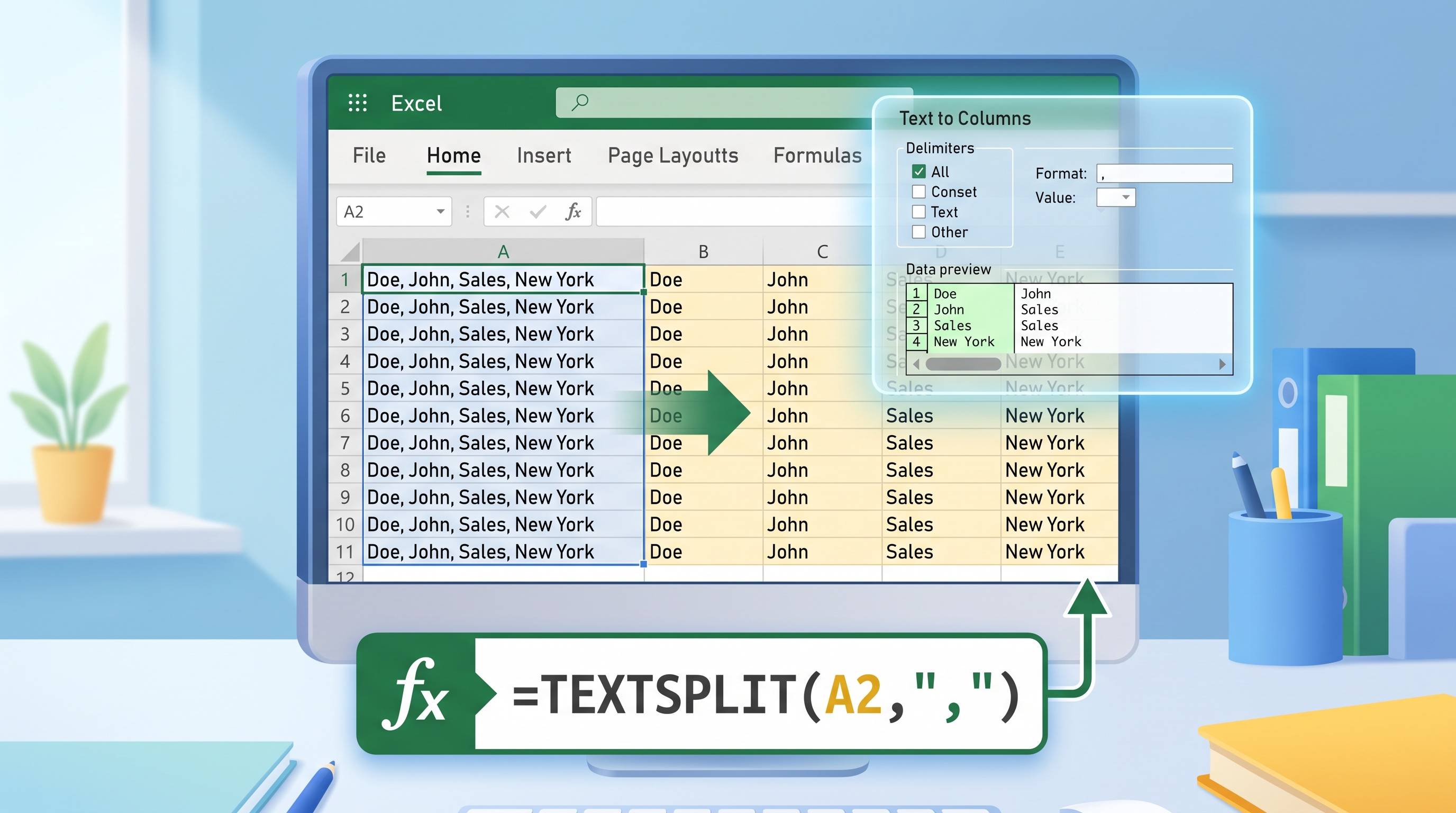
If you want the shortest answer, use Text to Columns for a one-time cleanup and TEXTSPLIT for a formula-driven split that updates automatically. That simple split covers most real-world jobs, whether you’re breaking names, commas, slashes, or imported text into cleaner columns.
Data point: DataForSEO Labs estimates the keyword “how to split cells in excel” at 9,900 monthly U.S. searches with KD 3. That is a strong signal that the topic is both in demand and realistic to rank for on an established Excel site. — DataForSEO Labs, US/en, 2026-07-02
If you already know the structure of the data, the split itself is easy. The hard part is choosing the right tool. When I want a permanent change to pasted or imported data, I use the Data tab; when I want a formula that keeps working as the source changes, I use a spill formula.
Here is the quick decision table I use:
| Method | Best for | Output type | Works in |
|---|---|---|---|
| Text to Columns | One-off cleanup | Static values | Most desktop versions of Excel |
| TEXTSPLIT | Dynamic splits | Formula spill range | Microsoft 365 and Excel for the web |
| LEFT / RIGHT / FIND | Older-version fallback | Formula cells | All modern Excel versions |
| Flash Fill | Pattern-based cleanup | Static values | Excel 2013+ |
If you are splitting text only once, Text to Columns is usually the least effort. If you need the result to keep updating, TEXTSPLIT is cleaner because it behaves like a normal formula. And if you later need to join cleaned data back together, combine two columns in Excel is the natural next step.
What is the best way to split cells in Excel?
The best way to split cells in Excel depends on whether you want a one-time change or a reusable formula. For quick cleanup, use Text to Columns. For dynamic workbooks, use TEXTSPLIT. For older Excel versions, rely on classic text formulas that extract each piece into helper columns.
The practical rule is simple: choose the method that matches your workflow. If you are cleaning imported CRM data, a one-time split is often enough. If you are building a dashboard that needs to refresh automatically, a formula-based split is safer because it updates when the source cell changes.
A good way to think about it is this:
- Text to Columns is best when you are cleaning data that will not need to change again.
- TEXTSPLIT is best when the source text may change later and the split should follow automatically.
- Helper formulas are best when you are stuck on an older version of Excel or when the text pattern is irregular.
The other thing I always check is the delimiter. Commas, slashes, spaces, tabs, and hyphens all behave differently, so the split only works cleanly when the separator is consistent. If the text is messy, fix the pattern first and split second. Names with endings such as Jr. or PhD need extra care; this legacy suffix-cleaning array formula keeps the suffix from being mistaken for the last name.
How do I split cells with Text to Columns?
Text to Columns is the easiest choice when you want Excel to split data once and turn it into values immediately. I use it for CSV-like text, exported lists, and pasted records where I do not need a live formula afterward. It is quick, familiar, and available in almost every desktop version of Excel.
Here is the workflow I follow:
- Select the column that contains the text you want to split.
- Go to the Data tab.
- Click Text to Columns.
- Choose Delimited if the text uses commas, tabs, slashes, spaces, or another separator.
- Pick the delimiter that matches your data.
- Set the destination cell if you do not want to overwrite nearby columns.
- Click Finish.
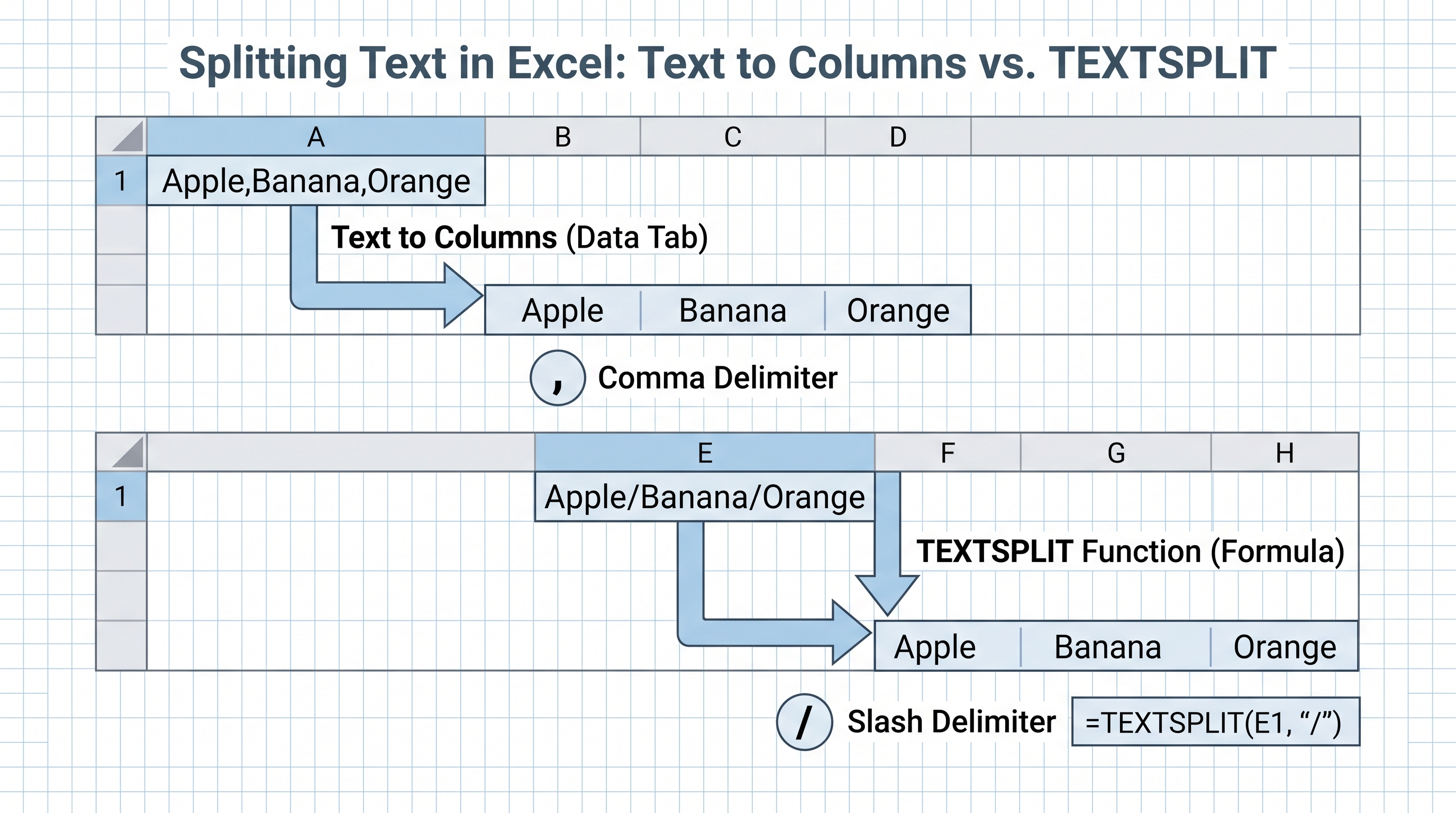
For example, if cell A2 contains Doe, John, Sales, New York, I would choose Comma as the delimiter. Excel will place the pieces across adjacent columns and keep them as values. If the source uses a slash instead, such as Apple/Banana/Orange, I would choose Other and enter /.
The main mistake people make here is forgetting that Text to Columns writes over nearby cells. If your split will spill into columns B, C, and D, make sure those cells are empty first or choose a new destination range. That one step prevents most accidental overwrites.
If your data is imported from a system export and the separator is not obvious, scan a few rows before you split anything. A mixed delimiter set often means the source needs cleanup first. LEN and SUBSTITUTE is a useful pattern when the text needs a little parsing before the split.
How do I split cells with TEXTSPLIT?
TEXTSPLIT is the best option when you want the split to stay linked to the original cell. I use it whenever I need a formula that spills across columns automatically, because it behaves like any other Excel formula instead of a one-time command. If the source text changes, the split updates too.
The basic version is straightforward:
=TEXTSPLIT(A2,",")If the source uses slashes, the formula is just as simple:
=TEXTSPLIT(A2,"/")TEXTSPLIT is especially useful for dashboards, helper tables, and imported lists that refresh often. I can build the split once and let Excel spill the results automatically.
A few TEXTSPLIT habits make life easier:
- Keep the cells to the right of the formula empty so the spill range has room.
- Use the exact delimiter that appears in the source text.
- If the data includes extra spaces, trim or clean the source first.
- Use TEXTSPLIT only in Excel versions that support it.
For a mixed example, if A2 contains Apple,Banana,Orange, I would use =TEXTSPLIT(A2,","). If the list uses slashes, I switch the delimiter to /.
TEXTSPLIT keeps the logic visible, so it is easy to inspect, audit, and adjust later.
How do I split first and last names?
The simplest way to split first and last names is to use a space as the delimiter. If every name follows the same pattern, Text to Columns works well. If you want a reusable formula, TEXTSPLIT is the cleaner option because it keeps the split live as the source changes.
For a basic two-part name like John Doe, these are the patterns I use:
=TEXTSPLIT(A2," ")Or, if I only want the first name in older Excel versions, I use a classic text formula:
=LEFT(A2,FIND(" ",A2)-1)If I only want the last name in an older version of Excel, I can use a right-side extraction formula:
=RIGHT(A2,LEN(A2)-FIND(" ",A2))That older pattern helps when TEXTSPLIT is unavailable. It also mirrors the parsing style I use in LEN and SUBSTITUTE.
Names get trickier when the format is not consistent. A middle name, suffix, or company title changes the result, so I would not blindly split every name field on the first space unless I had checked the data. In a clean contact list, that is fine. In a mixed CRM export, I would test a handful of rows first.
If the workbook will be used for mail merge, sorting, or filtering later, I usually prefer formula-based splitting. It keeps the original full name intact and gives me separate fields I can use elsewhere without re-running the split.
How do I split by delimiter without breaking the data?
The safest way to split by delimiter is to standardize the text before you split it. A split only works cleanly when the same separator appears in every row. If some rows use commas, others use slashes, and others contain extra spaces, the output will be messy unless you normalize first.
Common delimiters include:
- Comma:
Doe, John - Slash:
2026/07/14 - Hyphen:
North-East - Space:
Sales Lead - Tab: imported CSV or pasted data
- Pipe:
A|B|C
If the delimiter is simple and consistent, Text to Columns is usually enough. If you want a formula, TEXTSPLIT works well. For example:
=TEXTSPLIT(A2,"|")For more difficult cases, I clean the source text first. A common fix is to trim extra spaces or replace unusual whitespace with regular spaces before splitting. In Microsoft 365, I often combine TRIM with SUBSTITUTE when the source text came from a website or another system that inserted odd characters.
=TEXTSPLIT(TRIM(SUBSTITUTE(A2,CHAR(160)," ")),",")That formula removes non-breaking spaces before the split. It is a small step, but it prevents frustrating results where a split looks right in one row and wrong in the next.
If you know the delimiter but the text is inconsistent, clean first and split second. That habit matters more than the tool itself. Most bad splits happen because the source data was not normalized, not because Excel failed.
What if I need to split cells in older Excel versions?
If you do not have TEXTSPLIT, you can still split cells in Excel with classic formulas or Text to Columns. That is the route I take when a workbook has to stay compatible with older desktops or when a shared file might open in a version that does not support the newer functions.
For simple name splits, I use LEFT, RIGHT, MID, and FIND. For more complex parsing patterns, I build helper columns so the logic stays readable. That approach is less elegant than TEXTSPLIT, but it is widely compatible and easy to audit later.
A practical fallback workflow looks like this:
- Clean the source text.
- Identify the delimiter.
- Use
FINDto locate the separator. - Use
LEFTorRIGHTto extract the pieces. - Copy the formulas down and test a few edge cases.
If I am parsing repeated delimiters or changing character counts, I often lean on LEN and SUBSTITUTE to find the separator before extracting the value.
The key limitation of old-school formulas is that they can get hard to read when the logic becomes layered. That is why I prefer TEXTSPLIT whenever it is available. Still, the fallback methods are worth knowing because they let you solve the problem even when the newer functions are missing.
What mistakes should I avoid when splitting cells?
Most split problems come from data quality, not from Excel itself. The biggest mistakes are choosing the wrong delimiter, splitting into occupied cells, ignoring hidden spaces, and using a formula that is not supported in the version of Excel you are working in.
Here are the issues I watch for most often:
- Overwriting nearby data: Text to Columns writes results into adjacent columns unless you choose a destination.
- Mixed delimiters: commas in some rows and slashes in others will produce inconsistent output.
- Leading or trailing spaces: the split may look right but still contain invisible space characters.
- Merged cells: these often break clean splitting workflows.
- Version mismatch: TEXTSPLIT is not available in every Excel installation.
The easiest way to avoid trouble is to preview a few rows before you split the whole column. If the pattern is messy, clean the source first. If the pattern is consistent, choose the fastest method and keep the original column intact until you confirm the result.
Keep the original data in one column and split into new columns next to it so you always have an untouched source to compare against.
FAQ
The most common split-cells questions come down to method, delimiter, version support, and data safety. Use Text to Columns for fast one-time cleanup, TEXTSPLIT for live formulas, and classic text formulas when compatibility matters. The answers below give the direct rule for each situation before you touch the source data.
What is the fastest way to split cells in Excel?
For a one-time cleanup, Text to Columns is usually the fastest choice. If the split needs to update automatically when the source cell changes, TEXTSPLIT is the better long-term option.
How do I split first and last names in Excel?
If the names are consistent, split on the space character with Text to Columns or TEXTSPLIT. If the names contain middle names or suffixes, use a more specific delimiter or a helper formula so you do not lose data.
Can TEXTSPLIT replace Text to Columns?
TEXTSPLIT can replace Text to Columns when you want a formula-based split that spills into adjacent cells. It does not replace Text to Columns for every user, because older Excel versions do not have TEXTSPLIT.
What delimiter types can I split on?
Excel can split on commas, semicolons, slashes, hyphens, spaces, tabs, and other custom separators. The key is to pick the delimiter that actually appears in the source text and to keep your data consistent before you split it.
Final takeaway
If you only need a one-time split, use Text to Columns and protect nearby cells before finishing the wizard. If the result should stay linked to the source cell, use TEXTSPLIT. On older Excel versions, classic formulas still work, especially when you keep the original field intact.
My rule of thumb is simple: clean the text, match the delimiter, and choose the method that fits the workbook’s future. That keeps the split fast, readable, and easy to maintain later.
