
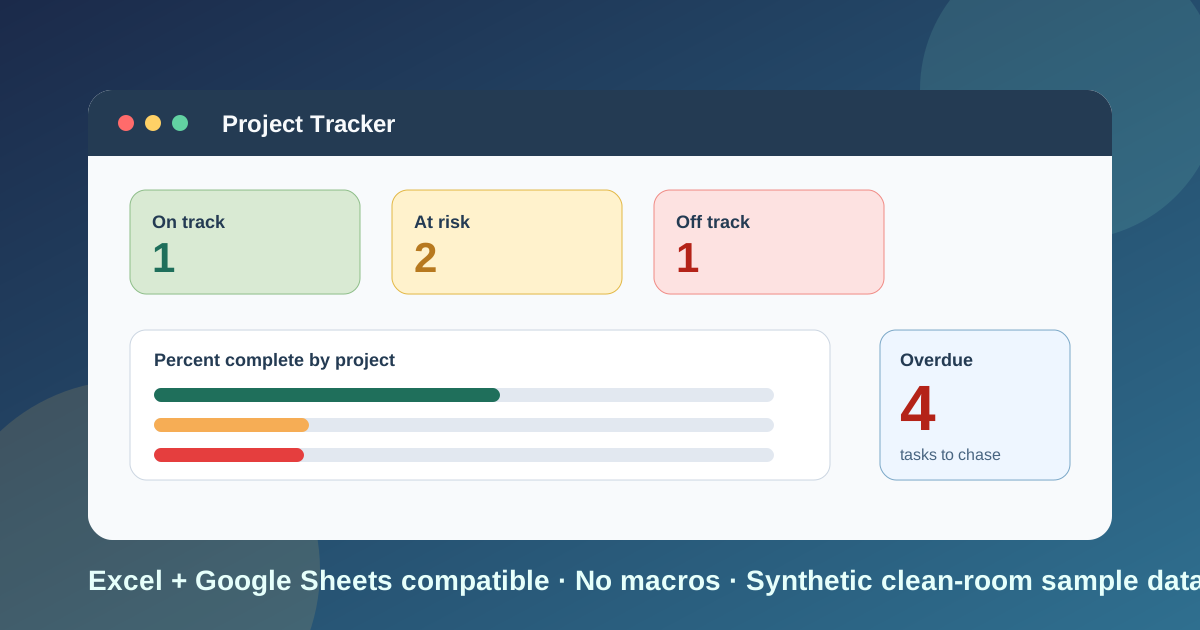
I built this project tracker template for the spreadsheet most people end up with anyway: a task list in one tab, a project list in another, and a status meeting that starts with “which of these are actually late?” Nobody can answer quickly, because percent complete is a number someone typed in and the overdue column was last updated three weeks ago.
Download the project tracker template. It is a plain .xlsx, no macros, no external data connections, and no sign-up. Open it in Excel or import it into Google Sheets, replace the synthetic sample projects with your own, and the roll-ups, flags, workload view, and dashboard recalculate from there.
If you are still choosing a format, my roundup of Excel templates for project management compares the main options. This page is the other half: a working file you can run your projects from.
Video walkthrough
Here’s a short video walkthrough of the workbook, with captions, showing how the four working sheets fit together.
Who I built this for
I built this for a project manager, operations lead, agency owner, or small-team manager who is juggling three to ten projects at once and does not want to buy or learn a project-management application first. It also suits a consultant who needs one honest view across several clients, or a department head who needs to see who is overloaded before assigning more work.
The workbook is built to answer five practical questions:
- Which projects are on track, at risk, or off track right now?
- How much of each project is actually finished, measured in hours rather than guesses?
- Which tasks are overdue, and which are about to be?
- Who is carrying more work than they have time for?
- Which overdue tasks are holding up other work?
That is why the file is split into a project list, a task list, a team sheet, and a dashboard instead of one giant table. Inputs live in blue cells, calculations in yellow, and headline results in green, so it is obvious where you type and where you should not.
What’s in the workbook, sheet by sheet
The workbook ships with five sheets, in this exact order:
- Instructions - a concise setup guide, color legend, clean-room disclosure, Google Sheets note, and limitations.
- Projects - one row per project: ID, name, owner, start date, due date, and a status you pick (Active, On Hold, Complete). The As Of Date input sits at the top in B2. Calculated columns show the task count, planned and done hours, percent complete, time elapsed, overdue tasks, days to due, and a Red / Amber / Green rating.
- Tasks - one row per task: task ID, project ID, task name, owner, the task it depends on, planned hours, a Done Yes/No flag, and a due date. Calculated columns show days overdue, status, a due-soon flag, whether the dependency is clear, and how many open tasks are waiting on this one.
- Team - one row per person with weekly capacity in hours. Calculated columns total open tasks, open hours, overdue tasks, hours due in the next 14 days, and a load rating.
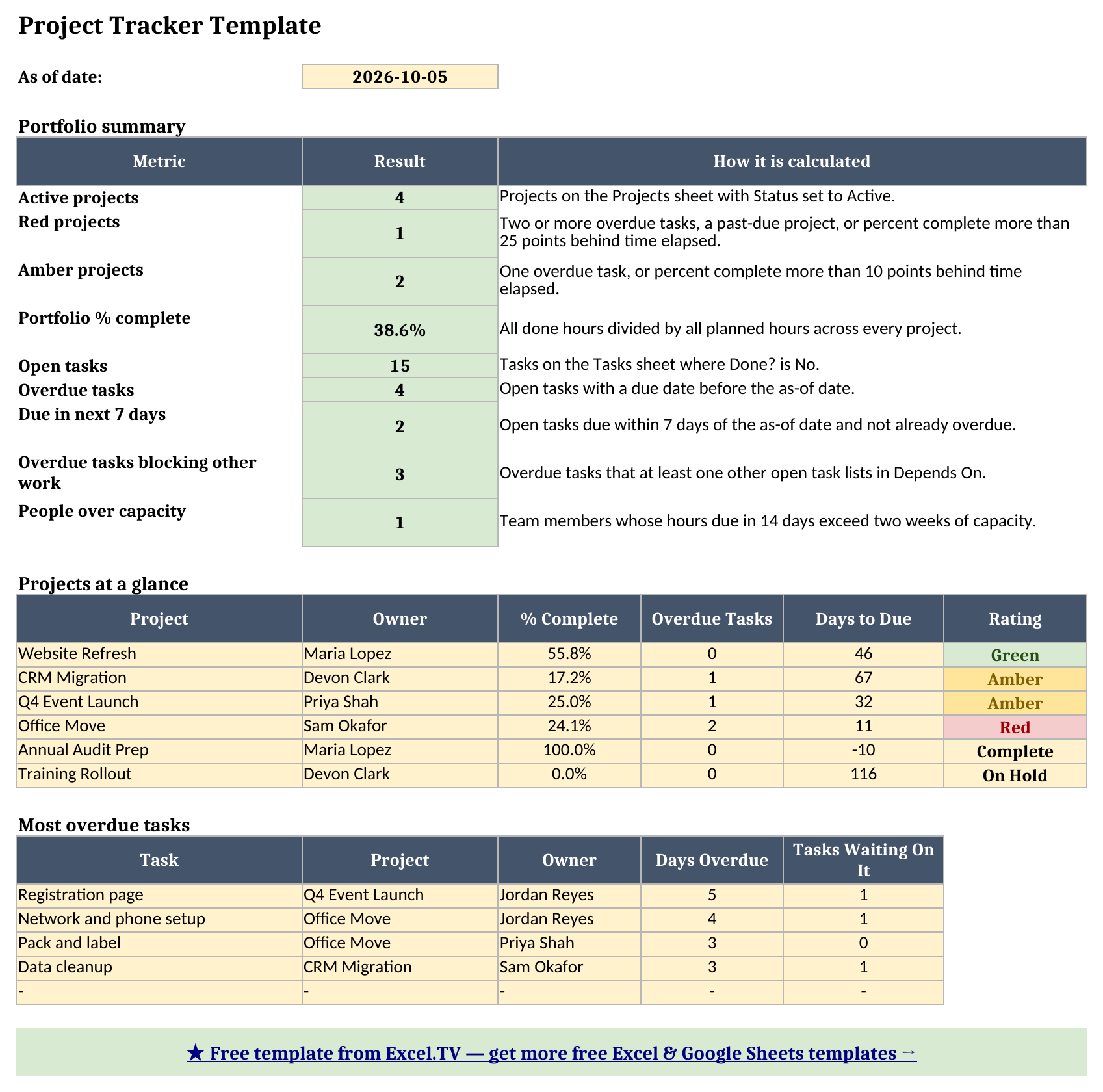
- Dashboard - the one-page output: project counts by rating, portfolio percent complete, overdue and due-soon tasks, overdue tasks that block other work, people over capacity, a projects-at-a-glance table, and the five most overdue tasks.
The required inputs are the rows on Projects, Tasks, and Team, plus the as-of date. The main outputs are the rating on Projects, the flags on Tasks, the load on Team, and everything on Dashboard.
How I set up Projects and the as-of date
Projects is where you start. Each project gets a unique Project ID such as P-101, because Tasks uses that ID to find its project. Your own IDs can be client codes, job numbers, or anything short and unique, as long as each one appears once.
The most important cell on the sheet is B2, the As Of Date. Every overdue flag, due-soon flag, days-to-due figure, and Red / Amber / Green rating in the workbook is measured against that date. I chose a typed date instead of TODAY() on purpose. A status report that changes every time you open the file is hard to trust, and you cannot rebuild last Friday’s view on Monday. With an as-of cell you change one date and the whole workbook shows that day. If you would rather have a live view, type =TODAY() into B2 yourself and everything still works.

Owner and Status are dropdowns, and the owner list comes from the Team sheet so names stay consistent. A project marked Complete or On Hold skips the Red / Amber / Green logic and shows its status instead, which keeps finished work from cluttering the dashboard.
How percent complete is weighted by hours
The first signature mechanic is percent complete. Instead of typing a number, you enter planned hours on each task and mark it done. The Projects sheet then calculates:
% Complete = done hours / planned hours
Done hours is a helper column on Tasks that holds a task’s planned hours when Done? is Yes and zero otherwise. Projects adds those up with SUMIF by project ID, and divides by the project’s total planned hours with an IFERROR guard so an empty project shows 0% instead of an error.
Weighting by hours matters. If a project has ten tasks and you finish the nine small ones, a task count says 90%, while hours might say 40% because the one open task is the big one. Hours-weighted progress is a better match for how much work is left. It is only as good as your estimates, but an estimate you can see and adjust beats a number nobody can audit.
Next to percent complete sits Time Elapsed %: how far through the project’s start-to-due window the as-of date falls. That gives you the comparison most trackers skip. A project that is 25% done and 40% through its schedule is behind; one that is 55% done and 55% through its schedule is fine.
How the rating works
The Rating column turns those numbers into a Red / Amber / Green call. The rule I wrote is deliberately simple and visible in the formula:
- Red if the project has two or more overdue tasks, is past its due date and not Complete, or its percent complete is more than 25 points behind time elapsed.
- Amber if it has one overdue task, or percent complete is more than 10 points behind time elapsed.
- Green otherwise.
Complete and On Hold projects show those words instead. Because the rule is a plain IF with OR conditions, you can read it, and you can change the thresholds on the Projects sheet without rewriting the workbook.
How overdue and due-soon flags work on Tasks
Tasks is the working sheet. Each row has a task ID, a project ID, the task name, an owner, planned hours, a Done? flag, and a due date. Everything else is calculated:
Days Overdue = as-of date - due date when the task is not done and the due date has passed, otherwise 0.
The Status column then shows Done, Overdue, Due Soon (due within 7 days of the as-of date), or Open. Overdue and Due Soon get matching colors, so a scan down the column shows where the pressure is.
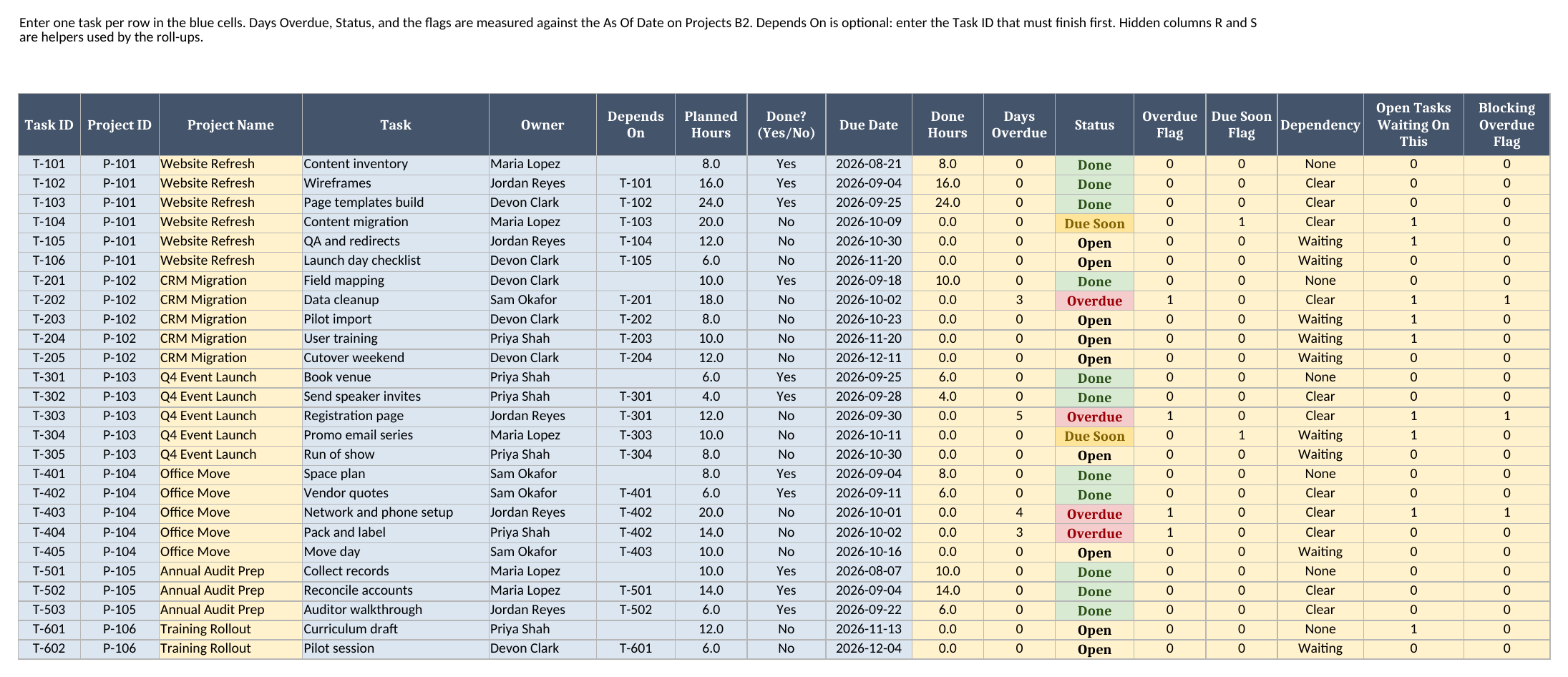
Project Name is looked up from Projects with INDEX and MATCH. If someone types a project ID that does not exist, the row shows “(unknown project)” instead of quietly dropping out of every total.
Thinking about the critical path with Depends On
Tasks has an optional Depends On column. Enter the task ID that has to finish first, and the workbook adds two calculated columns:
- Dependency shows Clear if the task it depends on is done, Waiting if it is not, and None if there is no dependency.
- Open Tasks Waiting On This counts how many open tasks list this one in Depends On.
This is not a full critical-path calculation, and I want to be honest about that. A real critical path needs durations, lags, and a network of every path through the project, which is where a dedicated scheduling tool earns its keep. What the spreadsheet gives you is the most useful piece of critical-path thinking: which late tasks are holding up other work. A task that is overdue and has three open tasks waiting on it deserves attention before a task that is overdue and blocks nothing.
The workbook turns that into one number on the dashboard, “Overdue tasks blocking other work.” In the sample data three of the four overdue tasks have something waiting behind them. If you want to go further, my guide to a Gantt chart in Excel shows how to turn the same dates into a visual timeline.
How the Team sheet shows workload
Team lists each person and the hours per week they can give to these projects. The sheet then calculates, for each person, their open tasks, open hours, overdue tasks, and hours due in the next 14 days, which includes anything already overdue because it still has to be done.
It compares that figure with two weeks of capacity:
Load % = hours due in 14 days / (weekly capacity x 2)
The Load column shows Over above 100%, Near from 80% to 100%, and OK below that. If someone has hours due but no capacity entered, the percentage reads No capacity and the rating is Over. The hours-due figure uses SUMIFS with three conditions: owner matches, Done? is No, and due date is on or before the as-of date plus 14.
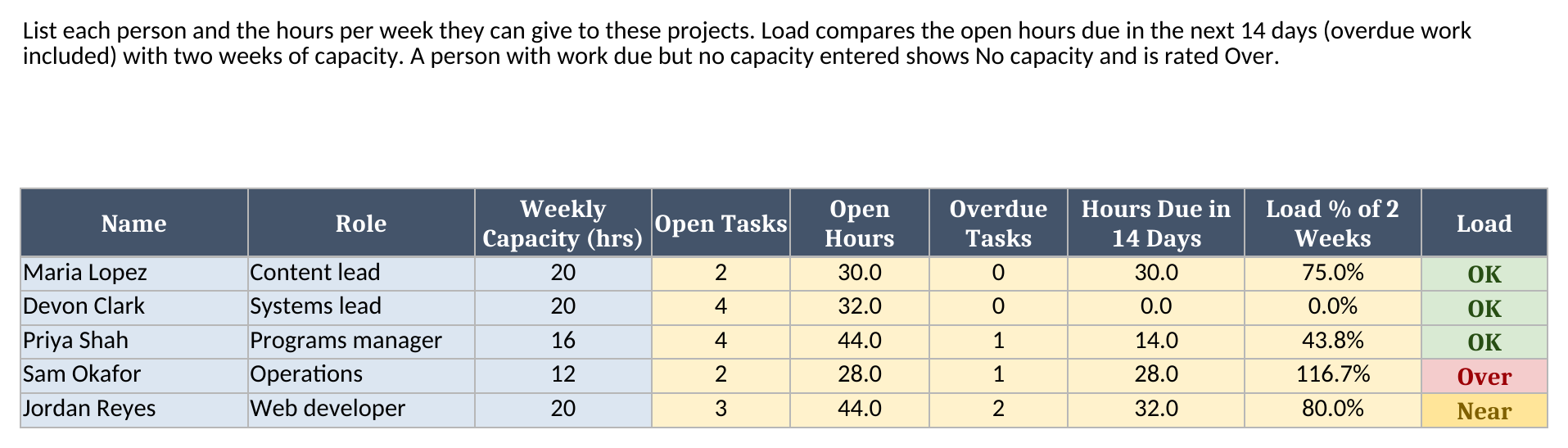
I like this view because it catches a problem a project list cannot. Each project can look fine on its own while one person is named on the hard part of three of them.
Worked example from the sample workbook
The sample workbook tracks six synthetic projects and 26 tasks as of October 5, 2026. The figures below are recalculated from the generated workbook, not typed in by hand. The Projects sheet gives:
| Project | Planned hours | Done hours | % complete | Time elapsed | Overdue tasks | Rating |
|---|---|---|---|---|---|---|
| Website Refresh | 86 | 48 | 55.8% | 54.9% | 0 | Green |
| CRM Migration | 58 | 10 | 17.2% | 33.7% | 1 | Amber |
| Q4 Event Launch | 40 | 10 | 25.0% | 39.6% | 1 | Amber |
| Office Move | 58 | 14 | 24.1% | 79.2% | 2 | Red |
| Annual Audit Prep | 30 | 30 | 100.0% | 100.0% | 0 | Complete |
| Training Rollout | 18 | 0 | 0.0% | 0.0% | 0 | On Hold |
Take Q4 Event Launch. Its five tasks total 40 planned hours, and the two finished tasks (booking the venue and sending speaker invites) account for 10 of them, so the project is 25% complete. It is 39.6% of the way through its schedule, so it is behind, and its Registration page task makes it Amber.
That task is due September 30 and is not done. With the as-of date at October 5, the Tasks sheet shows it 5 days overdue. It is also the first task in the dashboard’s most-overdue list, because the list ranks open tasks by days overdue, with ties kept in the order they appear on the Tasks sheet. The last column shows how many open tasks are waiting on each one, but waiting tasks do not change the ranking.
Office Move is the Red project. It is 24.1% complete with 79.2% of its schedule gone, and two of its tasks are overdue: Network and phone setup by 4 days and Pack and label by 3.
The Dashboard summarizes the whole portfolio:
| Metric | Result |
|---|---|
| Active projects | 4 |
| Red projects | 1 |
| Amber projects | 2 |
| Portfolio % complete | 38.6% |
| Open tasks | 15 |
| Overdue tasks | 4 |
| Due in next 7 days | 2 |
| Overdue tasks blocking other work | 3 |
| People over capacity | 1 |
On the Team sheet, Sam Okafor has 28 hours due in the next 14 days against 24 hours of capacity, which is 116.7% and flagged Over. Jordan Reyes sits at 80.0%, flagged Near. That is the conversation I want the dashboard to start: who is late, who is behind, and who cannot absorb more.
How this differs from a roundup, a Gantt chart, and a budget tracker
A few of my other pages sit close to this one, so here is how I think about them:
- The roundup of Excel templates for project management helps you choose what kind of template you need. This file is the one you run your projects from.
- The Gantt chart guide is about the timeline: bars across dates. This workbook is a status and workload tracker. It tells you what is late and who is stretched, not how the schedule looks on a calendar.
- The project budget template tracks cost: budget lines, actuals, and forecasts. This one tracks hours and dates. If you need both, keep the two workbooks side by side and use the same project IDs in each.
How to use this in Google Sheets
This workbook also works as a project tracker Google Sheets file. Import the .xlsx directly:
- Download the workbook from the Excel template link.
- Open Google Sheets.
- Choose File > Import > Upload.
- Select the downloaded
.xlsxfile. - Choose Insert new sheet(s) or create a new spreadsheet from the upload.
- Review the Projects, Team, and Dashboard sheets after import.
No formula substitutions are required for the workbook as authored. The formulas are limited to SUM, SUMIF, SUMIFS, COUNTIF, COUNTIFS, IF, IFERROR, AND, OR, MIN, MAX, INDEX, MATCH, LARGE, ROW, and arithmetic. Those functions are native to Excel and Google Sheets, and the dropdown lists for status, owner, project ID, and the Done flag are standard data validation.
The one thing I always check after a Google Sheets import is the colors. The Red / Amber / Green and Overdue highlights are conditional formatting, and they can render slightly differently between spreadsheet engines. The calculations are plain; the colors are the only part I would inspect before sharing the file with a team.
How to customize the template safely
Start by replacing the sample rows on Projects, then Team, then Tasks, in that order, because Tasks depends on the other two for its dropdowns and lookups. Keep every Project ID and Task ID unique.
If you add rows beyond the samples, copy the yellow formulas down and extend the ranges. The roll-ups on Projects, Team, and Dashboard point at the sample row ranges, so a new task that sits outside them will not be counted until you widen the references.
Change the thresholds to match how your team works. The due-soon window is 7 days in the Status formula on Tasks, and the 14-day workload window is in the hours-due formula on Team. The Red and Amber cut-offs live in the Rating formula on Projects. Each one is a number you can read in the formula bar.
If your team does not estimate in hours, you can use any consistent unit, such as story points or days. Percent complete and workload both work on whatever number you enter in Planned Hours. Just change the Team capacity to the same unit.
Limitations to know before relying on it
A few limitations are worth calling out clearly:
- It is a tracker, not a project-management application. There are no reminders, file storage, time tracking, comments, or Gantt bars. If you need those, you have outgrown a spreadsheet.
- There is no true critical path. Depends On shows what is waiting on what, and you decide what that means for the schedule.
- Percent complete is only as good as your hour estimates. A task marked done counts for its full planned hours, whatever it actually took.
- The rating rule is one simple choice. It uses overdue tasks and the gap between percent complete and time elapsed. Edit the formula if your team rates projects differently.
- Formula ranges are sized to the sample data. You can add projects, tasks, and people, but you need to copy formulas down and extend references deliberately.
- Overdue ranking breaks ties by row order. The most-overdue list on the dashboard uses a hidden helper column so two tasks with the same days overdue both appear.
I built the file this way because a tracker should be easy to inspect. The formulas are visible, the sample data is synthetic, inputs are separated from outputs, and every dashboard number ties back to ordinary worksheet rows. That is the difference between a tracker people keep current and a pretty download that falls apart the first time someone adds a task.
Grab the project tracker template, replace the sample projects with your own, set the as-of date, and use the dashboard to run your next status meeting from facts instead of memory.
