
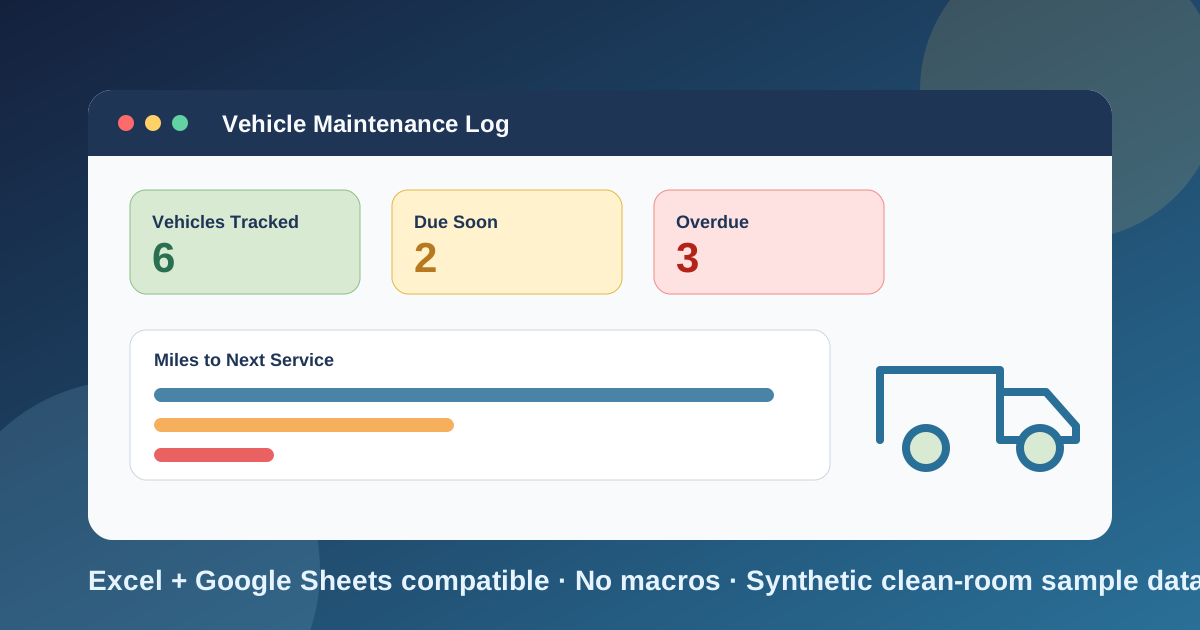
I built this vehicle maintenance log template for the version of the problem I see most often: oil changes are written on a sticker in the windshield, brake work lives in an email from the shop, and nobody can say which truck is closest to its next service without walking the lot. A good log answers that in seconds, and a spreadsheet can do it as long as it calculates instead of just recording.
Download the vehicle maintenance log template - it is a plain .xlsx, no macros, no external data connections, and no sign-up. Open it in Excel or import it into Google Sheets, replace the sample vehicles with yours, and the schedule, vehicle totals, and dashboard recalculate from there.
Plenty of free vehicle logs are printable paper forms or a single flat table. Those are fine for writing things down, but they never tell you what is due. This workbook keeps the service history in one place and works out the next due odometer and next due date for every service on every vehicle, then flags what is overdue. The sample file has six vehicles, twenty service rows, and fifteen fill-ups so you can see every sheet working before you enter anything.
Video walkthrough
Here’s a short video walkthrough of the workbook, with captions, showing how the sheets fit together.
Who I built this for
I built this for a small fleet owner, a contractor with a handful of work trucks, a delivery business, a facilities manager, a rental operator, or anyone who keeps a pickup or van on the road for work and wants a log they can trust. It also works for a family with several cars if you want real numbers instead of guesses about what the oil changes cost.
The workbook is designed to answer five questions:
- Which vehicles do we run, and what are their odometer readings today?
- What was done to each one, when, and at what mileage?
- Which services are overdue or coming up?
- What are we spending on maintenance, in total and per mile?
- Which vehicle costs the most to keep running?
If you already run telematics or a full fleet-management system, this can still serve as a simple review sheet. It is not trying to replace dispatch, driver apps, or inspection forms.
How this differs from my preventive maintenance template
I already have a preventive maintenance schedule template. That one is built around calendar dates for equipment: take the last PM date, add a frequency in days, and flag what is late. It works well for conveyors and compressors, and its asset IDs can be vehicle numbers.
Vehicles need something it does not do: odometer-based intervals. An oil change is due every 5,000 miles or every six months, whichever comes first, and a truck that sits in the yard behaves very differently from one that runs a route every day. This workbook tracks both limits at the same time and keeps the full service history per vehicle, so you can see not just what is due but what each vehicle has cost.
What’s in the workbook, sheet by sheet
The workbook ships with six sheets, in this exact order:
- Instructions - setup steps, the color legend, the clean-room disclosure, a Google Sheets note, and limitations.
- Vehicles - the register. Each row has a unit ID, vehicle description, type, VIN, in-service date, the odometer reading when the log started, and the current odometer. Calculated columns add miles tracked, total service cost, service count, and cost per mile.
- Service Log - every service or repair: date, unit ID, odometer, service type, labor hours, labor rate, parts cost, vendor, and notes. Vehicle and Total Cost are calculated.
- Service Schedule - one row per vehicle and service type, with a mileage interval and a day interval. It looks up the last service in the log, calculates the next due odometer and date, and flags Overdue, Due Soon, OK, or No Record.
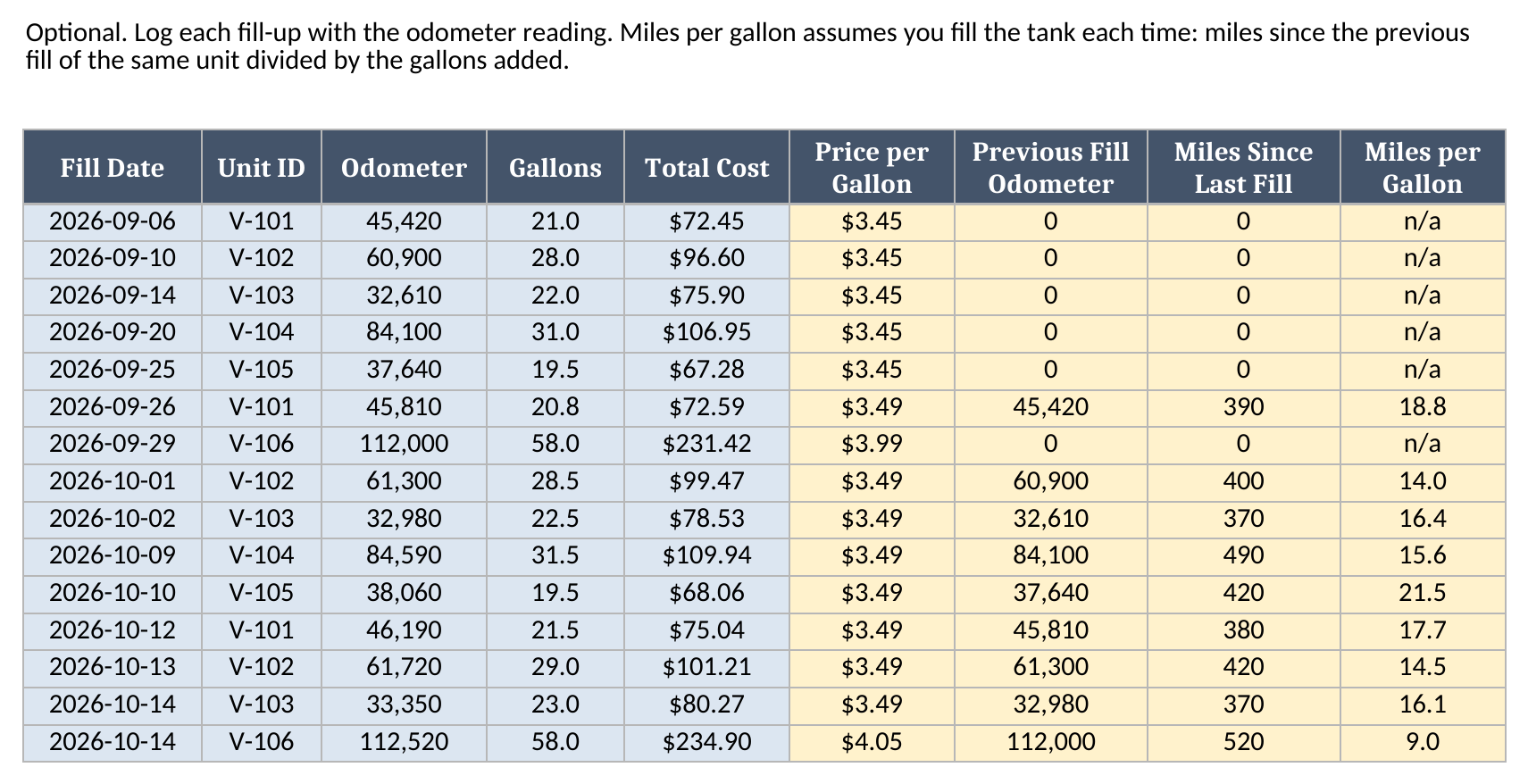
- Fuel Log - optional fill-ups. It calculates price per gallon, miles since the previous fill, and miles per gallon.
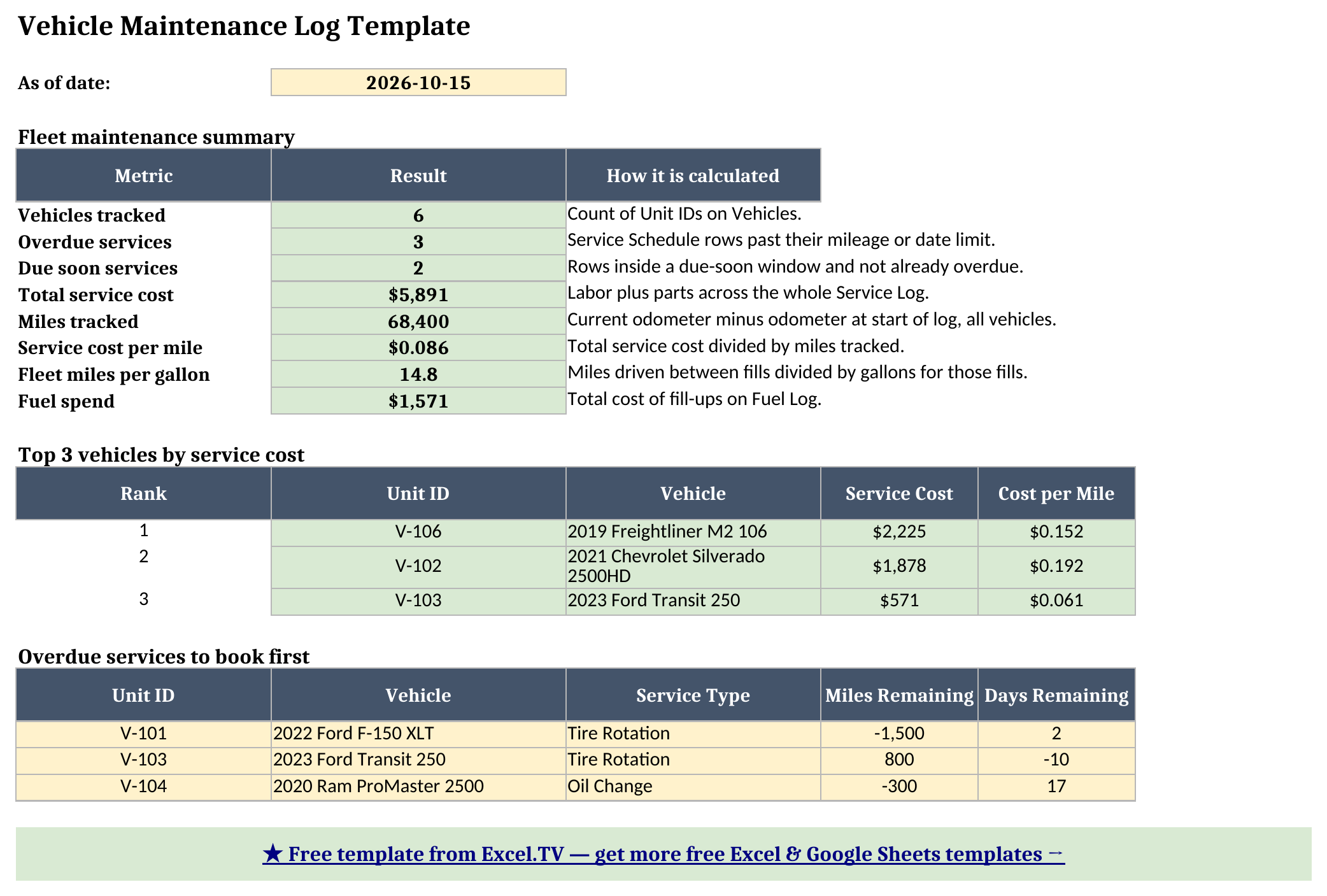
- Dashboard - vehicles tracked, overdue and due-soon counts, total service cost, cost per mile, fleet miles per gallon, the three costliest vehicles, and the overdue services to book first.
The inputs are blue, the calculated cells are yellow, and the headline results on the dashboard are green. That makes it obvious where your data goes and which cells to leave alone.
How I set up the Vehicles register
Vehicles is the key sheet because every lookup depends on the Unit ID. I used V-101, V-102, and so on because they are short and easy to scan. Yours can be plate numbers, fleet numbers, or truck names. The one rule is that each Unit ID appears once.
Two odometer columns matter. Odometer at Start of Log is the reading on the day you began tracking, and Current Odometer is the reading today. The difference is Miles Tracked, which the workbook uses to turn total service cost into a cost per mile. Update the current odometer whenever you read it, because the schedule compares every interval against that number.
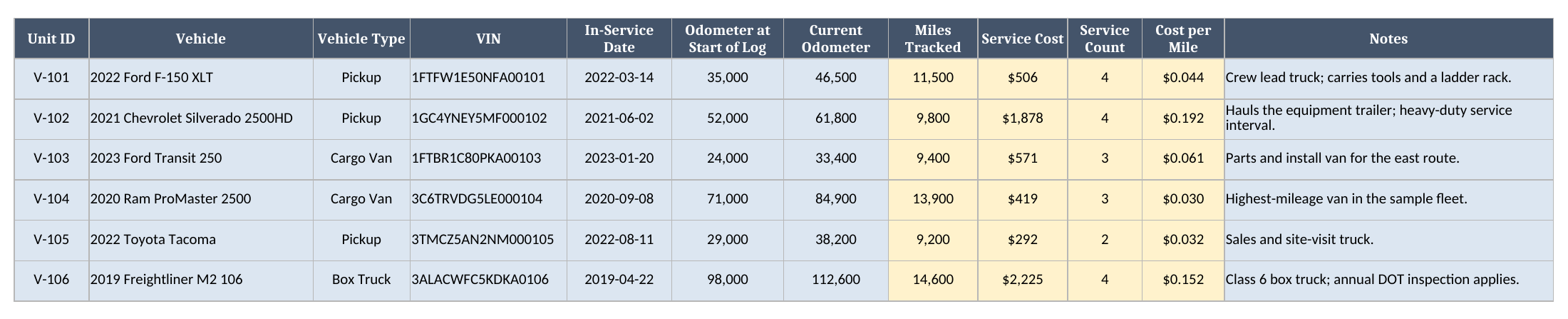
The VINs in the sample are made up. Replace them with your own, or leave the column blank if you do not need it.
How the Service Log keeps the history
Service Log is where finished work goes. I included a unit ID dropdown that reads whatever IDs you type on Vehicles (so your own numbers work the moment you enter them), a service type dropdown that warns instead of blocking when you type a new name, the odometer reading at the time of service, labor hours, a labor rate, parts cost, vendor, and a notes column. Total Cost is Labor Hours x Labor Rate + Parts Cost, so you can see the split between the shop’s time and the parts. The Vehicle column is looked up from the register with INDEX and MATCH; if someone types a unit ID that does not exist, the row shows (unknown unit) instead of quietly breaking a total.
I put hours and rate in separate columns on purpose. Shops quote different rates, and an in-house bay costs less than a dealer. Keeping the rate on each row means one repair at $125 an hour and another at $75 an hour both calculate correctly.
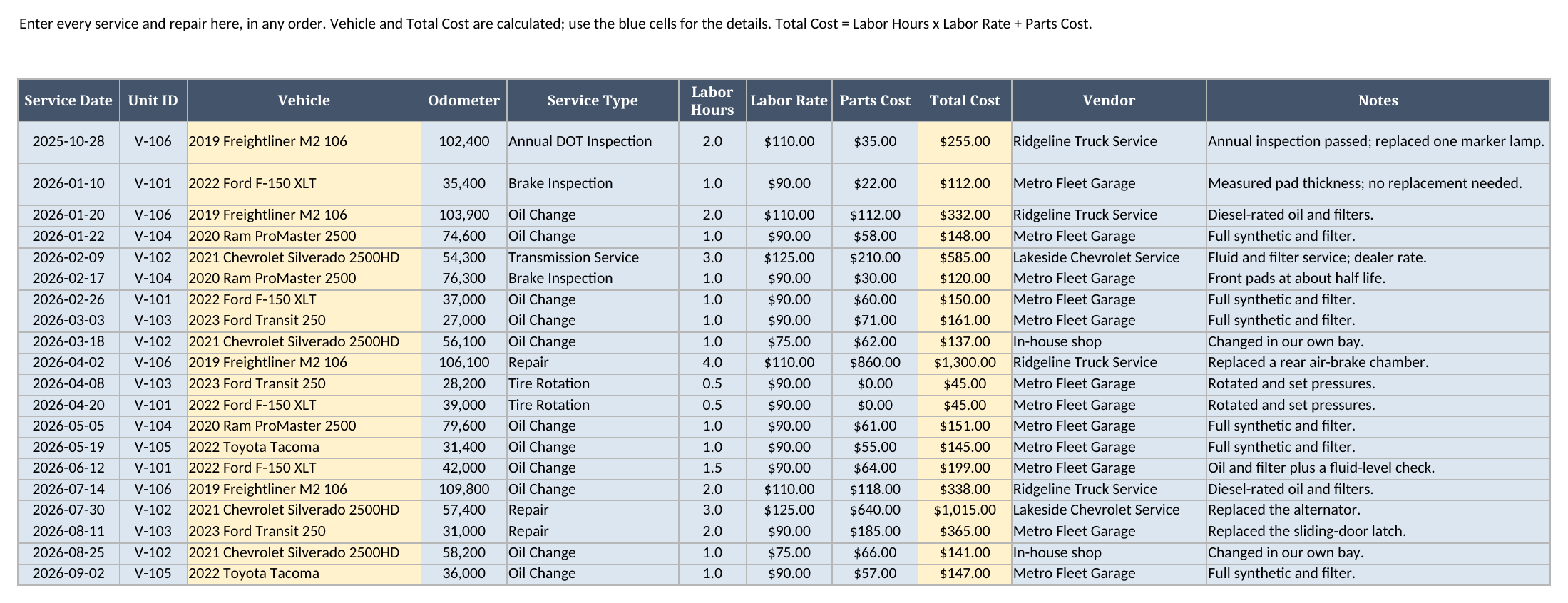
The service type list includes Oil Change, Tire Rotation, Brake Inspection, Transmission Service, Annual DOT Inspection, and Repair. Repair is for unplanned work. It counts toward cost but is not something you schedule.
How the schedule works out what is due next
Service Schedule is the sheet I expect people to live in. At the top are three inputs: an As Of Date, a due-soon window in miles, and a due-soon window in days. The sample uses October 15, 2026, 500 miles, and 14 days. I used a typed date instead of TODAY() so the numbers on this page match the file every time you open it. Change it to today’s date when you use the workbook for real.
For each row you enter a unit ID, a service type, a mileage interval, and a day interval. The workbook then does four things:
- Finds the last time that unit had that service in the log, using
COUNTIFSto check there is one andSUMPRODUCT(MAX(...))to return the most recent date and odometer. - Calculates
Next Due Odometer = Last Service Odometer + Interval Miles. - Calculates
Next Due Date = Last Service Date + Interval Days. - Subtracts the current odometer and the as-of date to get Miles Remaining and Days Remaining.
The status uses whichever limit arrives first. If either Miles Remaining or Days Remaining is below zero, the row is Overdue. If either is inside its due-soon window, the row is Due Soon. Otherwise it is OK, and a row with nothing in the log yet shows No Record.
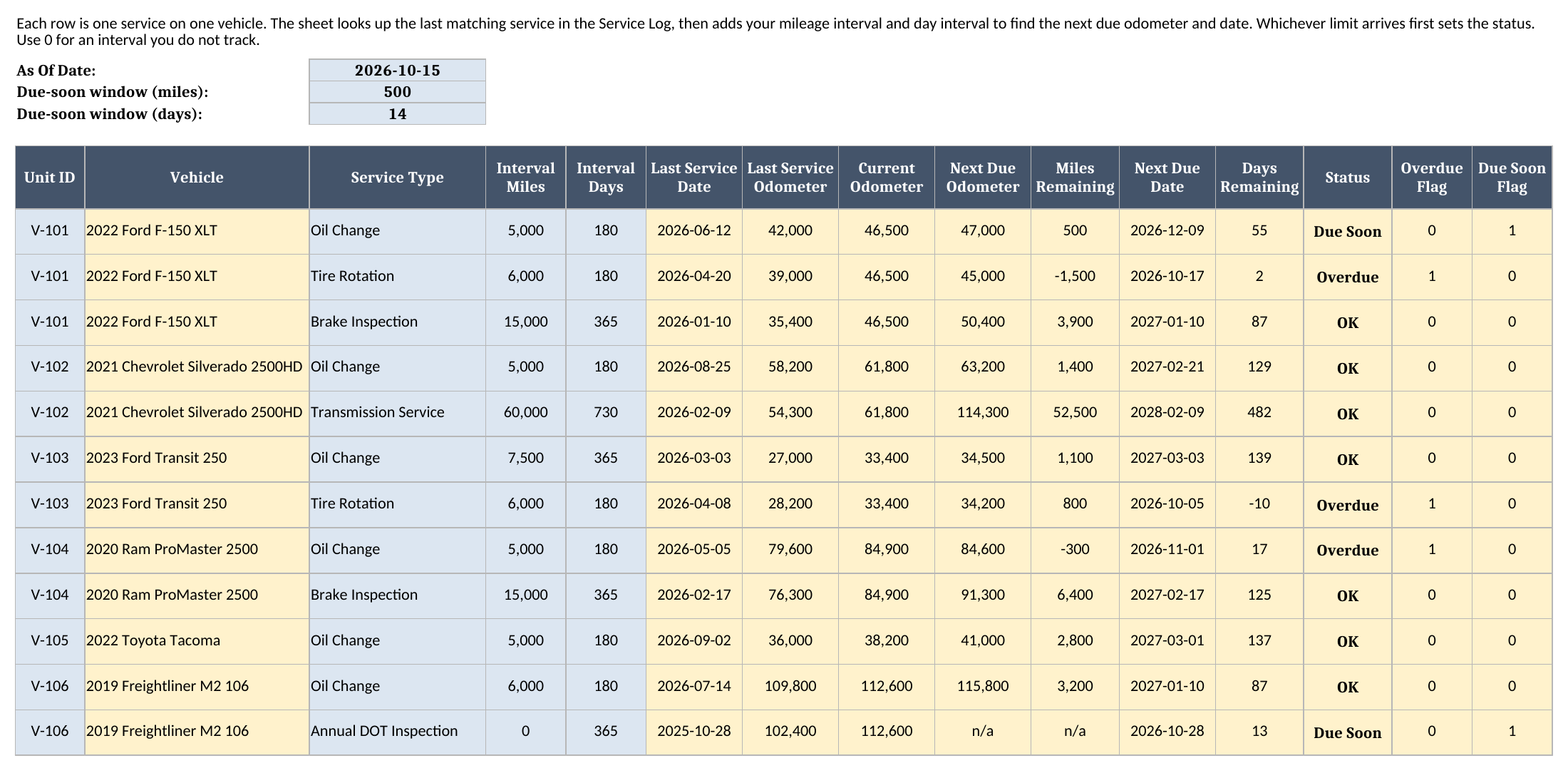
An interval of 0 means you do not track that limit. The Annual DOT Inspection row on the box truck uses 0 miles and 365 days, so it is judged on the date alone, and the mileage columns show n/a.
Tracking fuel and miles per gallon
Fuel Log is optional, but I find it useful because a falling miles-per-gallon figure can be an early hint that a vehicle needs attention. Enter the date, unit ID, odometer, gallons, and total cost for each fill-up. The sheet calculates price per gallon, finds the previous fill-up for the same unit, and works out miles since that fill and miles per gallon.
The calculation assumes you fill the tank each time. If you top off partway, the individual numbers bounce around, but the fleet average over many fills still lands in the right place. The first fill-up for each unit shows n/a because there is no earlier reading to compare with. A fill-up with no gallons entered also shows n/a and is left out of the fleet average.
Worked example from the sample workbook
The sample workbook tracks six synthetic vehicles as of October 15, 2026. Here is one row from Service Schedule, recalculated from the generated workbook. The F-150, unit V-101, had its last oil change at 42,000 miles on June 12, 2026, with a 5,000-mile and 180-day interval, and its odometer now reads 46,500.
| Field | Result |
|---|---|
| Last service odometer | 42,000 |
| Interval miles | 5,000 |
| Next due odometer | 47,000 |
| Current odometer | 46,500 |
| Miles remaining | 500 |
| Next due date | 2026-12-09 |
| Days remaining | 55 |
| Status | Due Soon |
The truck has 55 days left on the calendar but only 500 miles left on the odometer, so mileage is the limit that arrives first, and 500 miles is inside the 500-mile window. That is why it says Due Soon.
A service row works the same way. That oil change took 1.5 labor hours at $90.00 an hour plus $64.00 in parts, so Total Cost is $199.
The Dashboard output for the whole fleet is:
| Metric | Result |
|---|---|
| Vehicles tracked | 6 |
| Overdue services | 3 |
| Due soon services | 2 |
| Total service cost | $5,891 |
| Miles tracked | 68,400 |
| Service cost per mile | $0.086 |
| Fleet miles per gallon | 14.8 |
| Fuel spend | $1,571 |
The three overdue services are a tire rotation on the F-150, a tire rotation on the Transit van, and an oil change on the ProMaster. They are overdue for different reasons. The F-150 tire rotation is 1,500 miles past its limit. The Transit rotation is still 800 miles from its mileage limit, but its 180 days ran out ten days ago. The ProMaster oil change is 300 miles past its limit even though it has 17 days left on the calendar. That is the case for tracking both limits: any single-limit schedule would miss one of these.
The two due-soon services are the F-150 oil change from above and the box truck’s annual DOT inspection, which is 13 days away.
The costliest vehicles are the Freightliner box truck at $2,225, the Silverado at $1,878, and the Transit van at $571. The Silverado costs the most per mile, at $0.192, because a $1,015 alternator repair landed on a truck that has not covered many miles in the log. That is the conversation I want the dashboard to start: the overdue list tells you what to book this week, and the cost ranking tells you which vehicle to start questioning.
How to use this in Google Sheets
This workbook works as a vehicle maintenance log google sheets file. Import the .xlsx directly:
- Download the workbook from the Excel template link.
- Open Google Sheets.
- Choose File > Import > Upload.
- Select the downloaded
.xlsxfile. - Choose Insert new sheet(s) or create a new spreadsheet from the upload.
- Review Service Schedule and Dashboard after import.
No formula substitutions are needed. The formulas are limited to SUM, SUMIF, SUMIFS, COUNTIF, COUNTIFS, SUMPRODUCT, MAX, IF, IFERROR, AND, OR, N, ISNUMBER, INDEX, MATCH, LARGE, and arithmetic. Those exist in both Excel and Google Sheets, and the dropdowns for unit IDs and service types are standard data validation.
After an import I always check the visual formatting. Colors, row heights, and the status highlighting can render slightly differently between the two spreadsheet engines. The calculations are plain; the appearance is the only part I would review before sharing the file with a team.
How to customize the template safely
Start by replacing the sample rows on Vehicles. Keep the same columns and keep each Unit ID unique. Then replace the Service Log with your own history. If you only have recent records, start the log there and set Odometer at Start of Log to the reading from that date, so the cost per mile compares like with like.
Next, build your schedule. Add one row per vehicle and service type and set the two intervals from your owner’s manual or your shop’s recommendation. If you want a service on the calendar only, use 0 miles. If you want it on mileage only, use 0 days.
Change the due-soon windows at the top of Service Schedule to fit how far ahead you book work. A van on a daily route may need a 1,000-mile window, while a seasonal truck may need 30 days. They are plain input cells, so you can change them without touching a formula.
For a vehicle or row beyond the sample, copy the calculated cells down from the row above. The formulas that total the logs already reach row 50 on Vehicles, row 60 on Service Schedule, and row 200 on Service Log and Fuel Log, so new rows flow into the dashboard once their calculated columns are in place.
If you reimburse employees for personal-vehicle mileage, that is a different calculation, and the expense report template covers it. Keep that separate from this log, which tracks the vehicles you maintain yourself.
Limitations to know before relying on it
A few limitations are worth stating plainly:
- It depends on the odometer you enter. The schedule compares every interval with the Current Odometer on Vehicles. If that number is stale, Miles Remaining is stale too.
- Service type names must match. The schedule finds the last service by matching unit ID and service type exactly. A typo means the row shows No Record. The dropdowns help prevent that, and the service type dropdown will warn you if you type a name that is not in the starter list.
- It is not fleet-management software. There are no automated reminders, driver assignments, receipt photos, or telematics feeds.
- Calculated columns need copying down. Totals reach well past the sample rows, but the calculated cells in a new row need to be copied from the row above.
- Fuel economy assumes full tanks. Individual miles-per-gallon figures swing if you do not fill up each time.
- Top-3 ties are not specially broken. The dashboard uses
LARGEplusMATCH, so if two vehicles have exactly the same service cost, the first one in the list appears for both ranks.
I built the file this way because a maintenance log should be easy to check. The formulas are visible, the sample data is synthetic, the inputs are separated from the calculations, and every dashboard number ties back to ordinary rows on the other sheets.
Grab the vehicle maintenance log template, replace the sample vehicles with your own, and let the schedule tell you which one to book next.
