
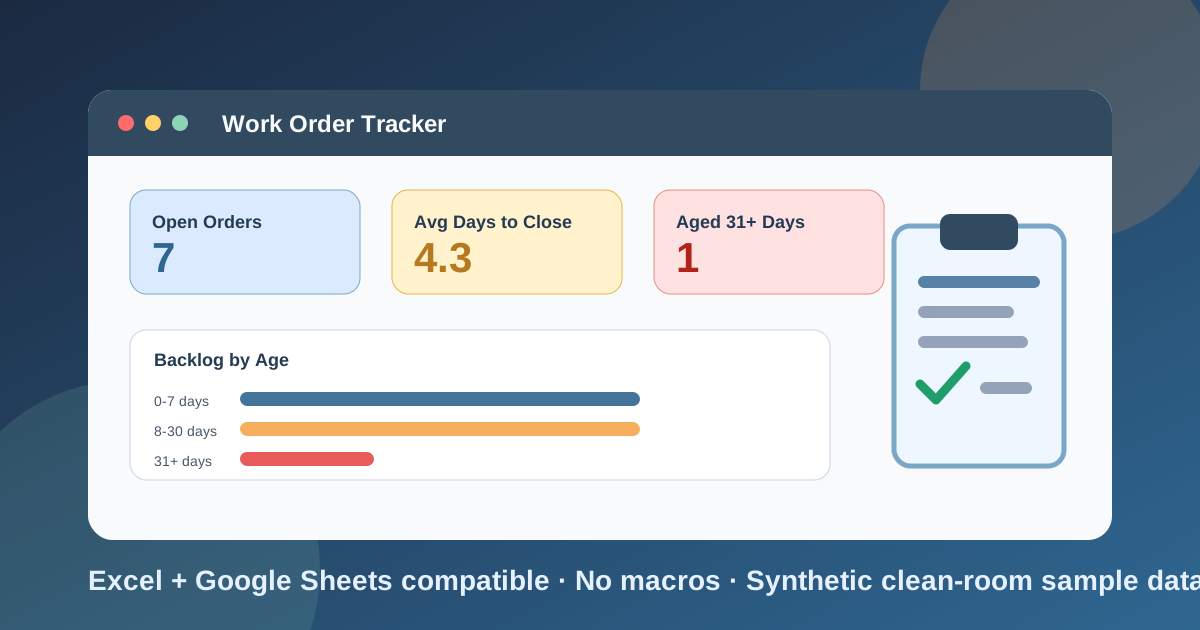
I built this work order template for a problem that shows up in almost every small maintenance or facilities team: requests arrive by text, email, and hallway conversation, jobs get done, and then someone asks how many are still open, how long they have been open, and who is carrying them. The honest answer is usually “let me check,” followed by twenty minutes of scrolling.
Download the work order template - it is a plain .xlsx, no macros, no external data connections, no sign-up. Open it in Excel or import it into Google Sheets, replace the synthetic sample requests and work orders with your own, and the aging buckets, technician workload, monthly report, and dashboard recalculate from there.
It is a work order tracker, not a form-only template. Plenty of work order templates give you a single printable page and stop there. This workbook has that page too, but the part I wanted most was the part that comes after: a log you can count, a backlog you can age, and a monthly report that answers the question your manager is going to ask.
Video walkthrough
Here’s a short video walkthrough of the workbook, with captions, showing how the sheets fit together.
Who I built this for
I built this for a facilities coordinator, maintenance supervisor, property manager, office manager, or the person at a small company who ends up holding the repair list because nobody else will. If your current process is a shared inbox, a whiteboard, and a memory for who said what, this gives you a more controlled place to start. If you already run a maintenance management system, this can still work as a simple reporting export or as a teaching example for the team.
The workbook assumes you want to answer six practical questions:
- What requests have come in, and which ones are still waiting for a work order?
- What work orders are open right now?
- How old is each open work order, and how many have been open more than a month?
- Who is assigned to what, and who has the most open work?
- How many orders did we open and close each month, and how long did closing take?
- Where is the money going, by category?
That is why the file has a request log, a work order log, a technician list, a monthly report, and a dashboard instead of one giant table. One sheet can do all of it for a while. Once you have a few dozen orders, a single table is hard to audit, and every new question means another filter you have to remember.
What’s in the workbook, sheet by sheet
The workbook ships with six sheets, in this exact order:
- Instructions - a concise setup guide, color legend, clean-room disclosure, Google Sheets note, and limitations.
- Requests - the intake log. Each row has a request ID, date received, requester, location or asset, issue, category, and priority. When a request becomes a work order, you type the work order number into one column. The sheet then shows whether the request is still waiting, how many days it took to convert, or how many days it has been waiting.
- Work Orders - the main log, with a printable form block on top. Each row captures the work order number, opened date, requester, location, issue, category, priority, technician, status, closed date, labor hours, and parts cost. Labor cost, total cost, days to close, age, age bucket, and an open flag are calculated.
- Technicians - your team list with hourly rates, plus calculated workload: orders assigned, open and closed counts, labor hours, labor cost, average days to close, and each person’s share of the open backlog.
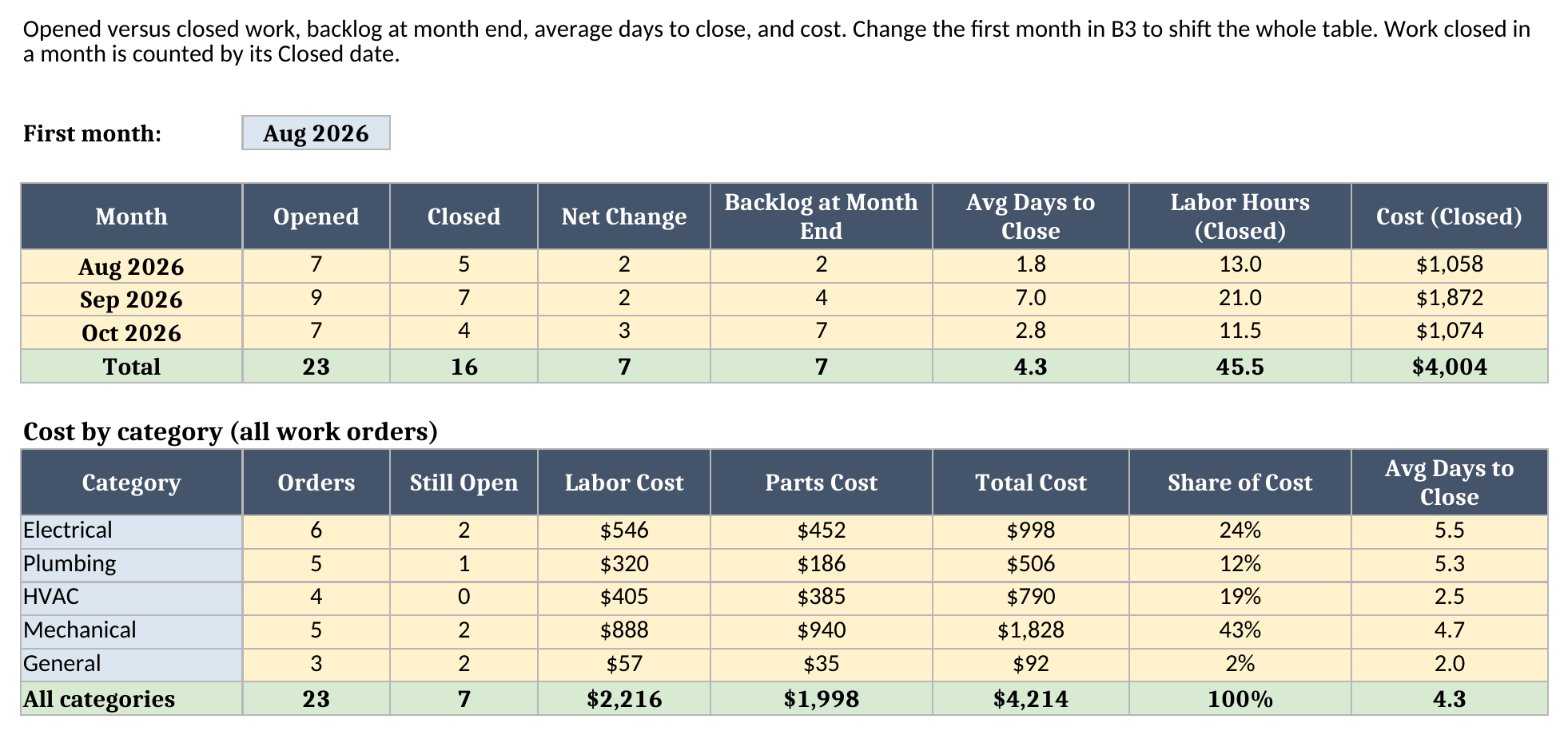
- Monthly Report - the calculated monthly view: work opened, work closed, net change, backlog at month end, average days to close, labor hours, and cost, plus a cost-by-category table.
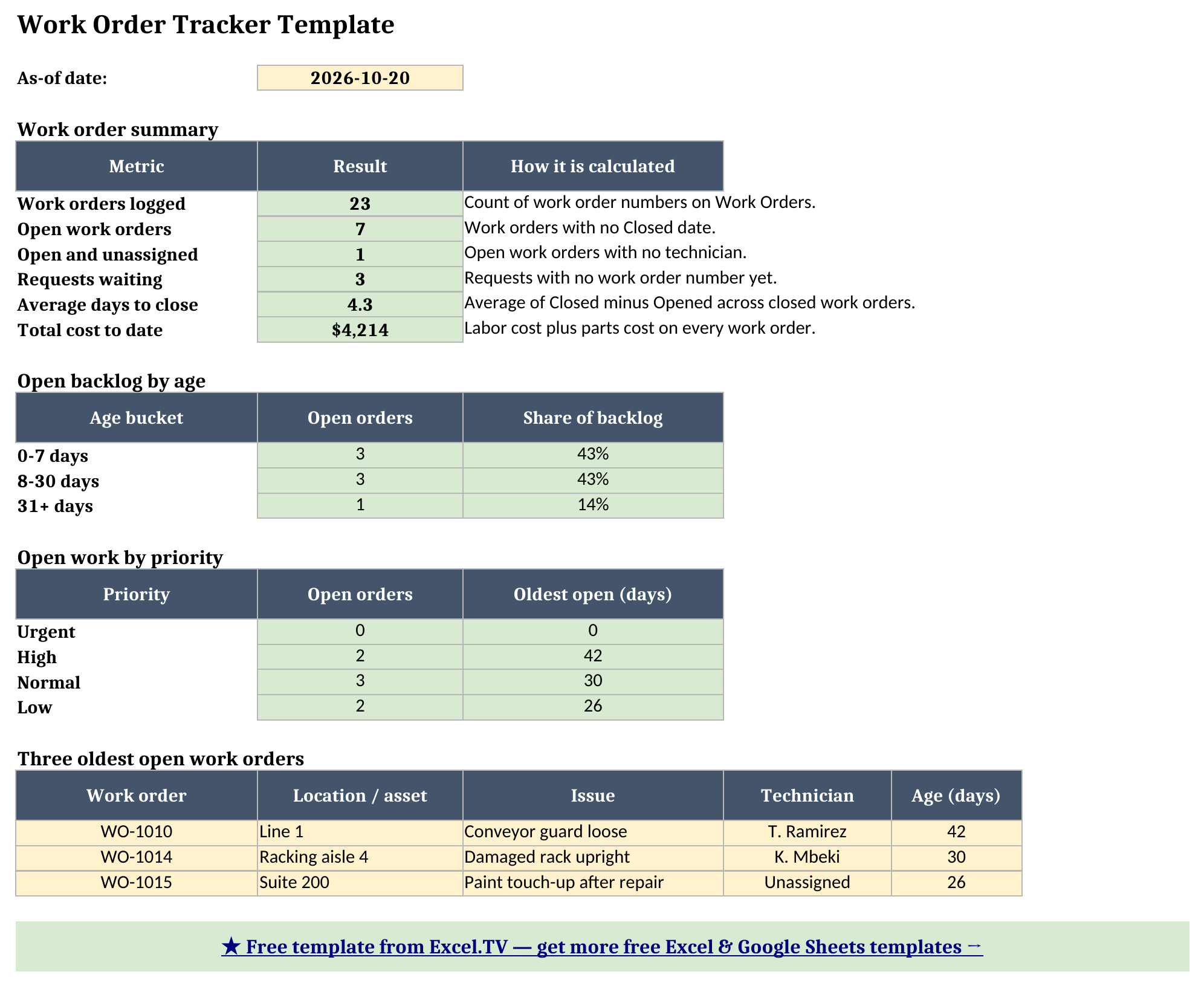
- Dashboard - the one-page output: work orders logged, open orders, open and unassigned, requests waiting, average days to close, total cost, the backlog by age bucket, open work by priority, and the three oldest open work orders.
The required inputs are the technician list, the request rows, and the work order rows. The main outputs are the Monthly Report and the Dashboard. I colored the input cells blue, the calculated cells yellow, and the headline results green, so it is obvious where your data goes and where formulas live.
How I set up the Work Orders sheet
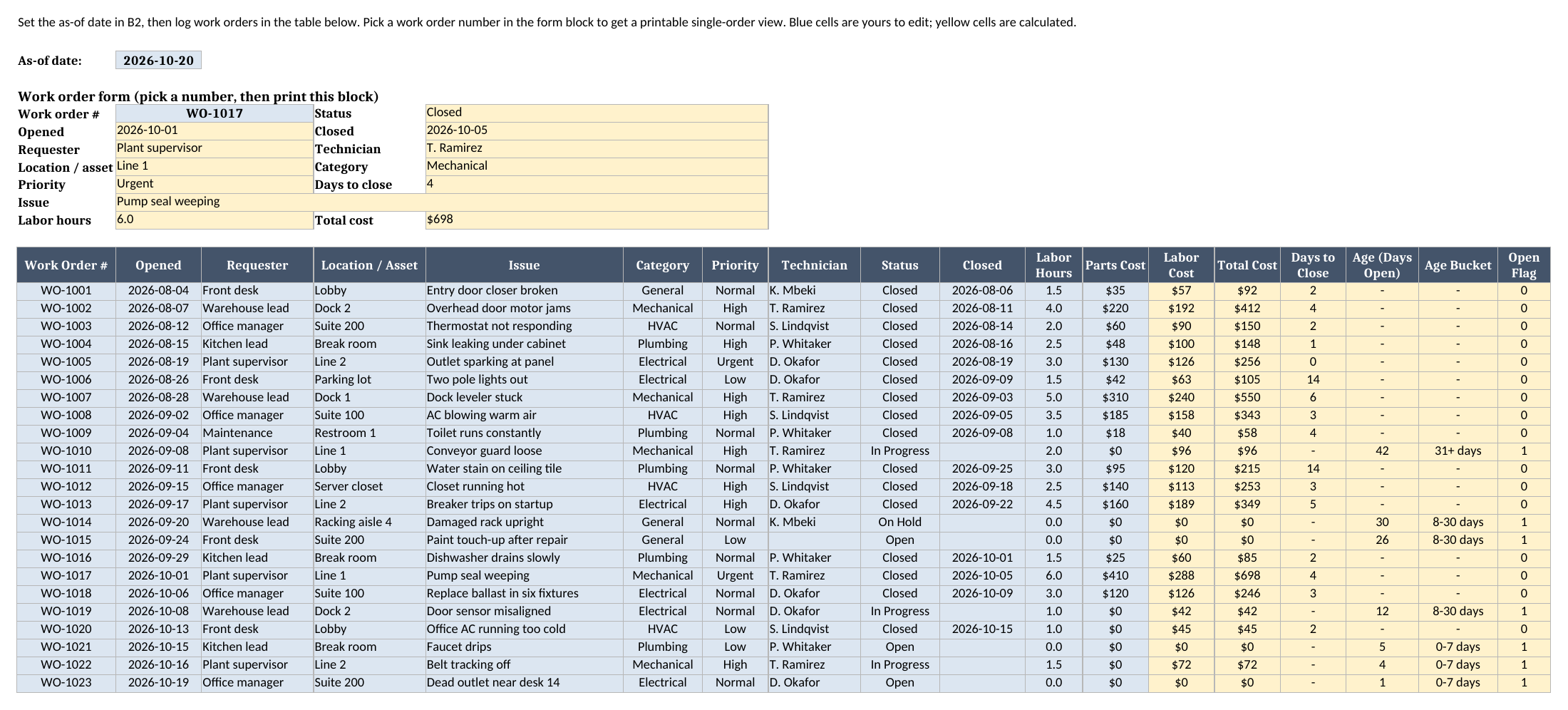
Work Orders is the sheet most people will live in, so I built it first and let everything else lean on it. The first thing on the sheet is the as-of date in cell B2. I set it to October 20, 2026 in the sample file. Every age on the sheet is measured against that date.
I deliberately did not use the current-date function for this. A work order tracker that recalculates against “today” gives you a different answer every time you open the file, which makes a monthly report almost impossible to reproduce. Type the day you are reviewing into B2, which is normally today. The as-of date sets the age clock; it does not rewind the log. The open count always follows the Closed dates as entered, so for the backlog at the end of a past month, read Backlog at Month End on Monthly Report instead. If B2 is earlier than your newest Opened date, a red note appears beside it, because some ages would come out negative.
Below that is the form block. Pick a work order number in the blue cell and the block fills in the status, opened and closed dates, requester, technician, location, category, priority, days to close, issue, labor hours, and total cost. It is a printable single-order view for the clipboard or the technician’s truck. I used INDEX and MATCH for it, so there is nothing to refresh.
The log itself starts under the form. The calculated columns are the ones I care about:
- Labor Cost multiplies labor hours by the technician’s hourly rate from the Technicians sheet.
- Total Cost is labor cost plus parts cost.
- Days to Close is the closed date minus the opened date, and shows a dash while the order is open.
- Age (Days Open) is the as-of date minus the opened date, and only shows for open orders.
- Age Bucket sorts open orders into
0-7 days,8-30 days, or31+ days. - Open Flag is
1when the Closed cell is blank and0once it has a date. Everything else, from the dashboard to the technician workload, counts that flag.
I made Status a dropdown with Open, In Progress, On Hold, and Closed because your team will want to say more than open or closed. But the count of open orders keys off the Closed date, not the Status word. The reason is boring and practical: a dropdown can say “Closed” while the date is missing, and a date cannot. If the date is missing, the order stays in the backlog until someone fixes it, which is the safer failure.
How requests become work orders
Requests is the sheet I would have wanted when I first tracked repairs in a spreadsheet. Most trackers start at the work order, but the delay that annoys people is often earlier: the request that sat in an inbox for a week before anyone turned it into a job.
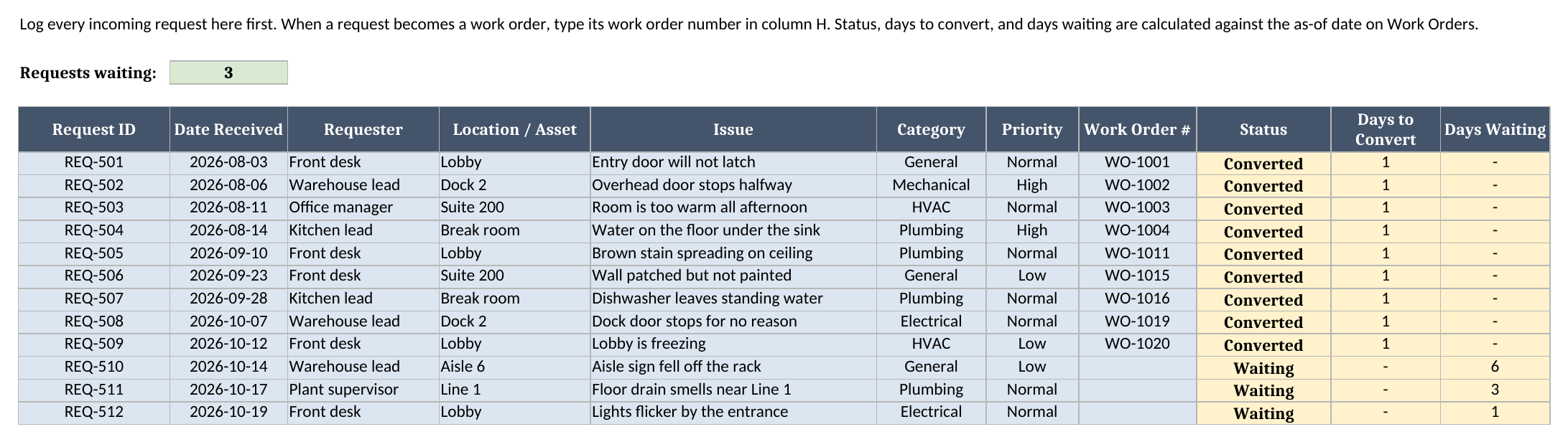
Each request gets an ID like REQ-501, a received date, a requester, a location, an issue, a category, and a priority. The Work Order # column is blank until a request is converted. Then:
- If the cell is blank, Status says
Waiting, and Days Waiting counts from the received date to the as-of date. - If you type a work order number that exists on Work Orders, Status says
Converted, and Days to Convert shows how many days passed between the request and the opened date of that work order. - If you type a number that is not on the log, Status says
WO # not found, so a typo does not silently disappear.
In the sample data, nine of the twelve requests were converted within a day, and three are still waiting. Those three are the kind of thing that vanishes in a busy week: an aisle sign that fell off a rack, a floor drain smell near Line 1, and flickering lights by the entrance. The count of waiting requests shows at the top of the sheet and again on the Dashboard.
You do not have to use Requests. If your work orders come from somewhere else, leave the sheet empty and everything else still works. I included it because the waiting number is one of the few early-warning signals a spreadsheet can give you for free.
How the backlog aging works
The signature mechanic in this workbook is the aging bucket. An open count by itself is a weak number: seven open work orders could be seven fresh jobs or seven jobs that have been ignored for a month. The bucket tells you which.
The rule is simple, and I kept it visible in the formula so you can change it:
Age = As-of date - Opened date
Then:
- 7 days or fewer goes in
0-7 days. - 8 through 30 days goes in
8-30 days. - More than 30 days goes in
31+ days.
I used helper columns for the open flag and the bucket instead of one long formula, because the Dashboard can then count the buckets with a plain COUNTIF. That also makes the workbook easier to audit: if the Dashboard says one order is in 31+ days, you can scroll the Age Bucket column and find it.
The Dashboard shows the three oldest open work orders with a LARGE and MATCH pair on a hidden helper column. The helper adds a tiny fraction based on the row number to each age, so two orders with the same age do not collide. That is the one place I tolerate a hidden column, and it is noted in the Limitations section below.
How technician workload and the monthly report work
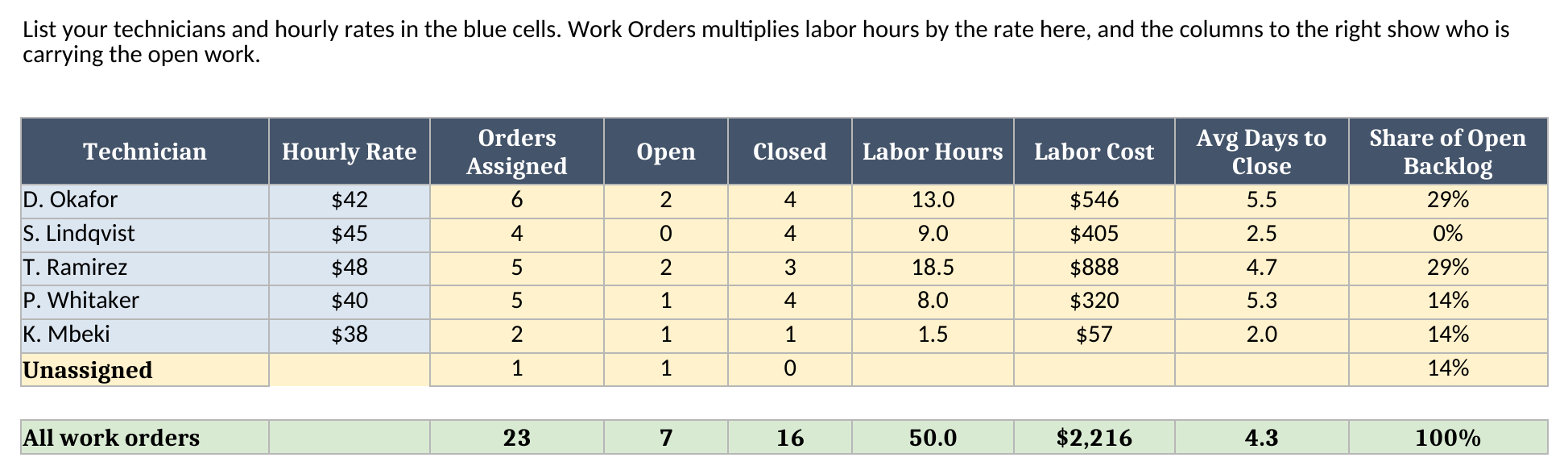
Technicians is a short sheet, but it does two jobs. The blue columns are your team and their hourly rates, which feed the labor cost on Work Orders. The yellow columns count each person’s assigned orders, open orders, closed orders, labor hours, labor cost, average days to close, and share of the open backlog. There is also an Unassigned row, because an open order with no technician is a different problem from an open order that is simply old.
Monthly Report answers the question I see most often from people who search for a maintenance report template in Excel: how much work came in, how much went out, and what did it cost? It has one row per month, starting from the first month you set in cell B3. For each month it counts:
- Opened: work orders whose opened date falls in the month.
- Closed: work orders whose closed date falls in the month.
- Backlog at Month End: everything opened up to the end of the month, minus everything closed up to the end of the month.
- Avg Days to Close: the average days to close for orders closed in the month.
- Labor Hours and Cost for the orders closed in the month.
The Total row covers only the months shown, including its average days to close, so moving B3 moves the totals with it. Under that is a cost-by-category table covering every work order, with orders, still-open count, labor cost, parts cost, total cost, share of cost, and average days to close. I used SUMIFS, COUNTIFS, and AVERAGEIFS throughout rather than a PivotTable, because they import into Google Sheets without any translation and you can click into any cell and see exactly what it counts.
Worked example from the sample workbook
The sample workbook holds 23 synthetic work orders and 12 requests, measured as of October 20, 2026. Every number below was recalculated from the generated workbook, not typed in by hand.
The Dashboard’s summary block reads:
| Metric | Value in the cell |
|---|---|
| Work orders logged | 23 |
| Open work orders | 7 |
| Open and unassigned | 1 |
| Requests waiting | 3 |
| Average days to close | 4.3125 |
| Total cost to date | $4,214 |
The sheet displays the average with one decimal, so you see 4.3, but the cell holds 4.3125. The seven open work orders split across the aging buckets like this:
| Age bucket | Open orders |
|---|---|
| 0-7 days | 3 |
| 8-30 days | 3 |
| 31+ days | 1 |
Two rows are worth checking by hand, because they show the date logic working. Work order WO-1017, a pump seal on Line 1, was opened on October 1, 2026 and closed on October 5, so its Days to Close is 4. It took 6.0 labor hours at a $48 rate, which is $288 of labor, plus $410 in parts, for a total of $698. Work order WO-1014, a damaged rack upright, was opened on September 20, 2026 and is still open on the October 20 as-of date, so its age is 30 days and it lands in the 8-30 days bucket, one day short of 31+ days. Change B2 to October 21 and it moves up a bucket.
The three oldest open work orders on the Dashboard are WO-1010 (a loose conveyor guard on Line 1, 42 days), WO-1014 (the rack upright, 30 days), and WO-1015 (a paint touch-up in Suite 200, 26 days and still unassigned). Open work by priority shows no urgent orders, two high, three normal, and two low, with the oldest high-priority order at 42 days. That is the conversation I want the Dashboard to start: the high-priority conveyor guard has been open six weeks, and nobody would have noticed from the open count alone.
The Monthly Report for the sample data reads:
| Month | Opened | Closed | Backlog at month end | Avg days to close | Cost of closed orders |
|---|---|---|---|---|---|
| Aug 2026 | 7 | 5 | 2 | 1.8 | $1,058 |
| Sep 2026 | 9 | 7 | 4 | 7 | $1,872 |
| Oct 2026 | 7 | 4 | 7 | 2.75 | $1,074 |
| Total | 23 | 16 | 7 | 4.3125 | $4,004 |
The backlog column is the story: the team opened more than it closed in every month, and the backlog grew from 2 to 7. The $4,004 total is the cost of closed work only; the $4,214 on the Dashboard also includes $210 of labor already logged against orders that are still open.
By category, Mechanical work is the biggest spend at $1,828 across 5 orders, followed by Electrical at $998 across 6 orders, HVAC at $790 across 4, Plumbing at $506 across 5, and General at $92 across 3.
Work orders versus preventive maintenance, and a spreadsheet versus a CMMS
This workbook tracks reactive work: something broke, someone asked, and a work order was opened. It is a different animal from scheduled preventive maintenance, where the work is planned from an asset list and a due-date calendar. If you also need that side, I built a separate preventive maintenance schedule template with an asset register, due-date schedule, and downtime summary. The two work well side by side: preventive tasks create planned work orders, and breakdowns create reactive ones, and a team that tracks both can see whether its planned work is actually reducing the unplanned work.
On the question of a spreadsheet versus a maintenance management system: I think a spreadsheet is the right first tool for a small team, and I think you should know when you have outgrown it. For me, the signals are:
- More than one person needs to update the same work order at the same time.
- Technicians need to see and close their own jobs from a phone.
- You need automatic reminders, escalation, photos, or signatures.
- You need parts inventory tied to the work order.
- An auditor or customer needs a history you can prove was not edited later.
Until then, a tracker you understand beats a system nobody has time to configure. And if you bill for the work, a simple invoice template pairs nicely with the cost columns here.
How to use this in Google Sheets
This workbook also works as a work order tracker for Google Sheets. Import the .xlsx directly:
- Download the workbook from the Excel template link.
- Open Google Sheets.
- Choose File > Import > Upload.
- Select the downloaded
.xlsxfile. - Choose Insert new sheet(s) or create a new spreadsheet from the upload.
- Review the Work Orders form block and the Dashboard after import.
No formula substitutions are required for the workbook as authored. The formulas are limited to SUM, SUMIF, SUMIFS, COUNTIF, COUNTIFS, AVERAGE, AVERAGEIFS, SUMPRODUCT, IF, IFERROR, INDEX, MATCH, DATE, YEAR, MONTH, LARGE, and arithmetic. Those functions are native to Excel and Google Sheets. The dropdowns for priority, category, status, and technician are standard data validation, so they carry over too.
The one thing I always check after a Google Sheets import is visual formatting. Colors, row heights, merged cells in the form block, and print sizing can render slightly differently between spreadsheet engines. The calculations are intentionally plain; the visuals are the only part I would inspect before sharing the file with a team.
How to customize the template safely
Start with Technicians. Replace the sample names and rates with your own team, and keep each name unique, since Work Orders uses the name to look up the rate. The Technician dropdown on Work Orders reads this list, so new names show up there on their own. If you rename someone, update their name on the existing work orders too. A technician who is not on the list gets zero labor cost rather than a guess, and a red note appears in cell A2 of the Technicians sheet counting the work orders affected.
Then clear the sample rows on Work Orders and enter your own. Keep the blue columns as inputs and leave the yellow columns alone. If you add rows past the sample 23, copy the formulas down in the calculated columns, and extend the ranges on the Technicians, Monthly Report, and Dashboard formulas to match. The ranges are sized to the sample on purpose, so the file stays small and easy to read.
If your team thinks about age differently, edit the Age Bucket formula. I picked 7 and 30 days because a week and a month are the cutoffs I hear most often in maintenance meetings. A team with a one-day response target might prefer 0-1, 2-7, and 8+. The formula is visible so you can change the thresholds without rewriting anything else, but remember to update the bucket labels on the Dashboard to match.
If you want more categories, add them to the dropdown on Work Orders and Requests, then add a matching row to the cost-by-category table on Monthly Report. Add months the same way: copy the last month row down and the formula steps forward to the next month on its own.
Limitations to know before relying on it
A few limitations are worth calling out clearly:
- It is a tracker, not a CMMS. There is no dispatching, no reminders, no photos, no parts inventory, and no sign-off workflow.
- Open means no Closed date. If a job is finished but nobody entered the date, it still counts as open and keeps aging. Status words alone do not close an order.
- Aging is measured against the as-of date. Update B2 whenever you review the backlog, or the ages will be stale. The date does not rewind the log, so use Backlog at Month End for past months.
- Formula ranges are sized to the sample. You can add requests, work orders, and technicians, but you need to copy formulas down and extend references deliberately.
- Ties on the oldest-three list are broken by row order. A hidden helper column adds a small row-based fraction to each open order’s age so two orders with the same age do not collide.
- Monthly backlog assumes your log starts at the first month. If you have older open work, enter it with its real opened date and set the first month early enough to include it.
- Spreadsheet dates need discipline. If someone types text that looks like a date but is not a real spreadsheet date, the date math will not behave correctly.
I built the file this way because a work order tracker should be easy to inspect. The formulas are visible, the sample data is synthetic, the inputs are separated from the outputs, and every dashboard number ties back to ordinary worksheet rows. That is the difference between a tracker people can keep up and a pretty download that falls apart the first week a few jobs run late.
Grab the work order template, replace the sample data with your own requests and work orders, and let the Dashboard tell you which jobs have been waiting too long.
