
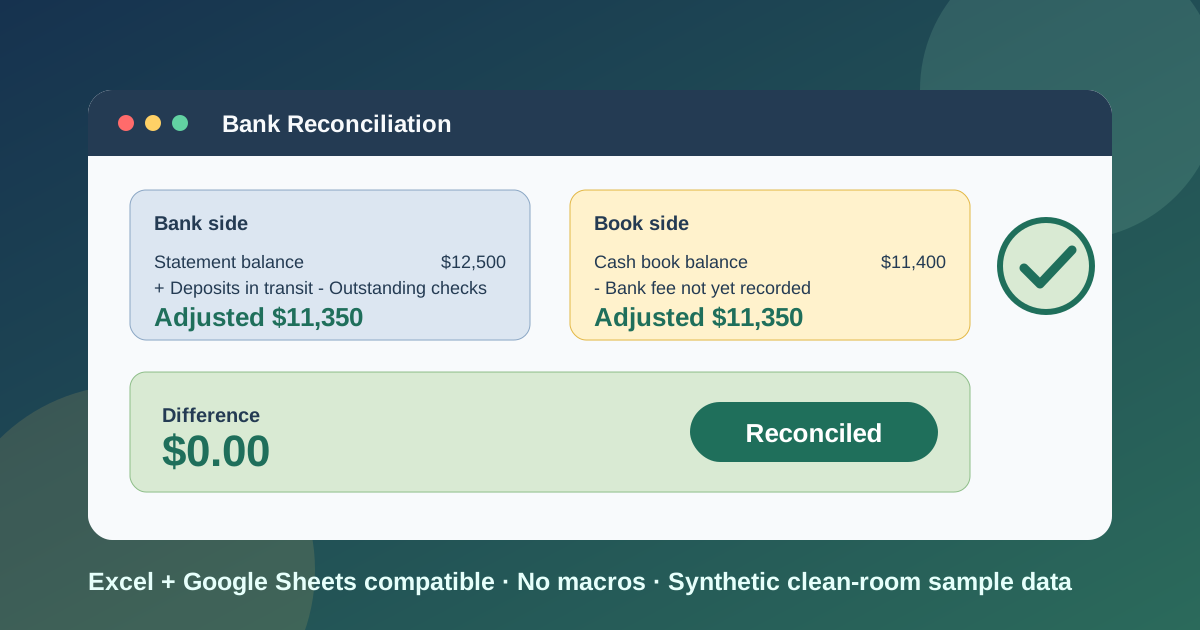
Every month-end I see the same thing: the number in the books and the number the bank shows are different, and nobody can say why without an hour of scrolling. The bank reconciliation template below is the spreadsheet I use to close that gap. You enter the statement, you enter your own cash entries, and a single difference cell tells you whether the two sides agree.
Download the bank reconciliation template - it is a plain .xlsx, no macros, no external data connections, and no sign-up. Open it in Excel or import it into Google Sheets, replace the synthetic September sample with your own month, and the adjusted balances, status, and dashboard recalculate.
Video walkthrough
Here’s a short video walkthrough of the workbook, with captions, showing the four sheets in order.
Who I built this for
I built this for a bookkeeper, small-business owner, office manager, or finance lead who reconciles one or a few accounts by hand each month and wants the logic written down in cells instead of in their head. It also suits someone learning how a bank reconciliation statement format works, because every adjustment sits on its own labeled row with a note beside it.
It is not accounting software. It does not import a bank feed or post journal entries. What it gives you is the proof: an adjusted bank balance, an adjusted book balance, and a difference, laid out the way an accountant or auditor would expect to see them.
The workbook answers five practical questions:
- What does the bank say we have, and does that statement add up on its own?
- What does our cash book say we have?
- Which of our entries has the bank not processed yet?
- Which bank items have we not recorded yet?
- After those adjustments, do the two balances agree?
What’s in the workbook, sheet by sheet
The workbook has five sheets, in this order:
- Instructions - setup steps, the color legend, a clean-room disclosure, the Google Sheets note, and limitations.
- Bank Statement - the bank side. The statement end date, opening balance, and ending balance sit at the top, followed by every statement line with a date, reference, description, type, signed amount, and an In Cash Book? flag.
- Cash Book - your side. The opening book balance and every receipt and payment for the period, each with a Cleared at bank? flag and a Carried from last month? flag. Calculated columns label every uncleared item as a deposit in transit or an outstanding check and count how many days it has been open.
- Reconciliation - the proof. Bank side, book side, difference, status, and two item lists that show exactly which entries sit behind the adjustments.
- Dashboard - the status, the four balances, counts of open items, and an aging table.
Blue cells are for your data, yellow cells calculate, and green cells are results. The required inputs are the statement lines on Bank Statement and the entries on Cash Book. Everything else is formulas.
How I set up the Bank Statement sheet
Start with the three numbers printed on your statement: the end date, the opening balance, and the ending balance. I type the ending balance in rather than calculating it, because the statement is the outside evidence and I want my own arithmetic checked against it. Right under those cells, the workbook totals your transaction lines and runs a statement check: opening balance plus transactions must equal the ending balance. If it reads Check, a line is missing or mistyped, and there is no point reconciling until it reads OK.
Then list the statement lines. Money in is positive and money out is negative. Each line gets a type from a dropdown (Deposit, Check, Transfer, Fee, Interest, NSF, or Other) and an In Cash Book? flag. That flag is the important one. Answer Yes if your books already record the item and No if the bank did something you have not recorded, like a monthly service fee or interest credit.
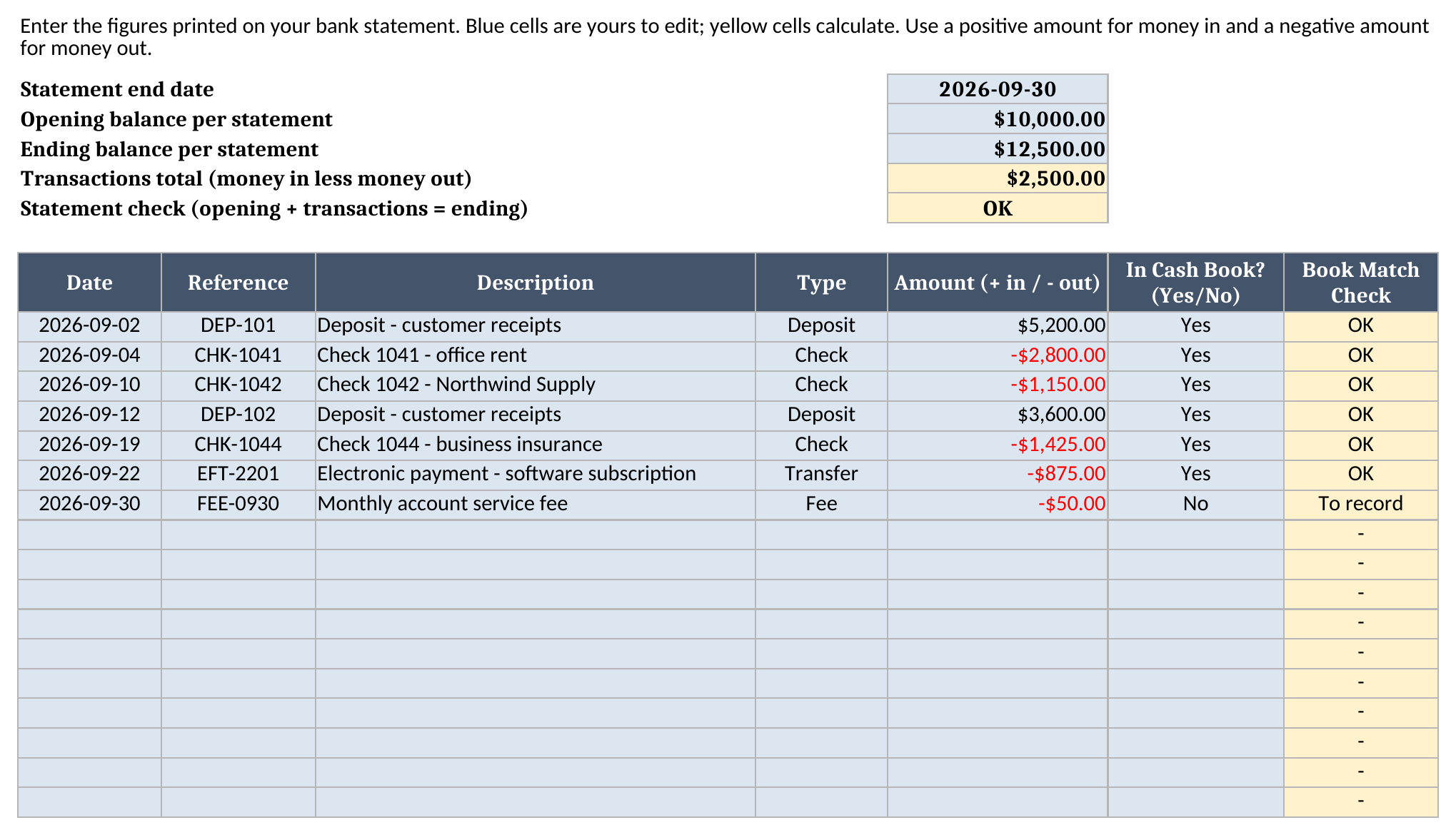
The last column, Book Match Check, looks up each Yes line’s reference on the Cash Book. If you said the item is in your books but its reference is nowhere on the Cash Book, the cell reads Check. That catches typos in check numbers before they turn into a mystery difference.
How the Cash Book marks what has cleared
Cash Book starts with your opening book balance, then your entries. Receipts are positive and payments are negative. Use the same reference the bank prints, such as the check number or deposit ID, because that is what the match checks compare.
For every entry you choose Yes or No under Cleared at bank?. The calculated columns then do the sorting for you:
- A No with a positive amount is a deposit in transit.
- A No with a negative amount is an outstanding check.
- Days Outstanding counts from the entry date to the statement end date, so an old uncleared check stands out.
- Match Check compares your flag with the statement. A Yes with no matching reference on Bank Statement, or a No whose reference does appear there, reads
Check.
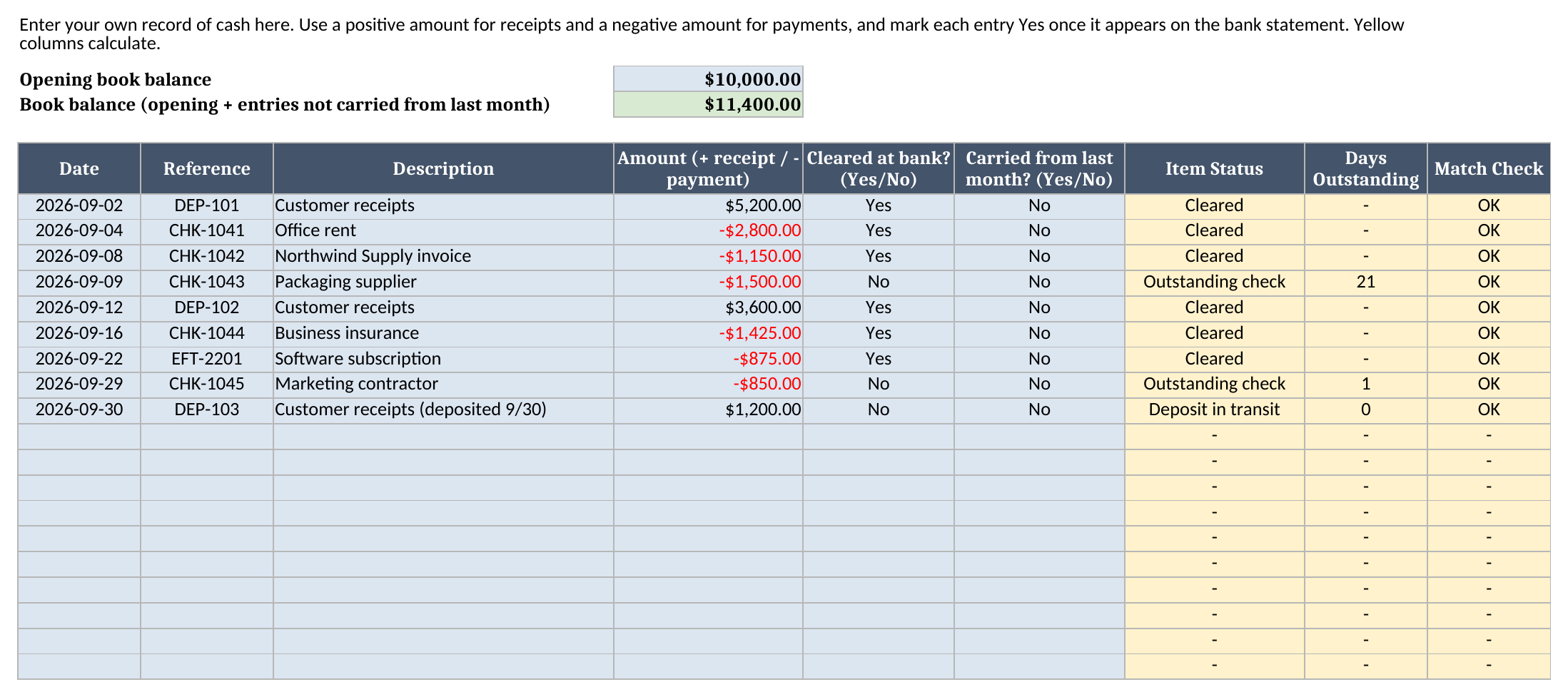
The book balance at the top is the opening balance plus every entry that was not carried from last month, so it updates as you type. The Carried from last month? flag is for items you bring forward from the prior reconciliation: it keeps an old outstanding check in the bank-side adjustments without adding it to the book balance a second time. In your first month every entry is a No. The sums on every sheet read down to row 205, so new rows are picked up without editing a formula. The yellow helper cells are already filled in the sample rows and the 10 empty rows under them, and they show a dash until you type in a row.
How the Reconciliation sheet proves the balance
This sheet is the reason the workbook exists. It has two sides that must meet.
Bank side. Start with the balance per the bank statement. Add the deposits in transit, because the bank will show them in a day or two. Subtract the outstanding checks, because the bank will pay them later. Then add or subtract any bank error. The result is the adjusted bank balance, which is what the bank balance will be once its timing catches up.
Book side. Start with the balance per the cash book. Add bank credits you have not recorded, such as interest or a direct deposit. Subtract bank charges you have not recorded, such as fees and NSF items. Then add or subtract any error in your own books. The result is the adjusted book balance, which is what your books will say once you record the bank items.
Then one cell takes the difference between the two adjusted balances, rounded to the cent. If it is zero the status reads Reconciled. If not, it reads Not reconciled, and the sheet helps you find out why.
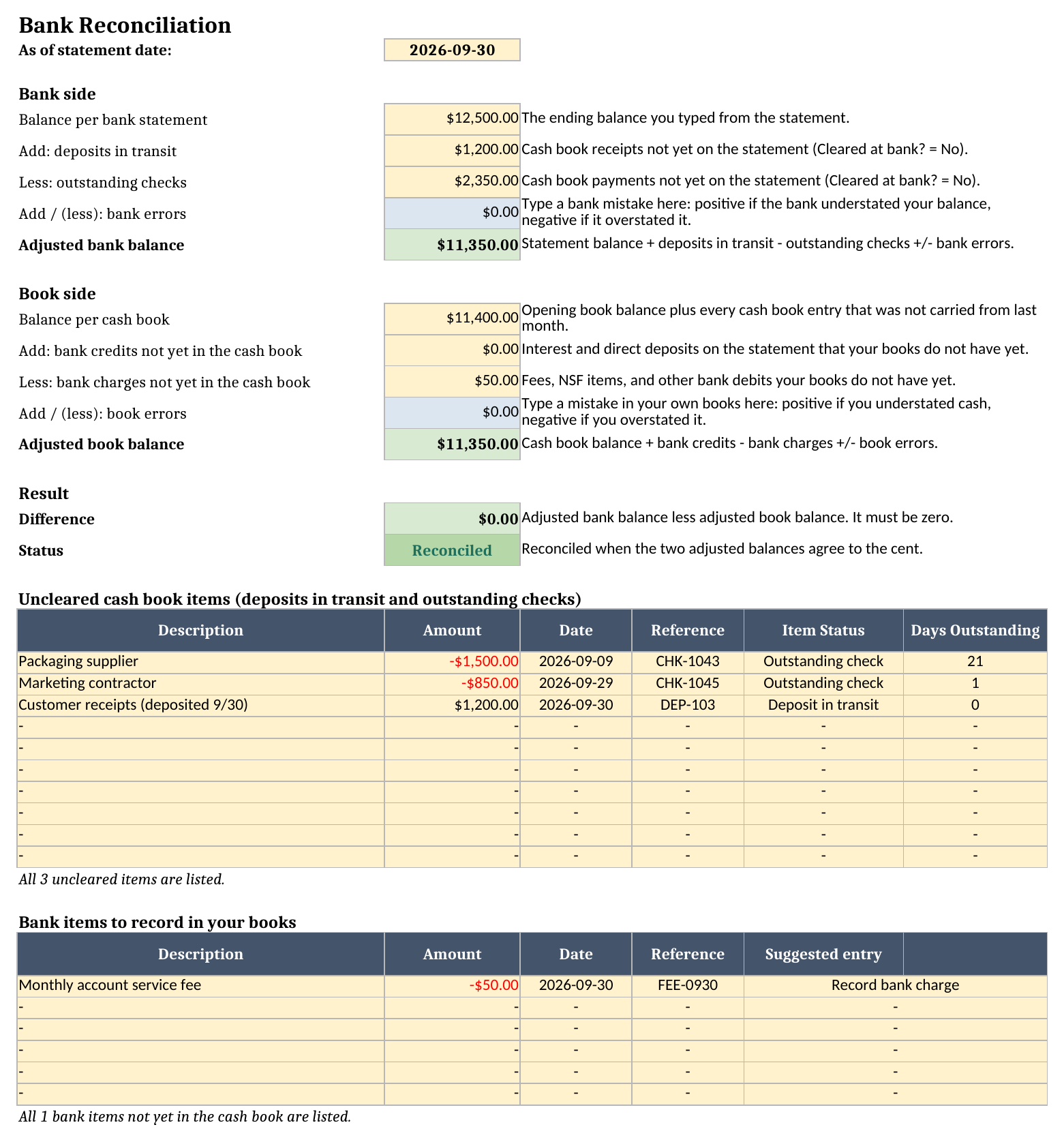
Under the result, two lists spell out the items behind each adjustment. The first lists every uncleared cash book item with its date, reference, and days outstanding. The second lists the bank items you still need to record, with a suggested entry (record a bank charge or record a bank credit). If there are more items than the lists can show, a line under each list warns you, and the totals above still include all of them.
How this differs from the accounting template
If you use the accounting template, you already have a general ledger where transactions are recorded. A bank reconciliation does something different: it does not record anything, it checks that the cash side of the ledger matches an outside document. Use the ledger to write transactions down and this workbook to prove the cash balance at month-end. The same split shows up on the balance sheet template, where the cash line should agree with the adjusted balance you get here, and on the cash flow forecast template, where a trustworthy opening cash number is the starting point for the forecast.
Worked example from the sample workbook
The sample is a synthetic September: a statement that ends at $12,500.00, a cash book that ends at $11,400.00, three items still in motion, and one bank fee that has not been booked. The numbers below come straight from recalculating the generated workbook, not from my arithmetic.
| Line | Cell | Result |
|---|---|---|
| Balance per bank statement | Reconciliation!B5 | $12,500.00 |
| Add: deposits in transit | Reconciliation!B6 | $1,200.00 |
| Less: outstanding checks | Reconciliation!B7 | $2,350.00 |
| Adjusted bank balance | Reconciliation!B9 | $11,350.00 |
| Balance per cash book | Reconciliation!B12 | $11,400.00 |
| Less: bank charges not yet in the cash book | Reconciliation!B14 | $50.00 |
| Adjusted book balance | Reconciliation!B16 | $11,350.00 |
| Difference | Reconciliation!B19 | $0.00 |
| Status | Reconciliation!B20 | Reconciled |
On the bank side, $12,500.00 plus the $1,200.00 deposit made on September 30 minus $2,350.00 of outstanding checks gives $11,350.00. The two outstanding checks are CHK-1043 for $1,500.00, written on September 9 and open for 21 days, and CHK-1045 for $850.00, written on September 29.
On the book side, the cash book says $11,400.00. The statement shows a $50.00 monthly service fee that the books do not have, so the adjusted book balance is $11,350.00. Both sides land on the same number, the difference is $0.00, and the sheet says Reconciled. The only follow-up is the one the second list spells out: record the $50.00 fee in the books.
The Dashboard repeats this on one screen and adds counts and an aging table.
| Dashboard metric | Cell | Result |
|---|---|---|
| Deposits in transit (count) | Dashboard!B13 | 1 |
| Outstanding checks (count) | Dashboard!B14 | 2 |
| Bank items not in the cash book (count) | Dashboard!B15 | 1 |
| Match checks to review | Dashboard!B16 | 0 |
| Statement foots | Dashboard!B17 | OK |
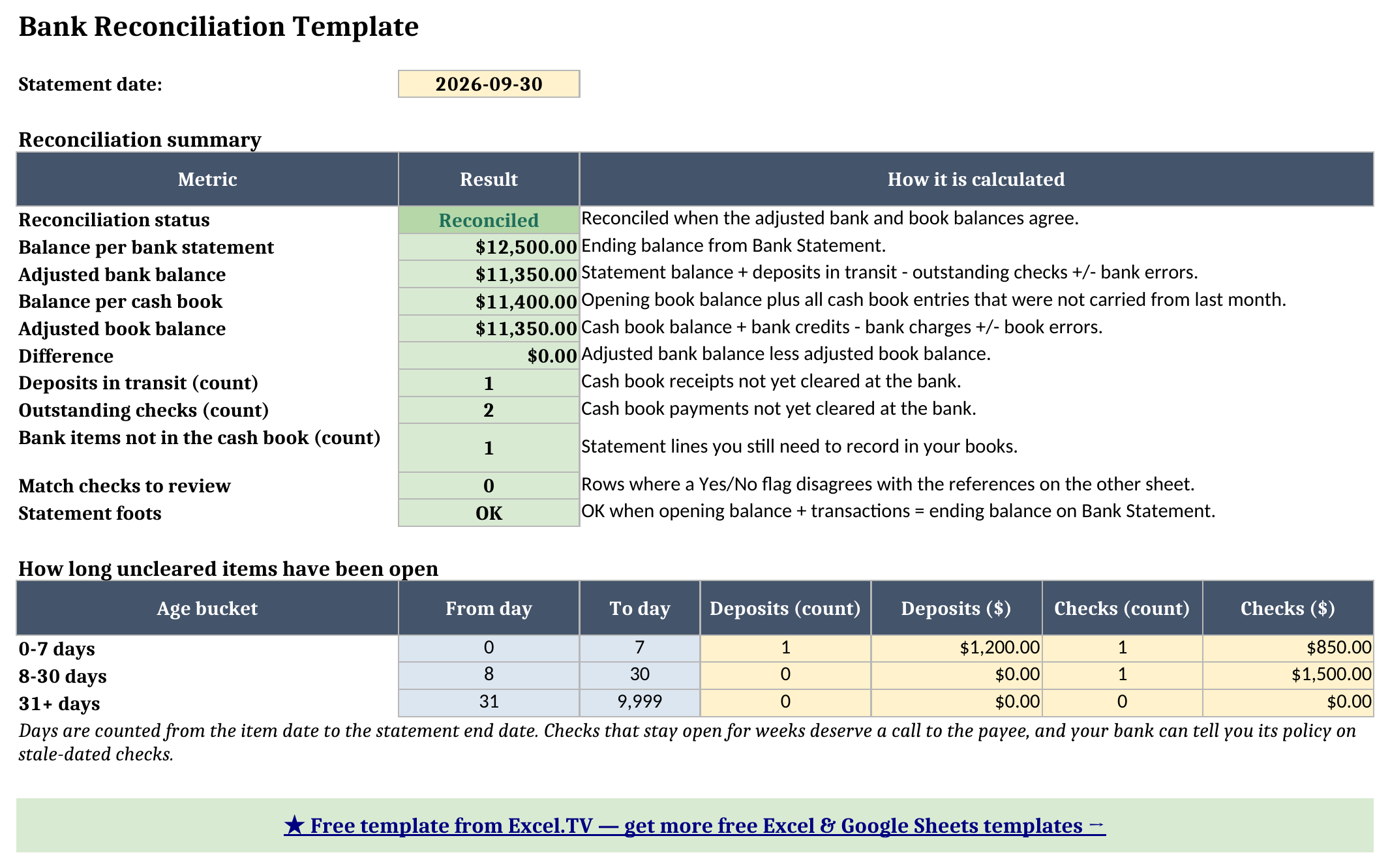
The aging table splits uncleared items into 0-7, 8-30, and 31+ day buckets, and you can change the bucket limits. In the sample, the $850.00 check and the $1,200.00 deposit sit in the 0-7 day bucket and the $1,500.00 check sits in the 8-30 day bucket. A check that creeps into the 31+ bucket is the one I would call the payee about.
How to use this in Google Sheets
The workbook also works as a Google Sheets bank reconciliation template. Import the .xlsx directly:
- Download the workbook from the Excel template link.
- Open Google Sheets.
- Choose File > Import > Upload.
- Select the downloaded
.xlsxfile. - Choose Insert new sheet(s) or create a new spreadsheet from the upload.
- Check the Reconciliation and Dashboard sheets after import.
No formula substitutions are required. The workbook uses SUM, SUMIF, SUMIFS, COUNTIF, COUNTIFS, IF, IFERROR, AND, OR, ISNUMBER, TEXT, INDEX, MATCH, ROUND, and arithmetic, all of which exist in both programs. Dropdowns and the green and red status colors carry over. The one thing I look at after an import is column widths and row heights, since the two programs render those a little differently.
How to customize the template safely
Replace the sample rows one sheet at a time. On Bank Statement, change the end date and the two balances first, then paste your statement lines over the blue cells. On Cash Book, set your opening book balance and replace the entries. If you have fewer lines than the sample, clear the leftover blue cells and leave the yellow columns alone; they show a dash for an empty row. They are filled for 10 rows past the sample, so copy the last yellow row down only if you need more than that.
A few changes are safe and useful:
- Several accounts. Save one copy of the workbook per bank account and per month. The sheets are small enough that this stays manageable, and each file proves one account.
- Outstanding items from last month. Start the new month’s opening book balance at last month’s adjusted book balance. Then copy each item that was still uncleared onto the new Cash Book with Cleared at bank? set to No and Carried from last month? set to Yes. The item stays in the bank-side adjustments until it shows up on a statement, at which point you flip Cleared at bank? to Yes. Because last month’s adjusted book balance already includes the item, the Carried flag keeps it out of the new book balance, so it is never counted twice.
- Different aging buckets. The From day and To day cells on Dashboard are inputs. Change them to match how closely you watch old checks.
- Errors. If the bank or you made a mistake, enter it in the blue error cell on its own side of Reconciliation, with a positive number for an understated balance and a negative number for an overstated one. Fix the mistake at its source afterward.
Limitations to know before relying on it
- It does not match transactions for you. The Match Check columns compare references, which is a safety net and not a matching engine. Two entries with the same reference are not told apart.
- It is built for one account and one period at a time. Reconcile each account separately.
- Helper formulas stop after 10 spare rows. Totals read down to row 205, and the yellow helper columns are filled for the sample rows plus 10 more. Past that, copy the last yellow cells down.
- The item lists have limited slots. Reconciliation shows the first 10 uncleared items and the first 6 bank items to record. A warning appears under each list when there are more, and the totals still include everything.
- A zero difference is necessary, not sufficient. Two mistakes of the same size in opposite directions can cancel. Treat the Match Check and statement check results as part of the proof.
The reason I like this layout is that every number can be traced to a row. The statement check proves the bank side adds up, the cash book proves your side adds up, and the Reconciliation sheet shows the few items that explain the gap between them. When the difference is not zero, you are looking at a short list and not at a whole year of transactions.
Grab the bank reconciliation template, swap in your own statement and cash book, and aim for a difference of exactly zero.
