
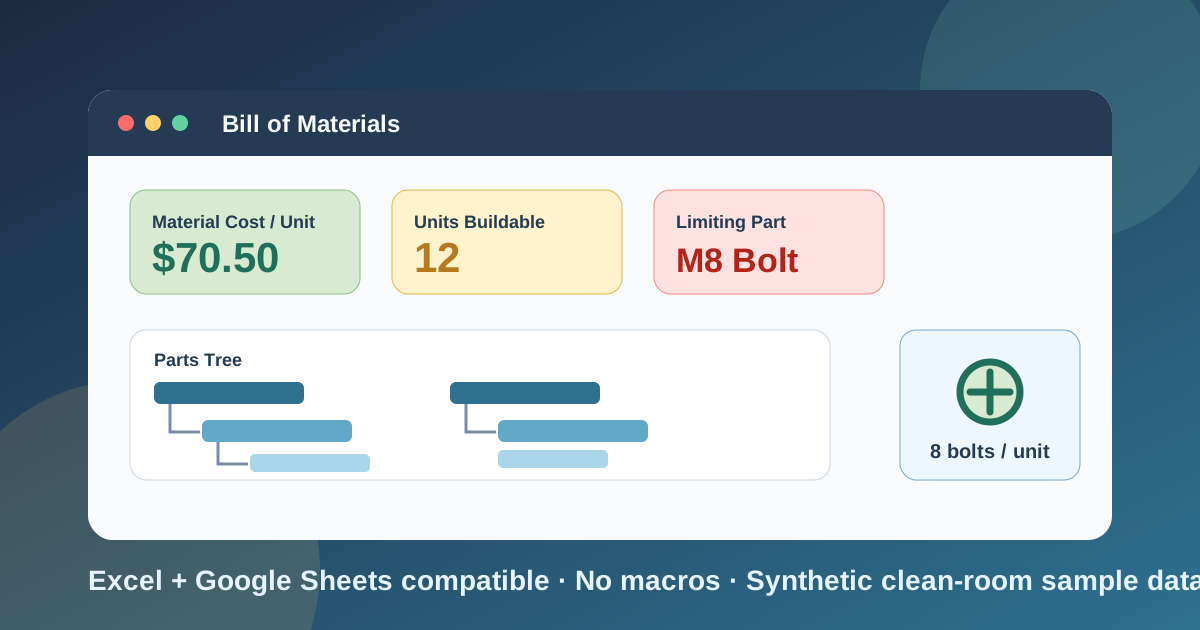
I built this bill of materials template because the question behind it keeps showing up in small manufacturing shops, workshops, and product businesses: what exactly goes into one of these, and what does it cost me to make it? The answer usually lives in three places. The parts list is in one file, the prices are in a supplier email, and the stock count is on a clipboard. Nobody can say, quickly, how many units they can build this week or which part will stop them.
Download the bill of materials template - it is a plain .xlsx, no macros, no external data connections, no sign-up, and nothing to install. Open it in Excel or import it into Google Sheets, replace the synthetic sample workbench with your own product, and the cost rollup, the buildable count, and the dashboard recalculate from there.
A bill of materials, or BOM, is the list of every part, sub-assembly, and raw material needed to make one finished unit, with the quantity of each. A flat list gets you started. A multi-level BOM is what you need once a product has sub-assemblies, because the quantity of a bolt depends on how many legs use it and how many legs the product has. That multiplication, carried down through every level, is the part of this workbook I spent the most time on.
Video walkthrough
Here is a short video walkthrough of the workbook, with captions, showing how the sheets fit together.
Who I built this for
I built this for a small manufacturer, a workshop owner, an operations manager, a product founder, or a purchasing lead who needs a bill of materials template excel users can understand without training. If you assemble kits, build furniture, wire up equipment, or put together anything from bought-in parts, this gives you one place to say what goes in, what it costs, and whether you can build it.
If you already run an ERP or MRP system, the workbook can still be useful as a quick cost model for a new product before it goes into the system. It is not trying to replace production scheduling, revision control, or purchasing automation.
The workbook assumes you want to answer five practical questions:
- What parts and sub-assemblies make up one finished unit?
- How many of each part does one unit need, counting every level?
- What does the material for one unit cost?
- How many units can I build from the stock I have?
- If I want to build a batch, what do I have to buy, and what will it cost?
What’s in the workbook, sheet by sheet
The workbook ships with six sheets, in this exact order:
- Instructions - setup steps, the colour legend, a clean-room disclosure, a Google Sheets note, and limitations.
- Parts - the parts master. Each row has a part number, description, type (Finished, Sub-assembly, or Purchased), unit of measure, unit cost, quantity on hand, and supplier. Two calculated columns show the stock value of each part and whether the BOM uses it.
- BOM - the multi-level bill of materials. Each row names a parent part, a part, and the quantity needed per parent. The sheet calculates the level, the extended quantity per finished unit, the unit cost, the cost of each line, and a Row Check that flags a layout problem.
- Cost Rollup - the material cost of one finished unit, the cost of each sub-assembly, assembly labor, selling price, and gross margin, with a check that two routes to the material cost agree.
- Buildable - the stock check. It divides on hand by quantity per finished unit, finds the smallest result, names the limiting part, and prices the shortfall for a build quantity you enter.
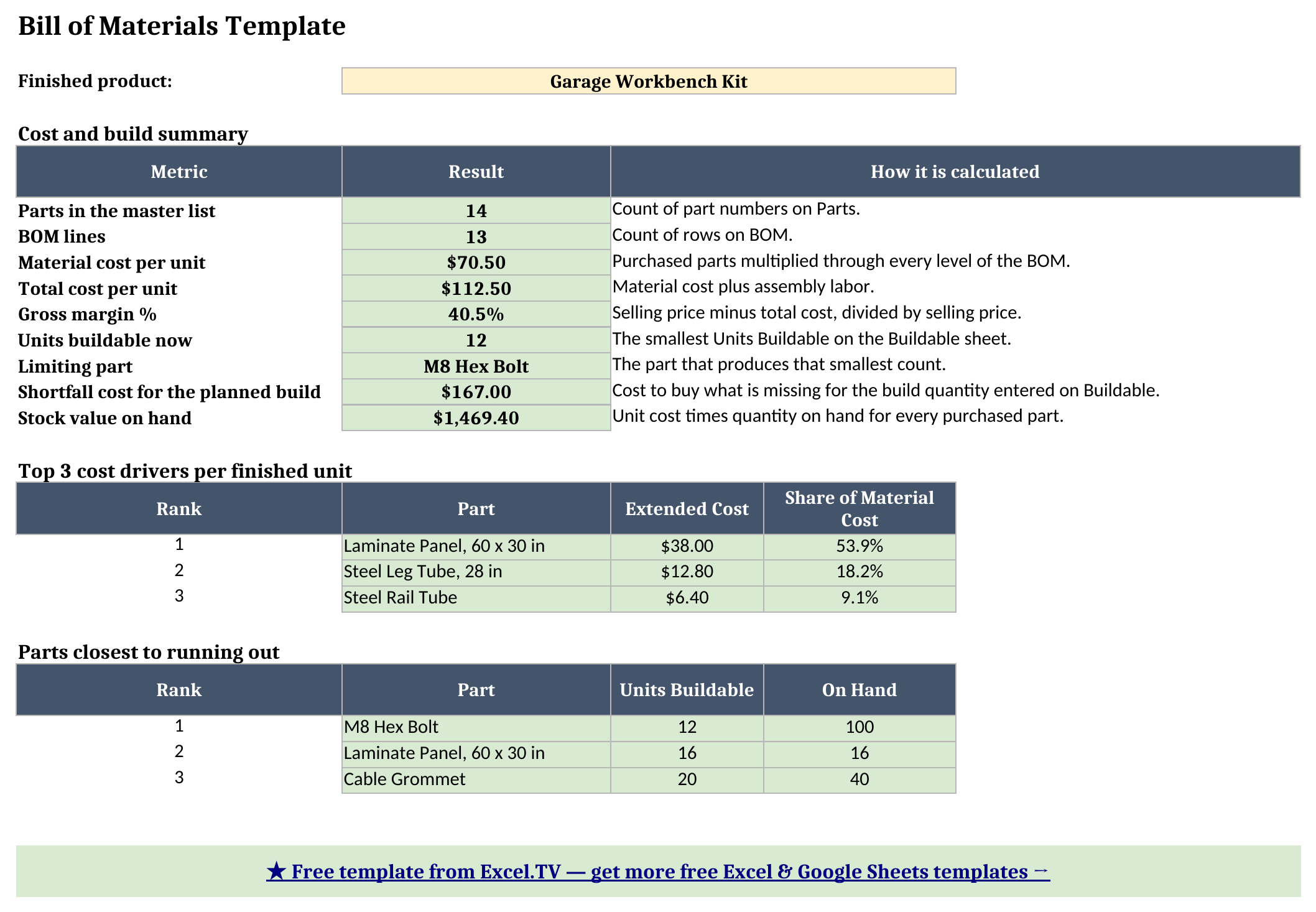
- Dashboard - the one-page output: costs, margin, units buildable, the limiting part, the three biggest cost drivers, and the three parts closest to running out.
The required inputs are the part rows on Parts and the structure rows on BOM. The calculated sheets are Cost Rollup, Buildable, and Dashboard. Input cells are blue, calculated cells are yellow, and headline results are green, so it is always obvious where to type and where to leave alone.
How I set up the Parts sheet
Parts is the foundation because every other sheet looks parts up by part number. I used sample numbers like FG-100 for the finished product, SA-200 for sub-assemblies, and PT-210 for purchased parts. Your real numbers can be anything, as long as each one appears once and only once. Whatever you type in the Part No column becomes the choice list on the BOM sheet, so your own numbers show up in the dropdowns as soon as you enter them.
The type column is the one that matters most. A Purchased part is something you buy, so it carries a unit cost and a quantity on hand. A Sub-assembly is something you build from other parts, so its cost is not typed anywhere; the BOM works it out from what goes into it. The Finished part is the product itself. The sample workbook is a garage workbench kit with three sub-assemblies (a leg assembly, a desktop assembly, and a cross rail assembly) and ten purchased parts.
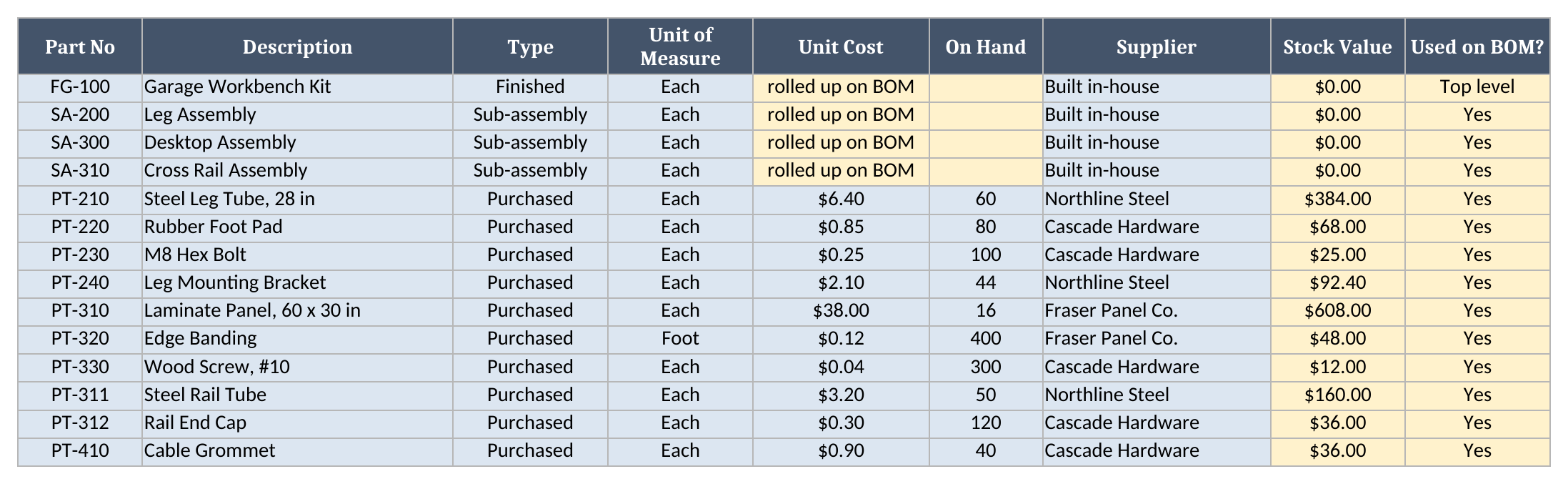
I added two calculated columns so the sheet does a little work for you. Stock Value is unit cost times quantity on hand for purchased parts. Used on BOM? checks whether a part appears in the BOM at all, which catches the part you set up and forgot to place. If a purchased part says No, it is either dead stock or a missing BOM line.
How the BOM sheet multiplies quantities through every level
This is the signature mechanic. On the BOM sheet, you pick the finished product in cell B2, then list every part under its parent. A row has a parent part, a part number, and a quantity per parent. That quantity is only about one parent. Two legs per workbench goes on the leg assembly row. Four bolts per leg goes on the bolt row, under the leg assembly. You never multiply anything by hand.
The sheet calculates the rest. The Level column is 1 when the parent is the finished product, and otherwise it is the parent’s level plus one. The Extended Qty per Finished Unit column is where the multiplication happens: for a level 1 row it is the quantity itself, and for a deeper row it is the quantity multiplied by the extended quantity of its parent rows above it. A SUMIFS over the rows above does that lookup.
In the sample, the leg assembly has an extended quantity of 2, so the bolt row, at 4 per leg, has an extended quantity of 8. At 0.25 each, the bolts cost $2.00 per workbench. A level 3 part works the same way: the steel rail tube sits under the cross rail assembly, which sits under the desktop assembly, and the sheet carries the quantity down all three levels to land on 2 rail tubes per workbench.
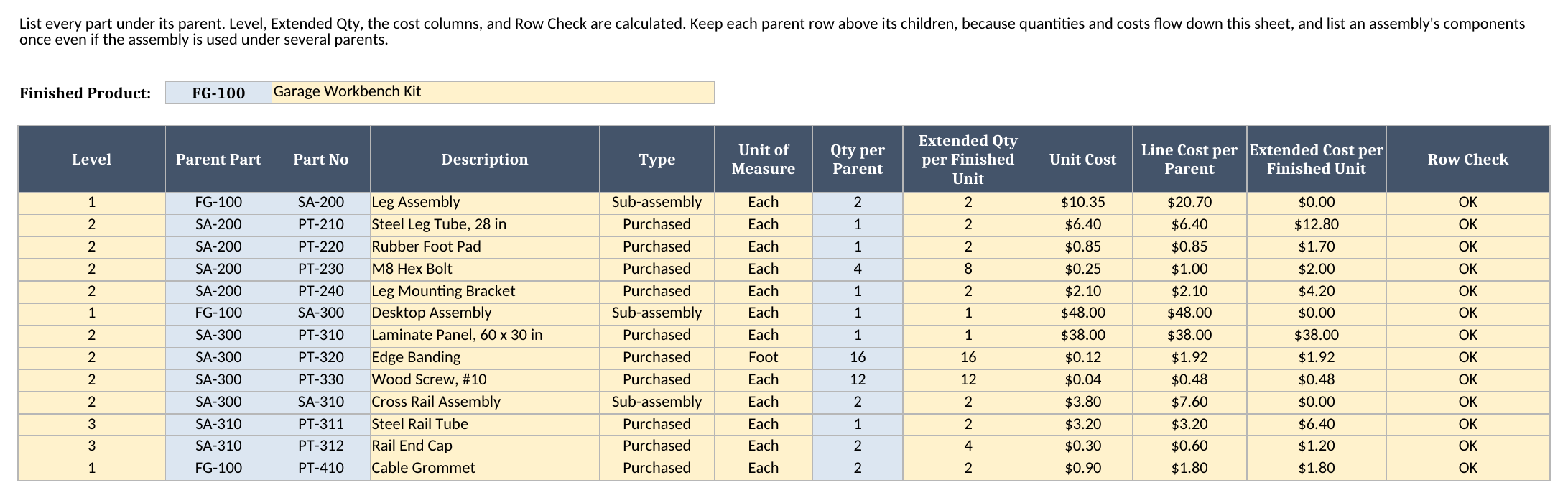
There are two layout rules, and the sheet checks both. The first is that a parent row must sit above its children. That is because the quantity and cost columns read the rows above and below the current one rather than looking at the whole column, which also keeps the workbook free of circular references. If you break it, the Level column shows “check parent” and the Row Check column says so, instead of quietly giving you a wrong number.
The second rule matters when one assembly is used in more than one place. Say the cross rail assembly goes under the desktop and also under each leg. Add a BOM row for each place it is used, with the quantity that place needs. Then list the cross rail’s own parts once, in a single block below every row that uses it. The extended quantity of the rail tube adds up all the uses above it, so four cross rails on the workbench means four rail tubes. If you copy the block of parts under each use instead, the Row Check column reads “Duplicate line” on the copies and “Place above its parts” on the later use, and the rollup check on the Cost Rollup sheet turns to “Check BOM” so the overcount cannot slide through.
How the cost rolls up
Every BOM row also carries a Unit Cost. For a purchased part, it comes from Parts. For a sub-assembly, it is the sum of the line costs of the rows directly underneath it. A line cost is the quantity per parent times that row’s unit cost. So the cross rail assembly is the steel rail tube at $3.20 plus two end caps at $0.30, which is $3.80. The desktop assembly picks that up, two cross rails at $3.80 each, along with the laminate panel, the edge banding, and the screws.
The Cost Rollup sheet then adds the level 1 line costs to get the material cost per finished unit. It also adds up the purchased parts’ extended costs a second way, using the Extended Cost per Finished Unit column on BOM, and shows a check that says OK when the two agree. I like having two independent routes to the same number. The check also turns to “Check BOM” when any row on the BOM sheet fails its Row Check. If someone adds a BOM row and breaks the structure, you find out there instead of letting a wrong cost slide into a quote.
Below the summary, the sheet lists the cost of each sub-assembly. Two things are worth knowing when you read that table. The “Cost in One Finished Unit” column shows what each assembly contributes, but a level 2 assembly is already counted inside its parent, so do not add the column down to get a total. The material cost at the top of the sheet is the total.
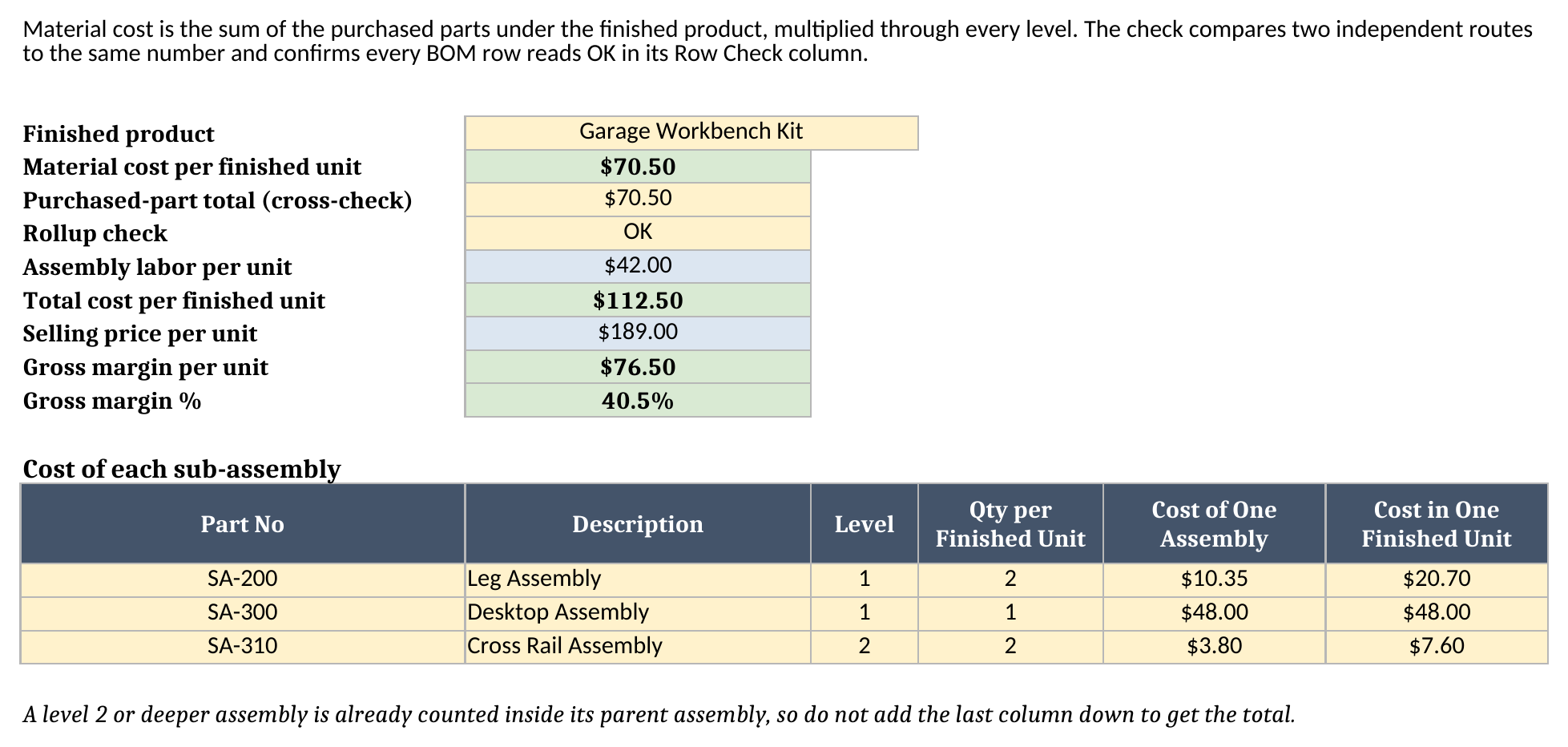
I included assembly labor and selling price as two blue input cells so the sheet can finish the job: total cost per unit, gross margin in dollars, and gross margin as a percentage. A bill of materials is a costing document as much as a build list, and the margin is usually the question that triggers someone to open the file.
How Buildable finds the limiting part
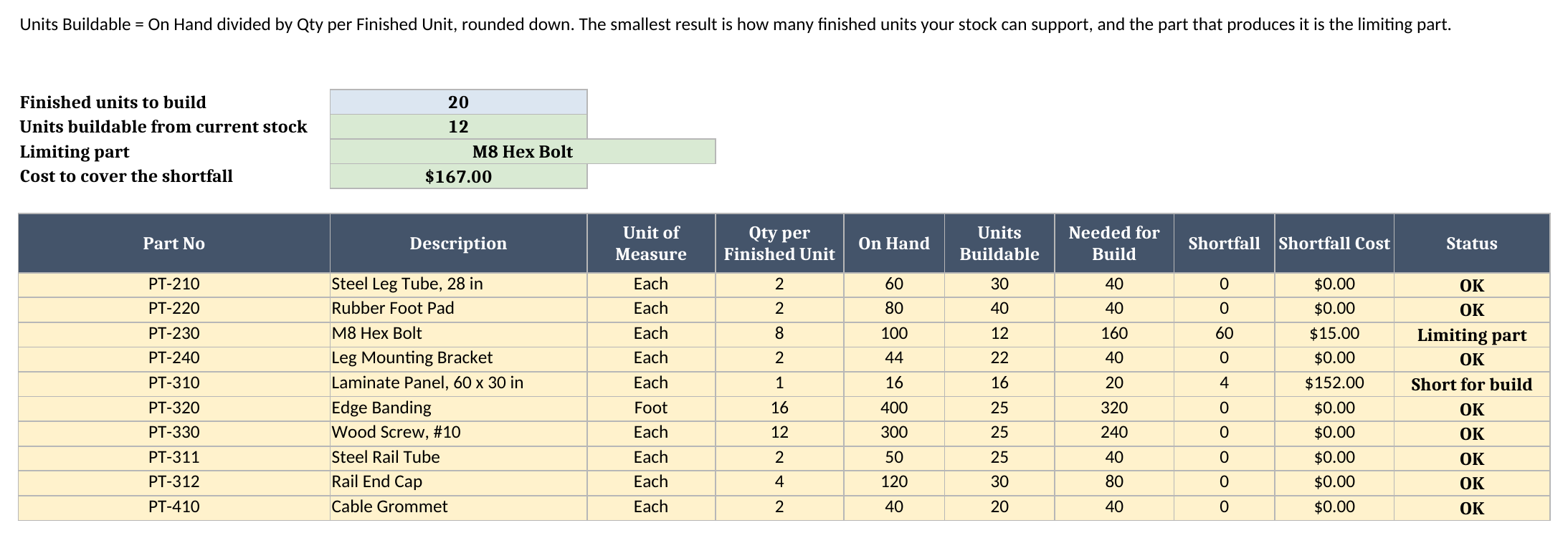
Buildable answers the question that a plain parts list cannot: how many can I make right now? For every purchased part, the sheet pulls the quantity needed for one finished unit from the BOM, using SUMIF on the extended quantity, so a part used in two places is added up correctly. It then divides your quantity on hand by that number and rounds down with INT.
You cannot build half a bolt’s worth of anything, which is why the rounding is down. With 100 bolts on hand and 8 needed per workbench, the bolts support 12 workbenches, because 100 divided by 8 is 12.5 and the half does not count. The smallest result across all the parts is your build capacity, and the part that produces it is the limiting part. The sheet labels it in the Status column and repeats it at the top.
There is a second input on this sheet: the number of finished units you plan to build. Enter a batch size, and the sheet works out how much of each part you need, how many you are short, and what the shortfall costs. That turns the file into a simple shopping list.
Worked example from the sample workbook
The sample workbook builds a garage workbench kit from 14 parts across three levels, with a build of 20 units planned. The figures below are recalculated from the generated workbook, not typed in by hand.
| Metric | Cell | Result |
|---|---|---|
| Bolts per finished unit (2 legs x 4) | BOM!H8 | 8 |
| Bolt extended cost per unit (8 x $0.25) | BOM!K8 | $2.00 |
| Leg assembly cost | BOM!I5 | $10.35 |
| Desktop assembly cost | BOM!I10 | $48.00 |
| Material cost per finished unit | Cost Rollup!B4 | $70.50 |
| Total cost per finished unit | Cost Rollup!B8 | $112.50 |
| Gross margin per unit at a $189 price | Cost Rollup!B10 | $76.50 |
| Gross margin % | Cost Rollup!B11 | 40.5% |
| Units buildable from stock | Buildable!B4 | 12 |
| Limiting part | Buildable!B5 | M8 Hex Bolt |
| Cost to cover the shortfall for 20 units | Buildable!B6 | $167.00 |
| Stock value on hand | Dashboard!B15 | $1,469.40 |
The story the numbers tell is the reason I like this layout. The laminate panel is 53.9% of the material cost at $38.00 a unit, so that is where a supplier negotiation pays off. But the part that limits production is a $0.25 bolt. With 100 on hand and 8 per workbench, the bolts stop you at 12 units, while the laminate panels, with 16 on hand, would allow 16. For the planned build of 20, you are short 60 bolts, which cost $15.00, and 4 laminate panels, which cost $152.00. That is the $167.00 shortfall, and it is a very different purchasing conversation from “we need more stock”.
The Dashboard collects all of it on one page: the cost and margin headline, the top three cost drivers (the laminate panel, the steel leg tube at $12.80, and the steel rail tube at $6.40), and the three parts closest to running out (the bolt at 12 units, the laminate panel at 16, and the cable grommet at 20).
How to use this in Google Sheets
This workbook also works as a bill of materials template for Google Sheets. Import the .xlsx directly:
- Download the workbook from the Excel template link.
- Open Google Sheets.
- Choose File > Import > Upload.
- Select the downloaded
.xlsxfile. - Choose Insert new sheet(s) or create a new spreadsheet from the upload.
- Check the BOM, Cost Rollup, and Buildable sheets after import.
No formula substitutions are required. The formulas are limited to SUM, SUMIF, SUMIFS, IF, IFERROR, INDEX, MATCH, COUNTA, COUNTIF, COUNTIFS, MIN, MAX, INT, ROUND, ABS, LARGE, SMALL, and arithmetic, all of which Excel and Google Sheets share. The dropdowns for part type and for the finished product are ordinary data validation, so they carry over as well.
The one thing I always check after an import is formatting. Column widths, row heights, and the colour fills can render a little differently between spreadsheet engines. The calculations are plain on purpose; the visuals are the only part I would look over before sending the file to a team.
How this differs from an inventory tracker or a purchase order
A bill of materials, an inventory tracker, and a purchase order all deal with parts, and people mix them up, so it helps to separate them.
- A bill of materials says what goes into one finished unit. It is a recipe. It does not change when you receive a delivery.
- An inventory tracker says what is on the shelf right now. It changes with every receipt and every issue. If you want that side, use the inventory management template.
- A purchase order says what you are buying from a supplier and at what price. When the Buildable sheet shows a shortfall, that is the point to raise one, and the purchase order template is the next step.
This workbook sits between the first two. It takes a simple on-hand count, because you need stock to know what you can build, but it does not log movements. If the product you are costing is something you also sell, the quote template is the natural place to carry the cost into a customer-facing price.
How to customize the template safely
Start by replacing the sample rows on Parts with your own parts. Give each part a unique number and a type. Purchased parts need a unit cost and a quantity on hand. Then replace the BOM rows: pick your finished product in B2, and list each part under its parent with the quantity per parent.
Keep four habits. First, always place a parent row above its children. Second, list an assembly’s parts once, even if the assembly is used in several places. Third, add one row at a time and check that the Row Check column reads OK before you move on. Fourth, when you add rows, copy the calculated cells down from the row above rather than typing over them. The Level, Description, Type, Extended Qty, cost, and Row Check columns are all formulas.
The lookups, dropdowns, and totals on Parts read down to row 101, and the ones on BOM read down to row 204. So when you go past the sample 14 parts or 13 BOM lines, type the new row directly under the last one and copy the calculated cells down. You do not need to edit a formula. The Buildable and Dashboard lists use a fixed set of rows, so copy a row down on Buildable for each new purchased part. If you add a sub-assembly, add a row for it on the Cost Rollup table in the same way.
Labor lives on Cost Rollup as one figure per finished unit, because many small shops estimate it that way. If you track labor by operation, add up your operation costs outside the workbook and enter the total in that cell. I did not put labor on the BOM as a part, because it has no stock count and would show up as a part you can never build.
Limitations to know before relying on it
A few limitations are worth stating clearly:
- One finished product at a time. The BOM sheet models the product chosen in B2. To cost a second product, keep a second copy of the workbook, or add its rows and switch the selector.
- Parents above children, assemblies defined once. Quantities flow down the sheet, so a child row placed above its parent shows “check parent” and an extended quantity of zero. An assembly’s parts are listed once, below every row that uses it; a second copy of the block is flagged as a duplicate rather than counted again.
- No revision control. There are no revision letters, effective dates, or approval fields. If your parts change often, keep a dated copy of the file for each release.
- Stock is purchased parts only. Buildable looks at purchased parts. It does not net out finished sub-assemblies you already have on a shelf.
- No lead times or purchasing. The workbook tells you what you are short and what it costs. It does not schedule orders or track when parts arrive.
- Ties are not broken. The top-3 lists use
LARGEorSMALLwithMATCH, so if two parts have exactly the same value, the first match appears first. - Formula ranges have a ceiling. Parts is read to row 101 and BOM to row 204, and the Buildable and Dashboard lists are sized to the sample, so copy a row down there for each purchased part you add.
I built the file this way because a bill of materials spreadsheet should be easy to inspect. The formulas are visible, the sample data is synthetic, inputs are kept apart from outputs, and every number on the dashboard ties back to ordinary rows on ordinary sheets. That is the difference between a template you can maintain and a pretty download that falls apart the first time you add a part.
Grab the bill of materials template, replace the sample workbench with your own product, and find out which part is really limiting what you can build.
