
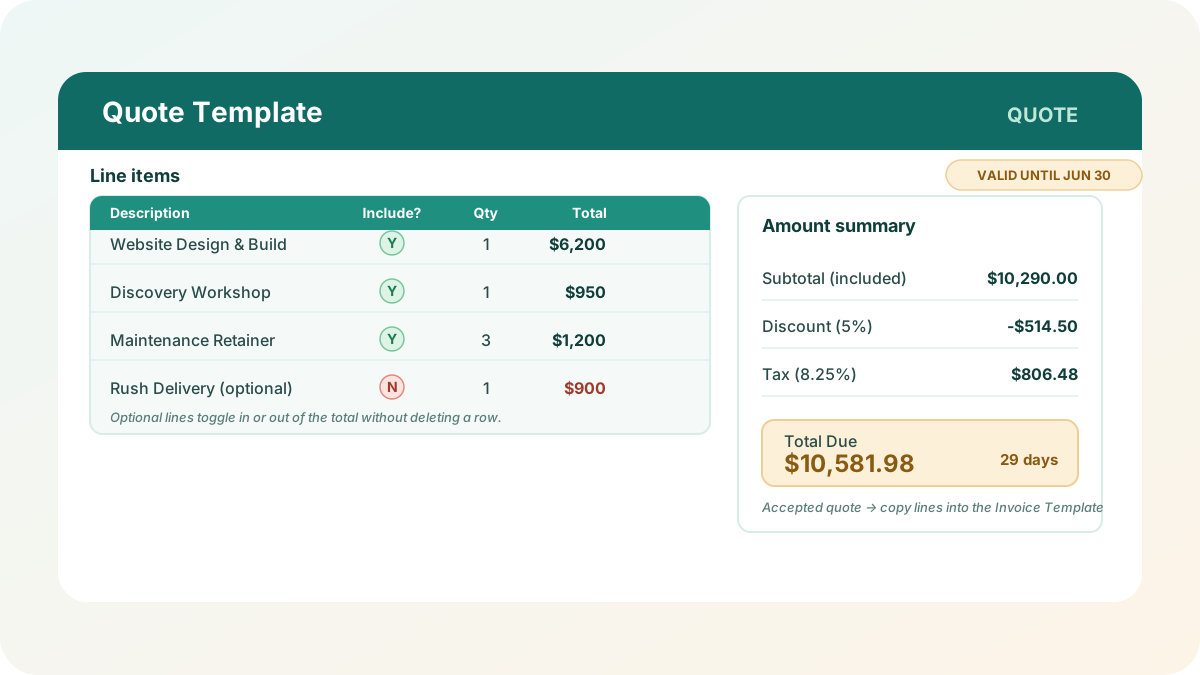
I’ve watched small teams lose deals over spreadsheet mechanics, not price. A customer asks “what if we skip the rush delivery?” and the person quoting rebuilds half the math by hand, or deletes the line and loses the record of what was offered. This quote template is built around the one thing every real quote needs: a way to include or exclude optional line items without touching a formula, plus a validity date so nobody honors stale pricing.
Download the quote template — a plain .xlsx, no macros, no external connections, no sign-up. Open it in Excel or Google Sheets and start replacing the sample details with your own.
Who is this template for?
I built this for anyone who quotes prices before they invoice for them — freelancers, consultants, agencies, contractors, and small businesses selling project-based or configurable work rather than a single fixed-price SKU. If you’ve ever quoted a base package plus optional add-ons, you’ve felt this friction: either you build two versions of the quote, or leave a margin note like “add $900 for rush delivery” and hope the math is right when they say yes. If you quote repair or install work for a trades business, estimating software built for field service companies goes further than a spreadsheet once volume picks up. This template shares its core mechanics — a toggle, a percent-vs-fixed discount, a cross-sheet log — with the invoice template, one stage earlier in the sales process.
It is not a CRM or proposal-design tool — no e-signature, no follow-up reminders, no client portal. It does turn “here’s what we’d charge, and here’s what’s optional” into a one-page document, with a record of every quote sent so you’re not reconstructing your pipeline from memory.
What’s in the workbook, sheet by sheet
The workbook ships with three sheets, in this order:
- Instructions — a setup guide plus a clean-room disclosure: every formula, layout, and sample figure was authored from scratch for Excel.TV, with no vendor asset downloaded, inspected, or adapted.
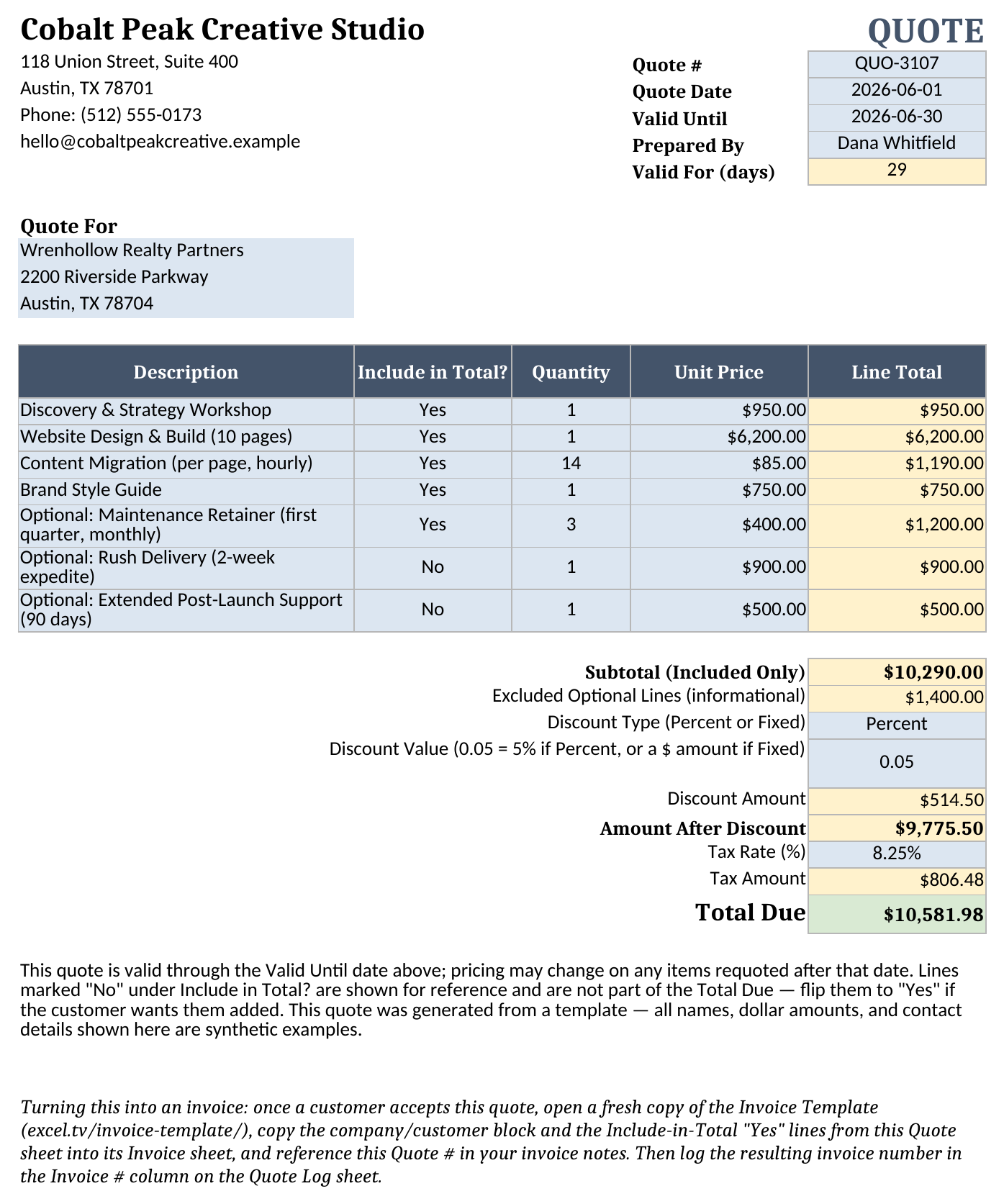
- Quote — the printable document: your company block, Quote #, Quote Date, a Valid Until expiry date with an auto-calculated Valid For (days) figure, a Quote For block for the customer, a line-item table with an Include in Total? toggle and auto-calculating Line Totals, a Subtotal that only counts included lines, an Excluded Optional Lines figure, discount (Percent or Fixed), Tax Rate, and Total Due.
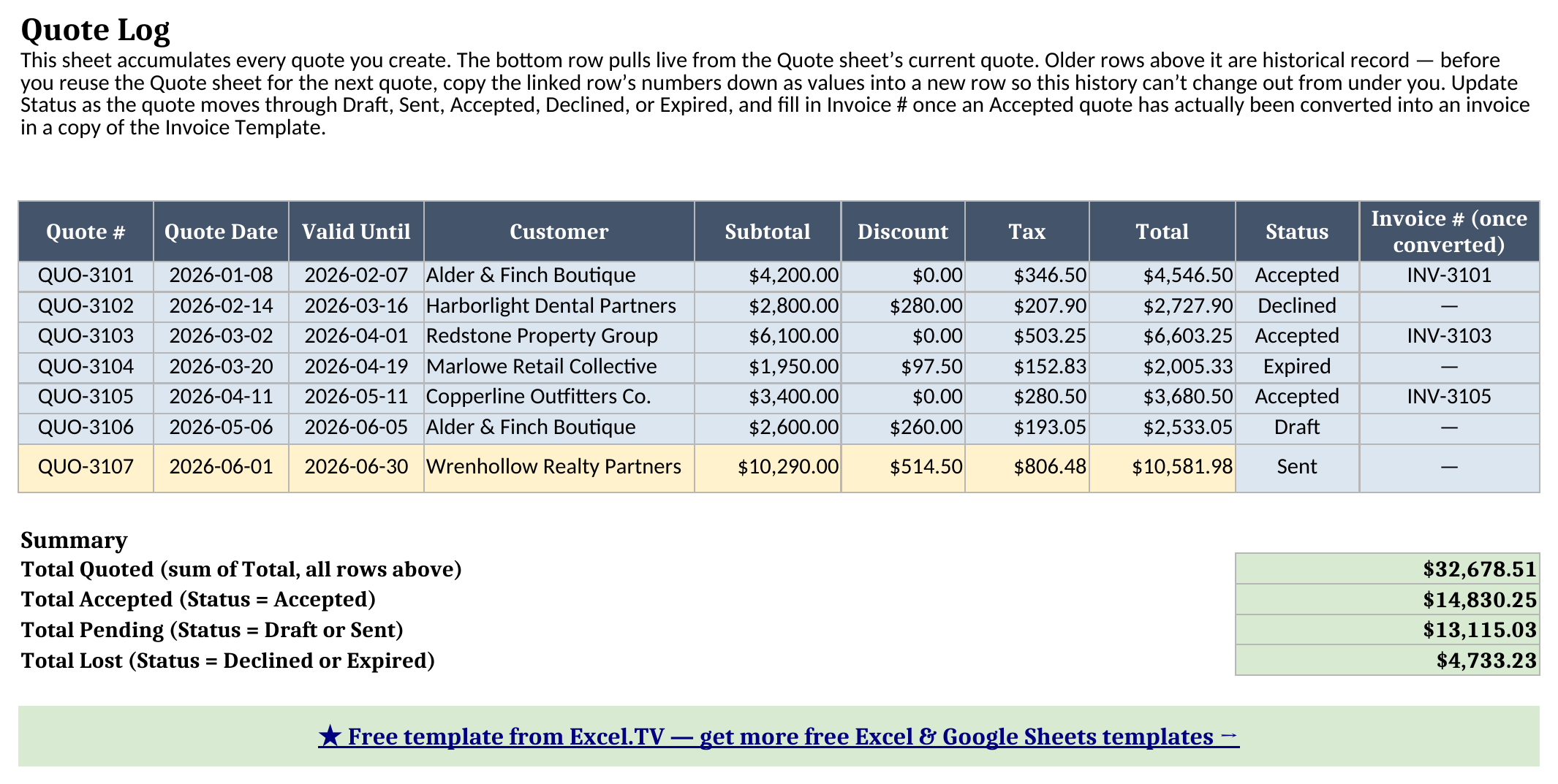
- Quote Log — a running record of every quote sent. The bottom row pulls live from Quote; the rows above are historical, each with a Draft/Sent/Accepted/Declined/Expired status and an Invoice # column filled in by hand once a quote becomes a real invoice, plus a Summary totaling what’s quoted, accepted, pending, and lost.
The required inputs are company and customer details, Quote #, Quote Date, Valid Until, each line item’s description/quantity/unit price/Include flag, discount type/value, and tax rate. The main outputs are Subtotal (Included Only), Excluded Optional Lines, Discount Amount, Tax Amount, and Total Due on Quote, plus Total Quoted, Total Accepted, Total Pending, and Total Lost on Quote Log — all recalculating the moment an input changes.
How do I set up the quote template?
- Open Quote and replace the company block at top left with your own business information.
- Set Quote #, Quote Date, Valid Until, and Prepared By. Valid For (days) below updates automatically —
=Valid Until - Quote Date. - Fill in Quote For with your customer’s name and address.
- Enter each line item’s Description, Quantity, and Unit Price, and set Include in Total? to Yes for anything that should count toward the price, or No for an optional add-on you want visible but not priced in.
- Set Discount Type to Percent or Fixed and enter Discount Value — 0.05 for 5% if Percent, or a flat amount if Fixed — then set Tax Rate as a decimal (0.0825 for 8.25%).
- Once sent, open Quote Log and copy that quote’s finished numbers into a new row as values before you start the next quote.
Don’t type a number directly into a Line Total cell — it stops updating when quantity or price change above it.
How the optional/alternate line item toggle actually works
Every row in the line-item table has an Include in Total? cell that’s either “Yes” or “No” — a plain dropdown, no hidden logic. The Subtotal (Included Only) cell doesn’t sum the whole table; it runs =SUMIF(B14:B20,"Yes",E14:E20), which only adds up the Line Total of rows flagged Yes. Right below it, Excluded Optional Lines runs the mirror-image formula, =SUMIF(B14:B20,"No",E14:E20), so you can see at a glance what the excluded lines would have added.
This beats deleting a row or keeping two separate quotes because the excluded line never disappears — it still prints with its real price next to it, which is usually what you want: “here’s what a rush turnaround would cost” is a normal part of a sales conversation, not clutter. Flip one cell from No to Yes and Subtotal, Discount Amount, Tax Amount, and Total Due all recalculate immediately. In the sample data, four core lines are always included, one optional add-on (a maintenance retainer) is included by default, and two alternates — rush delivery and extended support — sit at No, excluded from the $10,290.00 subtotal until a customer asks for them.
Discount and tax follow the invoice template’s pattern, applied to the included subtotal, not the raw sum of every line: Discount Amount = IF(Discount Type="Percent", Subtotal*Discount Value, Discount Value), and Tax Amount = ROUND(Amount After Discount * Tax Rate, 2). Tax the raw subtotal instead and you’ll overcharge every discounted quote — an easy mistake by hand, an easy one for a formula to prevent.
Worked example
Here’s the sample quote, recalculated end to end — four core line items, one included add-on, two excluded alternates, a 5% discount, and 8.25% tax:
| Line Item | Include? | Quantity | Unit Price | Line Total |
|---|---|---|---|---|
| Discovery & Strategy Workshop | Yes | 1 | $950.00 | $950.00 |
| Website Design & Build (10 pages) | Yes | 1 | $6,200.00 | $6,200.00 |
| Content Migration (per page, hourly) | Yes | 14 | $85.00 | $1,190.00 |
| Brand Style Guide | Yes | 1 | $750.00 | $750.00 |
| Optional: Maintenance Retainer (first quarter, monthly) | Yes | 3 | $400.00 | $1,200.00 |
| Optional: Rush Delivery (2-week expedite) | No | 1 | $900.00 | $900.00 |
| Optional: Extended Post-Launch Support (90 days) | No | 1 | $500.00 | $500.00 |
| Amount | Value |
|---|---|
| Subtotal (Included Only) | $10,290.00 |
| Excluded Optional Lines (informational) | $1,400.00 |
| Discount (5% Percent) | $514.50 |
| Amount After Discount | $9,775.50 |
| Tax (8.25%) | $806.48 |
| Total Due | $10,581.98 |
Every number above came straight out of the workbook after a full recalculation — nothing typed in or rounded by hand. The arithmetic closes cleanly: Subtotal $10,290.00 minus the $514.50 discount leaves $9,775.50, and ROUND($9,775.50 × 0.0825, 2) returns exactly $806.48, so Amount After Discount plus Tax Amount lands on $10,581.98. The two excluded alternates ($900 + $500 = that $1,400.00 Excluded Optional Lines figure) never touch those numbers until Include in Total? flips to Yes.
How the quote log ties your pipeline together
Quote Log’s bottom row — QUO-3107 in the sample data — isn’t typed in at all; every cell is a cross-sheet formula pointing back at Quote: ='Quote'!E22 for Subtotal, ='Quote'!E30 for Total, and so on. As long as Quote shows this quote, the log’s current row matches it exactly, with zero chance of a copy-paste error.
The six rows above are typed values, not formulas — quotes already sent, each with a Status of Draft, Sent, Accepted, Declined, or Expired. That mirrors the invoice template’s log, and for the same reason: a formula link is live, while a sent quote needs to stay put. Finish a quote, copy the linked row down as values, then reuse Quote for the next one. Once that habit sticks, the Summary block does real work — Total Quoted sums every Total ($32,678.51 across seven quotes), Total Accepted runs a SUMIF against Status = “Accepted” ($14,830.25, from three closed deals), Total Pending covers Draft and Sent ($13,115.03), and Total Lost covers Declined and Expired ($4,733.23) — a one-glance view of where your pipeline stands.
From an accepted quote to an invoice
This is the seam most quote templates leave you to figure out on your own. The Quote Template and the invoice template are deliberately compatible in structure — both use a Description / Quantity / Unit Price / Line Total layout and the same company-plus-customer header — so once a customer says yes, moving forward doesn’t mean re-keying everything.
The two workbooks aren’t linked automatically; a quote and an invoice have different lifecycles, and you don’t want editing one to silently change the other. The handoff is a short manual step: once a quote is Accepted, open a fresh copy of the Invoice Template, copy the company/customer block over, then copy in whichever line items were flagged Yes under Include in Total? — excluded alternates don’t come along. Reference the Quote # in the invoice notes, send it, and log the resulting invoice number in Invoice # (once converted) on Quote Log. QUO-3101, QUO-3103, and QUO-3105 in the sample data each show an Accepted status paired with an invoice number, so the log becomes a record of which quotes turned into billed work.
How do I use this in Google Sheets?
Google Sheets is a first-class destination for this quote template, not an afterthought. Open Google Sheets, choose File > Import > Upload, select the downloaded .xlsx, and pick “Insert new sheet(s).” Every formula here — SUM, SUMIF, IF, IFERROR, ROUND — is natively supported in Google Sheets, so nothing needs rewriting, and the Include in Total?, Discount Type, and Status dropdowns’ validation carries over with it.
If you only need to preview the quote workbook before editing it, the Excel viewer guide covers desktop and browser options for opening .xlsx files without desktop Excel.
If you’d rather skip the download-and-import step entirely, use this one-click copy link: make a copy of the Quote Template in Google Sheets. Google will prompt you to save it to your own Drive, and from there it behaves identically to the Excel version — same sheets, same formulas, same Include-in-Total toggle.
How this differs from a generic quote template
Most free quote templates handle a static list of line items and one total — if a customer wants pricing with and without an add-on, you’re building a second document. This one handles that with one toggle column and a SUMIF formula, plus a Quote Log built to track your pipeline and a bridge into the invoice template once a deal closes.
If your quoting is really tied to project cost estimation with change orders rather than a flat price, my construction budget template fits that work better. And once invoices pile up behind your accepted quotes, my finance dashboard excel template turns actuals and budget into a one-page variance view.
Limitations to know before you rely on this
A few things worth knowing before you send this to a real customer:
- Include in Total? only controls the math, not visibility — an excluded line still prints on the quote; delete the row instead if it needs to disappear entirely.
- Discount Value does double duty as a percent or a fixed amount depending on Discount Type, and the format doesn’t switch automatically — check which mode you’re in.
- Valid Until doesn’t enforce anything. It’s a plain date field, not a live “has this expired” alert — you’re responsible for checking it.
- The quote-to-invoice handoff is manual. Nothing auto-populates the Invoice Template when a quote is Accepted, so budget a few minutes to copy things over yourself.
- No macros, no external connections — everything here is a native formula, keeping the workbook portable between Excel and Google Sheets with zero substitutions.
I’d rather you know these going in than discover them the first time a customer negotiates a line item off your quote.
Download the quote template and start replacing the sample company and customer details with your own — the optional-line toggle, the expiry date, and the quote log will all follow.
