
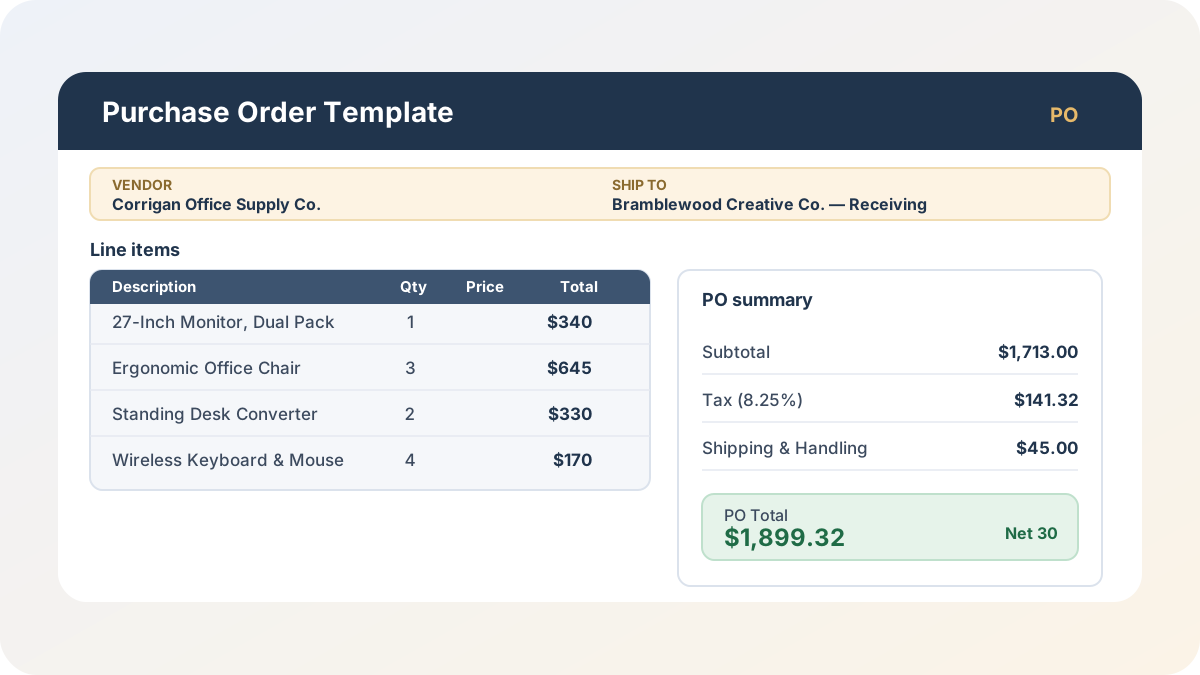
Every small business that buys from outside vendors eventually hits the same gap: they’ve got a decent invoice template for billing their own clients, but nothing on the buying side. Someone emails a vendor “we’ll take three of those” with no paper trail, the tax and shipping math gets done by hand, and there’s no record of what’s on order versus what’s already shown up. This Purchase Order Template closes that gap — vendor and ship-to blocks, auto-calculating line totals, tax and shipping that stay cleanly separated, and a linked log that tracks every PO from Open through Received or Cancelled.
Download the purchase order template — it’s a plain .xlsx, no macros, no external data connections, and no sign-up. Open it in Excel or Google Sheets and start replacing the sample vendor and line items with your own.
Who is this template for?
I built this for anyone who buys from vendors and wants a paper trail before the invoice shows up — small business owners ordering supplies or equipment, office managers, freelancers subcontracting parts of a job, or a small agency (like the sample company in this workbook) formalizing what it’s ordering before a bill arrives. If you’ve ever placed an order over email and then argued with a vendor weeks later about what was actually agreed to — quantity, price, ship date — a purchase order is the fix, and this template gets you one without buying procurement software.
It is not a purchasing system. There’s no vendor database, no multi-line approval routing, and no receiving workflow that checks goods in against a PO line by line — it’s a spreadsheet, and it’s honest about that scope. That’s the right scope for a handful of purchase orders a month; dozens a week across multiple approvers means you’ve outgrown what any spreadsheet should be doing.
What’s in the workbook, sheet by sheet
The workbook ships with three sheets, in this order:
- Instructions — a short setup guide plus a clean-room disclosure: every formula, layout, and sample figure in this workbook was authored from scratch for Excel.TV. No vendor template, workbook, or dataset was downloaded, inspected, or adapted to build it.
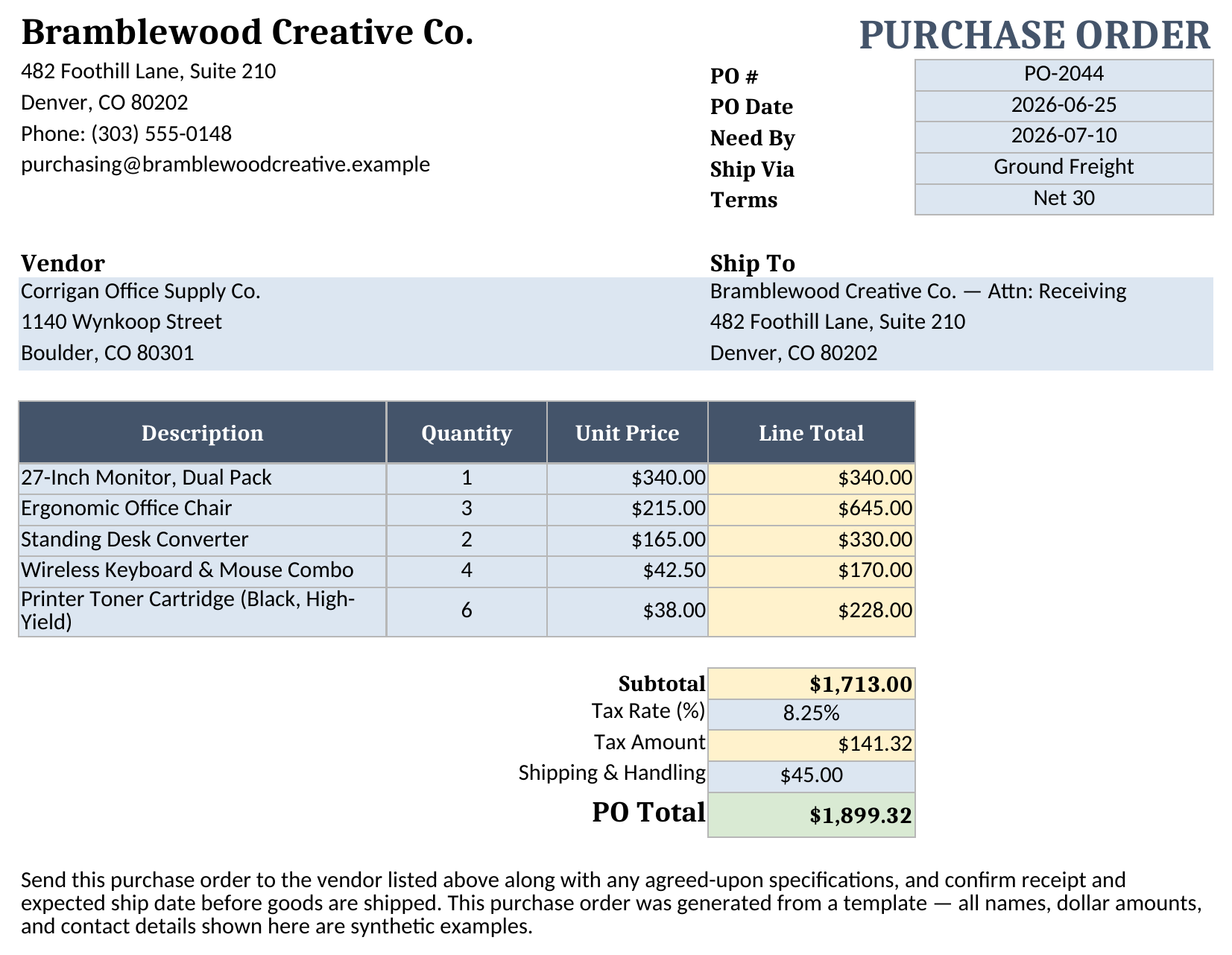
- Purchase Order — the printable document: your company block, PO #, PO Date, Need By date, Ship Via, and Terms in the top-right block, a Vendor block, a Ship To block, a line-item table with auto-calculating Line Totals, a Subtotal, a Tax Rate and Tax Amount, a Shipping & Handling charge, and a PO Total.
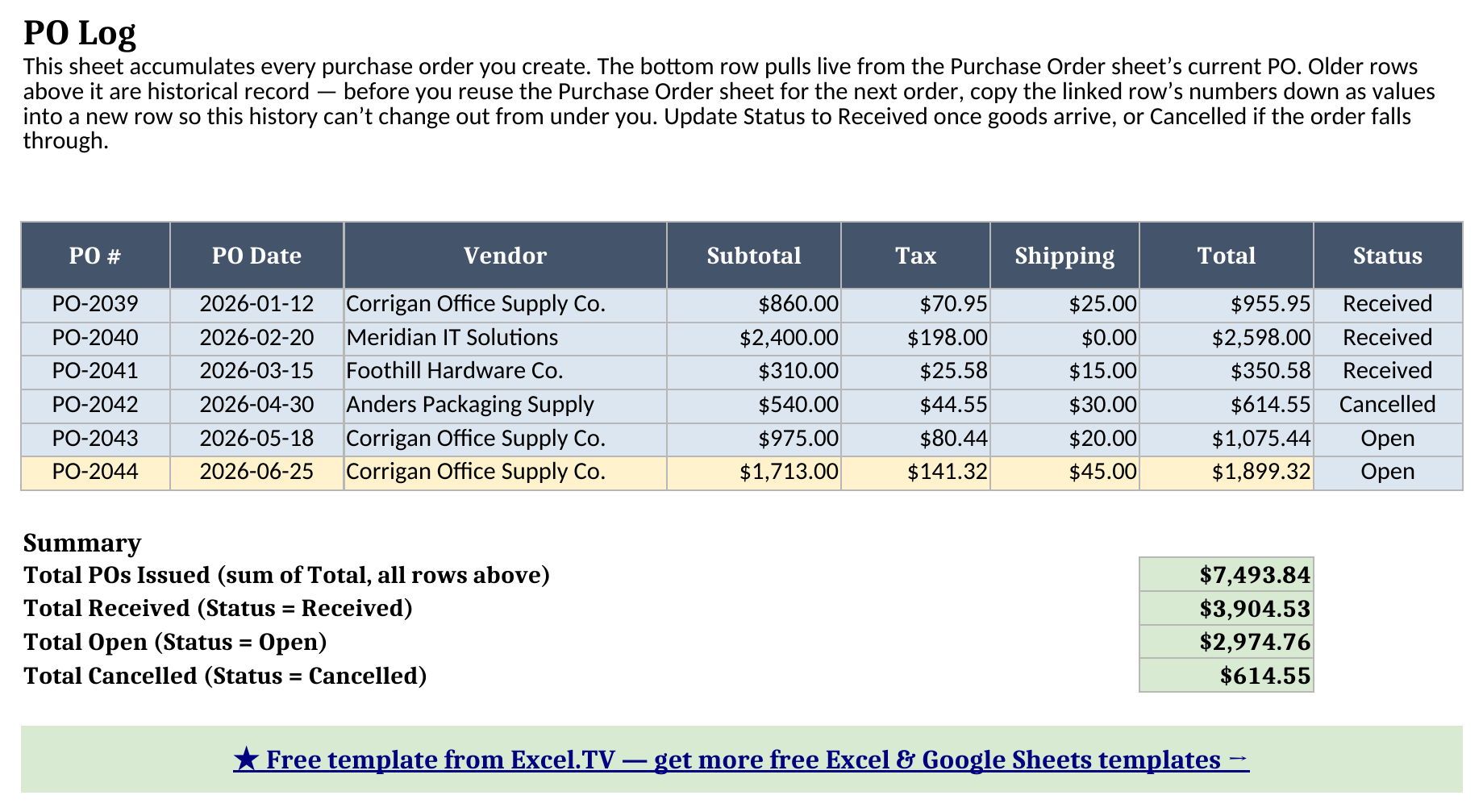
- PO Log — a running record of every purchase order you’ve issued. The bottom row pulls live from whatever’s currently on the Purchase Order sheet; the rows above it are historical, each with an Open/Received/Cancelled status, and a Summary block totals what’s been issued, received, still open, and cancelled.
The required inputs are your company details, vendor and ship-to information, PO number/date/terms, each line item’s description/quantity/unit price, the tax rate, and the shipping charge — all on the Purchase Order sheet. The main outputs are Subtotal, Tax Amount, and PO Total on Purchase Order, plus Total Received, Total Open, and Total Cancelled on PO Log — every one of which recalculates the moment you change an input cell.
How do I set up the purchase order template?
- Open Purchase Order and replace the company block at the top left (name, address, phone, email) with your own business information.
- Fill in the Vendor block with the supplier you’re buying from and the Ship To block with the delivery address, then set PO #, PO Date, Need By, Ship Via, and Terms in the top-right block.
- Enter each line item’s Description, Quantity, and Unit Price. Line Total, Subtotal, Tax Amount, and PO Total all recalculate automatically as you type — you never touch a Line Total cell directly.
- Set Tax Rate as a decimal (0.0825 for 8.25%) and enter a Shipping & Handling charge. Tax is calculated on the Subtotal only, and Shipping is added afterward — more on why that ordering matters below.
- Once the purchase order is finished and sent, open PO Log and copy that PO’s finished numbers into a new row as values, so the record is preserved before you start the next order.
Just like a well-built invoice, the discipline that keeps this workbook honest is simple: keep each line item on its own row inside the table, and don’t type a number directly into a Line Total cell — if a formula gets overwritten with a typed value, it stops updating when you change the quantity or price above it.
How the tax, shipping, and error-handling actually work
The mechanic that trips people up most on a purchase order isn’t the line-item math — it’s the order of operations once tax and shipping both enter the picture. This template keeps them deliberately separate: Tax Amount is =IFERROR(ROUND(Subtotal*Tax Rate,2),0), calculated on the Subtotal alone, before shipping ever enters the formula. Shipping & Handling is then added on top as its own flat dollar input — PO Total = Subtotal + Tax Amount + Shipping. Tax the shipping charge by mistake, or let a carrier’s flat rate get folded into your taxable subtotal, and you’ll misquote every PO that has a shipping line, which is exactly the kind of error that’s invisible until a vendor’s invoice doesn’t match what you authorized.
The other detail worth noticing if you inspect the formulas: every calculated cell — every Line Total, the Subtotal, Tax Amount, and PO Total — is wrapped in IFERROR(...,0). Delete a Unit Price by accident, or leave a Quantity cell blank mid-entry, and the workbook shows a clean $0.00 instead of a #VALUE! error cascading down through Subtotal, Tax Amount, and PO Total. That matters more here than on some workbooks, because a PO is often built in a hurry — over the phone with a vendor, or right before a Need By deadline — and a spreadsheet that throws errors mid-entry is one people stop trusting.
PO Log carries the same discipline into the log: its current-PO row pulls from Purchase Order with formulas like =IFERROR('Purchase Order'!D24,0), so if the source cell is ever blank or errored, the log shows a safe 0 rather than propagating a broken reference into your running totals. The six rows above the current one are a different kind of cell entirely — typed values representing purchase orders already sent and settled. A formula link is live, showing whatever’s currently on the Purchase Order sheet; a finished PO needs to stay put. So the workflow is: finish a PO, copy the linked row’s numbers down into a new row as values, then reuse the Purchase Order sheet for the next order. Skip that step and the “history” you thought you’d saved will silently update to reflect whatever PO you’re working on next. Once that habit sticks, the Summary block does the rest — Total POs Issued sums every Total in the log, and Total Received, Total Open, and Total Cancelled each run a SUMIF against the Status column.
Worked example
Here’s the sample purchase order in the template, recalculated end to end — five line items for office equipment, 8.25% tax, and a flat shipping charge:
| Line Item | Quantity | Unit Price | Line Total |
|---|---|---|---|
| 27-Inch Monitor, Dual Pack | 1 | $340.00 | $340.00 |
| Ergonomic Office Chair | 3 | $215.00 | $645.00 |
| Standing Desk Converter | 2 | $165.00 | $330.00 |
| Wireless Keyboard & Mouse Combo | 4 | $42.50 | $170.00 |
| Printer Toner Cartridge (Black, High-Yield) | 6 | $38.00 | $228.00 |
| Amount | Value |
|---|---|
| Subtotal | $1,713.00 |
| Tax (8.25%) | $141.32 |
| Shipping & Handling | $45.00 |
| PO Total | $1,899.32 |
Every number above came straight out of the workbook after a full formula recalculation — nothing was typed in or rounded by hand for this article. The $141.32 tax figure is exactly what ROUND($1,713.00 × 0.0825, 2) returns, and PO Total is Subtotal plus Tax Amount plus Shipping, landing on $1,899.32. In PO Log, that same order (PO-2044) rolls into a Summary block showing $7,493.84 in total POs issued across the log, split into $3,904.53 Received, $2,974.76 still Open, and $614.55 Cancelled.
How do I use this in Google Sheets?
Google Sheets is a first-class destination for this purchase order template, not an afterthought. Open Google Sheets, choose File > Import > Upload, select the downloaded .xlsx, and pick “Insert new sheet(s).” Every formula in this workbook — SUM, SUMIF, IF, IFERROR, and ROUND — is natively supported in Google Sheets, so nothing needs to be rewritten, and the Status dropdown’s data validation carries over with it.
If you’d rather skip the download-and-import step entirely, use this one-click copy link: make a copy of the Purchase Order Template in Google Sheets. Google will prompt you to save it to your own Drive, and from there it behaves identically to the Excel version — same sheets, same formulas, same tax-and-shipping ordering.
How a purchase order differs from an invoice — and how the two fit together
It’s easy to conflate these two documents because they look similar on the page — a company header, a line-item table, a subtotal-tax-total block — but they run in opposite directions. A purchase order is the buy-side document: you send it to a vendor, before goods or services arrive, and it authorizes the purchase at an agreed price. An invoice is the sell-side document: a vendor sends it to you (or you send it to your own clients) after the work is delivered, requesting payment. Mix them up and you’ll either pay for something you never formally ordered, or ship goods to a client with no record you ever billed for them.
That’s why this template shares its Vendor block and line-item table layout with excel.tv’s invoice template — same columns, same auto-calculating mechanics, same clean-room build discipline. The sample company in both workbooks, Bramblewood Creative Co., is deliberately the same business: it cuts purchase orders to suppliers like Corrigan Office Supply Co. when it needs equipment, and it sends invoices to clients like Fenwick & Oaks Property Management when it delivers work. One workbook tracks money going out before it’s owed; the other tracks money coming in after it’s earned.
If your monthly close process needs to roll both of those cash flows — and your budget — into a single view, my finance dashboard excel template picks up where both of these leave off. And if your purchasing is tied to job costing rather than a flat office-supplies order — change orders, cost-to-complete, that kind of thing — my construction budget template is built for that side of the work instead.
Limitations to know before you rely on this
A few things worth knowing before you put real vendor numbers in:
- Tax Rate applies to the Subtotal only. There’s no support for per-line-item tax exemptions, multiple jurisdictions on one order, or taxing the shipping charge itself.
- Shipping & Handling is a single flat dollar amount per PO, not a carrier-calculated rate based on weight, distance, or service level.
- PO Log’s current row is a live link, not a snapshot. Copy its numbers down as values before you reuse the Purchase Order sheet for the next order — see the section above for why.
- No receiving workflow. This workbook tracks a PO’s Open/Received/Cancelled status as a whole, not partial deliveries against individual line items.
- No vendor database or approval routing. This is a single-PO-at-a-time workbook with a log behind it, not a substitute for procurement software once your order volume outgrows a spreadsheet.
- No macros, no external connections. Everything here is a native formula, which keeps the workbook portable between Excel and Google Sheets with zero substitutions.
I’d rather you know these going in than discover them the first time a vendor dispute hinges on a detail this template doesn’t track. Once the tax-before-shipping order and the “copy history down as values” habit stick, the rest takes care of itself.
Download the purchase order template and start replacing the sample vendor details and line items with your own — the tax math, the shipping charge, and the PO log will all follow.
