
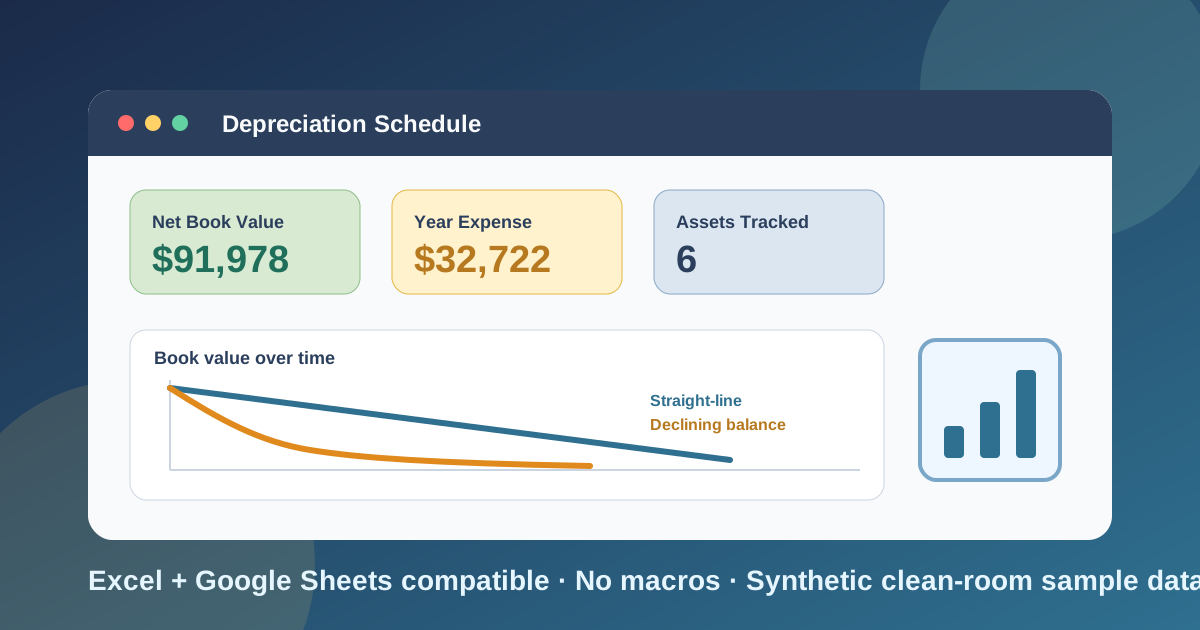
I built this depreciation schedule template for the spreadsheet most small finance teams already keep half-finished: a list of equipment and vehicles in one tab, a hand-built depreciation formula in another, and a year-end scramble to work out what everything is worth on the books. The list drifts out of date, somebody types a number over a formula, and nobody can say how much depreciation expense belongs to this year.
Download the depreciation schedule template - it is a plain .xlsx, no macros, no external data connections, and no sign-up. Open it in Excel or import it into Google Sheets, replace the synthetic sample assets with your own, and the yearly schedule and dashboard recalculate from there.
A fixed asset depreciation schedule answers a simple question: how much of what we paid for each asset do we write off this year, and what is it still worth on the books? This workbook answers it two ways, straight-line and declining balance, and lets you choose a method for each asset. It is meant for book and management reporting. It is not a tax tool, and I say so again in the limitations section below.
Video walkthrough
Here’s a short video walkthrough of the workbook, with captions, showing how the sheets fit together.
Who I built this for
I built this for a bookkeeper, controller, operations manager, or small business owner who needs a depreciation schedule template excel users can read without a course in accounting software. If you buy a handful of vehicles, machines, computers, or fit-out each year and want to see expense and book value by year, this fits. If you run a full fixed-asset system with disposals, tax books, and audit trails, this can still work as a planning sheet or a teaching example, but it is not trying to replace that system.
The workbook is built around five questions:
- What assets do we own, and what did each one cost?
- How much of each cost do we expect to recover at the end of its life (salvage value)?
- How much depreciation expense lands in each fiscal year?
- How much depreciation has built up, and what is each asset still worth on the books?
- What does the difference between straight-line and declining balance look like for the same asset?
That is why the file keeps inputs on one sheet, calculations on separate sheets, and a dashboard on top, instead of one wide table where every column is both an input and a result.
What’s in the workbook, sheet by sheet
The workbook ships with six sheets, in this exact order:
- Instructions - setup steps, color legend, clean-room disclosure, Google Sheets note, and limitations.
- Assets - the asset register. Each row has an Asset ID, description, category, in-service date, cost, salvage value, useful life in years, and a Method of Straight-Line or Declining Balance. A calculated Depreciable Base column (cost minus salvage) sits at the end.
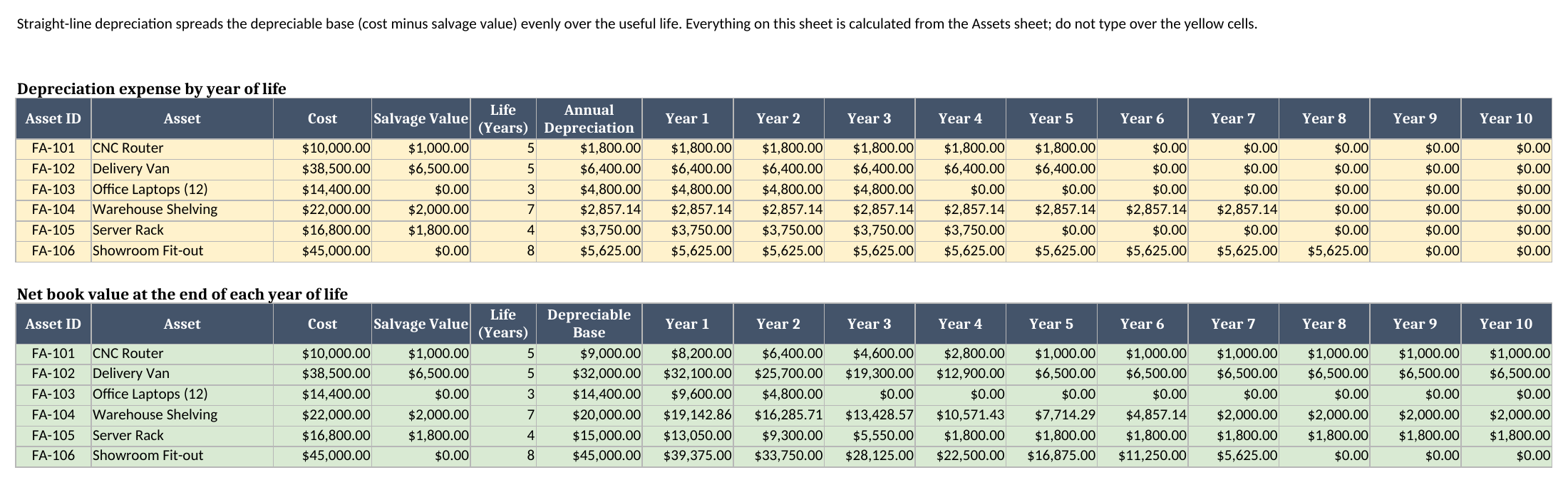
- Straight-Line - calculated. Depreciation expense for every asset by year of life, plus net book value at the end of each year.
- Declining Balance - calculated. The same two blocks, using double-declining balance.
- Annual Schedule - calculated. It takes each asset’s chosen method and lays out expense, accumulated depreciation, and net book value by fiscal year, with totals. Two blue input cells set the first fiscal year and the report year.
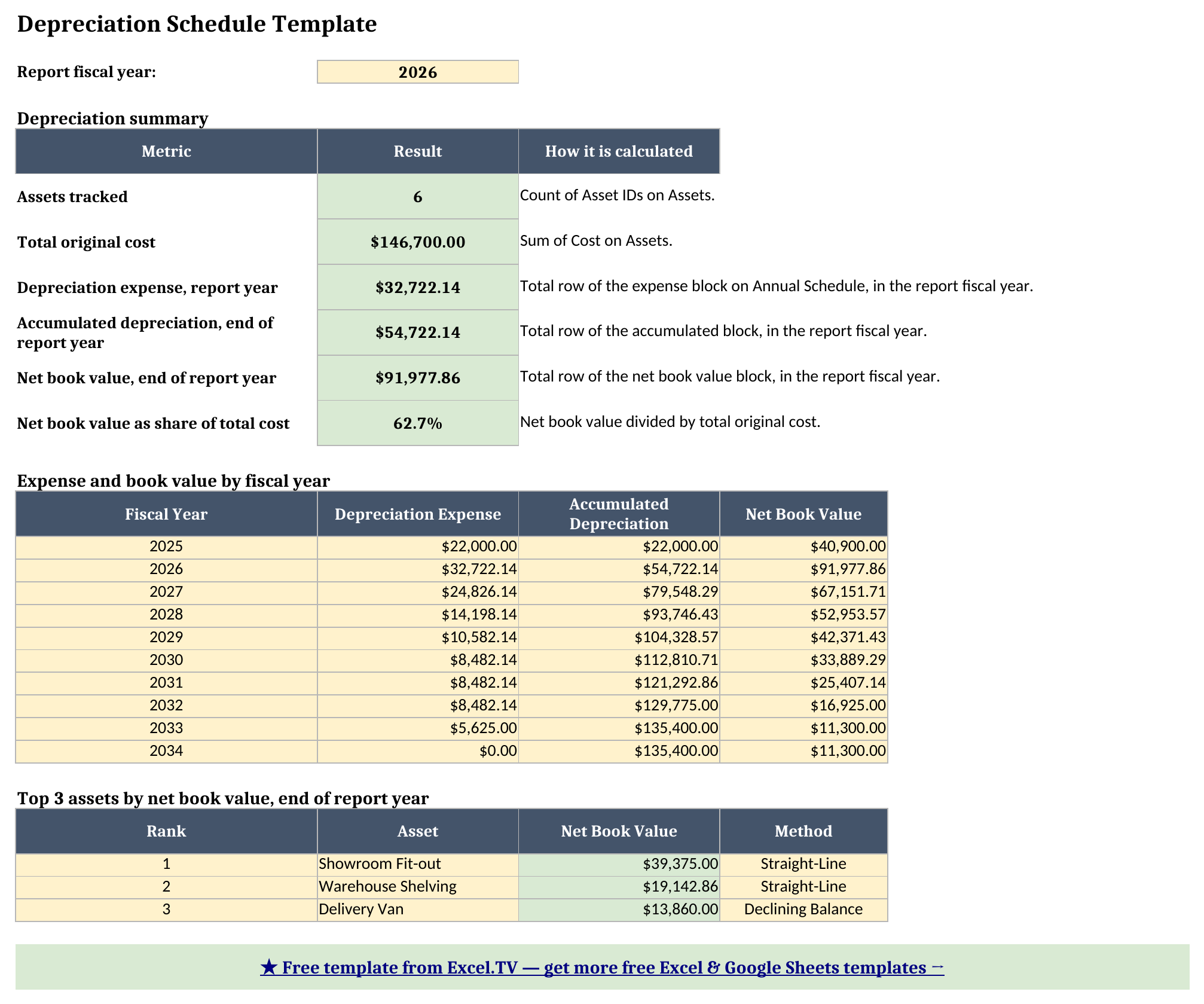
- Dashboard - the one-page output: assets tracked, total cost, report-year expense, accumulated depreciation, net book value, a fiscal-year summary, and the top three assets by net book value.
The only inputs are the rows on Assets and the two year cells on Annual Schedule. Everything else is a formula. I colored input cells blue, calculated cells yellow, and key results green so it is obvious where to type and where not to.
How I set up the Assets sheet
Assets drives everything, so it is the sheet to get right. I used IDs like FA-101 and FA-102 because they are easy to scan and replace. Yours can be asset tags, serial numbers, or whatever your team already uses. The one rule is that each Asset ID appears once.
For each asset you enter the in-service date, the cost, the salvage value, and the useful life in whole years from 1 to 10. Salvage value is what you expect the asset to be worth when you stop using it. It can be zero, as it is for the sample laptops. Then choose the Method from the dropdown.
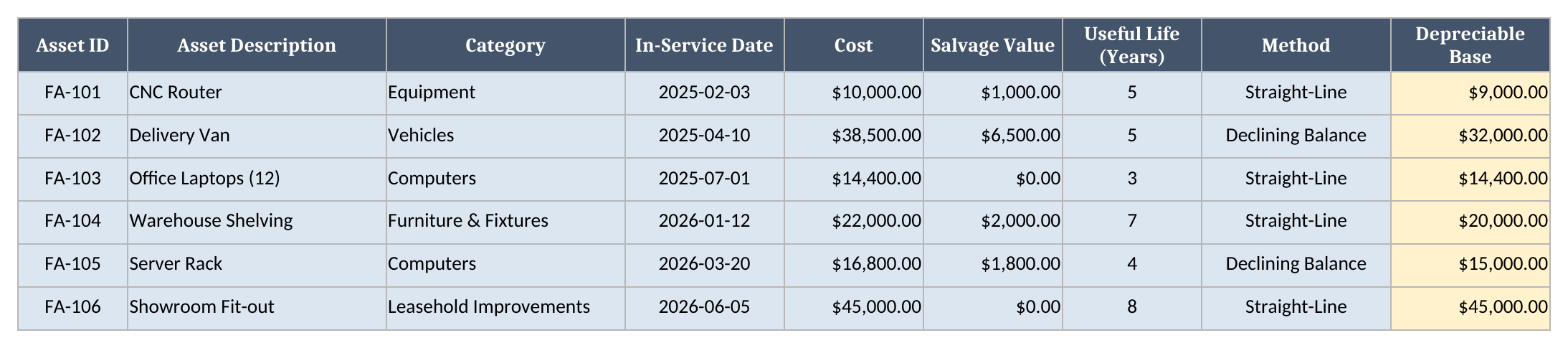
One convention matters, and I want you to see it up front. The workbook uses a full-year convention: an asset takes a full year of depreciation in the fiscal year of its In-Service Date, whatever month it went into service. The CNC router in my sample went into service in February 2025 and takes a full year of expense in 2025. If your policy is mid-year or by-month depreciation, this template will not match it without changes.
How straight-line depreciation works here
Straight-line is the easy one. Take the depreciable base (cost minus salvage) and spread it evenly across the useful life:
Annual depreciation = (Cost - Salvage) / Life
The Straight-Line sheet uses the SLN function for that number and then repeats it for each year up to the asset’s life, with zeros after. The sheet has two blocks: depreciation expense by year of life on top, and net book value at the end of each year below. Net book value is simply cost minus the running total of expense, so it falls in equal steps and finishes exactly on salvage value.
How declining balance works, and why it ends exactly on salvage value
Declining balance front-loads the expense. Double-declining balance applies twice the straight-line rate to the remaining book value each year. For a five-year asset the rate is 2 divided by 5, or 40%, applied to whatever is left. Year one is large, and each later year is smaller.
Plain declining balance has a well-known problem: it never quite reaches salvage value by the end of the asset’s life, and a naive formula can push the book value below salvage. To avoid both, the Declining Balance sheet uses the VDB function. VDB follows the declining-balance rule until the straight-line amount on the remaining balance becomes larger, then switches to straight-line, and it never takes the book value below salvage. The result is a schedule that finishes exactly on salvage value in the last year of life. The sample laptops have zero salvage and a three-year life, and they still end the third year at exactly $0.
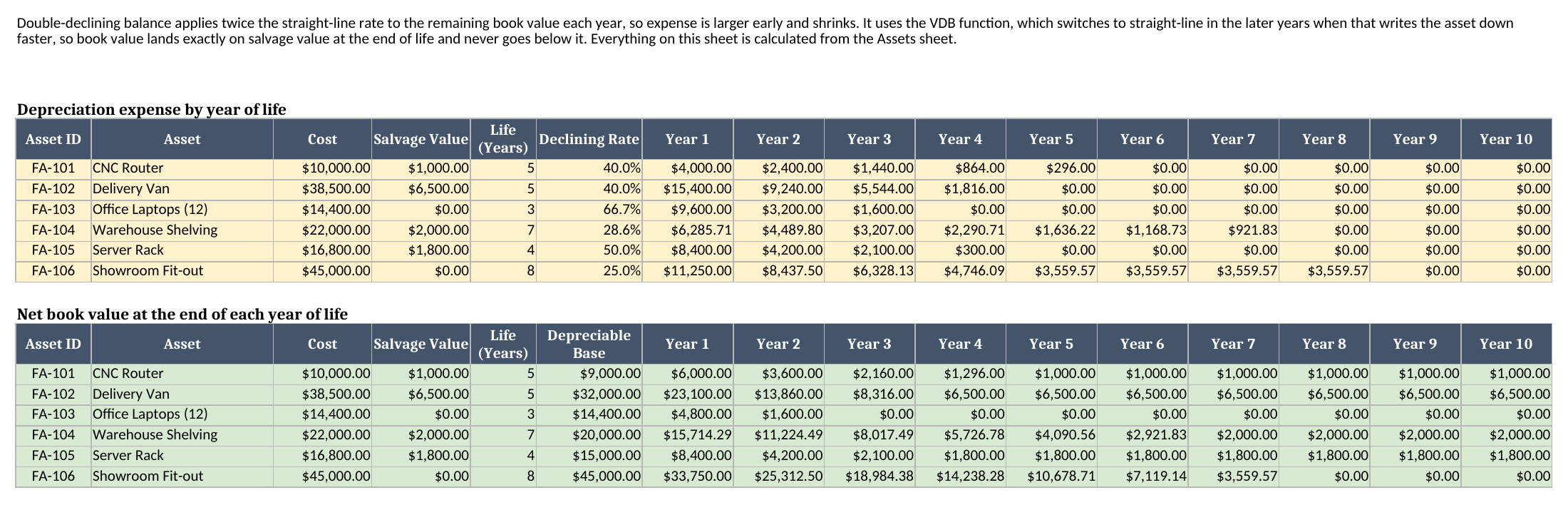
Both method sheets calculate every asset, whatever Method it uses on Assets. I did that on purpose. It lets you compare the two methods for any asset without changing a setting, and it keeps the formulas on each sheet identical from row to row.
How the Annual Schedule picks a method and builds the fiscal-year view
Straight-Line and Declining Balance count in years of life. Annual Schedule turns that into calendar or fiscal years, which is how you actually report. Set the First Fiscal Year (2025 in the sample) and the Report Fiscal Year (2026). The schedule then shows ten fiscal years from the first one.
For each asset and year, the workbook works out how old the asset is: the fiscal year minus the year of its In-Service Date, plus one. If that age is between one and the asset’s life, it reads the matching year from the Straight-Line sheet or the Declining Balance sheet, depending on the Method on Assets. Otherwise the expense is zero. The INDEX function does the lookup, and IF with AND handles the age check. The next block adds up every year of the asset’s life through the fiscal year in the column (accumulated depreciation), including years before the first fiscal year you display. The last block subtracts that from cost (net book value). Each block has a totals row, and the net book value block has a Report-Year NBV column that the dashboard reads.
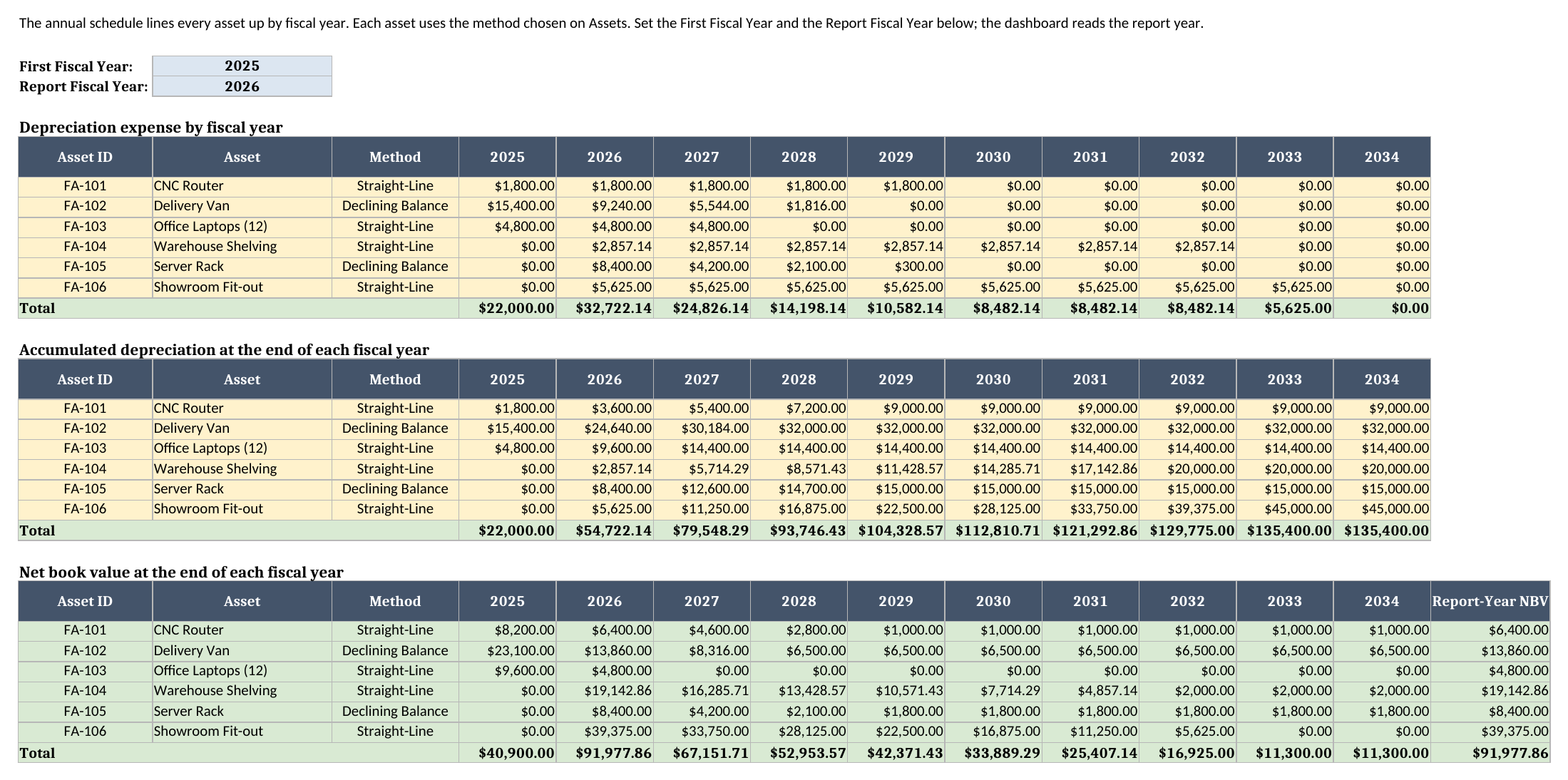
An asset that has not been placed in service yet shows zero net book value in the earlier years, so totals only count what you actually own in that year.
Worked example from the sample workbook
The number I check first is the simplest asset in the sample: a CNC router that costs $10,000.00, has $1,000.00 of salvage value, and a five-year life. Every figure in this section was recalculated from the generated workbook, not typed in by hand.
Under straight-line, the depreciable base is $9,000.00, so annual depreciation is $1,800.00. Net book value starts at $10,000.00 and falls $1,800.00 a year:
| Year of life | Straight-line expense | Straight-line net book value | Declining balance expense | Declining balance net book value |
|---|---|---|---|---|
| 1 | $1,800.00 | $8,200.00 | $4,000.00 | $6,000.00 |
| 2 | $1,800.00 | $6,400.00 | $2,400.00 | $3,600.00 |
| 3 | $1,800.00 | $4,600.00 | $1,440.00 | $2,160.00 |
| 4 | $1,800.00 | $2,800.00 | $864.00 | $1,296.00 |
| 5 | $1,800.00 | $1,000.00 | $296.00 | $1,000.00 |
After year two, net book value is $6,400.00 under straight-line and $3,600.00 under double-declining balance. Declining balance writes off $4,000.00 in year one, more than twice the straight-line amount, and then tapers. In year five it takes only $296.00, because that is all that is left before salvage value. Both methods write off the same $9,000.00 in total. Only the timing differs, and that is the whole reason to choose between them.
The rest of the sample has six assets with a total cost of $146,700.00. The Dashboard output for fiscal 2026, recalculated from the workbook, is:
| Metric | Result |
|---|---|
| Assets tracked | 6 |
| Total original cost | $146,700.00 |
| Depreciation expense, report year | $32,722.14 |
| Accumulated depreciation, end of report year | $54,722.14 |
| Net book value, end of report year | $91,977.86 |
| Net book value as share of total cost | 62.7% |
The expense line is the number your income statement needs. The net book value line is the number your balance sheet needs. The three largest assets by net book value at the end of 2026 are the Showroom Fit-out at $39,375.00, the Warehouse Shelving at $19,142.86, and the Delivery Van at $13,860.00. The Delivery Van uses declining balance in the sample, which is why a vehicle bought in 2025 has already lost more than half of its depreciable value by the end of 2026.
How this differs from a balance sheet and a maintenance register
Three kinds of spreadsheet get confused with a depreciation schedule, and each answers a different question.
A depreciation schedule shows book value over time: expense each year, accumulated depreciation, and what is left. A balance sheet template shows one point in time. It lists the net book value of your fixed assets as a single line next to cash, receivables, debt, and equity. The schedule is where that line comes from. The Dashboard’s net book value for the report year is the number you would carry over.
An asset maintenance register, like the one in the preventive maintenance schedule template, tracks service dates, downtime, and repair cost. It tells you whether equipment is being looked after. It does not tell you what the equipment is worth on the books. If you track the same assets in both workbooks, using the same Asset IDs makes it easy to line them up.
If you are building out a fuller set of books, the accounting template for Excel covers the wider ledger, and this schedule feeds the depreciation lines in it.
How to use this in Google Sheets
This workbook also works as a depreciation schedule google sheets file. Import the .xlsx directly:
- Download the workbook from the Excel template link.
- Open Google Sheets.
- Choose File > Import > Upload.
- Select the downloaded
.xlsxfile. - Choose Insert new sheet(s) or create a new spreadsheet from the upload.
- Review Annual Schedule and Dashboard after import.
No formula substitutions are required. The formulas are limited to SLN, VDB, SUM, IF, AND, INDEX, MATCH, LARGE, YEAR, COUNTA, and arithmetic, all native to Excel and Google Sheets. The Method dropdown and the report-year dropdown are standard data validation, so they carry over too.
After any import I check the visuals. Colors, row heights, and print sizing can render slightly differently between spreadsheet engines. The calculations are plain; the formatting is the part I would look at before sending the file to a team.
How to customize the template safely
Start by replacing the sample rows on Assets. Keep the columns in place, keep Asset ID unique, and enter real dates in In-Service Date, because the Annual Schedule reads the year from that column.
Then set the two year cells on Annual Schedule. The First Fiscal Year decides where the ten-year window starts. It is only a display choice: an asset placed in service before that year still carries its earlier depreciation into accumulated depreciation and net book value. The Report Fiscal Year is a dropdown that lists the years in the window, and the Dashboard reads it. If you want last year’s numbers, change that one cell and everything on the Dashboard follows.
If you add assets beyond the sample six, insert rows inside the existing range on Assets rather than below it, so the ranges the formulas read expand with them. Then copy the formula rows down on Straight-Line, Declining Balance, and all three blocks of Annual Schedule. The Dashboard top-three list and the totals pick the new rows up once the ranges include them.
If you only ever use one method, you can ignore the other sheet. Leave it in place, though. It costs nothing and it makes a useful sanity check when someone asks what the numbers would look like the other way.
Limitations to know before relying on it
A few limitations are worth calling out clearly:
- It is for book and management depreciation, not tax. There is no MACRS, Section 179, bonus depreciation, or local tax logic, and nothing here is tax advice. Use your tax preparer’s schedules for filings.
- Full-year convention only. An asset takes a full year of expense in the year of its In-Service Date. There is no mid-year or mid-month option.
- No disposals or impairments. The workbook does not remove an asset when it is sold or scrapped, and it does not handle write-downs or changes to cost, salvage, or life after the fact.
- Ten-year life and ten-year window. Useful life is a whole number of years from 1 to 10 (the cell rejects decimals you type; a decimal you paste in skips that check and is not supported), and Annual Schedule shows ten fiscal years from the first fiscal year you set. An asset placed in service late in the window may run past it.
- Ranges are sized to the sample. You can add assets, but you need to extend the ranges and copy the formulas down deliberately.
- Top-3 ties are not specially broken. The dashboard list uses
LARGEplusMATCH, so if two assets have exactly the same net book value, the first matching asset appears first.
I built the file this way because a depreciation schedule should be easy to audit. The formulas are visible, the sample data is synthetic, inputs are separated from calculations, and every dashboard number ties back to ordinary rows you can read. That is the difference between a schedule people can maintain and one that falls apart the first time somebody adds a vehicle.
Grab the depreciation schedule template, replace the sample assets with your own, and let the schedule do the arithmetic before your next close.
